
How to manage, edit and delete a data source
Last updated
All your data sources are listed under Data sources in the left sidebar. From there you can open, edit and delete them. What you can change depends on where the data comes from.
Find a data source
The list shows each data source's Name, Source, Columns and when it was last Updated. Use Search data sources to find one by name, and Sort by to order them by creation date, updated date or name. If you have subaccounts or team members, filter by account or user with the All Accounts and All Users menus.
Click a data source to open it. The icons at the end of each row do the following:
- View (eye icon, API, Zapier and n8n data sources only) opens its records and API details.
- Edit (pencil icon) opens it for editing.
- Delete (bin icon) removes it (see below).
CSV data sources
Clicking a CSV data source opens it as a table you can edit like a spreadsheet. Change cells, add or remove rows and columns, rename it at the top, then click Save. Details are in how to create a data source from a CSV file.
API, Zapier and n8n data sources
Clicking one of these, or its pencil icon, opens its settings, where you can rename it. The View icon opens three tabs:
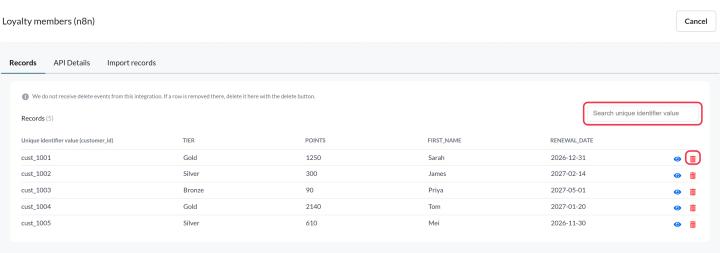
- Records: every record Sendtric has stored. Search by identifier value and click a record to see its full data.
- API Details: the endpoints, the unique identifier field and example requests, to set up or fix whatever sends the data.
- Import records (Zapier and n8n only): upload a CSV to add records in bulk.
To update or remove records from an API data source, send them again or delete them through the API. See how to send records with the Sendtric API.
Zapier and n8n don't send deletions to Sendtric. If a row is removed in your app, find the record on the Records tab and click its delete icon.
Data sources that fetch from your API
Click the data source (or its pencil icon) to change the URL, method, headers or query parameters. Run Test API again before saving. See how to connect a data source to your own API.
Your data source API key
API, Zapier and n8n data sources all use your account's Data source API key. It's created for you the first time you set one up, and you'll find it under Settings → API keys → Data source API key. There you can show it, copy it or click Regenerate.
Regenerating the key stops the old one immediately. Update your code, Zaps and n8n workflows with the new key straight away, or their requests will be rejected.
Delete a data source
- In the list, click the bin icon next to the data source.
- Click Delete in the Delete data source? window.
Deleting can't be undone. If any images use the data source, Sendtric warns you first: those images will stop showing its values. Remove or replace those layers and conditions before you delete it, especially in emails that are already sent.
Related
- What are data sources and how do they work?
- How to send large amounts of data to a data source
- How to change a widget after your email is sent
Was this article helpful?
Thanks for your feedback!