
How to connect Klaviyo, Mailchimp or HubSpot
Last updated
Connecting your Klaviyo, Mailchimp or HubSpot account to Sendtric lets you:
- Browse your real merge tags (Klaviyo profile properties, Mailchimp merge fields, HubSpot contact properties) from inside the widget editors, instead of typing them.
- Push saved widgets straight into your platform as reusable content. See how to push a widget to Klaviyo, Mailchimp or HubSpot.
You sign in through your platform's own approval screen. No passwords or API keys are shared, and you can disconnect at any time.
Connect your account
- In the dashboard, click your email address at the top right and choose Integrations (or open Settings and expand Integrations).
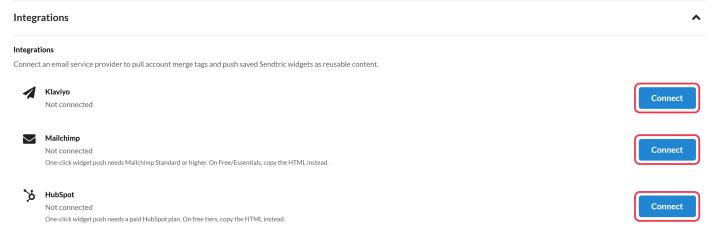
- Next to Klaviyo, Mailchimp or HubSpot, click Connect.
- Click to authorize Sendtric and sign in to your platform when asked.
- You'll come back to Sendtric with the platform shown as Connected.
Browse merge tags
Once connected, merge-tag fields in the editors show a Browse tags button, for example in Image Personalization's ESP Merge Tag field and the weather widget's Klaviyo location fields. Klaviyo custom properties appear once they have values on recent profiles.
Disconnect
Click Disconnect next to the platform in Integrations. Anything you've already pushed stays in your platform.
Good to know
- One-click push needs Mailchimp Standard or higher, or a paid HubSpot plan. On free tiers, connect to browse tags and copy the widget code instead. Klaviyo works on any plan.
- The Integrations section isn't shown to Enterprise subaccount users. Ask an admin on the main account.
- Using a different platform? Copy the widget's code instead. See how to add a widget to your email.
Related
Was this article helpful?
Thanks for your feedback!