
How to use your own background image on a timer
Last updated
Instead of a solid color, a countdown timer can sit on your own image: a brand pattern, a product photo, or a banner designed around the timer. There are two ways to do it.
| Fit to timer size | Full-size background | |
|---|---|---|
| What it does | Your image is resized to fill the timer's area | Your image becomes the whole canvas and you place the timer on it |
| Good for | Textures, gradients and patterns behind the numbers | Banners with your own headline, product shots or illustrations around the timer |
| Plan | Micro and above | Power and above |
Add a background image
- Open your timer and expand Visual Design.
- Under background type, choose Upload background image.
- Click Select background image and pick or upload an image in the Media Library. It must be a still image (PNG, JPEG or WebP, up to 1 MB).
- Leave Fit to timer size ticked for a background that fills the timer, then click Save.
Use a full-size background
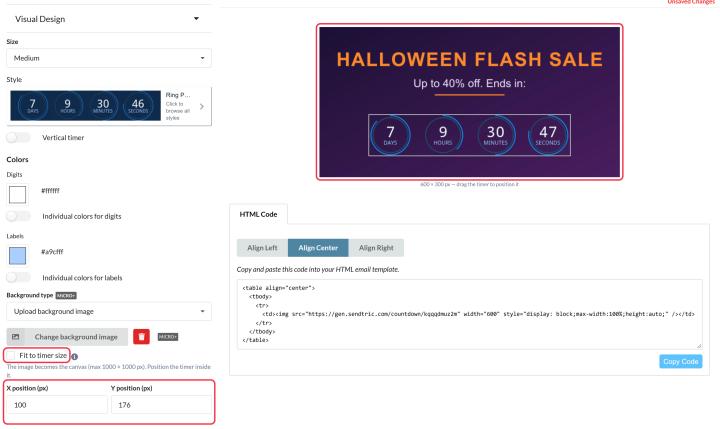
- Untick Fit to timer size.
- The image becomes the canvas, up to 1000 × 1000 pixels.
- Drag the timer in the preview to where you want it, or type X position (px) and Y position (px).
- Click Save.
Full-size backgrounds aren't available for the high-frame-rate motion styles. If your style doesn't allow it, the editor tells you.
Tips
- Design to size. Check the timer's size in the preview (for example "600 × 150 px") and make your image to match, or design a full-size banner and leave a clear space for the timer.
- Leave the labels to Sendtric, or tick Hide labels in Text and Labels if your artwork already includes them.
- Pick contrasting colors for the digits so they stay readable over the busiest part of the image.
To learn more about email countdown timers, see our Email Countdown Timer page.
Related
- Countdown timer customization options
- How to upload and reuse images with the Media Library
- Why is my transparent background countdown timer blurry?
Was this article helpful?
Thanks for your feedback!