
How to save and reuse timer designs with templates
Last updated
A template is a saved timer design: size, style, colors, background, padding, labels, language and fonts. Start each new timer from a template and you only need to set the date.
Create a template
- Open Tools and choose Templates.
- Click Create New.
- Design it in Visual Design and Text and Labels, just like a timer. Templates don't have dates, links or Apple Mail settings, because those belong to each timer.
- Click Save.
Create a timer from a template
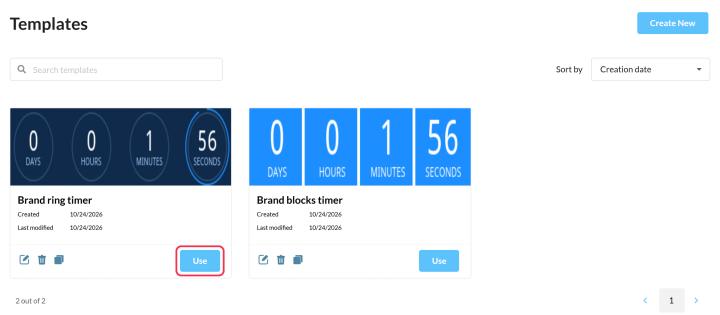
- On the Templates page, click Use on the template, or
- Click Create New on the Timers page and choose the template under Choose Template.
Then set the date and anything else specific to that campaign.
Good to know
- Templates copy the design once. Editing a template later doesn't change timers already made from it.
- Want an exact copy of a timer instead? Click Duplicate in the timer list. You get a copy with every setting, including the date.
- Enterprise subaccounts see a Corporate tab with templates from the main account and a Created by you tab. Some subaccount users must start every timer from a template, which keeps everyone on brand.
To learn more about email countdown timers, see our Email Countdown Timer page.
Related
- How to create a countdown timer and add it to your email
- Countdown timer customization options
- What happens if I archive a widget?
Was this article helpful?
Thanks for your feedback!