
How to set display conditions for rule-based images
Last updated
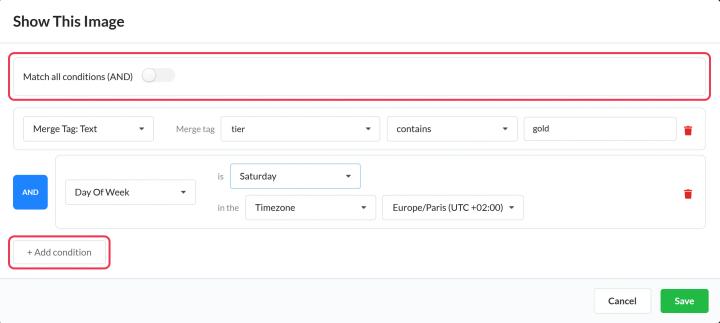
Each image in a rule-based image has display conditions that decide when it shows. Click Update Conditions on an image to open Show This Image.
Add conditions
- Use the toggle at the top to choose Match all conditions (AND) or Match any condition (OR).
- Fill in the first condition row: pick a type and the details. Click + Add condition for more.
- Add more conditions if needed, then click Save.
Condition types
| Condition | Checks | Plan |
|---|---|---|
| Merge Tag: Text | A merge-tag value contains, doesn't contain, equals or doesn't equal your text (not case sensitive) | All plans |
| Merge Tag: Number | A merge-tag number is, is less than or is more than your number | Power and above |
| Merge Tag: Date | A merge-tag date is on, before or after your date | Standard and above |
| Date | Today's date is, is before or is after your date | Standard and above |
| Day Of Week | Today is a certain day | Standard and above |
| Time | The time is at, before or after your time | Standard and above |
| Device | Desktop, smartphone or tablet | Power and above |
| Email Client | Gmail, Yahoo Mail, Outlook or Apple Mail | All plans |
| Operating System | Android, iPhone, Mac, Linux or Windows | All plans |
Merge-tag dates can be written as YYYY-MM-DD, MM/DD/YYYY, an ISO 8601 date or a Unix timestamp. Time conditions with at match that exact minute only, so for a time window use before or after.
Time zones
Date, day and time conditions use the time zone you pick: a fixed Timezone, or a Dynamic Timezone from a merge tag with values like America/New_York. If the merge tag is empty or invalid, UTC is used.
How the image is chosen
- Images are checked from top to bottom, and the first one whose conditions match is shown. Put your most specific images first.
- An image with no conditions is skipped.
- If nothing matches, the Fallback Image shows, or nothing if you haven't added one.
Test with the simulation
Click Preview. Set a simulated date and time, device, email client, operating system and merge-tag values, then click Simulate to see which image would show. Simulations don't count as views.
Merge-tag conditions are the most reliable. Some email apps, like Gmail, load images through their own servers, so device and operating system conditions can't always tell what the subscriber is using.
To learn more about rule-based images, see our Rule-Based Images page.
Related
- How to create a rule-based image
- How to use merge tags in Sendtric widgets
- How to put one widget inside another
Was this article helpful?
Thanks for your feedback!