
How to use merge tags and fallback text in personalized images
Last updated
Each piece of personal text in a personalized image comes from a variable: a name you choose, linked to your email platform's merge tag. When the email is sent, your platform fills in the value and Sendtric draws it onto the image.
Create a variable
- In the editor, click Dynamic Text. The Add Dynamic Text window opens.
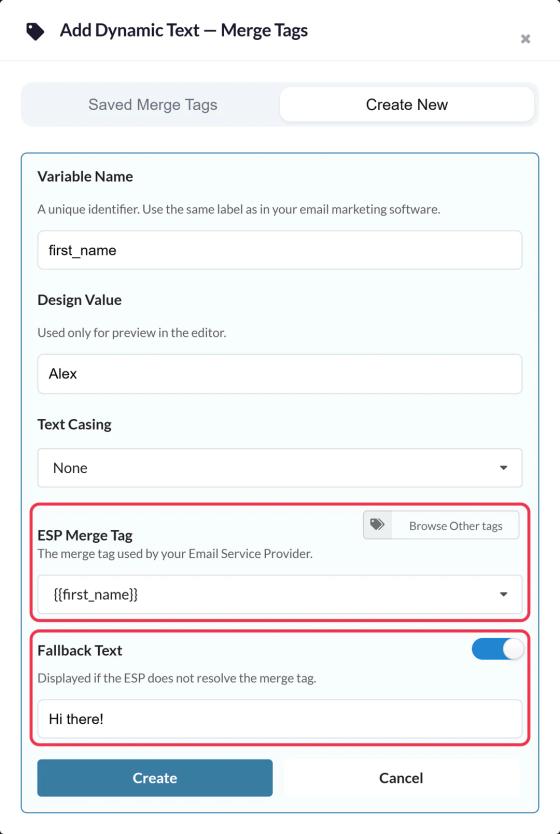
- On Create New, fill in:
- Variable Name: a short name like
first_name. It's saved in lowercase and can't be changed later, so use the same name as in your email platform. - Design Value: a sample value, like "Alex", used only for the preview.
- Text Casing: Title Casing, Uppercase, Lowercase or None.
- ESP Merge Tag: your platform's tag, like
{{first_name}}. If your platform is connected, use Browse tags to pick it. - Fallback Text: turn on and enter what to show if the value is missing (see below).
- Variable Name: a short name like
- Click Create, then + to add it as a layer.
Variables are saved to your account, so you can reuse them in other images from Saved Merge Tags.
Write the full text
Select the layer and use Full Text in Settings to type around the variable, for example "Hi [first_name], your trip starts soon!". The variable chip can't be deleted, but you can type before and after it.
What happens when the value is missing
If a subscriber has no value for a variable (or your platform leaves it empty):
- Without fallback text, the whole layer is hidden, including the words around the variable.
- With fallback text, the layer shows only the fallback text. The words around the variable aren't shown.
So write the fallback as a complete phrase. For "Hi [first_name]!", a good fallback is "Hi there!", not "there".
If your platform doesn't recognize the merge tag, it may send the tag itself, and the image will show something like {{first_name}}. Always send a test to a real contact, and check the merge tag spelling for your platform.
Change a merge tag later
Changing a layer's ESP merge tag updates every layer using that variable. Copy the new code into your email afterwards, because the code contains the merge tags.
To learn more about personalized images, see our Personalized Images for Email page.
Related
- How to create a personalized image
- How to use merge tags in Sendtric widgets
- How to connect Klaviyo, Mailchimp or HubSpot
Was this article helpful?
Thanks for your feedback!