
How to create a critical alert
Last updated
A critical alert is a banner you place in an email before sending, then switch on or off whenever you need to, even after the email has been delivered. While it's off, nothing shows. Turn it on and the banner appears the next time the email is opened. Critical alerts are available on Enterprise plans.
Create an alert
- In the dashboard, open Tools and choose Critical alerts.
- Click Create New.
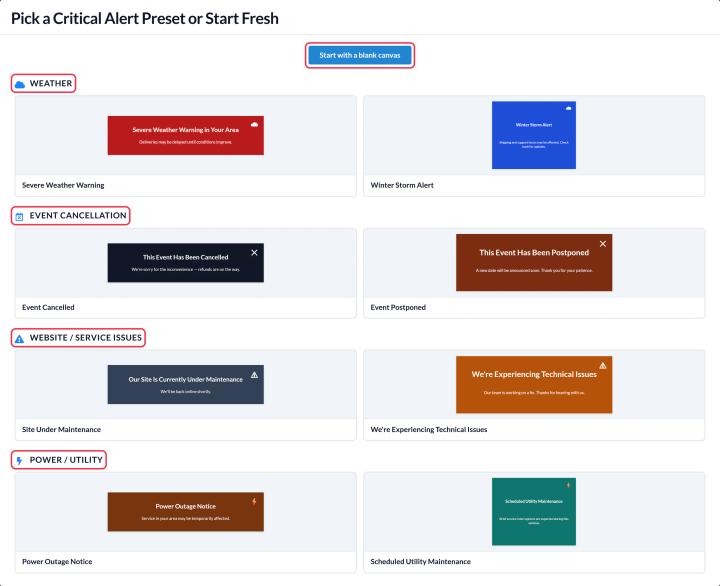
- In Pick a Critical Alert Preset or Start Fresh, choose a preset or Start with a blank canvas. Presets include Severe Weather Warning, Event Cancelled, Event Postponed, Site Under Maintenance, We're Experiencing Technical Issues and Power Outage Notice.
- Edit the banner in the canvas editor. You can add Static Text, Dynamic Text with merge tags, Static Image, Dynamic Image (a rule-based image) and Dynamic Weather, and choose a background image, solid color or transparent background.
- Click Save.
Add it to your email
Choose an alignment, click Copy Code and paste it into an HTML block in your email, usually near the top. While the alert is off, it takes up no space and doesn't count as a view.
Turn it on or off
Use the Manual override switch or schedule time windows. See how to turn a critical alert on or off.
Ideas
- "More stock arriving in 4 days" when a product sells out after you've sent the launch email.
- Shipping delays or a change to an event's venue or time.
- Website or service maintenance and outage notices.
- Severe weather warnings, with a live forecast inside the banner.
To learn more about critical alerts, see our Critical Alerts for Email page.
Related
- How to turn a critical alert on or off
- How to put one widget inside another
- How to add a widget to your email
Was this article helpful?
Thanks for your feedback!