
How to set the right time zone for your timer
Last updated
A Standard timer ends at one exact moment. To get that moment right, set the date, time and time zone for the place your deadline applies to.
Set the time zone and end time
- Open your timer and expand Timer Configuration.
- Under Timer End Date, choose the Time Zone your deadline is in, for example the time zone your sale runs in.
- Set the Date & Time.
- Click Save.
The time zone defaults to your computer's. If you change the time zone after setting a date, Sendtric keeps the same amount of time remaining, so the clock time moves. To keep a specific clock time, change the time zone first, then set the date and time again.
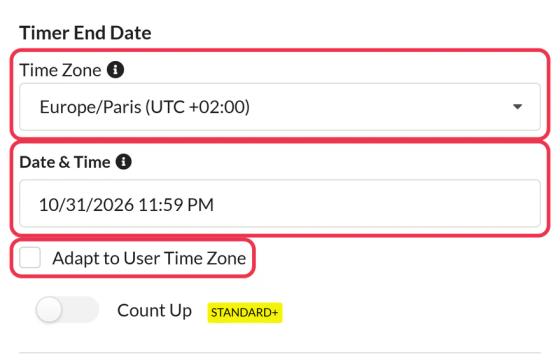
12:00 AM is the start of a day, not the end. For a sale that ends at midnight on 25 September, choose 25 September at 11:59 PM, or 26 September at 12:00 AM.
Adapt to User Time Zone
Tick Adapt to User Time Zone if you want the timer to end at the same clock time for everyone wherever they are, for example 9 PM in New York and 9 PM in London. Sendtric works out each subscriber's time zone from where they open the email.
Gmail loads images through Google's servers, which are in US time zones, so Gmail readers may see the countdown for a US time zone instead of their own. The editor reminds you about this when you turn the option on. If exact local times matter for a lot of Gmail readers, use a fixed time zone or send separate emails per region.
Dynamic and Start on Email Send timers
These timers don't use the Time Zone setting or Adapt to User Time Zone. Their end time comes from the code in your email, as a Unix timestamp or an ISO 8601 date and time.
- Unix timestamps have no time zone. A timestamp like
1798156740is one moment, the same everywhere (24 December 2026 at 11:59 PM UTC, or 6:59 PM in New York). Start on Email Send uses the send time this way, so it's right for everyone. - ISO 8601 dates carry the time zone at the end, like
2026-12-24T23:59:00-05:00for New York in winter. Without one, the time is read as UTC. - To shift the time, add seconds after the merge tag (
{{ event_date }}+18000adds 5 hours) or subtract them with+-. If your platform outputs an ISO 8601 date without a time zone, type the offset after the tag:{{ event_time }}-05:00.
Fixed offsets don't change for daylight saving time, so use the one for the date the timer ends. See how to set up a Dynamic or Start on Email Send timer for every format and more examples.
Fix a mistake after sending
Open the timer, correct the time zone or end time and save. Sent emails show the corrected countdown the next time they're opened.
To learn more about email countdown timers, see our Email Countdown Timer page.
Related
- How to create a countdown timer and add it to your email
- How to change a widget after your email is sent
- Which countdown timer type should I use?
- How to set up a Dynamic or Start on Email Send timer
Was this article helpful?
Thanks for your feedback!