
How to create a countdown timer and add it to your email
Last updated
A Sendtric countdown timer is an animated image that shows the exact time left whenever your email is opened. This guide covers the whole process, from a new timer to a tested email.

Step 1: Create the timer
- In the dashboard, open Tools and choose Timers.
- Click Create New.
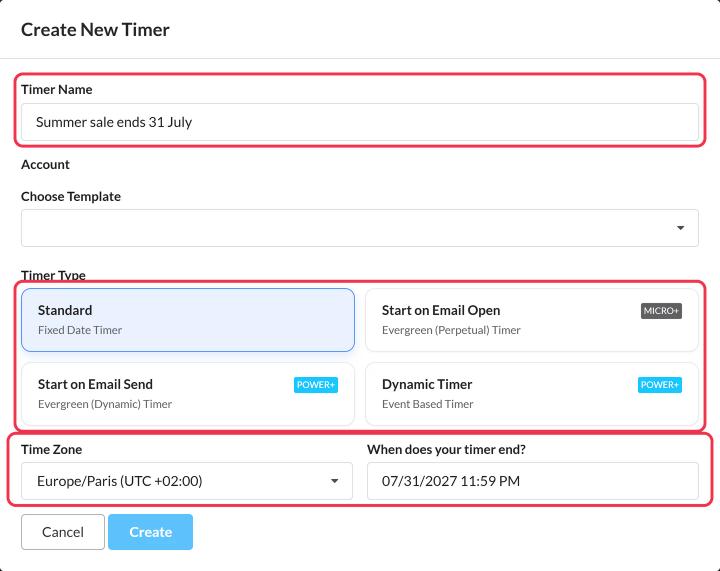
- In Create New Timer, fill in:
- Timer Name, for example "Summer sale ends 31 July". Subscribers don't see this.
- Choose Template, if you've saved a design as a template. Otherwise leave it empty.
- Timer Type. Most campaigns use Standard, which counts down to one date and time. See which countdown timer type should I use?
- For a Standard timer, the Time Zone and When does your timer end?. For Start on Email Open, the duration in days, hours, minutes and seconds.
- Click Create. The timer editor opens.
Step 2: Design it
The editor has four sections on the left. The preview on the right updates as you go.
- Timer Configuration: the type, end date and time zone. You can change these any time, even after sending.
- Visual Design: size, style, colors, background and what shows when the timer ends.
- Text and Labels: language, labels, which units to show (days, hours, minutes, seconds), and fonts.
- Additional Settings: Apple Mail options, the last-frame image, and links.
See countdown timer customization options for every design setting.
Step 3: Choose what happens when it ends
In Visual Design, the Expiration option decides what subscribers see once the timer reaches zero: zeros, your own image, your own text, or nothing. See how to choose what shows when a timer ends.
Step 4: Save and add it to your email
- Click Save.
- Below the preview, choose an alignment and click Copy Code.
- Paste the code into an HTML block in your email platform and send yourself a test.
Full details are in how to add a widget to your email.
Create a new timer for each campaign, even if it looks the same as the last one. Click Duplicate in the timer list or use a template. Each campaign keeps its own view count, and Apple Mail is less likely to show a timer it remembers from an earlier email.
Good to know
- Each open shows 60 seconds of countdown, then the animation repeats. See why does my countdown timer repeat after 60 seconds?
- Apple Mail can show an out-of-date timer when an email is reopened. See my countdown timer is not showing correctly on Apple Mail.
- Made a mistake? Edit the timer and save. Sent emails update on the next open.
To learn more about email countdown timers, see our Email Countdown Timer page.
Related
- Which countdown timer type should I use?
- How to set the right time zone for your timer
- How to make a timer clickable with Dynamic Links
- How to add a countdown timer to abandoned cart emails
Was this article helpful?
Thanks for your feedback!