
How to upload and reuse images with the Media Library
Last updated
The Media Library holds every image you upload to Sendtric. Upload an image once and you can use it in any widget: timer backgrounds, poll options, personalized images, rule-based images and more. It opens whenever you choose an image in an editor.
Upload an image
- In any editor, click the button to choose an image (for example Choose from Library or Add Image). The Media Library opens.
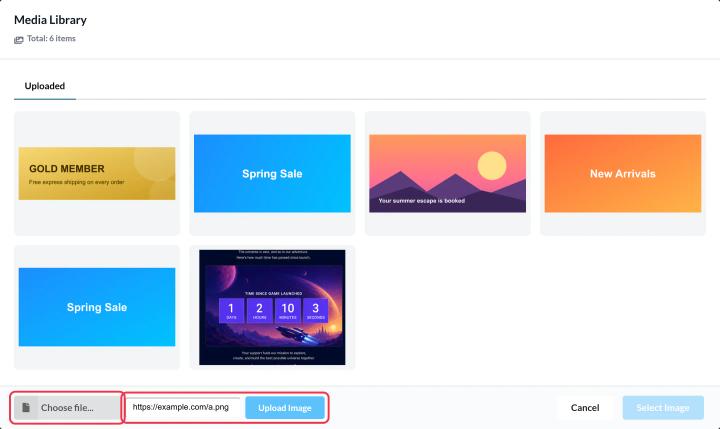
- On the Uploaded tab, click Choose file... and pick an image from your computer. Or paste a direct link to an image into Paste image URL... and click Upload Image. Sendtric copies the image into your library.
- Click the image, then Select Image.
Supported images
- Formats: PNG, JPEG, GIF and WebP.
- Size: up to 1 MB per image. If an image is bigger, compress it or resize it first. A free tool like Squoosh works well.
- Timer backgrounds need a still image, so animated GIFs aren't available there.
- Image links must point straight to the image file. If you see "Could not upload image from URL", open the link in your browser and copy the address of the image itself.
Use a widget as an image
Some editors let you place one of your existing widgets instead of an uploaded image. The Media Library then shows extra tabs: Timers, Image Personalization Widgets, Rule-Based Images and Weather. For example, a rule-based image can show a different countdown timer to different subscribers. See how to put one widget inside another.
Shared across your account
Everything you upload is available everywhere in your account, so you don't need to upload the same logo or product photo twice.
Related
- How to use your own background image on a timer
- How to create a personalized image
- How to create a rule-based image
Was this article helpful?
Thanks for your feedback!