
How to sign up or log in with Google or Microsoft
Last updated
You can create a Sendtric account, or sign in to one, with your Google or Microsoft account instead of a password. Click Continue with Google or Continue with Microsoft on the sign-up or login page and approve the sign-in with Google or Microsoft.
What happens the first time
Sendtric looks at the email address on your Google or Microsoft account:
- No Sendtric account with that email yet: we create a new account on the Free plan and sign you in. There's no activation email to wait for, because Google or Microsoft has already confirmed your email address.
- A Sendtric account already uses that email: your Google or Microsoft account is linked to it, and you're signed in to your existing account with all your widgets.
From then on, either button signs you straight in.
Which accounts work
- Google: any Google account with a confirmed email address.
- Microsoft: personal Microsoft accounts (like Outlook.com), and work or school accounts that have a verified email address. Some work or guest accounts don't share a usable email address. If you see "Microsoft email not usable", sign up or sign in with your email and a password instead.
Manage linked sign-ins
Open Settings and expand Account settings. Under Sign-in methods you can see:
- Email and password: whether a password is set, with Set a password or Change password.
- Google and Microsoft: Connected or Not connected, with Unlink for a connected one.
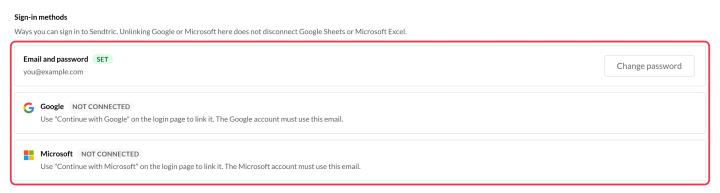
You can't unlink your only way to sign in. If you signed up with Google or Microsoft, set a password first, then unlink. To link the other provider, sign out and use its Continue with button on the login page. It must use the same email address as your Sendtric account.
Unlinking Google or Microsoft here only affects signing in. It doesn't disconnect Google Sheets or Microsoft Excel if you use them with your widgets.
Two-factor authentication
If you turn on two-factor authentication, Sendtric also asks for a code after you sign in with Google or Microsoft. An authenticator app gives the strongest protection. See how to set up two-factor authentication.
If sign-in doesn't work
| Message | What to do |
|---|---|
| Sign-in cancelled | You closed or declined the Google or Microsoft window. Try again, or sign in with your password. |
| Verified email required | Your Google account doesn't share a confirmed email address. Confirm it with Google, or use email and password. |
| Microsoft email not usable | Your Microsoft account has no verified email Sendtric can use. Use email and password instead. |
| This account is archived | Google and Microsoft can't sign in to an archived account. Email support@sendtric.com if you need it restored. |
| Sign-in could not be completed | The sign-in took too long or the link was already used. Start again from the login page. |
| Secure sign-in is unavailable in this browser | Try a different, up-to-date browser. |
Changing your email address
Your Google or Microsoft account must use the same email as your Sendtric account, so changing your Sendtric login email unlinks them. See how to change my login email.
Related
- How to sign up and log in to Sendtric
- How to set up two-factor authentication
- How to manage your account settings
Was this article helpful?
Thanks for your feedback!