
How to create a social proof counter
Last updated
A social proof counter shows a running total in your email, like "1,240 people viewed this item". It counts views of the counter itself or clicks on a link, and shows the latest number each time the email is opened. Available on Power and Enterprise plans.
Create a counter
- In the dashboard, open Tools and choose Social proof counters.
- Click Create New.
- In Pick a Social Proof Preset or Start Fresh, choose a preset like Viewing Now, Trending Destination, Product Shoppers or Fan Favorite, or Start with a blank canvas.
- Select the Social Counter layer (or add one) and set it up as below.
- Click Save, then copy the code into your email.
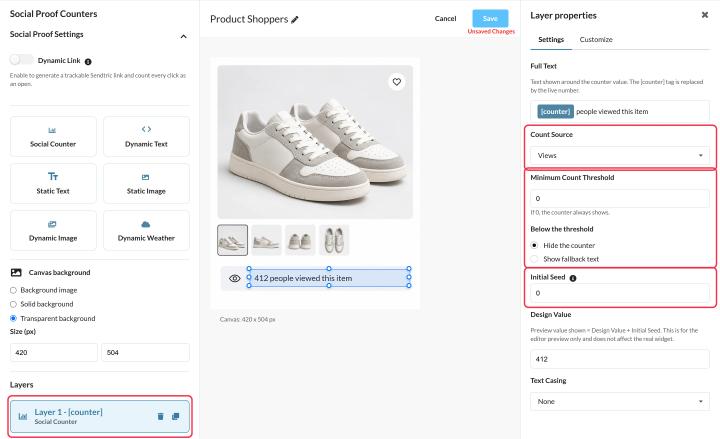
Counter settings
- Full Text: the words around the number.
[counter]is replaced by the live number, for example "[counter] people viewed this item". - Count Source:
- Views: every time the counter loads, including repeat opens.
- Opens: clicks on the counter's Dynamic Link (see below).
- Minimum Count Threshold: hide the counter, or show fallback text (up to 50 characters), until the count reaches this number. Leave it at 0 to always show.
- Initial Seed: a starting number added to the real count, so a new counter doesn't start at zero. With a real count of 1,240 and a seed of 500, it shows 1,740.
- Text Casing, fonts and colors, like any text layer.
Count clicks with a Dynamic Link
- In Social Proof Settings, turn on Dynamic Link.
- Enter the Destination URL (it must start with
https://). - Click Save and copy Your Dynamic Link URL with Copy URL.
- Use that link on a button or link in your email. Each click is counted, then the person is taken to your destination.
You can change the destination after sending.
Good to know
- The number shown is the total since the counter was created, not people viewing right now. Word your text to match, for example "people have viewed this".
- New views and clicks show up within a minute or two. The number in an open email doesn't change until it's opened again.
To learn more about social proof counters, see our Social Proof Counters for Email page.
Related
Was this article helpful?
Thanks for your feedback!