
How to see poll results and download reports
Last updated
Your poll results are on the Polls page. You can see a chart of the answers at any time and download them as a CSV.
See the results
- Open Tools and choose Polls.
- Find your poll. The Responses column shows how many votes it has.
- Click Report in that column.
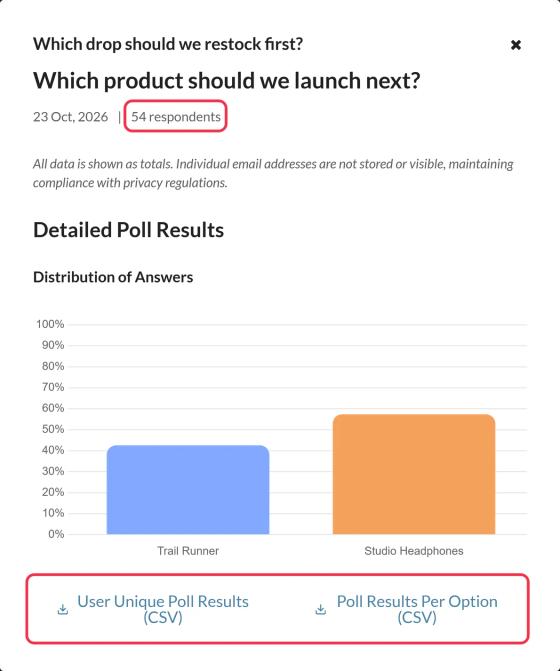
The report shows the number of respondents, the date range, and a chart of the answers: a bar chart for multiple choice and rating polls, a pie chart for yes/no polls. It shows totals only.
Download the results
The report has two downloads:
- Poll Results Per Option (CSV): each option and its number of votes.
- User Unique Poll Results (CSV): each subscriber's ID and the answer they chose. This one appears only if Track unique responses? was turned on in the poll's settings. See how to set up the UID merge tag.
Use the per-subscriber CSV to bring answers back into your email platform. For example, import it as a custom field and send each group a follow-up that matches their answer.
How votes are counted
- Each subscriber has one vote per poll. If they vote again, their latest answer replaces the earlier one.
- Percentages are each option's share of all votes on the poll's current options.
- Votes stop being accepted after the poll's end date. Archived polls stop showing altogether.
Responses and views
The Total Views column counts how often the poll was loaded, which is usually when the email is opened. Responses count votes. A subscriber who opens the email several times within 2 hours counts as one view. Read more in how widget views are counted.
Managing your polls
- Active Polls and Archived Polls tabs separate current and finished polls. Archived polls stop showing in emails, including ones already sent.
- Duplicate copies a poll, which is handy for reusing a design in your next campaign while keeping each campaign's results separate.
To learn more about email polls, see our Email Poll Widget page.
Related
- How to create an email poll and add it to your email
- How to set up the UID merge tag and track unique responses
- How to choose what voters see after they vote
Was this article helpful?
Thanks for your feedback!