
How to create a rule-based image
Last updated
A rule-based image shows one of several images to each subscriber, chosen when they open the email. Use it to show a different banner by loyalty tier, location, day of the week, device or anything in your subscriber data, all from one piece of code.
Step 1: Create it and add images
- In the dashboard, open Tools and choose Rule-based Images.
- Click Create New.
- Click Add Image and choose an image from the Media Library (JPG or PNG, up to 1 MB, ideally no larger than 1000 × 1000 pixels). An option can also be another widget, like a countdown timer. See how to put one widget inside another.
- Add an image for each version you want to show. You can have up to 2 on Free, 4 on Micro, 10 on Standard and as many as you like on Power and above.
Add the images in priority order, because they're checked from top to bottom.
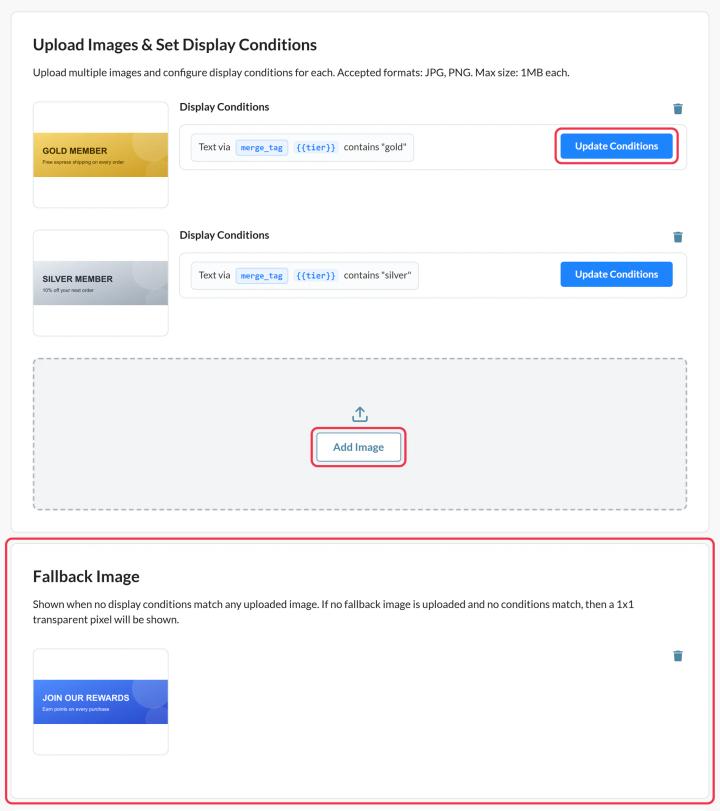
Step 2: Set when each image shows
On each image, click Update Conditions and add one or more conditions, like "Merge Tag: Text contains gold" or "Day Of Week is Saturday". See how to set display conditions for rule-based images for every option.
An image without conditions is never shown, so give each image at least one condition.
Step 3: Add a fallback image
Under Fallback Image, click Upload Fallback Image (Micro and above). It shows when no conditions match. Without one, nothing shows for those subscribers.
Step 4: Preview, save and add it to your email
- Click Preview and use the simulation to test different dates, devices and merge-tag values. It doesn't count as a view.
- Click Save, then Copy code.
- Paste the code into an HTML block in your email and replace each
{{VARIABLE_NAME}}placeholder with your platform's merge tag. How to use this? next to the code explains it.
Ideas
- A different store or destination image by city.
- Loyalty-tier banners: gold, silver and bronze.
- Lunch offers before noon and dinner offers after.
- A different timer design per segment.
To learn more about rule-based images, see our Rule-Based Images page.
Related
- How to set display conditions for rule-based images
- How to create a personalized image
- How to use merge tags in Sendtric widgets
Was this article helpful?
Thanks for your feedback!