
How to set up a Dynamic or Start on Email Send timer
Last updated
These two timer types count down to a time your email platform puts into the timer's code, so every subscriber can have a different deadline. Both are available on Power and above.
- Start on Email Send: counts down a set duration from the moment the email is sent. Ideal for automated emails that go out at different times, like abandoned cart or trial reminders.
- Dynamic Timer: counts down to a date and time you have for each subscriber, like a reservation, renewal or appointment.
Start on Email Send
- Choose Start on Email Send under Timer Types in Timer Configuration.
- Set the Timer Duration, for example 24 hours.
- In Email Service Provider, choose your platform. Sendtric adds its send-time merge tag to the code.
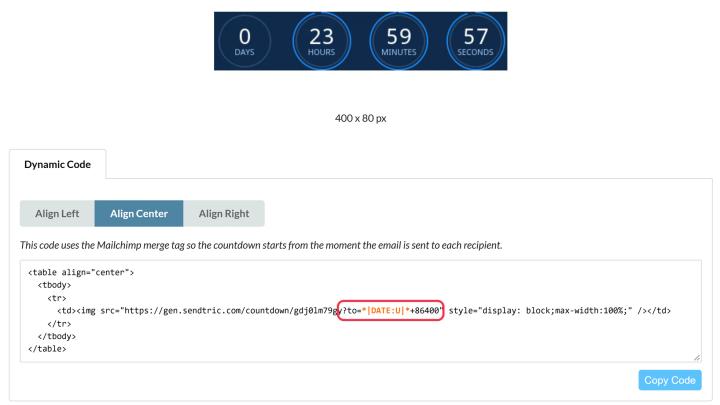
- Click Save and copy the code from the Dynamic Code tab.
The code ends with ?to= followed by the send-time tag and your duration in seconds, for example ?to=*|DATE:U|*+86400 for Mailchimp (86400 seconds is 24 hours). If you see {UNIX TIMESTAMP}, replace it with your platform's tag for the current time, as a Unix timestamp or an ISO 8601 date and time. Keep the +86400 (or your own duration) after it.
Dynamic Timer
- Choose Dynamic Timer under Timer Types.
- Click Save and copy the code from the Dynamic Code tab.
- In your email, replace the value after
?to=with a merge tag that holds each subscriber's date.
Date formats you can use
Both timer types accept a Unix timestamp or an ISO 8601 date and time after ?to=. Use whichever your email platform can output.
| Format | Example | Good to know |
|---|---|---|
| Unix timestamp in seconds | 1798156740 | The number of seconds since 1 January 1970 (UTC) |
| Unix timestamp in milliseconds | 1798156740000 | Detected automatically |
| ISO 8601 with a time zone | 2026-12-24T23:59:00-05:00 | The time zone is the offset from UTC at the end |
| ISO 8601 in UTC | 2026-12-24T23:59:00Z | Z is the same as +00:00 |
| ISO 8601 without a time zone | 2026-12-24T23:59:00 | Read as UTC |
| Any of these plus seconds | {{ cart_time }}+3600 | Adds one hour |
An ISO 8601 date needs a T between the date and the time, and a time (seconds are optional, so 2026-12-24T23:59 works). A date on its own, like 2026-12-24, or a space instead of the T isn't accepted, and the timer won't show.
How time zones work
- A Unix timestamp has no time zone. It's a single moment, the same everywhere.
1798156740is 24 December 2026 at 11:59 PM UTC, which is 6:59 PM in New York and 12:59 AM on 25 December in Paris. Every subscriber counts down to that same moment. That's why Start on Email Send needs no time zone: it counts from the moment the email was sent. - An ISO 8601 date carries its time zone at the end.
-05:00is five hours behind UTC (New York in winter),+01:00is one hour ahead (Paris in winter), andZis UTC. With nothing at the end, Sendtric reads the time as UTC. - The editor's time zone settings don't apply. These timers take their end time only from the code, so the Time Zone and Adapt to User Time Zone options used by Standard timers have no effect here.
Offset the time zone
If your platform gives you the right date but in the wrong time zone, adjust it in the code. Common cases:
- Add or subtract hours. Add seconds after the merge tag with
+, or subtract them with+-. This works for Unix timestamps and ISO 8601 dates. For example, if your platform stores a date as midnight UTC but your deadline is midnight in New York (5 hours behind UTC in winter), use{{ event_date }}+18000to end 5 hours later. - Add the time zone your platform leaves out. If your platform outputs an ISO 8601 date with no time zone, like
2026-12-24T23:59:00, type the offset straight after the merge tag:{{ event_time }}-05:00. Only do this when the output has no time zone of its own. - Combine both.
{{ event_time }}-05:00+3600reads the time as New York time and then adds an hour.
Useful values: 1 hour is 3600, 5 hours is 18000, 24 hours is 86400 and 7 days is 604800 seconds.
Offsets don't follow daylight saving time. New York is -05:00 in winter and -04:00 in summer, so use the offset for the date the timer ends. Where you can, have your platform output the time with its own time zone instead.
Check it before you send
- If
tois missing, the timer shows a 2-minute countdown. If the value isn't a valid date, the timer doesn't show at all. Always send a test. - Check your platform puts the time in the time zone you expect. Klaviyo's
todayvariable, for example, can be in a different time zone. Our guide on adding dynamic timers in Klaviyo has workarounds.
We have platform guides for Mailchimp and Iterable too.
To learn more about email countdown timers, see our Email Countdown Timer page.
Related
- Which countdown timer type should I use?
- How to add a countdown timer to abandoned cart emails
- How to use merge tags in Sendtric widgets
- How to set the right time zone for your timer
- How to make a timer clickable with Dynamic Links
Was this article helpful?
Thanks for your feedback!