
How to design your poll: options, layers and live results
Last updated
Each poll option is a small canvas you design in the editor. Sendtric turns it into an image in your email, and redraws it every time the email is opened, which is what makes live results possible. If you haven't created a poll yet, start with how to create an email poll.
Pick the option to edit
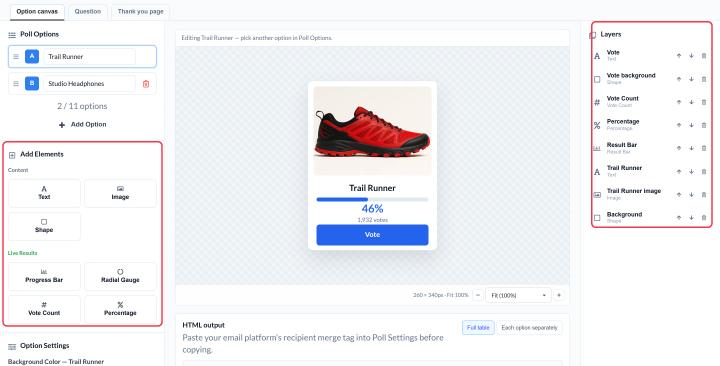
Click an option in Poll Options on the left. The canvas in the middle shows that option. Its background color is in Option Settings under Background Color.
Finish the design of your first option, then click Add Option. New options copy the last one, so you only need to change the text or image.
Add elements
Use Add Elements on the left:
| Element | Use it for | Plan |
|---|---|---|
| Text | The answer, labels, small print | All plans |
| Image | Product photos, icons, logos (from your Media Library, up to 1 MB) | Standard and above |
| Shape | Rectangles, circles, diamonds or rounded rectangles behind text, or as buttons | Standard and above |
| Progress Bar, Radial Gauge, Vote Count, Percentage | Live results | Power and above |
To change an element, select it on the canvas:
- Move or resize it by dragging, or type exact X, Y, width and height values.
- Style text with the toolbar: font, size, bold, italic, underline, alignment, capitalization and color.
- Fit images with Cover, Contain or Fill, and rotate or trim them.
- Arrange layers in the Layers panel: bring an element forward, send it back or delete it.
Fonts: polls use Lato on the Free plan. Micro and above can choose from the full font library, and Enterprise accounts can also use their own uploaded fonts.
Set the size and layout
In Poll Settings:
- Canvas Size sets the width and height of each option, from 1 to 1000 pixels. The default is 280 × 280.
- Layout puts options side by side with Horizontal (Row), or stacks them with Vertical (Column).
Most emails are about 600 pixels wide, so keep a horizontal row within that. Two options at 280 pixels fit comfortably. For three or more, make each option smaller or switch to Vertical (Column).
Add a question above the options
Open the Question tab and turn on Include question above options. You get a separate canvas (80 pixels tall by default, as wide as your options) with its own background color and text. If the question is turned on, it can't be empty when you save.
Show live results
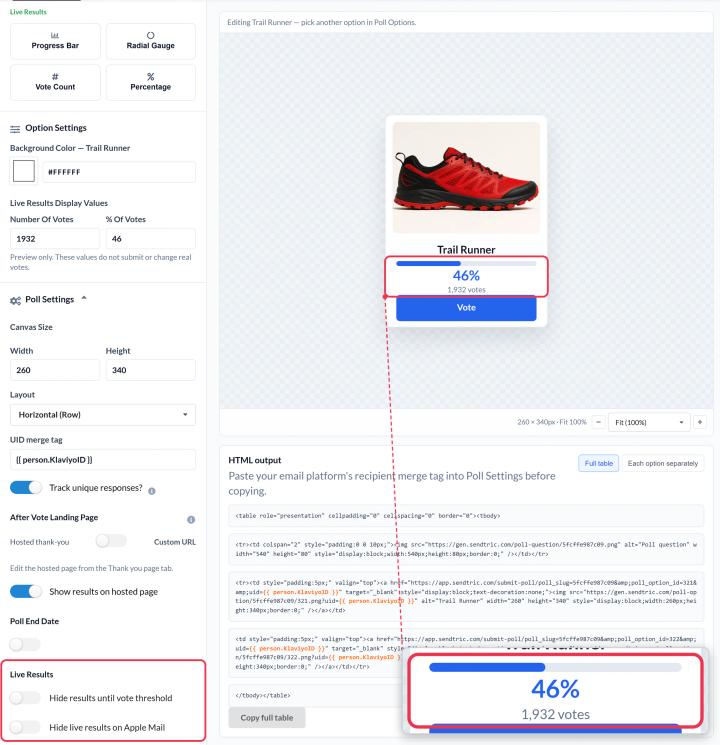
On Power and above, add Progress Bar, Radial Gauge, Vote Count or Percentage elements to each option. They show how everyone has voted so far, and update whenever the email is opened.
- Live Results Display Values in Option Settings set the numbers you see in the editor. They're for previewing your design only and don't change real votes.
- Results reflect new votes within about a minute.
- Percentages show each option's share of all votes in the poll.
- Hide results until vote threshold keeps results hidden until the poll has at least the number of Minimum votes you set (100 by default), so early voters don't see a nearly empty result.
- Hide live results on Apple Mail hides results for Apple Mail readers. Apple Mail can keep showing the results from the first time the email was opened, so they may look out of date there.
Preview your poll
Click Save, then Preview to see the real images as they'll appear in an email. If you see "Save your changes to update the email preview", save again first.
To learn more about email polls, see our Email Poll Widget page.
Related
- How to create an email poll and add it to your email
- How to choose what voters see after they vote
- How to see poll results and download reports
Was this article helpful?
Thanks for your feedback!