
How to create a fallback GIF for Apple Mail
Last updated
The Fallback GIF Editor creates an animated image that Apple Mail readers see instead of your live timer. Rather than a ticking countdown that Apple Mail might show out of date, it flips through the dates until your deadline, like "3 days left", "2 days left", "Ends today". Available on Power and above.
Open the editor
- Open your timer and expand Additional Settings.
- Under Apple Mail Fallback Option, choose Create your own fallback GIF and confirm.
- Click Open GIF Editor.
Design your GIF
- Pick a preset to start from, such as Flash Sale, Black Friday, Christmas or Summer Sale, or build from scratch.
- Under GIF Settings, set the Start Date and End Date (up to 60 days apart) and how many Seconds per frame each date shows (1 to 5).
- Choose a Background: a solid color, a gradient, one of the themed images, or your own upload (up to 1 MB).
- Add up to 8 Elements:
- Text for headlines like "Sale ends soon".
- Date Text to show each frame's date in the format you choose.
- Calendar Date for a calendar-page style date.
- Badge and Progress for extra emphasis.
- Choose a Transition and Speed for date elements, for example Flip, Fade or Calendar Tear.
- Check each frame with the preview, then click Generate & Save Fallback GIF.
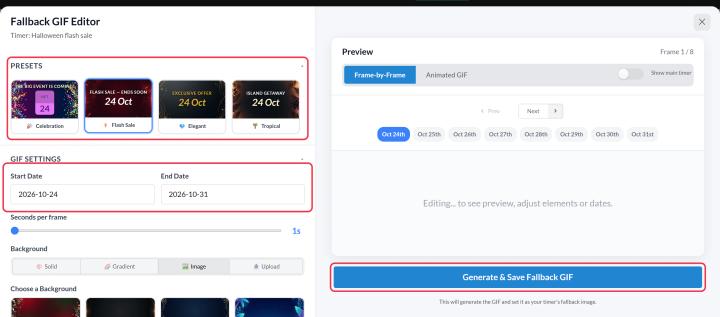
Click Save on the timer when you're done. Back in Additional Settings you can Edit GIF or Remove GIF later.
Limits
- The date range can be up to 60 days, and the whole GIF up to 60 seconds long.
- For long ranges (more than about 20 days), slow transitions are switched to fast so the GIF stays within the length limit.
- If you switch the timer between horizontal and vertical afterwards, the editor asks you to re-render the GIF so it matches the timer's shape.
To learn more about email countdown timers, see our Email Countdown Timer page.
Related
- My countdown timer is not showing correctly on Apple Mail
- How to create a countdown timer and add it to your email
Was this article helpful?
Thanks for your feedback!