
How to set up a Start on Email Open timer
Last updated
A Start on Email Open timer counts down a set length of time, starting when each subscriber opens your email. It's great for personal offers like "Your discount expires in 24 hours" in welcome emails and automations. Available on Micro and above.
Set it up
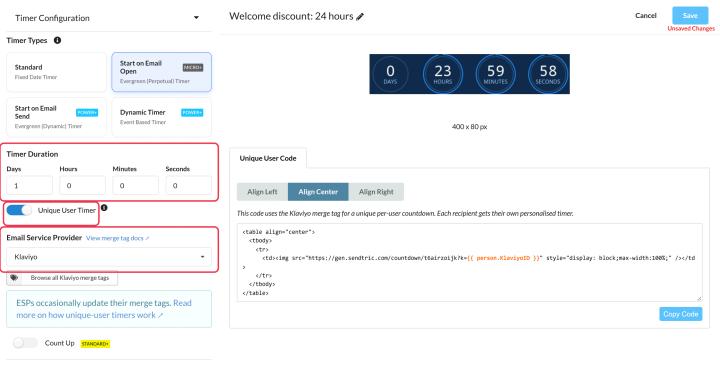
- Create a timer and choose Start on Email Open as the Timer Type, or open an existing timer and choose it under Timer Types in Timer Configuration.
- Set the Timer Duration in days, hours, minutes and seconds (up to 999 days).
- Turn on Unique User Timer.
- In Email Service Provider, choose the platform you send with. Sendtric adds that platform's unique subscriber ID merge tag to the code for you.
- Click Save, then copy the code from the Unique User Code tab and paste it into your email.
Why Unique User Timer matters
- On: each subscriber's countdown starts on their first open and keeps counting from there. Open again tomorrow and it shows a day less.
- Off: the countdown starts from the full duration on every open. That suits "This offer is for the next 10 minutes" style messages, but it resets each time.
With Unique User on, the code includes ?k= followed by your platform's merge tag, for example ?k={{ person.KlaviyoID }}. If you see {UNIQUE IDENTIFIER} instead, Sendtric doesn't know your platform's tag yet: replace it with any merge tag that's unique per subscriber. See how to use merge tags in Sendtric widgets.
Test it
Send yourself a test, open it, wait a few minutes and open it again. With Unique User on, the second open should show less time left, not a fresh countdown.
To learn more about email countdown timers, see our Email Countdown Timer page.
Related
- Which countdown timer type should I use?
- How to add a countdown timer to abandoned cart emails
- How to make a timer clickable with Dynamic Links
- How to create a count-up timer
Was this article helpful?
Thanks for your feedback!