
How to choose what shows when a timer ends
Last updated
When a countdown reaches zero, Sendtric can keep showing zeros, swap in your own image or text, or hide the timer completely. Pick whatever makes sense for people who open the email after the deadline.
Set the Expiration option
- Open your timer and expand Visual Design.
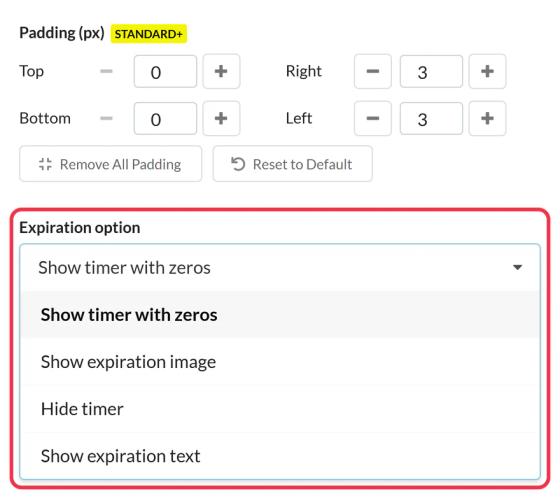
- Under Expiration option, choose one:
- Show timer with zeros: the default.
- Hide timer: nothing shows once the timer ends (Micro and above).
- Show expiration image: upload an image like "This offer has ended, but stay tuned" (Standard and above).
- Show expiration text: type up to 100 characters, shown in your labels font (Standard and above).
- Check the Expiration Preview, then click Save.
If you choose Show expiration image but don't upload one, the timer keeps showing zeros until you add an image.
Which to choose
- Show timer with zeros: the most commonly selected option. It still clearly shows that the timer has expired, with nothing extra to set up.
- A sale or offer: an image or text pointing people to what's next, like your store or a newsletter signup.
- A launch or event: text like "We're live!" or an image with a "Shop now" message.
- Hide if the timer would only confuse people, for example in an email that's otherwise still useful.
Send late clickers somewhere useful too. With Dynamic Links, the timer's button goes to one page before the deadline and another after. See how to make a timer clickable with Dynamic Links.
Count-up timers
For a count-up timer, this setting is called Pre-Start Option and decides what shows before the start date. See how to create a count-up timer.
To learn more about email countdown timers, see our Email Countdown Timer page.
Related
- How to create a countdown timer and add it to your email
- Countdown timer customization options
- Why does my countdown timer repeat after 60 seconds?
Was this article helpful?
Thanks for your feedback!