
How to turn a critical alert on or off
Last updated
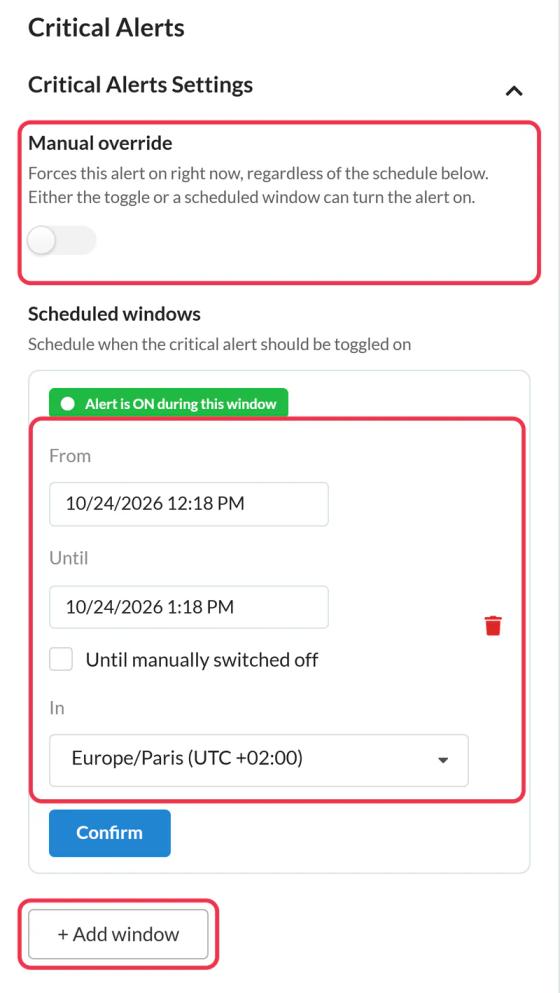
You control when a critical alert shows in two ways, in the Critical Alerts Settings panel of the alert's editor. The alert shows whenever either one is on.
Turn it on now: Manual override
- Open the alert.
- Turn on Manual override.
- Click Save.
The banner appears the next time anyone opens an email containing it. Turn Manual override off and save to hide it again.
Schedule it: Scheduled windows
Use windows when you know in advance when the alert should show, like planned maintenance.
- Click + Add window.
- Set From and Until, or tick Until manually switched off to leave it open-ended.
- Choose the time zone under In.
- Click Confirm, then Save.
You can add up to 5 windows. Each one shows whether it's active right now ("Alert is ON during this window").
Check its status
The Critical alerts list shows each alert's State (ON or OFF) and Next Change, like "Turns OFF 12 Oct, 6:00 PM" or "Manual override active".
Good to know
- Changes apply on the next open. Someone who already opened the email while the alert was off sees it when they reopen it.
- Some email apps keep a copy of images they've already loaded, so a reopen there may still show the previous state.
- You can change the banner's design while it's live.
- Views are only counted while the alert is on.
To learn more about critical alerts, see our Critical Alerts for Email page.
Related
Was this article helpful?
Thanks for your feedback!