
How to sign in with two-factor authentication
Last updated
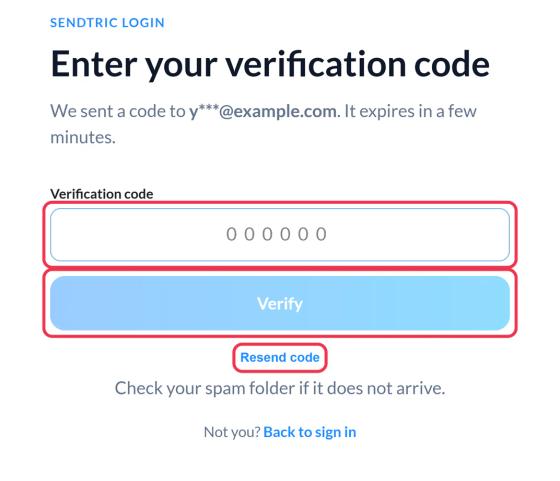
With two-factor authentication on, signing in has one extra step. After your password, or after Google or Microsoft sign-in, you'll see Enter your verification code.
- Enter the 6-digit code:
- Authenticator app: open your app and enter the current code for Sendtric.
- Email code: we email you a code. Check your spam folder if it doesn't arrive.
- Click Verify.
You're signed in. To start over, click Back to sign in.
If a code doesn't work
| Message | What to do |
|---|---|
| That code is not valid | Check you typed the code for Sendtric. Authenticator codes change every 30 seconds and each one works once: if you've just used it, wait for the next. Also check your phone's clock is set automatically. |
| This code has expired | Sign-in codes are valid for 5 minutes. Click Back to sign in and start again. |
| Too many incorrect codes | After several wrong codes, sign-in is paused for a while. Wait about 15 minutes, then start again. |
| A code was sent recently | Wait a few seconds. Resend code shows a countdown until you can send another. |
| Too many codes were sent | Email codes are limited per hour. Wait a while before asking for another. |
| Authenticator codes cannot be resent | Open your authenticator app for the current code. |
Email code not arriving?
- Check spam and promotions folders.
- Use Resend code once the countdown ends.
- Make sure you can still receive email at your login address. If you can't, see below.
Lost access to your authenticator or email?
If you can't get a code (for example a new phone without your authenticator app), email support@sendtric.com from your login email address. For your security, we'll confirm you're the account holder before turning off two-factor authentication. Once you're back in, set it up again in Settings.
When you set up an authenticator app, use one that backs up or syncs your accounts (most do), so a new phone doesn't lock you out.
Related
Was this article helpful?
Thanks for your feedback!