
How to send records to a data source with the Sendtric API
Last updated
With an API data source, your own system sends JSON records to Sendtric whenever your data changes. Sendtric stores them as hosted data, and your images look up each subscriber's record when an email is opened.
This guide is for whoever writes the code that sends the data. If you'd rather Sendtric fetch data from your API on each open, see how to connect a data source to your own API.
Create the data source
- In the left sidebar, click Data sources, then New data source.
- Under API, choose API and click Continue.
- Choose Send data to Sendtric and click Continue.
- Fill in:
- Data source name: for example "Loyalty members".
- Unique identifier field: the JSON field that identifies each record, like
customer_idoremail. Every record you send must include it. - Description (optional).
- Click Save data source. The data source is created and the API step shows your endpoints and API key.
- Copy what you need, then click Continue to finish.
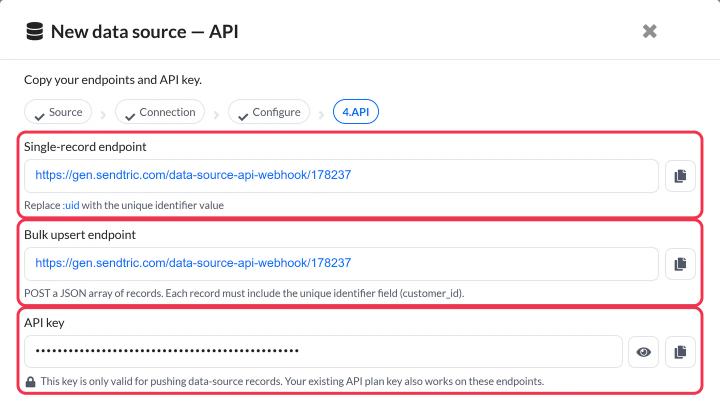
You can find the endpoints again at any time on the data source's API Details tab.
Authenticate
Send your key in the Authorization header of every request:
Authorization: Bearer YOUR_API_KEY
Content-Type: application/json
The Data source API key only works for sending data-source records, so it's safe to give to a developer or an automation tool. If you're on an API plan, your existing API plan key works on these endpoints too.
Keep your key out of front-end code and public repositories. If it's ever exposed, regenerate it under Settings → API keys → Data source API key, then update everything that uses it.
Create or update records
POST a single JSON object, or an array of objects, to the endpoint shown in Sendtric. One record:
POST <your data source endpoint>
Authorization: Bearer YOUR_API_KEY
Content-Type: application/json

{
  "customer_id": "CUST_1001",
  "first_name": "Sarah",
  "points": 1250
}
Several records in one request:
POST <your data source endpoint>
Authorization: Bearer YOUR_API_KEY
Content-Type: application/json

[
  { "customer_id": "CUST_1001", "first_name": "Sarah", "points": 1250 },
  { "customer_id": "CUST_1002", "first_name": "James", "points": 300 }
]
How records are saved:
- If no record has that identifier yet, a new one is created.
- If one does, it's replaced with what you sent. Fields you leave out are removed, so always send the full record.
- New and updated records are usually available within about a minute.
- Identifiers are matched without regard to upper and lower case.
A successful request returns 200 with a short summary, for example {"status":"ok","records":2}.
You can nest objects inside a record, for example "address": { "city": "Leeds" }, and pick nested fields in the image editor.
Delete records
Delete one record by adding its identifier to the end of the endpoint:
DELETE <your data source endpoint>/cust_1001
Authorization: Bearer YOUR_API_KEY
Delete several by sending an array of identifiers:
DELETE <your data source endpoint>
Authorization: Bearer YOUR_API_KEY
Content-Type: application/json

["cust_1001", "cust_1002"]
Limits
| Limit | Value |
|---|---|
| Records per request | 10,000 |
| Request size | 10 MB |
| Identifier value | 255 characters |
| Any single text value | 10 KB |
| Nesting depth | 20 levels |
Send records in batches rather than one request per record. For thousands of records, see how to send large amounts of data to a data source.
Responses and errors
| Status | What it means | What to do |
|---|---|---|
| 200 | Records accepted | Nothing. If some records were skipped, the X-Skipped-Records header says how many |
| 400 | The body isn't valid JSON | Check the request body |
| 401 | Missing or wrong API key | Check the Authorization header |
| 404 | The data source wasn't found for this key | Check the endpoint and that the key belongs to the same account |
| 413 | Too many records or too large | Split the request into smaller batches |
| 422 | No record could be saved | The message lists which records are missing the identifier field or are too large |
| 503 | Sendtric is busy | Wait for the number of seconds in the Retry-After header, then send the same request again |
When only some records in a request are invalid, the valid ones are still saved and the rest are skipped.
Check your records
Open the data source and go to the Records tab. Search by identifier value and click a record to see the full JSON Sendtric stored.
Next step
- How to use a data source in a personalized image
- How to use a data source in a rule-based image
- How to manage, edit and delete a data source
Was this article helpful?
Thanks for your feedback!