
How to use a data source in a rule-based image
Last updated
A Data Sources condition picks the image a subscriber sees based on a value in your data source. For example, show a gold card to members whose tier is "Gold", or a reminder banner when their renewal_date is before the end of the month.
You'll need a rule-based image and a data source. New to data sources? Read what data sources are and how they work.
Add the condition
- In your rule-based image, click Update Conditions on the image you want to show.
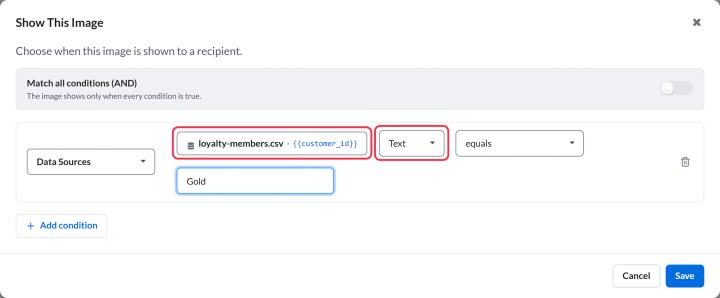
- Click Add condition and choose Data Sources as the condition type.
- Click Select variable…. The Select Data Source Variable window opens.
- Choose how the data is delivered (Hosted data or Connected data), the Variable type and the Data source, then the fields to read. These work the same way as in a personalized image, described in how to use a data source in a personalized image.
- Click Select.
- Choose the Data type of the value: Text, Number or Date.
- Choose the operator and enter the value to compare against.
- Click Save.
Operators for each data type
| Data type | Operators |
|---|---|
| Text | contains, does not contain, equals, does not equal |
| Number | is, less than, more than |
| Date | on, before, after |
For a date, pick the comparison date in the calendar, then choose the Date format your data source uses, so Sendtric reads its dates correctly.
Match each subscriber
If you chose Dynamic unique variable, the image code gets a placeholder for each subscriber's identifier, like customer_id={{customer_id}}. Replace it with your email platform's merge tag when you copy the code. See how to use merge tags in Sendtric widgets.
Plan for missing data
If a subscriber has no record, or the field is empty, a Data Sources condition on that field doesn't match, whatever the operator. Add a Fallback Image so those subscribers still see something. How to set display conditions for rule-based images explains how conditions and the order of images work together.
Related
- How to set display conditions for rule-based images
- How to use a data source in a personalized image
- How to manage, edit and delete a data source
Was this article helpful?
Thanks for your feedback!