
How to create a data source from a CSV file
Last updated
A CSV upload is the quickest way to get your own data into Sendtric. The file becomes a hosted table you can edit in your dashboard, and your images can read any cell or match a row to each subscriber.
New to data sources? Start with what data sources are and how they work.
Prepare your file
- Save it as .csv (in Excel or Google Sheets, use File → Download or Save as → CSV).
- Keep it under 5 MB.
- Put column names in the first row, like
customer_id,first_name,points. - Include a column with a unique value for each person, like a customer ID or email address. You'll match subscribers on it later.
- Give every column a different name. If two columns share a name, the later column's values can overwrite the earlier one's.
Upload the CSV
- In the left sidebar, click Data sources, then New data source.
- Under Files, choose CSV Upload and click Continue.
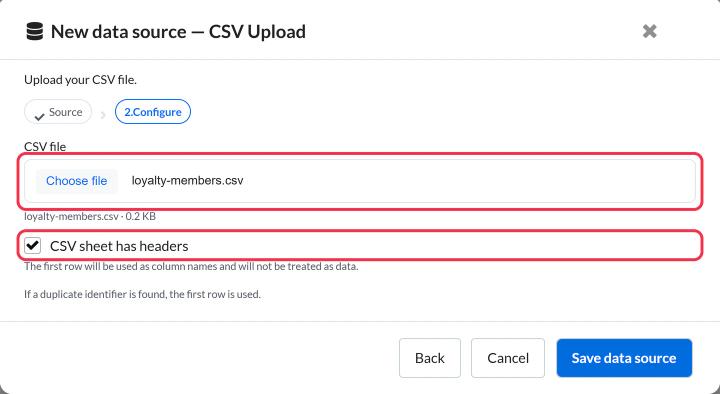
- Click Choose file and pick your CSV.
- Leave CSV sheet has headers ticked if your first row holds column names. Untick it if the first row is already data.
- Click Save data source.
The new data source appears in your list, named after your file. Click it to open the table.
Edit the table
The table works like a simple spreadsheet:
- Click the name at the top to rename the data source.
- Click any cell to change its value, or add and remove rows and columns.
- Click Save. Unsaved Changes shows next to the button until you do.
Header cells can't be empty, so give every column a name before saving.
Refresh the data
To bring in a newer version of your spreadsheet, you can:
- Paste it in: copy the rows from your updated spreadsheet, paste them over the table and click Save. Images already using this data source keep working, because the data source itself stays the same.
- Upload it again: create a new data source from the updated file, then switch your images to it.
- Automate it: if the data changes often, send it with the Sendtric API or Zapier or n8n instead, so updates arrive without any files.
Duplicate identifiers
If two rows have the same identifier value, Sendtric uses the first row. Remove or fix duplicates before you send so every subscriber sees their own data.
Next step
Add a value from your table to an image:
Was this article helpful?
Thanks for your feedback!