
How to Add Personalized Images to Klaviyo
Draw Klaviyo profile data, like a first name or points balance, straight onto an image, with fallback text for profiles that are missing a value.
 First Publish Date:
Put the profile data you already keep in Klaviyo right on the image.
Klaviyo can drop a first name into a subject line or a text block. A Sendtric personalized image goes one step further: it draws that value onto your artwork, in your font, every time the email is opened. One image design covers every profile in the send.
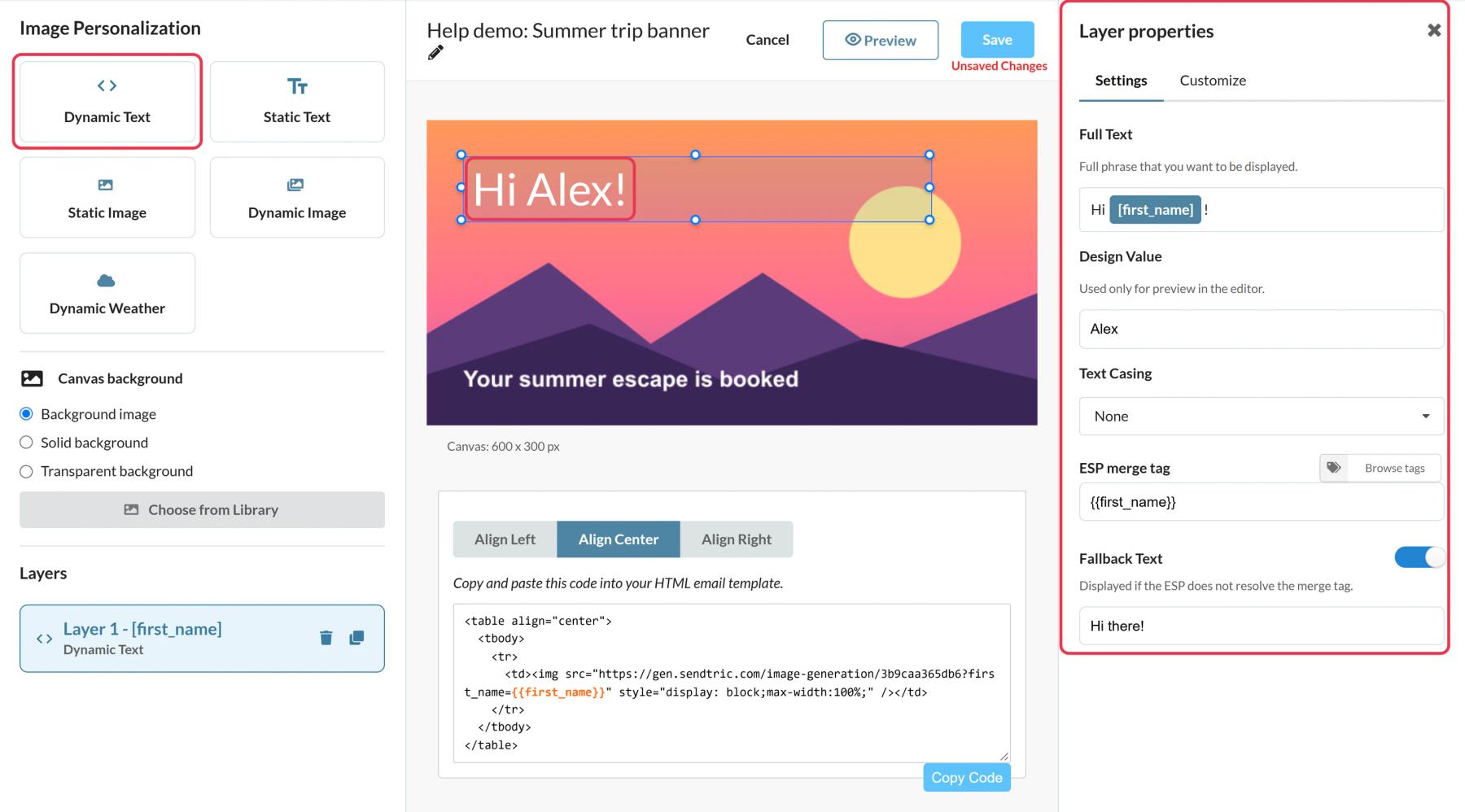
What you can do with personalized images in Klaviyo
- Birthday and anniversary flows: write the customer's name across a celebration banner. See personalized birthday and anniversary emails for ideas.
- Loyalty updates: show a points balance or tier name on a card graphic, pulled from a custom profile property your loyalty app syncs to Klaviyo.
- Local store promos: print the profile's city on a hero image for an in-store event.
- Year in review: build a Wrapped-style recap from several profile properties on one background, like the examples in personalized year in review emails.
How many personalized text layers you can add depends on your plan: 1 on Free, 2 on Micro, 4 on Standard and 20 on Power and Enterprise. Image layers start on Standard. See pricing.
How to add a personalized image to Klaviyo
Step 1: Start a new image
In Sendtric, open Image Personalization and click Create New. Pick a background from your media library, or start from a solid or transparent canvas.
Step 2: Add a Dynamic Text layer with a Klaviyo tag
Add a Dynamic Text layer. In the merge tag window, give the value a Variable Name (for example first_name) and put the Klaviyo tag in ESP Merge Tag, for example {{ first_name }} or {{ person.City }}. With Klaviyo connected, Browse Klaviyo tags lists your real profile properties, including custom ones once recent profiles have values for them.
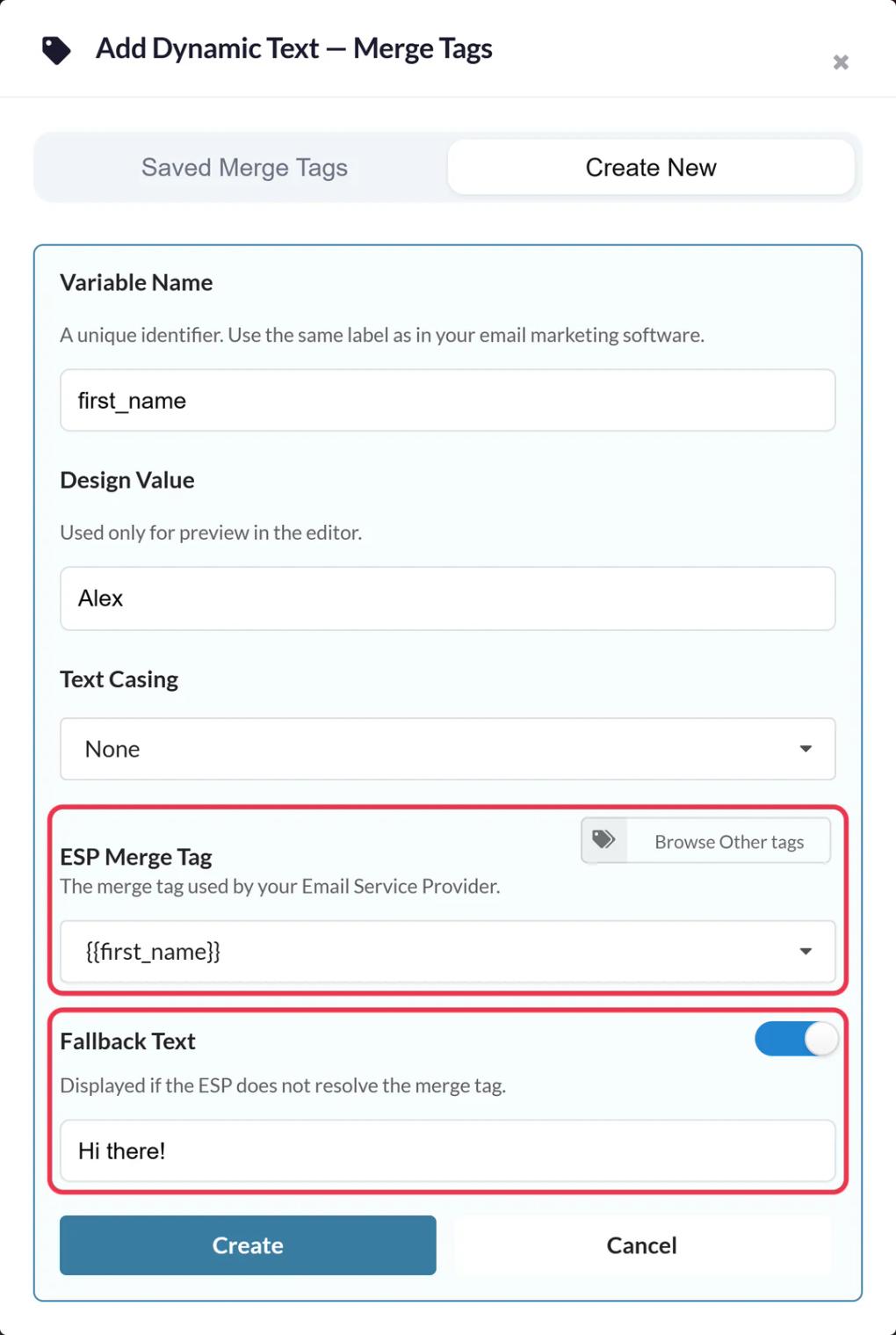
Fill in Fallback Text as a full phrase, like "Hi there!". When a profile has no value, Sendtric shows the fallback on its own and drops the rest of that text layer.
Step 3: Style it and save
Set the font, size and color, and drag the layer into place. Make the text box tall enough for your longest realistic value: long names wrap onto a new line instead of shrinking. Click Save.
Step 4: Push to Klaviyo or copy the code
Click Push to Klaviyo to send the image to Klaviyo as a universal content block with your tags already filled in. Or click Copy Code under the editor if you prefer to paste it yourself.
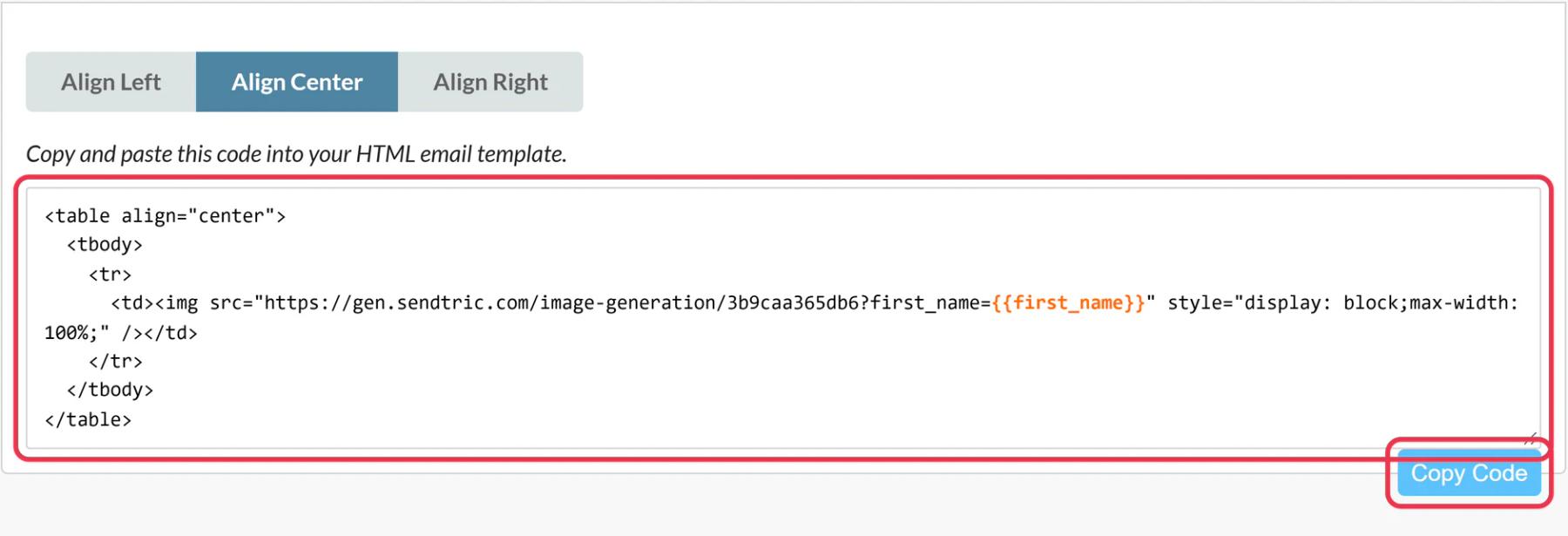
Step 5: Place it in your email
In Klaviyo's editor, drag the pushed block in from the Universal tab, or drag an HTML block into the email and paste the code.
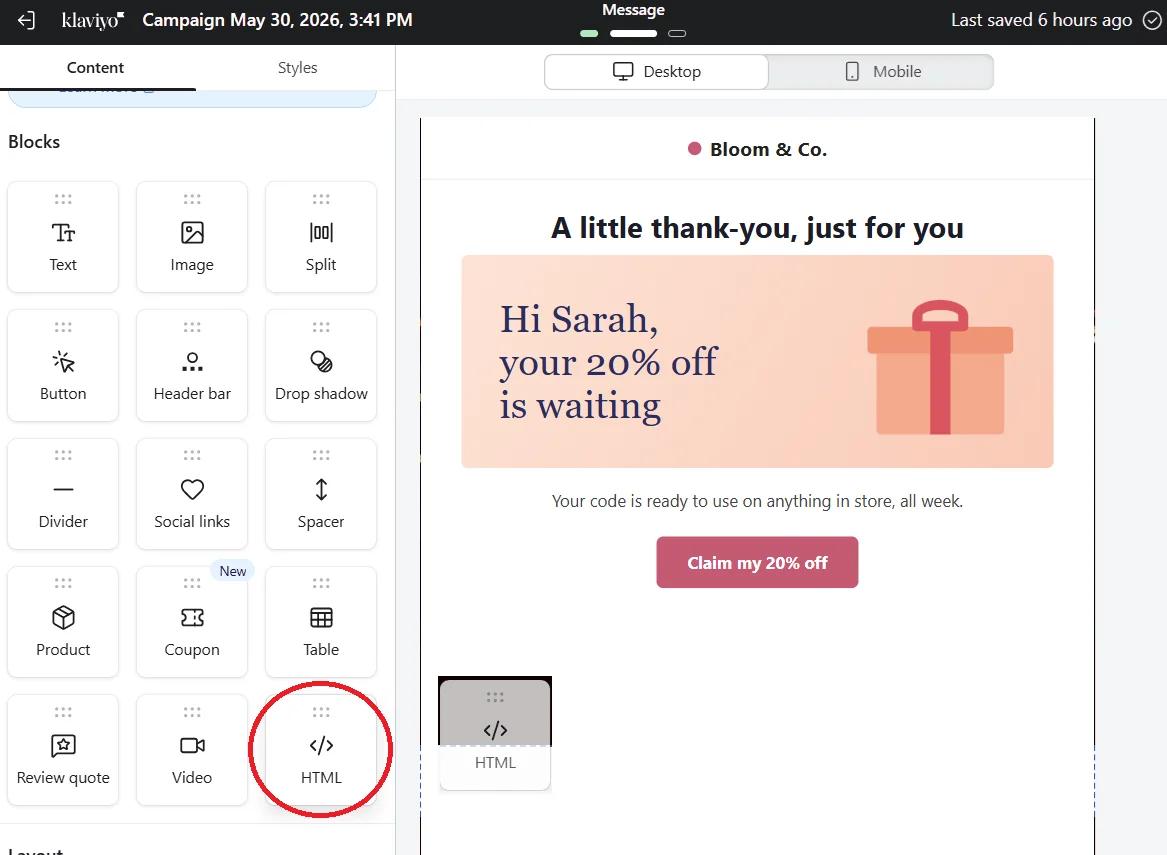
Step 6: Test with a real profile
Click Preview, choose a profile that has the property filled in, and use Send test. Then preview a profile without it to see your fallback.
Use event data in flows
In a flow triggered by an event, you can use event properties as well as profile properties, for example {{ event.ProductName }} in an abandoned cart flow. These tags only fill in for emails in a flow started by that event, so keep them out of campaigns.
Let Sendtric handle the fallback
Klaviyo's own |default: filter also works, but if you use it the image never sees an empty value, so Sendtric's fallback text never shows. Pick one place for your fallback, ideally Sendtric, where you can see it on the image.
More detail: how to use merge tags and fallback text in personalized images.
Klaviyo Personalized Images FAQ
Which Klaviyo tag do I use for first name?
{{ first_name }}. For other built-in properties Klaviyo uses the person. prefix, for example {{ person.City }}, {{ person.Region }} or {{ person.Country }}.
Can I use a custom property with spaces in its name?
Yes, with Klaviyo's lookup syntax: {{ person|lookup:'Loyalty Points' }}. The property name is case sensitive.
Why does my test show the tag itself on the image?
Klaviyo didn't fill the tag, usually because of a typo or because you sent from outside Klaviyo. Check the spelling against Browse Klaviyo tags and send the test from Klaviyo's preview.
When is the image created?
When the email is opened, not when Klaviyo sends it. Sendtric then keeps each finished image for an hour for the same set of values. Saving the design in Sendtric clears that, so changes show on the next open.
Can I change the design after the campaign has gone out?
Yes. Save the image in Sendtric and the next open of any email using it shows the new design. Don't rename the variables, since the code in sent emails still uses the old names.
Want to see what else you can do? Explore Sendtric's personalized images in more detail, or browse the full email personalization toolkit.
More Klaviyo guides
- Countdown Timers - Add Countdown Timers in Klaviyo
- Countdown Timers - How to Add Dynamic Timers in Klaviyo
- Live Polls - How to Add Live Polls to Klaviyo
- Rule-Based Images - How to Add Rule-Based Images to Klaviyo
- Dynamic Weather - How to Add Dynamic Weather to Klaviyo
- Critical Alerts - How to Add Critical Alerts to Klaviyo
- Social Proof Counters - How to Add Social Proof Counters to Klaviyo
Using a different platform? See all Sendtric integrations.
