
How to Add Rule-Based Images to Klaviyo
Swap the image in a Klaviyo email based on profile properties, the open time or the device, with a fallback image when no rule matches.
 First Publish Date:
One image slot in your Klaviyo email, a different picture for each subscriber.
A Sendtric rule-based image holds a set of images and the rules for when to show each one. When a profile opens your Klaviyo email, Sendtric checks the rules from the top and shows the first image that matches.
Klaviyo has its own show/hide logic on blocks and sections, set on the Display tab. Its logic builder works with profile data stored as text, numbers and lists, and decides what goes into the email when Klaviyo builds it. A rule-based image is chosen when the email is opened, so it can also react to the date, the time of day, the day of the week or the device, and it keeps a whole set of variations in one block instead of stacking many hidden ones.
What you can do with rule-based images in Klaviyo
- VIP and loyalty tiers: show gold, silver or bronze artwork by reading a tier property your loyalty app syncs to Klaviyo.
- Nearest store: pick a store or region banner from
{{ person.Region }}or{{ person.City }}. - Weekend versus weekday creative: use a Day Of Week rule so a Friday send still shows the weekend offer to people who open it on Saturday.
- Mobile-first artwork: give phone readers a taller, simpler image with a Device rule (Power and above).
| Rule type | Plan |
|---|---|
| Profile property is, contains or doesn't contain a text value | All plans |
| Email client or operating system | All plans |
| Date, day of week, time of day, or a date stored on the profile | Standard and above |
| Profile property compared as a number | Power and above |
| Device (desktop, smartphone, tablet) | Power and above |
Free covers 2 images per widget, Micro 4, Standard 10 and Power or Enterprise unlimited. The fallback image starts on Micro. See pricing.
How to add rule-based images to Klaviyo
Step 1: Add your images in priority order
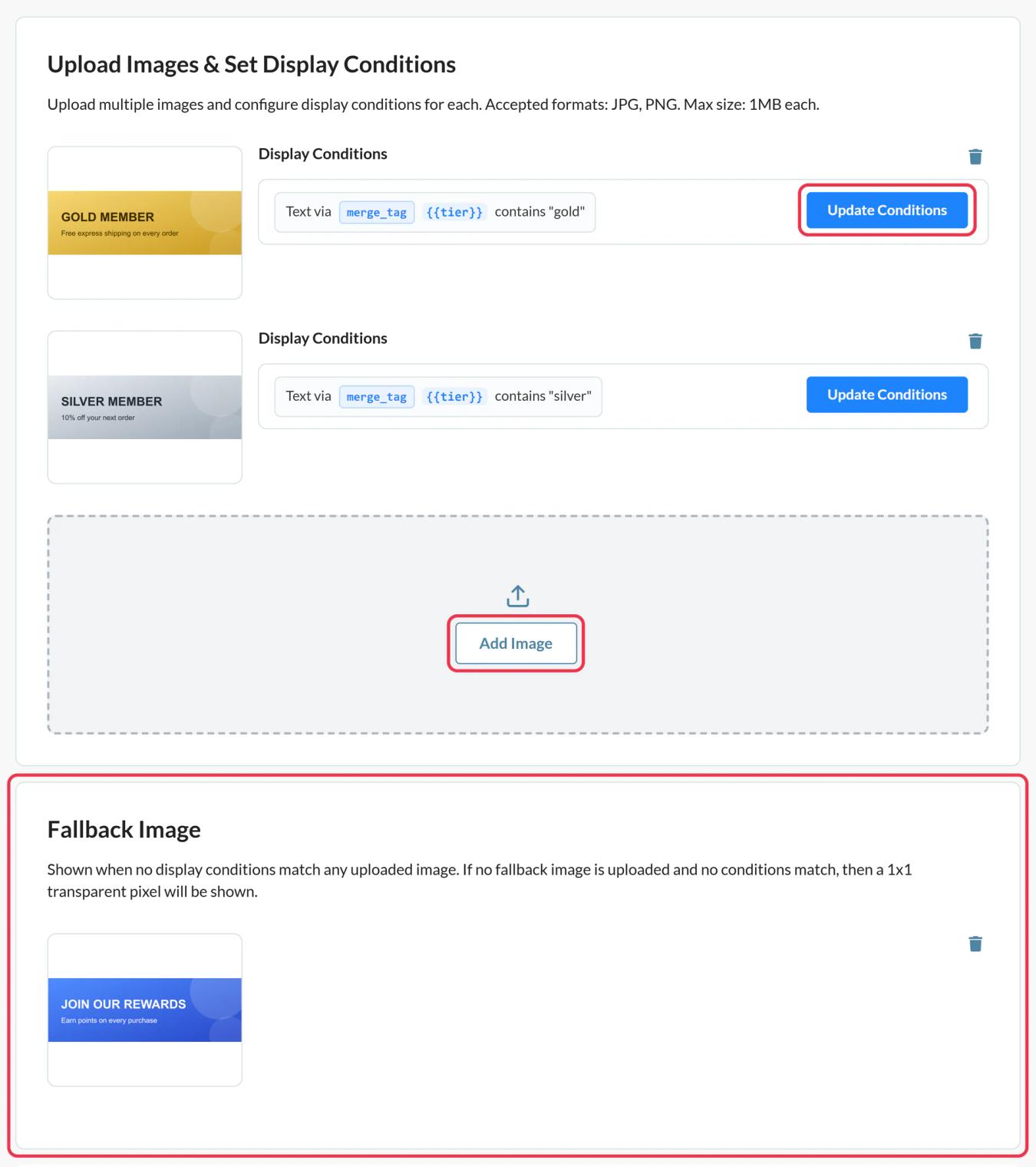
In Sendtric, open Rule-based Images, click Create New and use Add Image for each variation. Sendtric checks them top to bottom and there's no reordering later, so add the most specific image first.
Step 2: Give each image its conditions
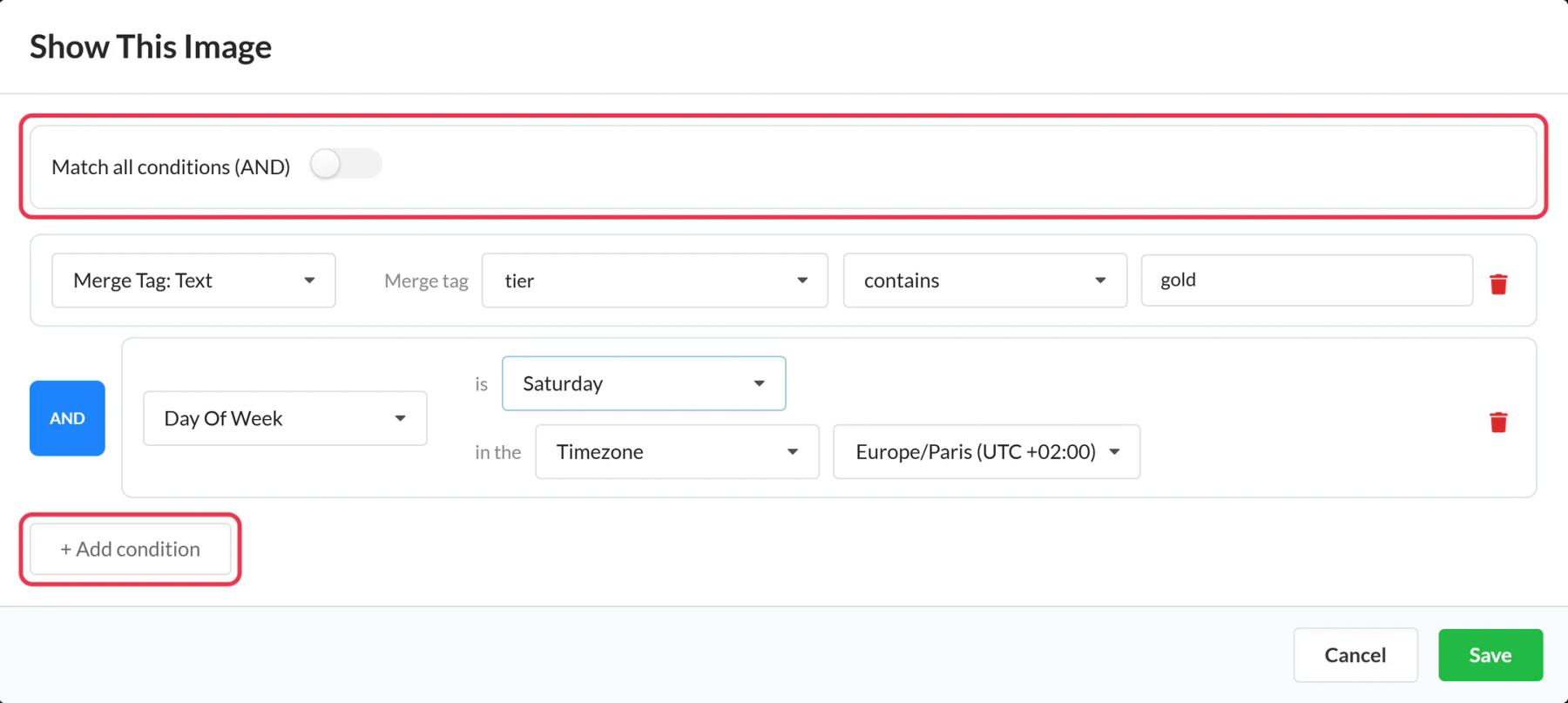
Click Update Conditions on an image card. In Show This Image, choose Match all conditions (AND) or Match any condition (OR), click + Add condition and pick a type. For a Klaviyo property, choose Merge Tag: Text (or Number or Date) and give it a name like tier. An image with no conditions is never shown.
Step 3: Add a fallback image and save
Add a Fallback Image for profiles that don't match anything, use Preview to simulate a few profiles, then click Save.
Step 4: Put the Klaviyo tags into the code
Click Copy code. Every merge-tag condition adds a parameter such as tier={{tier}}. Replace each placeholder with the Klaviyo tag for that property, for example tier={{ person|lookup:'Loyalty Tier' }}.
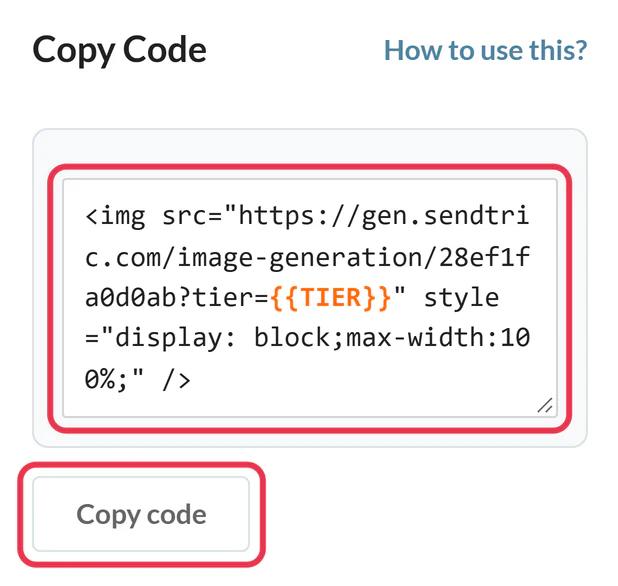
If your account is connected, Push to Klaviyo sends the image as a universal content block instead. Open the block in Klaviyo before sending to confirm each parameter carries the property you expect.
Step 5: Add it to the email and test
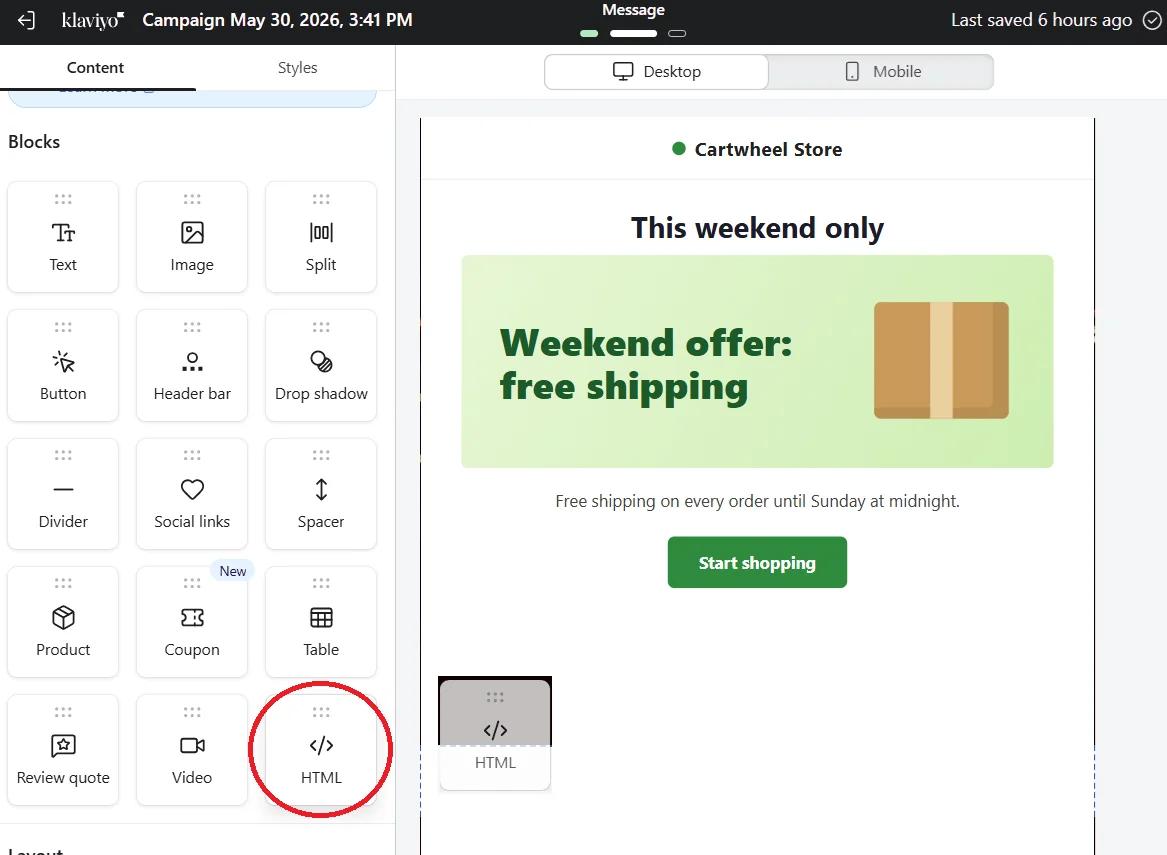
Drag an HTML block into your Klaviyo email and paste the code (or drag the pushed block from the Universal tab). Preview as two profiles with different values and send yourself a test of each.
Text rules ignore capitals, but not spelling
A text rule for gold matches "Gold" and "GOLD", but not "Gold member" unless you use contains. Check a few real profiles in Klaviyo to see exactly how the values are stored before writing your rules.
Device rules and Gmail
Gmail loads images through its own proxy, so Gmail opens may be read as desktop. If the split matters, use a profile property rather than a Device rule.
More on writing conditions: how to set display conditions for rule-based images.
Klaviyo Rule-Based Images FAQ
Should I use this or Klaviyo's show/hide logic?
Use Klaviyo's show/hide when you are hiding whole blocks for a segment. Use a rule-based image when you want one image slot with several variations, or rules that depend on the moment of opening, like the day or time.
Can a rule read a Klaviyo segment?
Not directly. Rules read the values in the image code, so keep the information you need as a profile property and write the rule against that property.
What does a profile with no matching rule see?
Your fallback image. Without one, Sendtric returns an invisible 1x1 image so the layout doesn't break.
Can an option be a timer or a weather forecast?
Yes. Add Image opens the media library, where the Timers, Image Personalization Widgets and Weather tabs let you use another widget as one of the images.
Does the image change if the profile's data changes after sending?
No for profile properties: Klaviyo writes those values into the email at send time. Yes for date, time and device rules, which are checked on every open.
Want to see what else you can do? Explore Sendtric's rule-based images in more detail, or browse the full email personalization toolkit.
More Klaviyo guides
- Countdown Timers - Add Countdown Timers in Klaviyo
- Countdown Timers - How to Add Dynamic Timers in Klaviyo
- Live Polls - How to Add Live Polls to Klaviyo
- Personalized Images - How to Add Personalized Images to Klaviyo
- Dynamic Weather - How to Add Dynamic Weather to Klaviyo
- Critical Alerts - How to Add Critical Alerts to Klaviyo
- Social Proof Counters - How to Add Social Proof Counters to Klaviyo
Using a different platform? See all Sendtric integrations.
