
How to Add Personalized Images to Bloomreach
Turn Bloomreach customer attributes into text on an image: names, loyalty tiers, points or trip details, filled by Jinja when the email is sent.
 First Publish Date:
Put the data you already hold in Bloomreach onto the image itself.
Bloomreach Jinja can personalize your subject line and text. Sendtric personalized images take that a step further: you design one image with text layers, and each layer is filled from a Bloomreach customer attribute when the email opens. A customer called Ana sees her name on the hero banner; a Gold member sees "Gold" on the loyalty card.
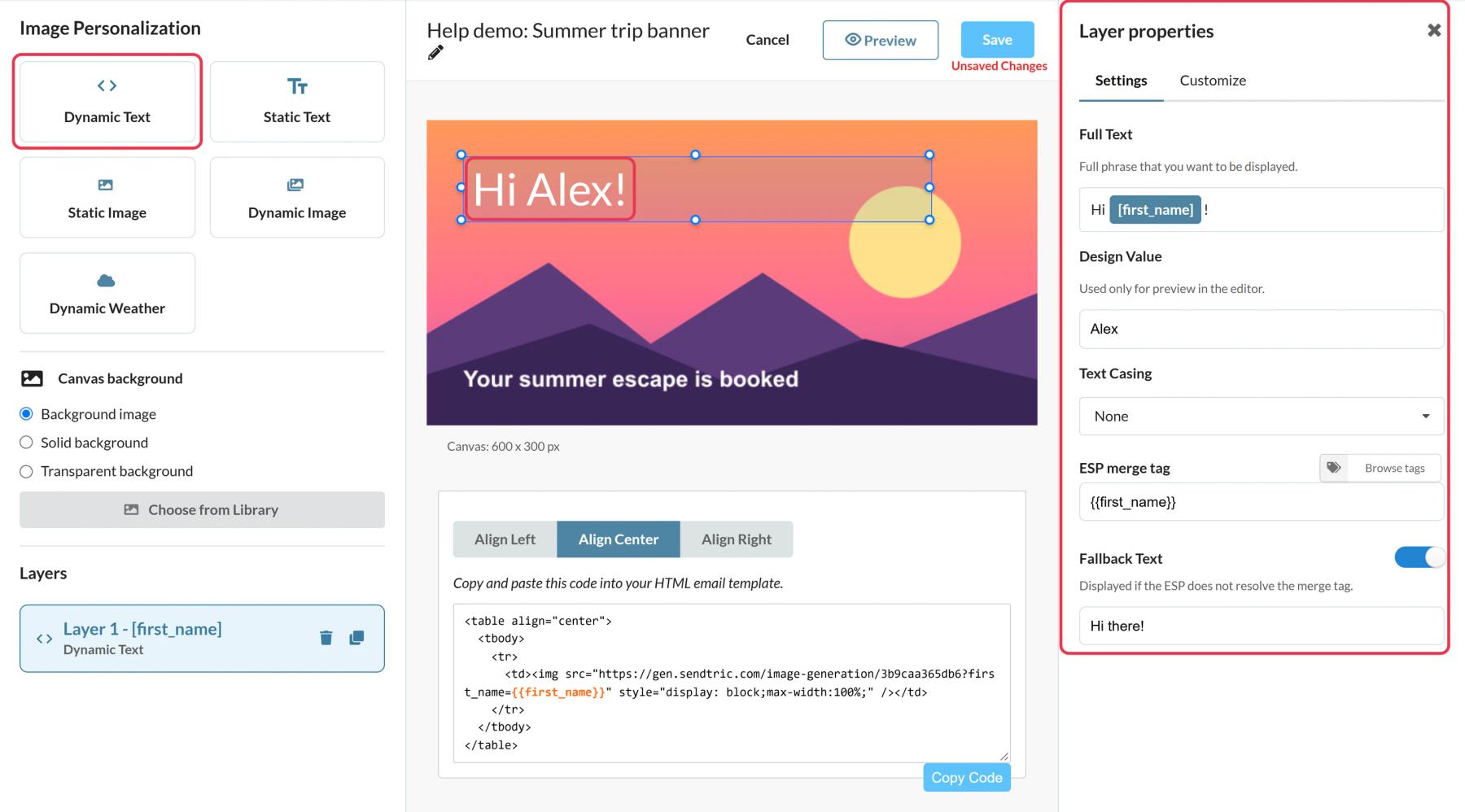
What you can do with personalized images in Bloomreach
- Loyalty statements: tier name and point balance written onto a branded card.
- Trip and booking emails: departure city, destination and date on a travel image, from one template for every booking.
- Year-in-review emails: a customer's order count or favorite category on a celebratory background.
- Welcome heroes: the customer's first name worked into the opening image, with a friendly fallback for profiles without one.
Free accounts get one dynamic text layer per image, Micro two, Standard four, and Power and Enterprise twenty. Extra image layers on top of the background need Standard or higher. See pricing.
How to add a personalized image to Bloomreach
Step 1: Set up the canvas
In Sendtric, go to Image Personalization and click Create New. Choose a background from your library, or use a solid or transparent background.
Step 2: Add Dynamic Text with a Jinja tag
Add a Dynamic Text layer and create a variable, for example first_name. In ESP Merge Tag, enter the Jinja for that attribute, such as {{ customer.first_name }}. Bloomreach's syntax is {{ customer.attribute }}, so a custom attribute like loyalty_tier becomes {{ customer.loyalty_tier }}. Add Fallback Text for customers who don't have a value.
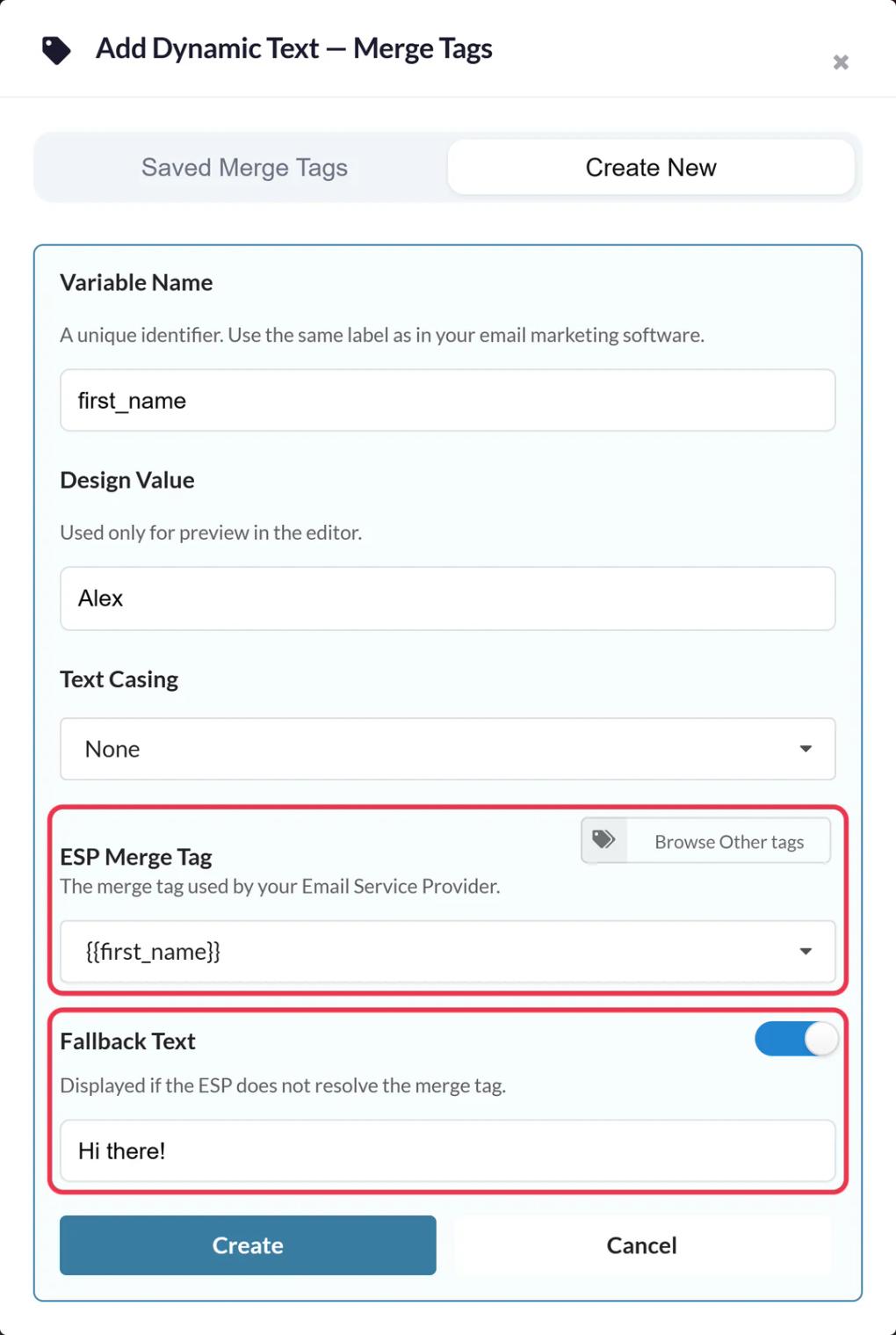
Step 3: Save and copy the code
Position and style the text, preview with your longest realistic value, then click Save. Copy the code from the code panel. Each variable is in the image URL with your Jinja tag next to it.
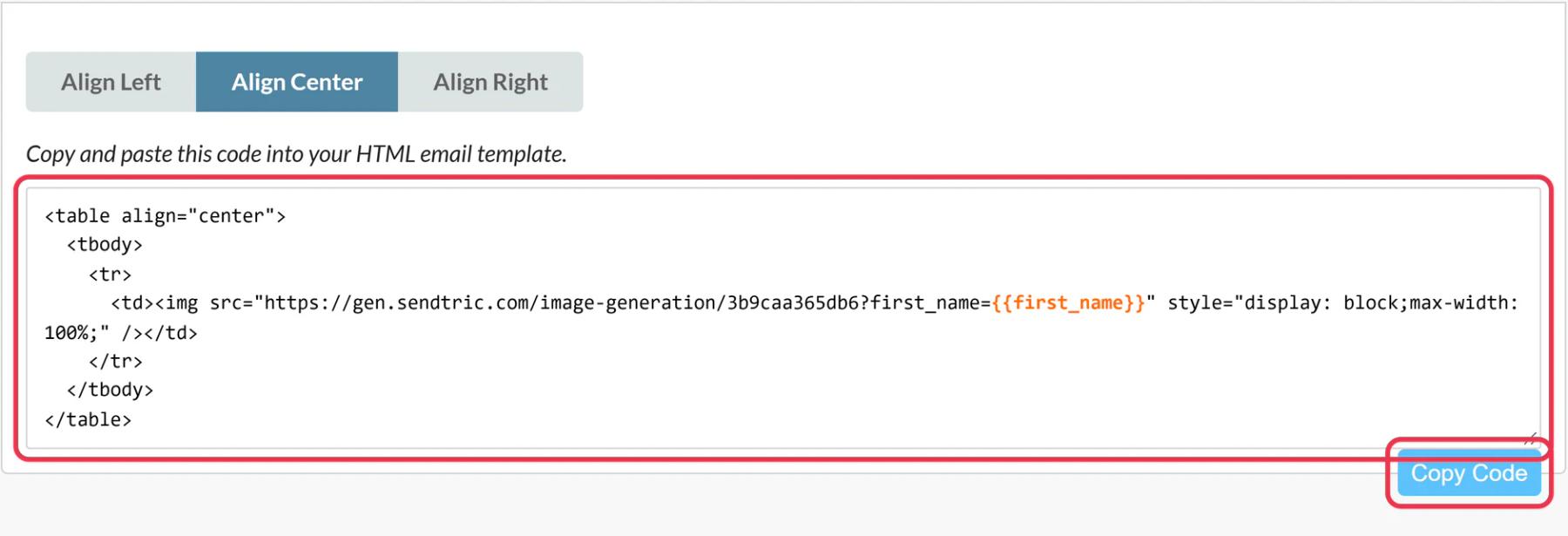
Step 4: Paste into the HTML element
In Bloomreach's visual builder, drag the HTML element from the Content tab into your email, click it and paste the code under Content Properties.
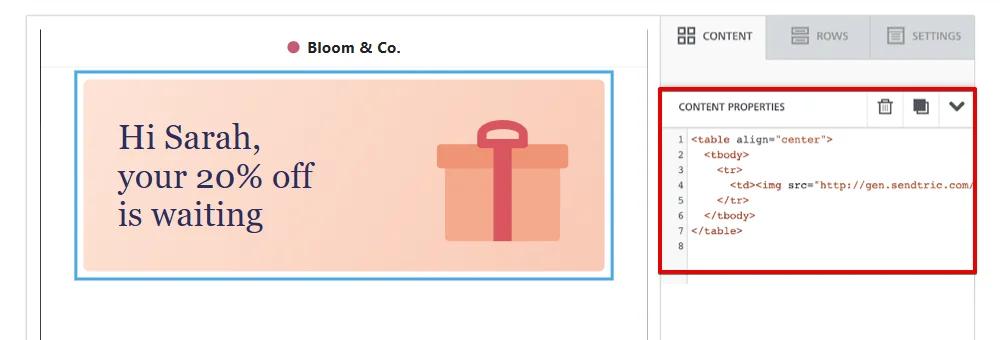
Step 5: Preview as different customers
Send a test with Send test email or preview link, once for a customer with the attribute filled in and once for one without. The first should show their value, the second your fallback text.
Attribute names with spaces
If an attribute name has spaces, Bloomreach Jinja needs bracket notation, like {{ customer["loyalty tier"] }}. Using the name as it appears in your project avoids an empty value in the image.
Write the fallback as a full phrase
When the tag is empty, Sendtric shows only the fallback text and drops the words around the tag. "Hi there!" works better as a fallback than just "there".
Bloomreach Personalized Images FAQ
Which Bloomreach attributes can I use?
Any customer attribute you can print with Jinja, such as {{ customer.first_name }} or your own custom attributes. Put the same tag in the Sendtric layer's ESP Merge Tag field.
What happens if a customer has no value?
If you set Fallback Text, the layer shows that instead. Without a fallback, the whole text layer is hidden for that customer.
Why does a long city name spill out of the box?
Text wraps inside its box but doesn't shrink. Make the box tall enough for your longest value and preview it before sending.
Can I change the design after sending?
Yes. Saving the image in Sendtric updates it in every email that uses it, on the next open.
Does each open count as a view?
Yes, every time the image loads in an email counts as a view. Previews in the Sendtric editor don't.
This guide covers one piece of Sendtric's email personalization platform. For every personalized images option and example, see the main page.
More Bloomreach guides
- Countdown Timers - How to Add Countdown Timers to Bloomreach
- Live Polls - How to Add Live Polls to Bloomreach
- Rule-Based Images - How to Add Rule-Based Images to Bloomreach
- Dynamic Weather - How to Add Dynamic Weather to Bloomreach
- Critical Alerts - How to Add Critical Alerts to Bloomreach
- Social Proof Counters - How to Add Social Proof Counters to Bloomreach
Using a different platform? See all Sendtric integrations.
