
How to Add Live Polls to Bloomreach
Ask Bloomreach customers a question inside the email, keep one vote per customer with a Jinja tag, and show live results on every open.
 First Publish Date:
Collect votes from your Bloomreach customers without sending them to a survey first.
A Sendtric live poll is a set of answer images you place in a Bloomreach email. Each answer is a link, so one click casts the vote. Results such as percentages or bars can update in the email itself, so people who open it later see where the vote stands.
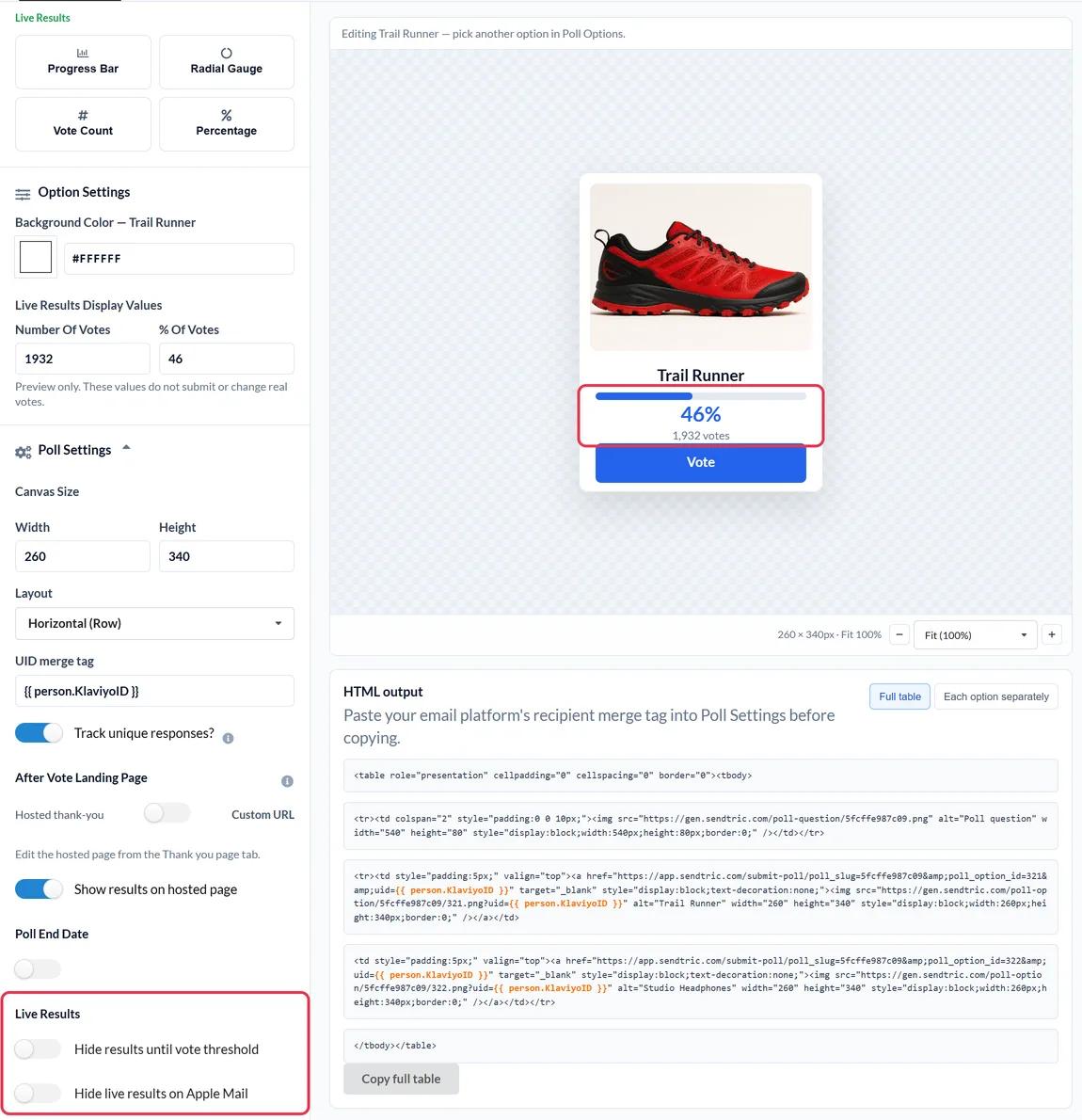
When someone clicks an answer, a browser tab opens for a moment to record the vote, then shows your thank-you page or a page you choose. The poll itself, and its results, stay in the email.
What you can do with a live poll in Bloomreach
- Pick the next drop: show three product images and let customers vote for the one you launch first.
- Rate an order or a stay: a 1 to 5 star rating in a post-purchase scenario, with the low scores sent to a feedback form on Power and above.
- Learn preferences you can segment on: ask which categories people care about, export the answers by customer and import them into Bloomreach as an attribute.
- Give people a reason to reopen: a "who wins?" poll with live results in a newsletter.
| What you need | Sendtric plan |
|---|---|
| Two-answer text and Yes / No polls | Free and above |
| Up to 5 answers, product vote and star rating presets | Standard and above |
| Live percentages and result bars in the email | Power and above |
| A different landing page per answer, an end date | Power and above |
Full details are on the pricing page.
How to add a live poll to Bloomreach
Step 1: Build the poll
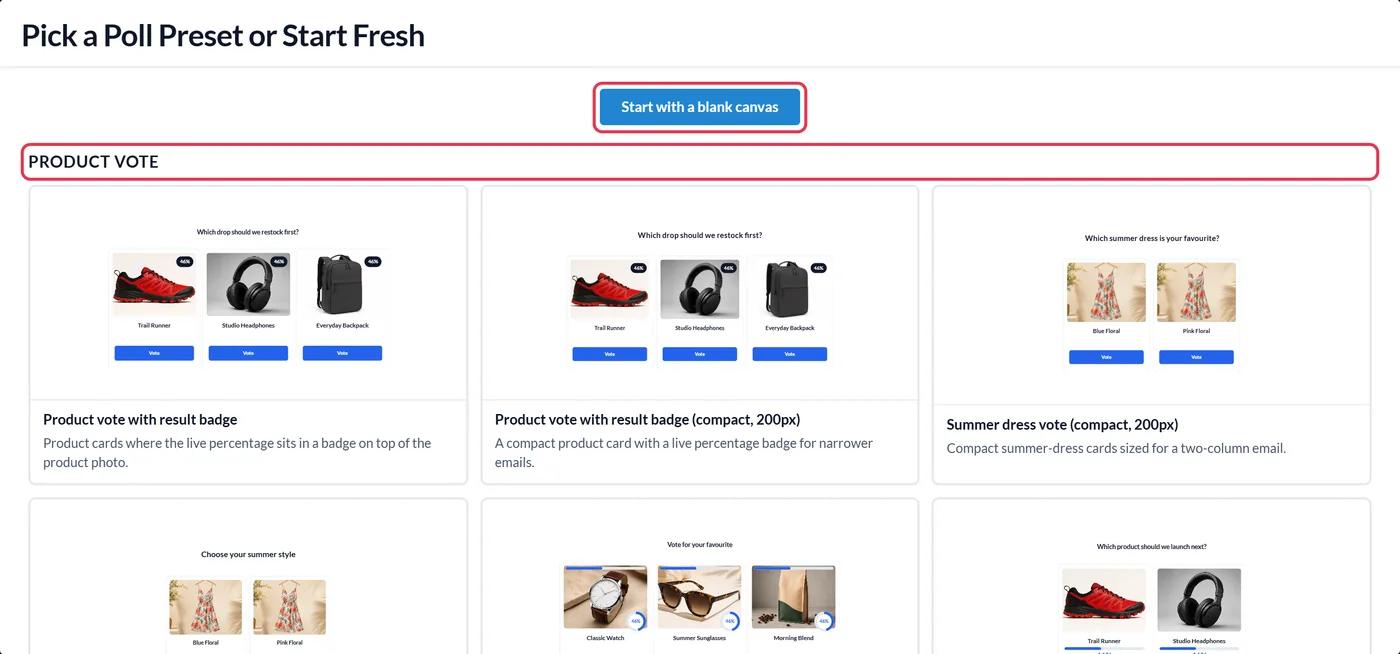
In Sendtric, open Polls and click Create New. Choose a preset or Start with a blank canvas, then add your answers and match the colors and fonts to your email.
Step 2: Add a Bloomreach tag as the poll ID
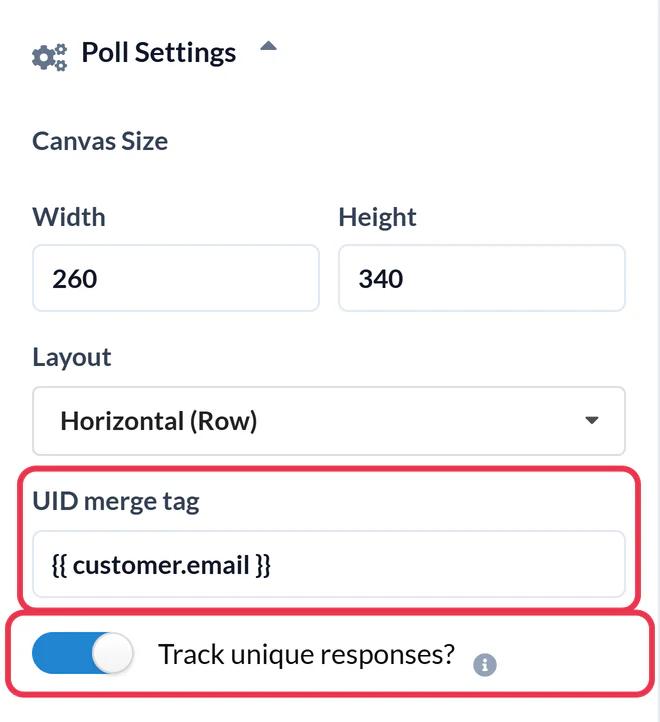
Open Poll Settings and enter {{ customer.email }} in the UID merge tag field. Bloomreach fills it with each customer's email when it sends, and Sendtric uses it to keep one vote per person. Bloomreach's customer ID names depend on how your project is set up, which is why email is the safe default. If your project has a hard ID like registered that every customer has, {{ customer_ids.registered }} works too. Turn on Track unique responses? if you want to download answers per customer, then click Save.
Step 3: Copy the HTML
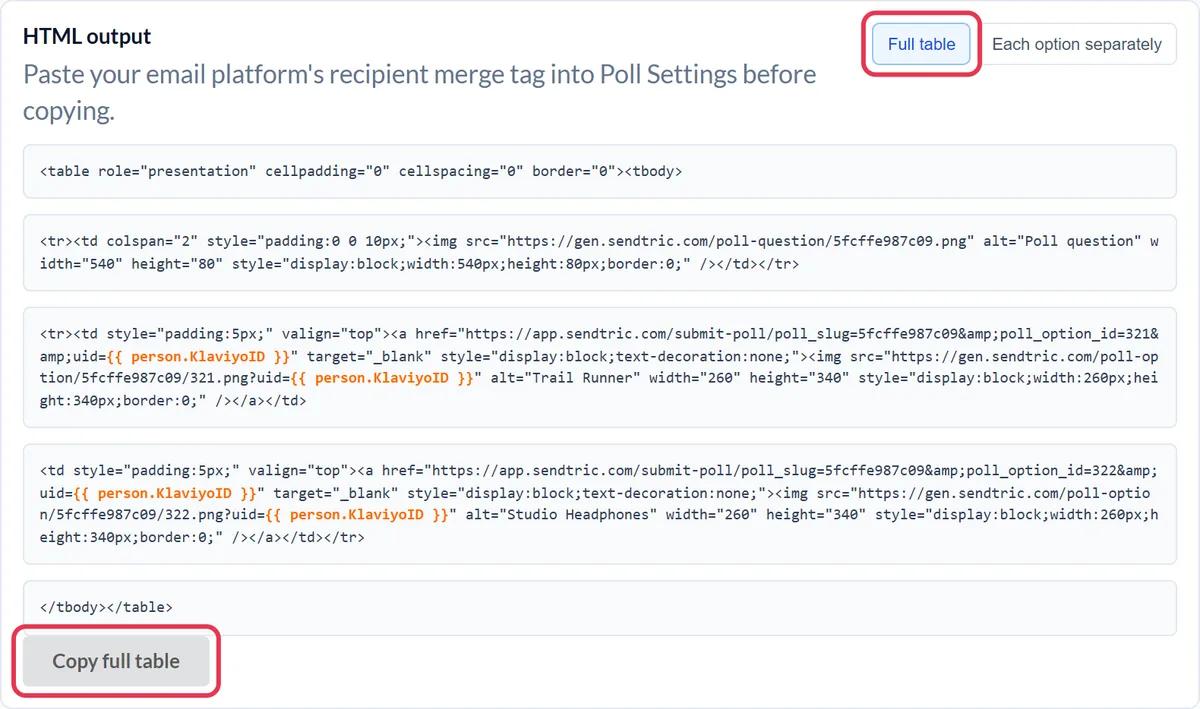
In the HTML output panel under the canvas, click Copy full table. To lay the answers out yourself, use Each option separately and copy each answer on its own.
Step 4: Paste it into an HTML element
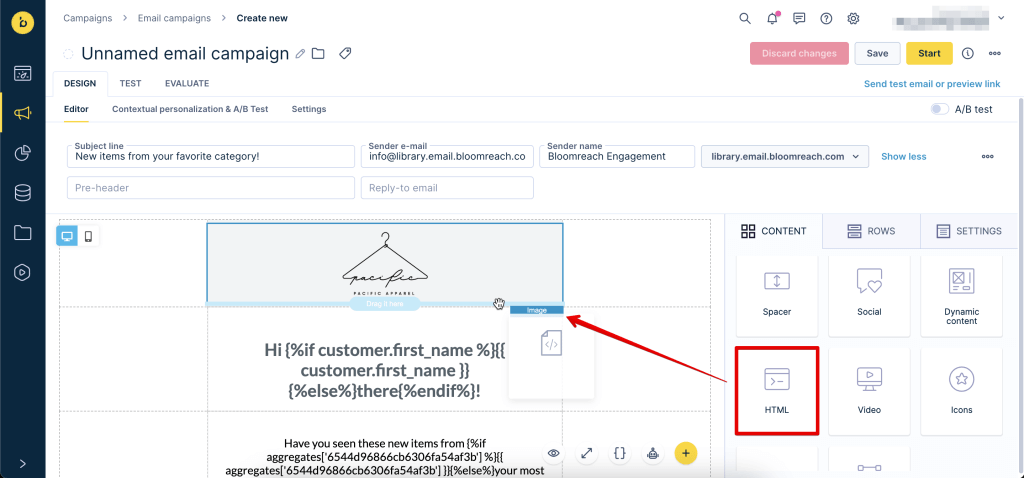
In your Bloomreach email, drag the HTML element from the Content tab into a row. Click it and paste the poll code under Content Properties.
Step 5: Test with a real customer profile
Use Send test email or preview link and pick a preview customer with an email address. Vote in the test email. If each test vote replaces the one before, even from different profiles, the tag wasn't filled in.
The poll ID shows up in your export
Whatever you put in the UID field is what the per-customer download lists next to each answer. With {{ customer.email }} that is the email address, which makes it easy to match answers back to Bloomreach customers.
Columns for small polls
Two or three narrow answers fit well inside a multi-column row in the visual builder. Put the HTML element in one column and your copy or product image in the other.
Bloomreach Live Poll FAQ
Why use the email address instead of a customer ID?
Bloomreach projects name their IDs differently, and Bloomreach notes your hard ID may not be called registered. Email works in any project that stores it. If you know your hard ID, you can use it instead.
Can I use the poll in a scenario?
Yes. The poll is plain HTML, so it works in scenario emails and one-off campaigns alike.
How do I get the answers back into Bloomreach?
Turn on Track unique responses?, then download the per-customer results from the poll report. The file lists each customer's ID (their email, if you used {{ customer.email }}) and their answer, ready to import as a customer attribute.
Can a customer change their vote?
Yes. If the same customer clicks another answer, their earlier vote is replaced, so each customer counts once.
How fast do live results update?
Usually within about a minute. Some email apps keep their own copy of images for longer, so a reopen can show slightly older numbers.
This guide covers one piece of Sendtric's email personalization platform. For every live polls option and example, see the main page.
More Bloomreach guides
- Countdown Timers - How to Add Countdown Timers to Bloomreach
- Personalized Images - How to Add Personalized Images to Bloomreach
- Rule-Based Images - How to Add Rule-Based Images to Bloomreach
- Dynamic Weather - How to Add Dynamic Weather to Bloomreach
- Critical Alerts - How to Add Critical Alerts to Bloomreach
- Social Proof Counters - How to Add Social Proof Counters to Bloomreach
Using a different platform? See all Sendtric integrations.
