
How to Add Rule-Based Images to Bloomreach
One image slot, many versions: Sendtric picks the right picture for each Bloomreach customer from their attributes or the moment they open the email.
 First Publish Date:
Let each Bloomreach customer see the image that fits them, decided at the moment they open.
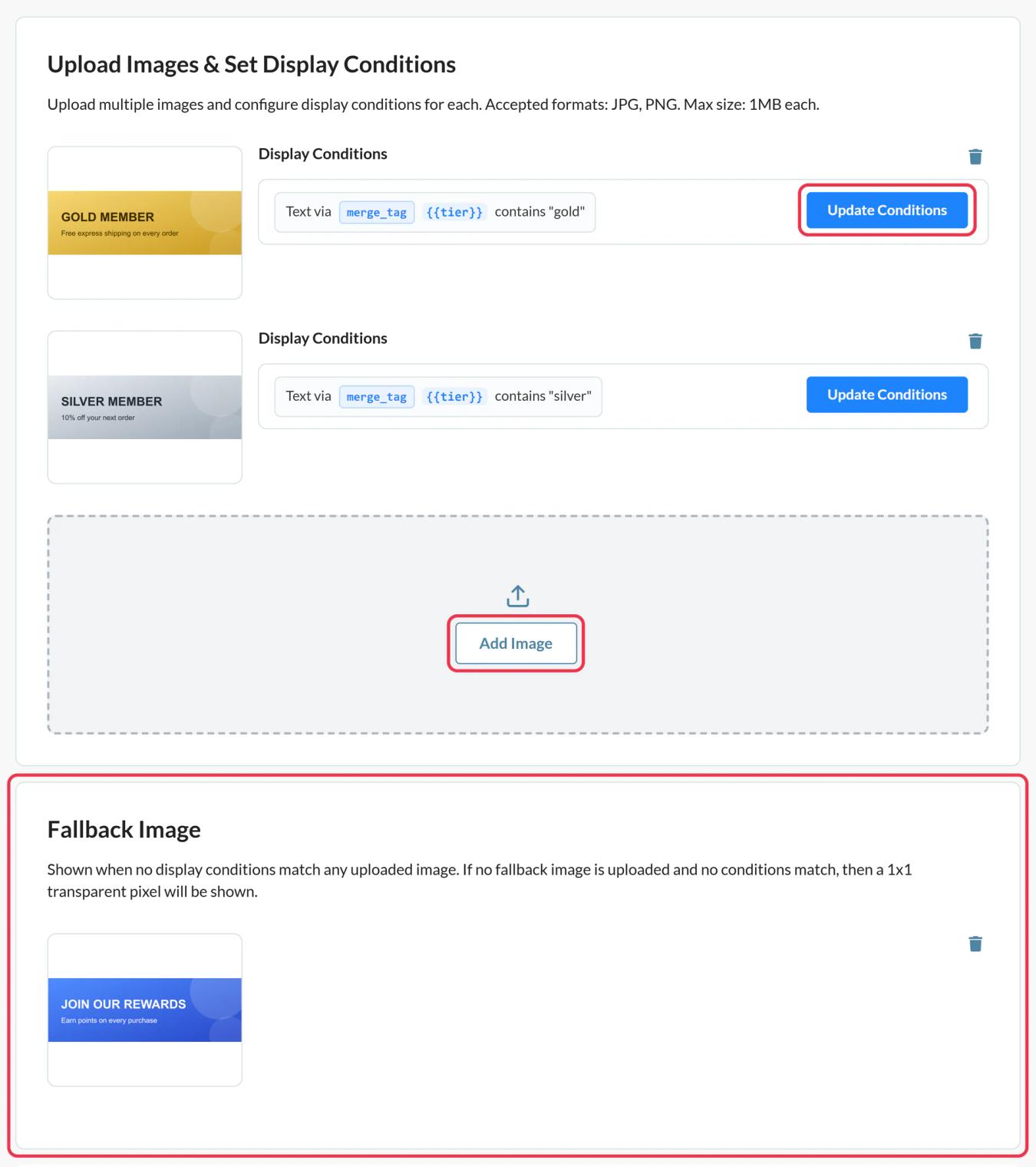
With Sendtric rule-based images you upload several versions of an image and set the conditions for each one. When the email is opened, Sendtric checks the rules from top to bottom and shows the first image that matches, or your fallback image if none do.
You can already branch content in Bloomreach with Jinja if statements, but those are decided when the email is sent. Rules based on the date, day of the week, time or device are checked when the email is opened, so a lunch offer can turn into a dinner offer later the same day.
What you can do with rule-based images in Bloomreach
- Store or region creative: match a customer attribute like region or nearest store and show the local promotion.
- Tier-specific banners: a different hero for Bronze, Silver and Gold members from one image code.
- Time-of-day offers: breakfast, lunch and dinner images that switch by the hour the email is opened.
- Before and after a sale: a teaser image until launch day, the sale image after it.
| Rule or option | Sendtric plan |
|---|---|
| Text matches on a customer attribute, email client, operating system | All plans |
| Fallback image | Micro and above |
| Date, day of week and time rules | Standard and above |
| Number comparisons and device rules, unlimited images | Power and above |
How to add a rule-based image to Bloomreach
Step 1: Upload your images
In Sendtric, open Rule-based Images and click Create New. Use Add Image for each version, in the order you want them checked, since the first match wins.
Step 2: Set the conditions
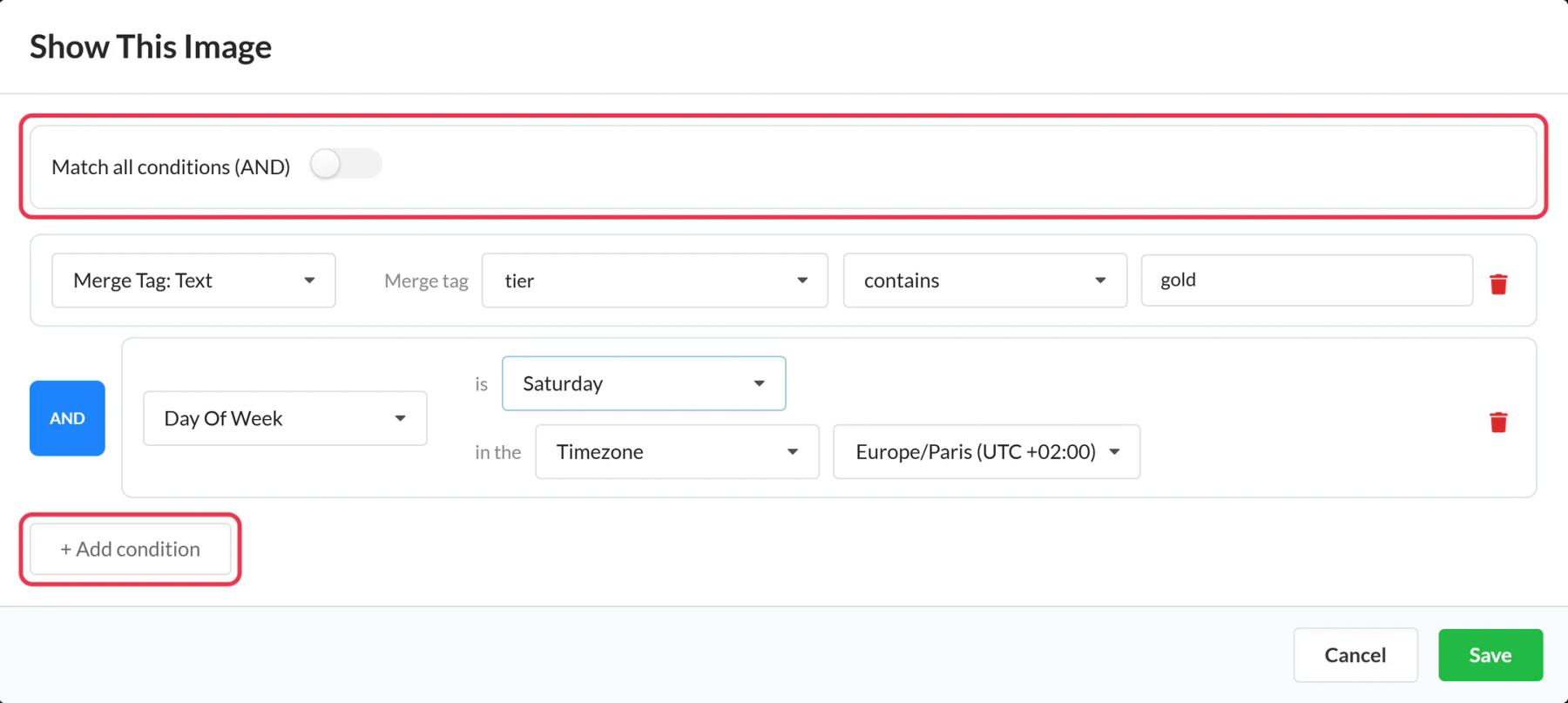
Click Update Conditions on each image. Choose whether all or any conditions must match, then add them. For a customer attribute rule, give the merge tag a name like tier and set the value to compare against. Add a fallback image so nobody gets an empty slot.
Step 3: Copy the code and add your Jinja
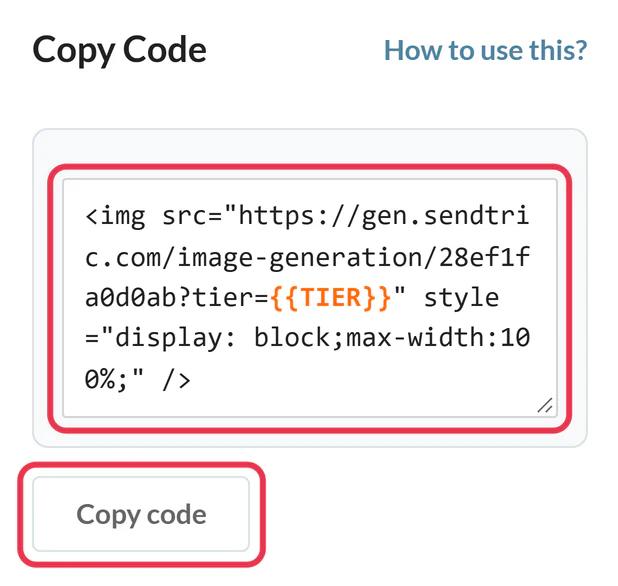
Save, then copy the code. Each merge tag condition appears in the URL as name={{NAME}}. Replace the placeholder with the Bloomreach attribute, for example tier={{ customer.loyalty_tier }}.
Step 4: Paste it into Bloomreach
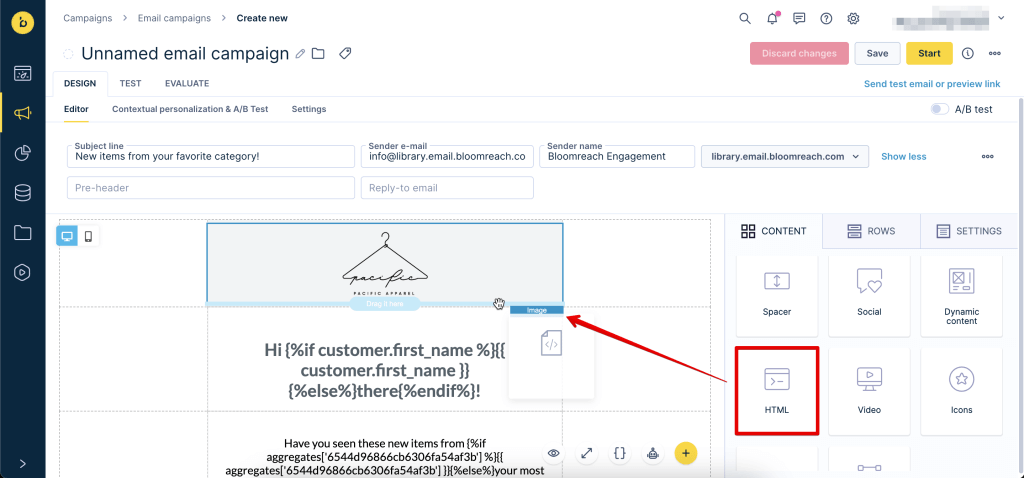
Drag the HTML element from the Content tab into your email, click it and paste the code under Content Properties.
Step 5: Test each branch
Use Sendtric's Preview to simulate dates, devices and attribute values. Then send Bloomreach tests to customers in different tiers to check the attribute reaches Sendtric.
Match the stored values exactly
Text conditions aren't case sensitive, but the spelling must match what Bloomreach stores. Check a few customer profiles before writing "equals Gold" if your data says "gold_tier".
Gmail and device rules
Gmail fetches images through its own servers, so device and operating system rules can't always see the real device. For anything important, prefer a rule based on a Bloomreach attribute.
Bloomreach Rule-Based Images FAQ
How is this different from a Jinja if statement?
Jinja decides at send time and you write the logic in the email. Sendtric decides at open time, so date and time rules stay current, and you manage the images and rules in one place outside the template.
What does a customer see if no rule matches?
Your fallback image. Without one, an invisible 1 by 1 pixel image is shown, so the slot simply collapses.
Can I use a timer or a personalized image as one of the options?
Yes. When you add an image, the library has tabs for your timers, personalized images and weather widgets, so any of them can be an option.
Can I change the rules after the email is sent?
Yes. The image is chosen on every open, so saved changes apply to emails already delivered.
Why is one of my images never shown?
An image with no conditions is skipped. Also check the order: an earlier image whose rule matches will always win.
This guide covers one piece of Sendtric's email personalization platform. For every rule-based images option and example, see the main page.
More Bloomreach guides
- Countdown Timers - How to Add Countdown Timers to Bloomreach
- Live Polls - How to Add Live Polls to Bloomreach
- Personalized Images - How to Add Personalized Images to Bloomreach
- Dynamic Weather - How to Add Dynamic Weather to Bloomreach
- Critical Alerts - How to Add Critical Alerts to Bloomreach
- Social Proof Counters - How to Add Social Proof Counters to Bloomreach
Using a different platform? See all Sendtric integrations.
