
How to Add Personalized Images to Braze
Render Braze user attributes as text on an image, from {{${first_name}}} to your own custom attributes, with a fallback for anyone missing data.
 First Publish Date:
Use Braze attributes in the artwork, not only in the copy.
Liquid already puts names and details into your Braze text. Sendtric personalized images put them onto an image: you design one graphic with text layers, and each layer is filled from a Braze attribute when the email opens. A streak count on a fitness badge or a plan name on a renewal card reads far more personal than the same line in body text.
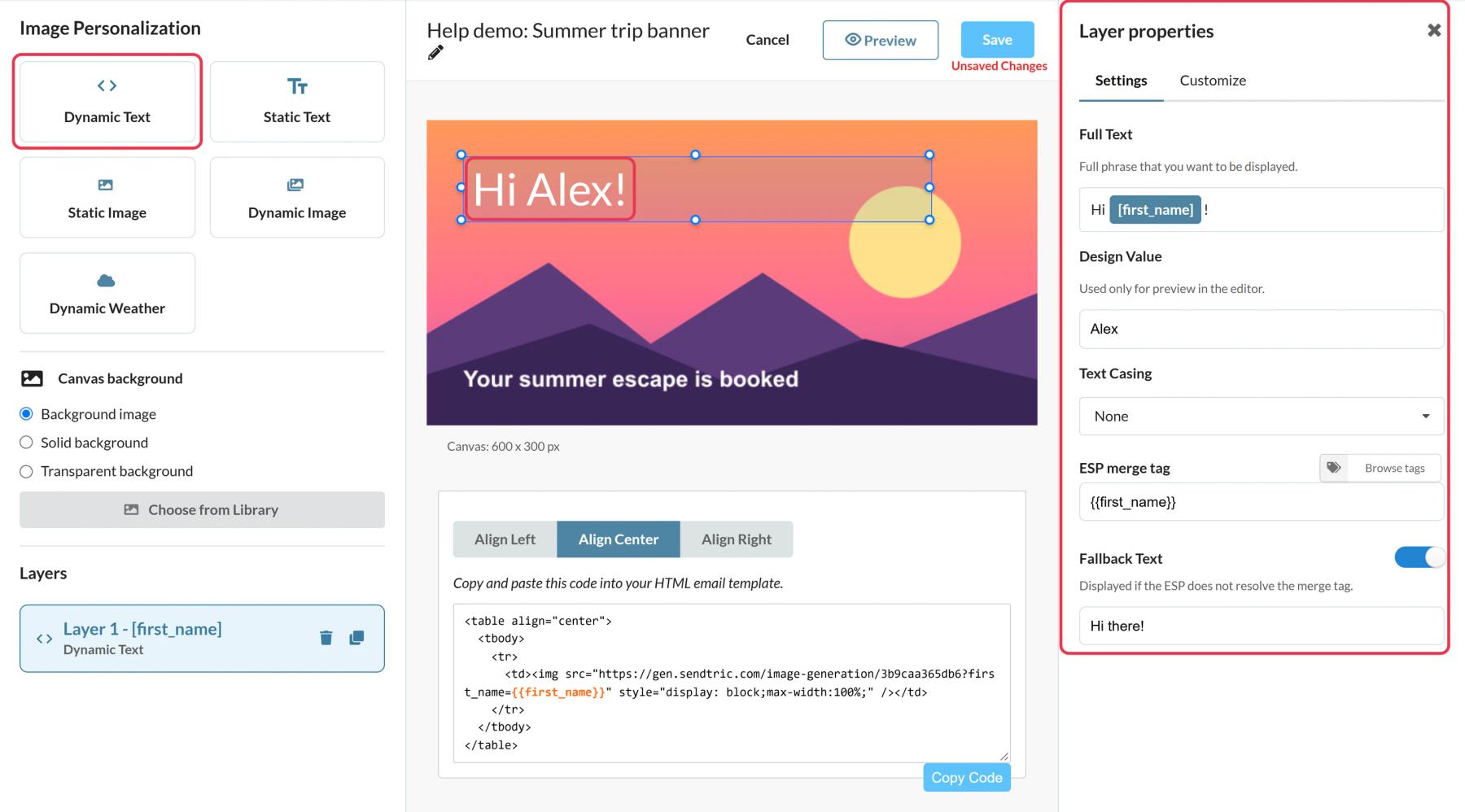
What you can do with personalized images in Braze
- App milestones: a user's streak, level or lessons completed on a badge, from custom attributes.
- Subscription renewals: plan name and renewal date on a membership card.
- Local offers: the user's city on a store or delivery banner with
{{${city}}}. - Year-in-review: a few stats per user on one celebratory background, sent from a Canvas.
| Plan | Dynamic text layers per image |
|---|---|
| Free | 1 |
| Micro | 2 |
| Standard | 4, plus static image layers |
| Power and Enterprise | 20, plus transparent backgrounds |
How to add a personalized image to Braze
Step 1: Create the image
In Sendtric, open Image Personalization and click Create New. Pick a background from the library or start with a solid color.
Step 2: Map a text layer to Braze Liquid
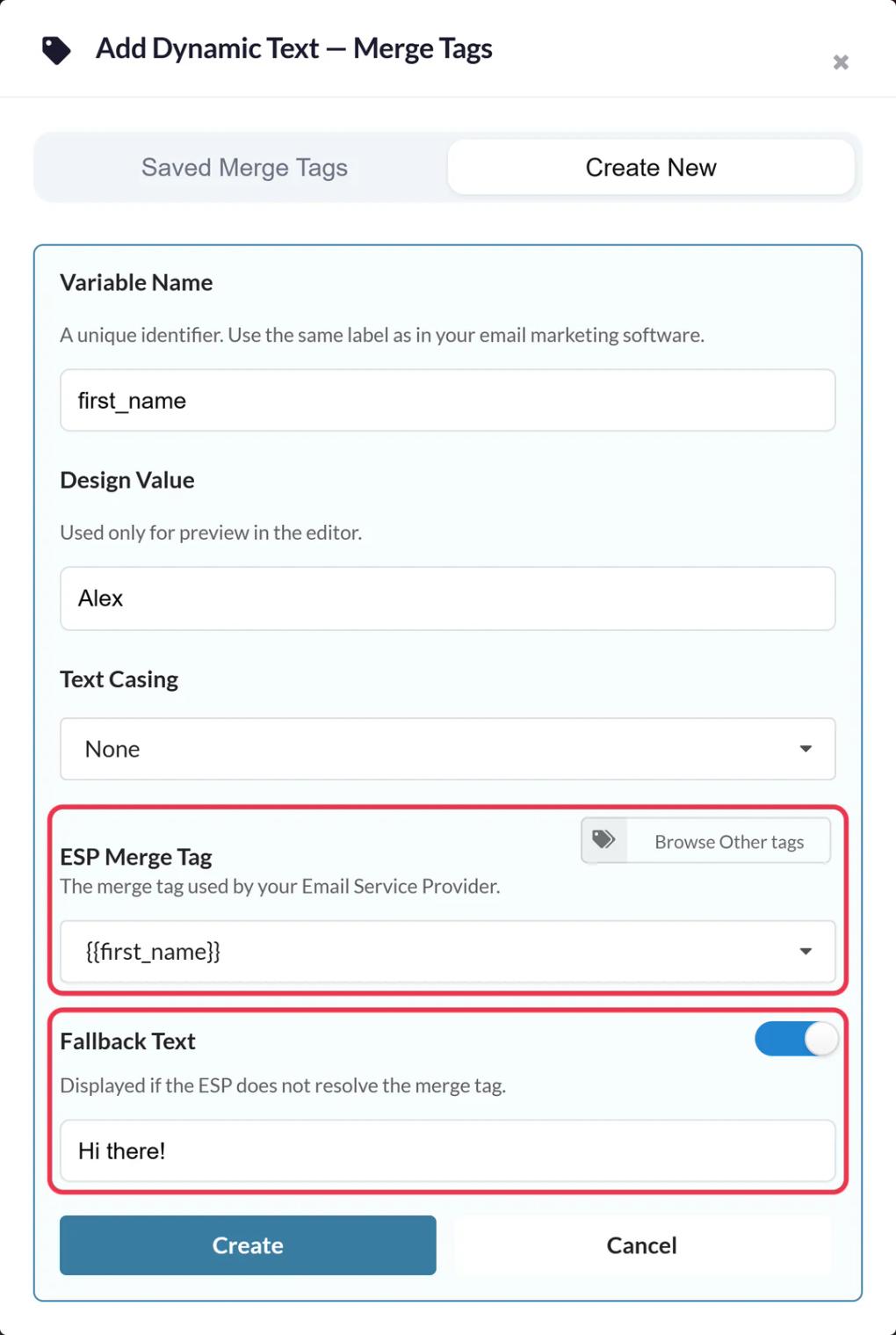
Add a Dynamic Text layer and create a variable such as first_name. In ESP Merge Tag, enter the Braze tag: {{${first_name}}} for a standard attribute, or {{custom_attribute.${streak_days}}} for a custom one. Set Fallback Text for users without a value.
Step 3: Save and copy the code
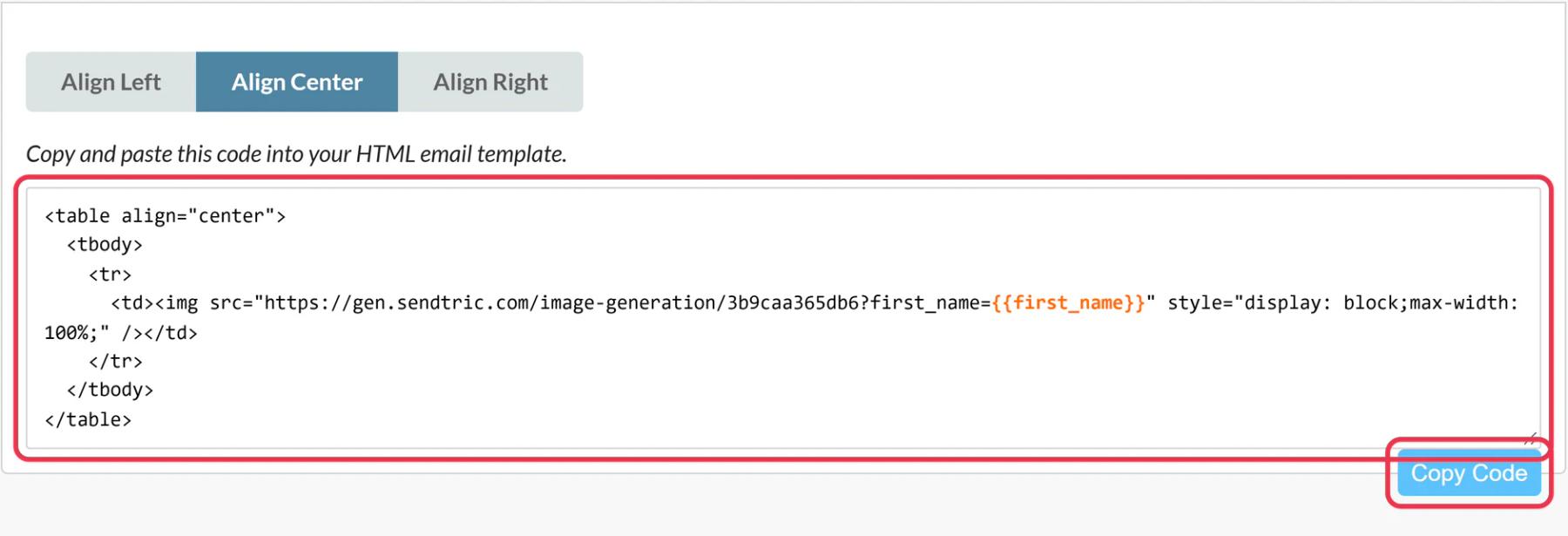
Style the text, check it with a long value, and click Save. Copy the code; each variable sits in the image URL with your Braze tag.
Step 4: Add it with an HTML block
In Braze's drag-and-drop editor, drag the HTML block from the Content panel into the email and paste the code. Use the HTML block rather than the Image block, because Braze doesn't support Liquid in image blocks.
Step 5: Preview with real users
In Preview & Test, preview as a user who has the attribute and one who doesn't. The first should show their value; the second your fallback.
Braze default or Sendtric fallback
You can add a Liquid default, like {{${first_name} | default: 'there'}}, or let Sendtric's Fallback Text handle empty values. Pick one. With a Liquid default, Sendtric always receives a value and its fallback never shows.
Long values
Text wraps inside its box but never shrinks. Make the box tall enough for your longest realistic value, such as a long city name.
Braze Personalized Images FAQ
Can I use custom attributes?
Yes. Use Braze's custom attribute syntax, {{custom_attribute.${your_attribute}}}, in the layer's ESP Merge Tag field.
What does a user without the attribute see?
Your Fallback Text. Without a fallback, that text layer is hidden for them.
Does it work in Canvas?
Yes. The code is plain HTML and works in Canvas email steps and campaigns.
Can I update the design after sending?
Yes. Saving in Sendtric updates the image in every email that uses it, on the next open.
Which plan do I need?
Personalized images work on every plan; the number of dynamic text layers grows with the plan. See pricing.
This guide covers one piece of Sendtric's email personalization platform. For every personalized images option and example, see the main page.
More Braze guides
- Countdown Timers - How to Add Countdown Timers to Braze
- Live Polls - How to Add Live Polls to Braze
- Rule-Based Images - How to Add Rule-Based Images to Braze
- Dynamic Weather - How to Add Dynamic Weather to Braze
- Critical Alerts - How to Add Critical Alerts to Braze
- Social Proof Counters - How to Add Social Proof Counters to Braze
Using a different platform? See all Sendtric integrations.
