
How to Add Countdown Timers in Braze
 First Publish Date: .Last Updated:
 Braze counts among the world’s leading customer engagement platforms with a strong suite of powerful tools for email, push notifications, in-app messaging, and multi-channel automation.
Adding a Sendtric countdown timer or email widget to your Braze email campaigns is quick and easy, taking only a few minutes.

Step 1: Create your timer on Sendtric
Whether you use a free timer from our homepage or create a custom one with the paid plan, the process is fast and straightforward.
The editor will prompt you step by step and allow you to adjust the widget to match your email campaign’s theme and feel. Additional settings let you configure the widget to match your intended use.
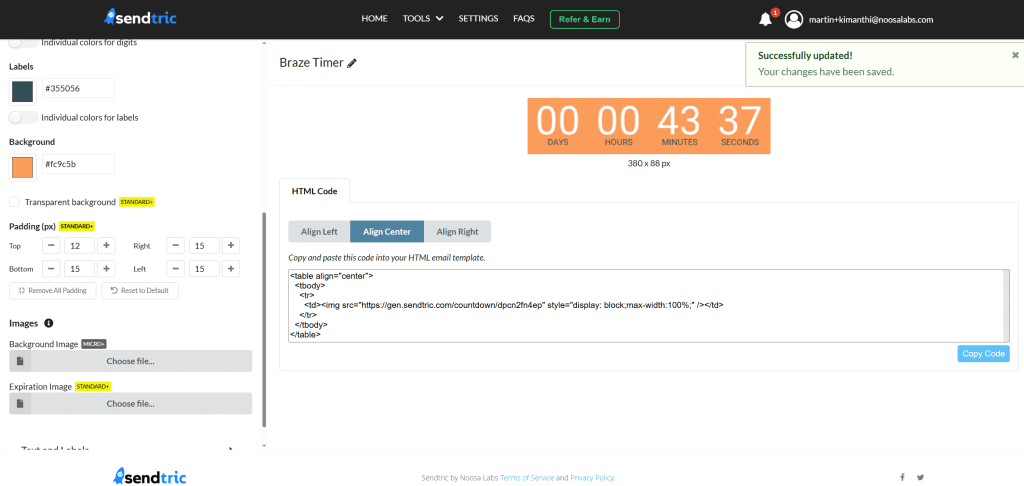
Once the widget is ready, click Copy Code to copy the HTML embed code to your clipboard and head over to Braze.
Step 2: Insert Your Widget Into Your Braze Email
In your Braze dashboard, go to Messaging > Campaigns and either open an existing email campaign to edit, or click ‘Create Campaign’ and select Email. When prompted to choose an editing experience, select the Drag-and-Drop Editor.
In the email editor, open the Content panel on the left-hand side. Scroll down to the Advanced section, and find the HTML block.
Drag the HTML block into your email at the position where you want the Sendtric widget to appear. Once it is in place, click on the block to open its Content Properties panel. Paste the HTML code copied from Sendtric directly into the HTML field.
The standard Sendtric HTML code for a timer widget is centre aligned and has the following format:
<table align="center"> <tbody> <tr> <td> <img src="https://gen.sendtric.com/countdown/xyz123456" style="display: block; max-width:100%;"/> </td> </tr> </tbody> </table>In the dashboard, you can select whether the time is aligned in the center, left, or right and the html code will adjust to your preference.
Step 3: You’re Done!
The last step is checking to see that the time displays correctly in a real inbox. Use the Preview & Test tab in Braze to check this, and that’s it. It’s a simple process that adds depth and urgency to your campaigns.
If you are on a paid Sendtric plan and want to redesign the timer after placing it in a template, you can return to the Sendtric editor to make changes. There is no need to copy and paste the code again. Since it is an embedded URL, the updates reflect automatically.
We’d love to hear about your experience using Sendtric with Braze. Feel free to reach out to us at support@sendtric.com with any questions, feedback, or ideas.