
How to Add Critical Alerts to Braze
Build a banner into your Braze emails that stays hidden until you need it, then switch it on for every email already sent.
 First Publish Date:
Have a way to reach every inbox you've already sent to, ready before you need it.
A Sendtric critical alert is a banner that you add to an email while it is switched off. When something changes, switch it on, and the banner appears in every copy of that email on the next open. Critical alerts are an Enterprise plan feature.
What you can do with critical alerts in Braze
- Service incidents: a "we're aware of the issue" banner in recent product emails while your app is degraded.
- Scheduled maintenance: set the banner to show only during the maintenance window.
- Delivery or travel disruption: a notice in booking and order emails while delays last.
- Offer changes: flag that a promotion sold out early in emails that still advertise it.
Because Braze Canvases keep sending the same messages for months, an alert placed in a Canvas email gives you a switch for every user who has passed through that step.
How to add a critical alert to Braze
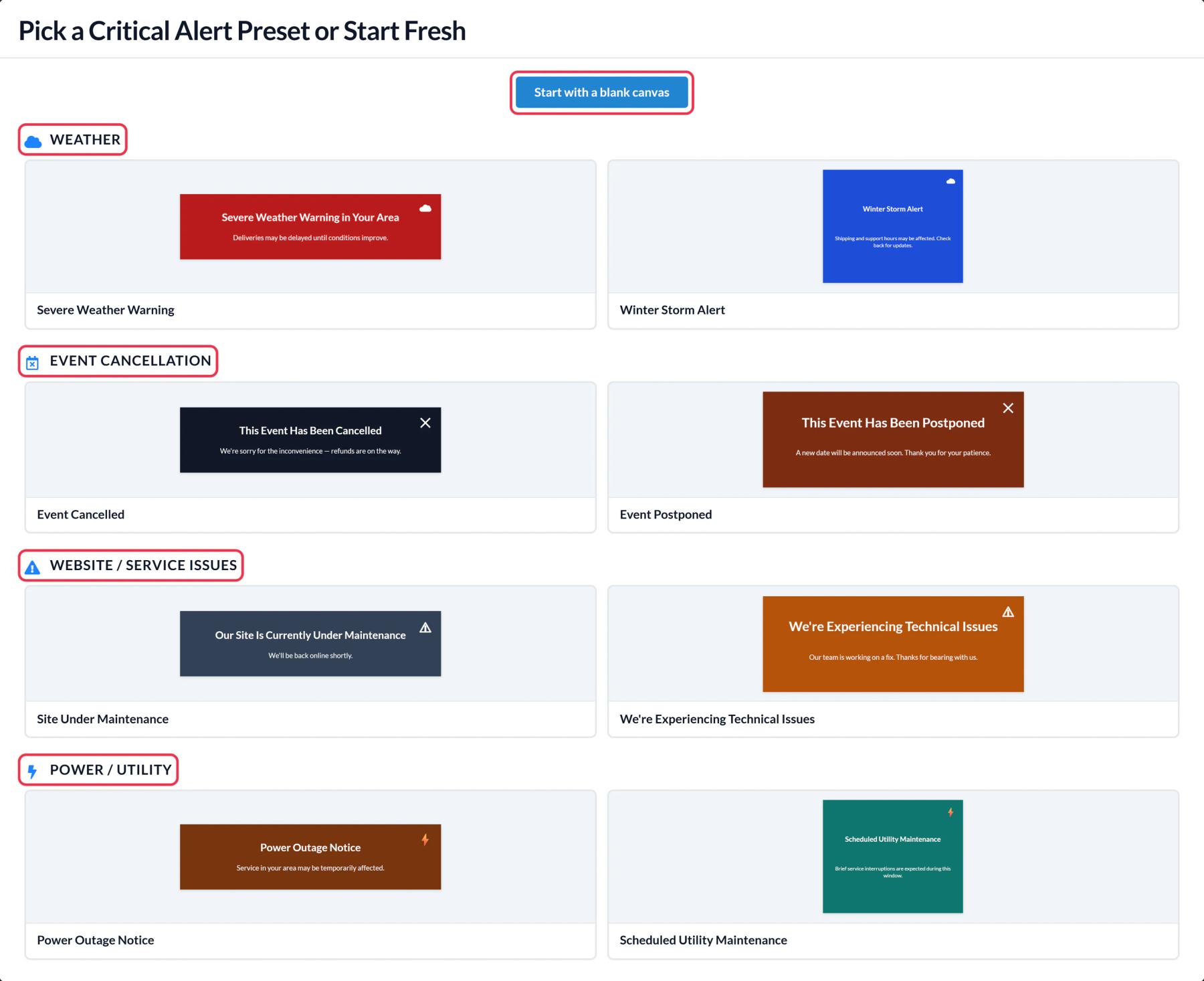
Step 1: Pick a preset or start blank
In Sendtric, open Critical alerts and click Create New. Presets include Site Under Maintenance and We're Experiencing Technical Issues. Edit the wording in the canvas editor.
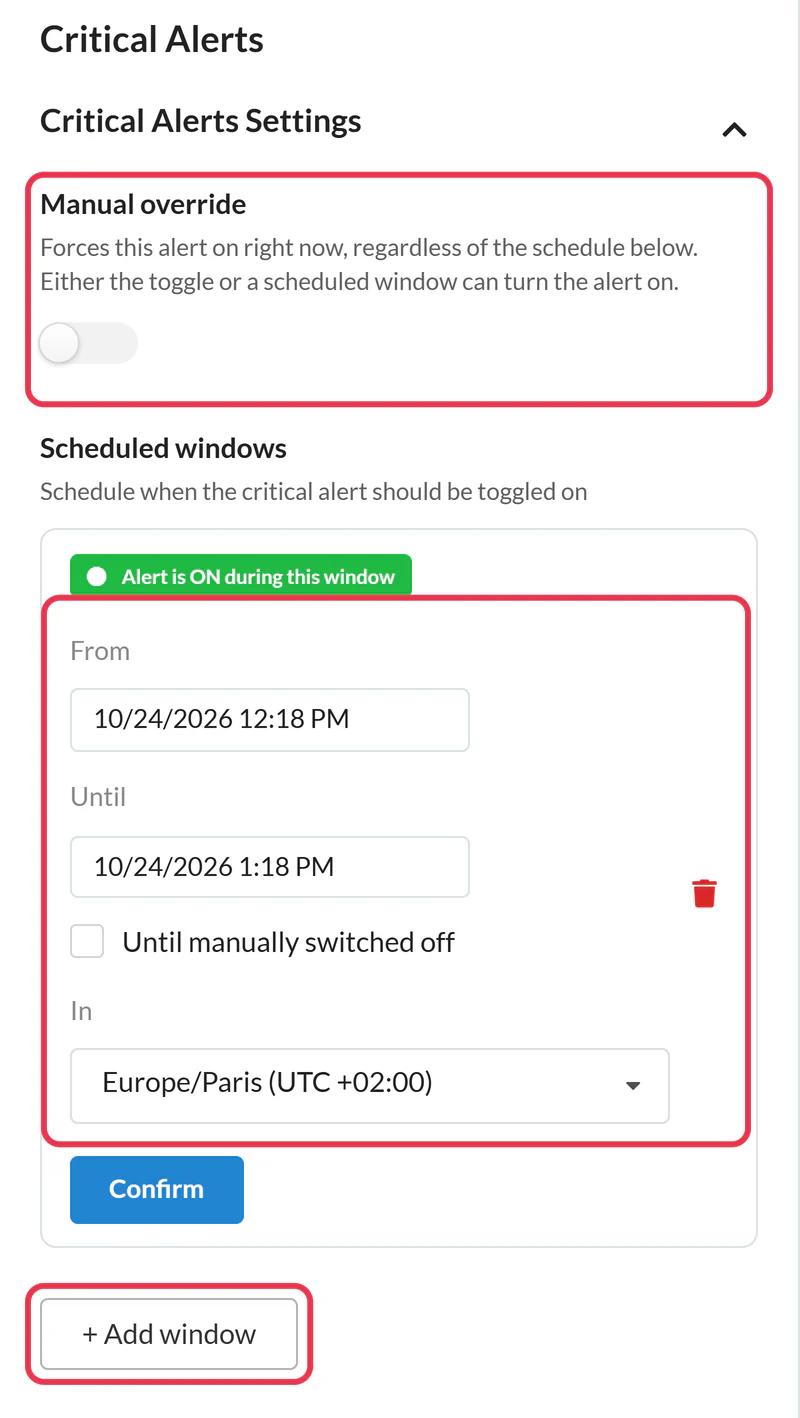
Step 2: Set the switch and schedule
In Critical Alerts Settings, leave Manual override off for now, or add scheduled windows with a start, end and time zone. You can have up to five windows.
Step 3: Copy the code
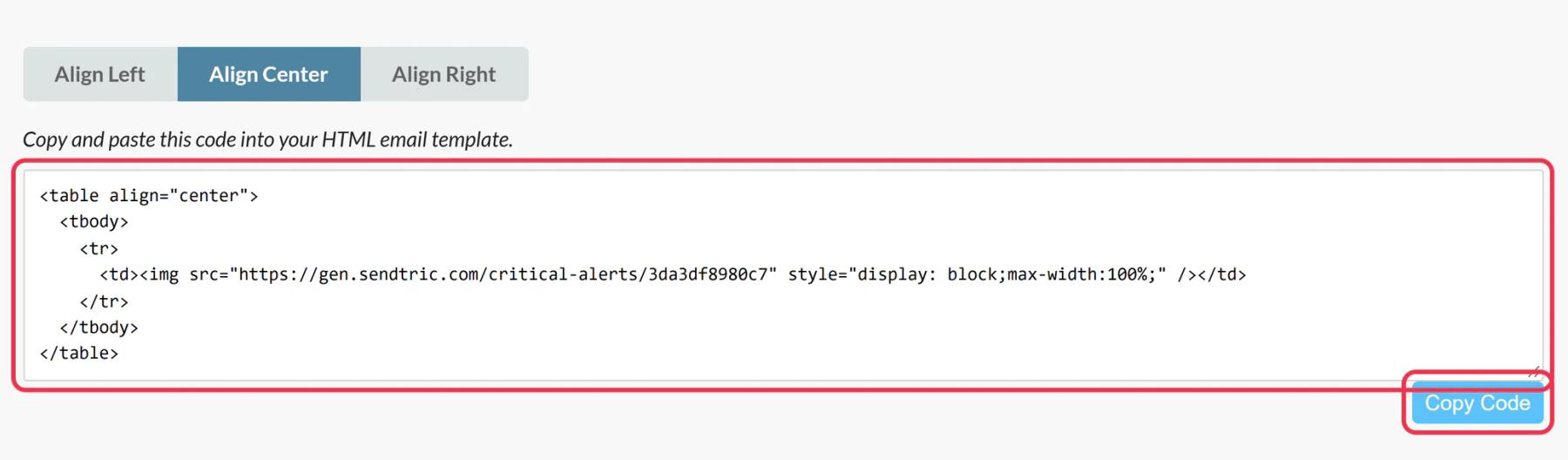
Save and copy the code. It stays the same however often you change the alert.
Step 4: Add an HTML block to your Braze email
In the drag-and-drop editor, drag the HTML block from the Content panel to the top of the email, below your logo, and paste the code.
Step 5: Test it off and on
Send a test from Preview & Test with the alert off. Then switch on Manual override and reopen the test: the banner should now be there.
Add it to a Braze Content Block
To place the same alert in many templates, save the HTML in a Braze HTML Content Block and insert it with its Liquid tag. Braze notes that HTML Content Blocks inside drag-and-drop emails can render unexpectedly, so test the result.
Personalize the alert
If the alert includes Dynamic Text, replace its placeholders with Braze Liquid such as {{${first_name}}}.
Braze Critical Alerts FAQ
What does the alert look like while it is off?
Nothing visible. An invisible 1 by 1 pixel image sits in its place.
Do I need to resend anything to show it?
No. Switching it on changes what the image shows on the next open, as long as the email app loads images again.
Who can use critical alerts?
Sendtric Enterprise customers. Get in touch from the pricing page to discuss Enterprise.
Can I change the message while it is live?
Yes. Save the alert and the new version shows from the next open.
Are opens counted while it is off?
No. Views are only counted while the alert is on.
This guide covers one piece of Sendtric's email personalization platform. For every critical alerts option and example, see the main page.
More Braze guides
- Countdown Timers - How to Add Countdown Timers to Braze
- Live Polls - How to Add Live Polls to Braze
- Personalized Images - How to Add Personalized Images to Braze
- Rule-Based Images - How to Add Rule-Based Images to Braze
- Dynamic Weather - How to Add Dynamic Weather to Braze
- Social Proof Counters - How to Add Social Proof Counters to Braze
Using a different platform? See all Sendtric integrations.
