
How to Add Critical Alerts to Bloomreach
Place a hidden banner in your Bloomreach emails and switch it on later, even after the campaign has gone out, when plans change.
 First Publish Date:
Change what a sent Bloomreach email says, without sending another one.
A Sendtric critical alert is a banner you place in your email that stays invisible until you switch it on. Turn it on and every copy of that email shows the banner on the next open. Turn it off and it disappears again. Critical alerts are available on Sendtric Enterprise plans only.
What you can do with critical alerts in Bloomreach
- Sell-outs and restocks: a "back in stock on Friday" note on a product email that has already been sent.
- Shipping delays: switch on a delivery notice in order and promotional emails while a carrier is behind.
- Event changes: venue moves, weather warnings or postponements on tickets and reminders already in inboxes.
- Site maintenance: a planned downtime banner scheduled to show only during the maintenance window.
It works well in long-running Bloomreach scenarios too: add the alert once to a welcome or post-purchase email, and you have a way to speak to everyone who has received it if something changes.
How to add a critical alert to Bloomreach
Step 1: Design the alert
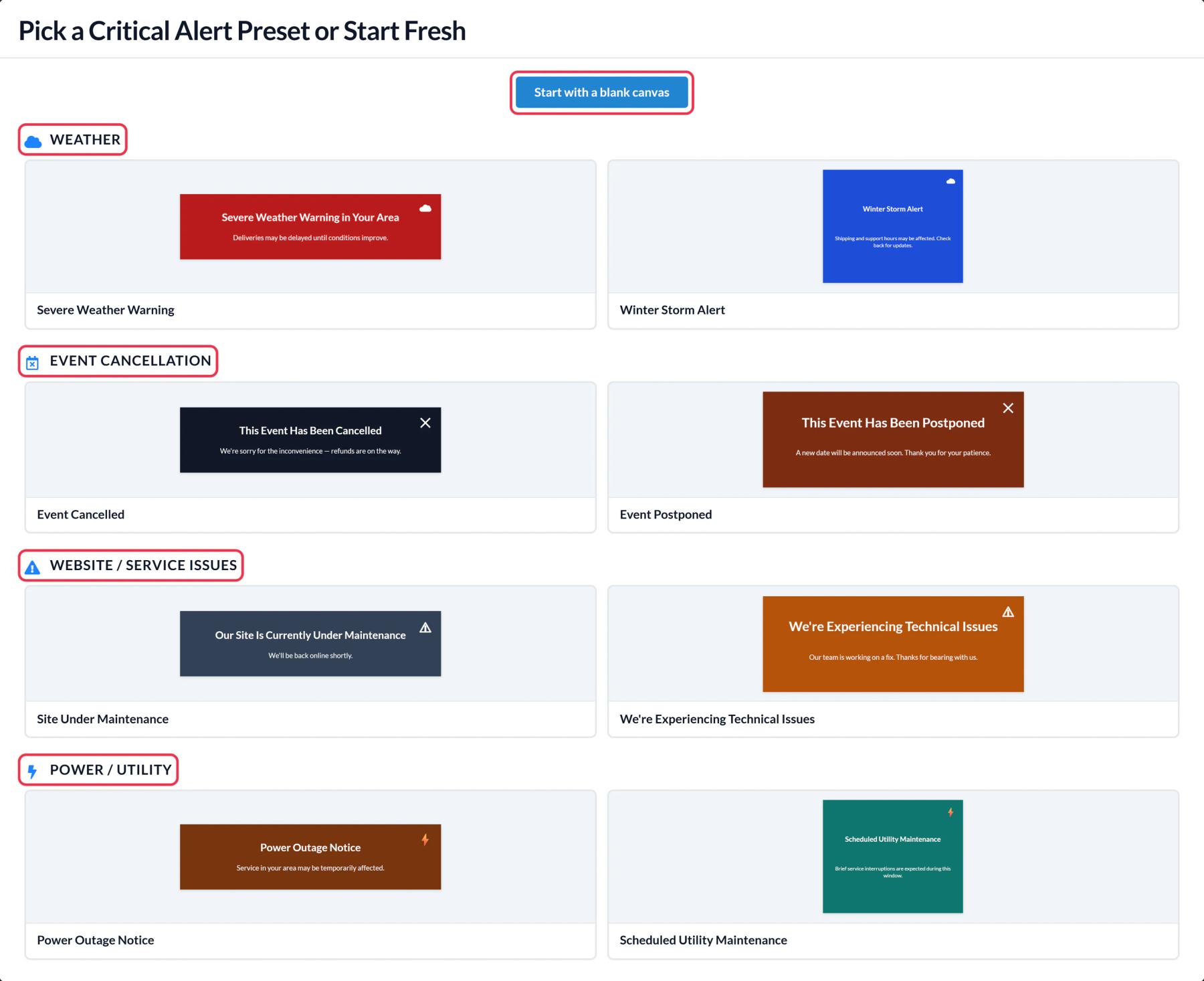
In Sendtric, open Critical alerts and click Create New. Pick a preset such as Event Postponed or start with a blank canvas, then edit the text and colors in the canvas editor.
Step 2: Decide when it is on
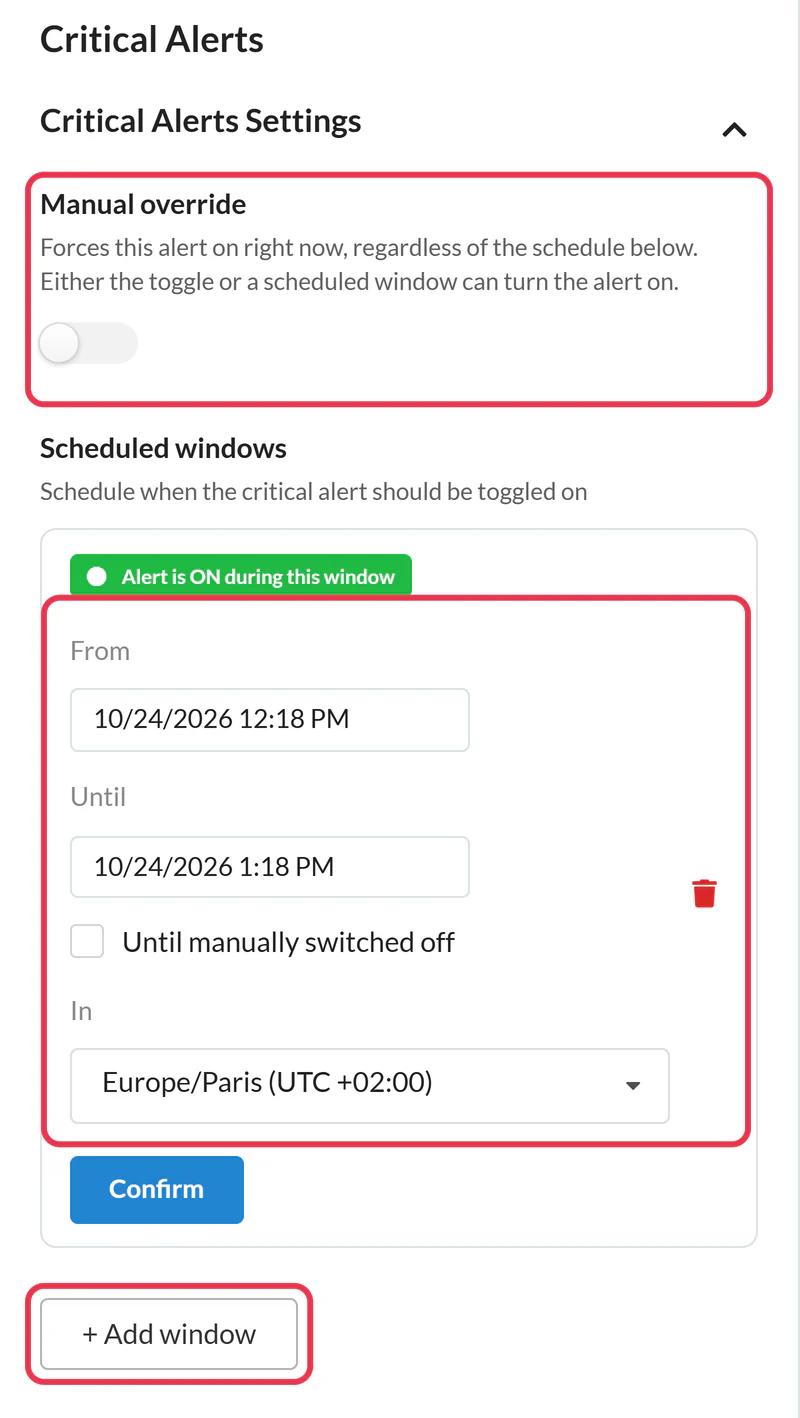
In Critical Alerts Settings, use Manual override to switch the alert on right now, or add up to five scheduled windows with a start, an end and a time zone. The alert shows whenever the override is on or the time falls inside a window.
Step 3: Copy the code
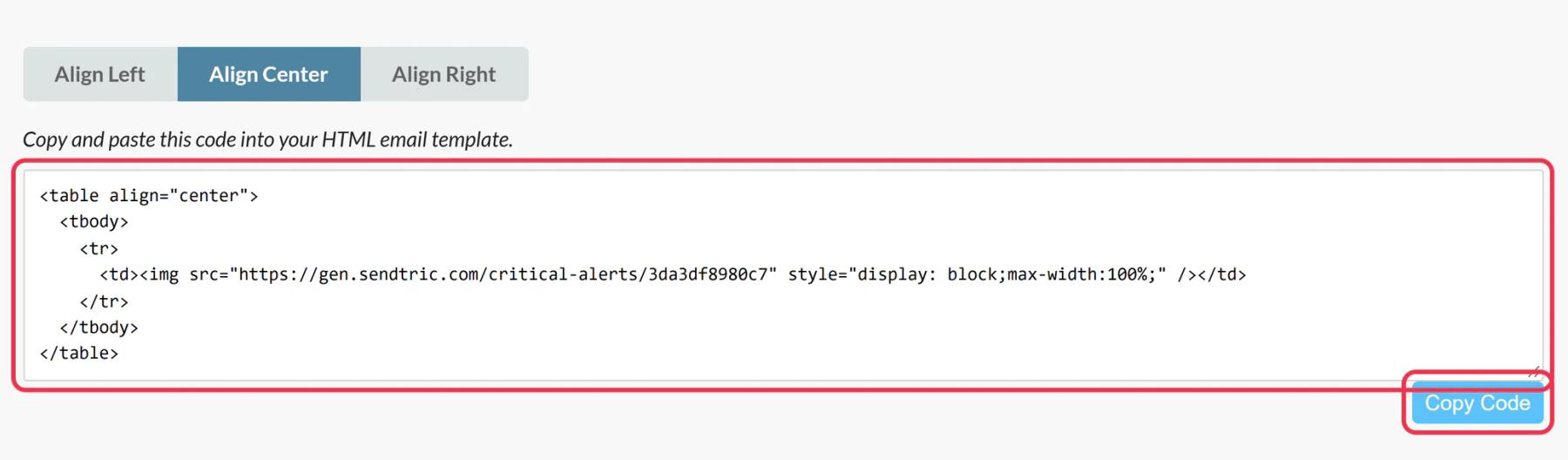
Save the alert and copy the code from the code panel. The code never changes, so you can add it to emails now and decide on the content later.
Step 4: Paste it into your Bloomreach email
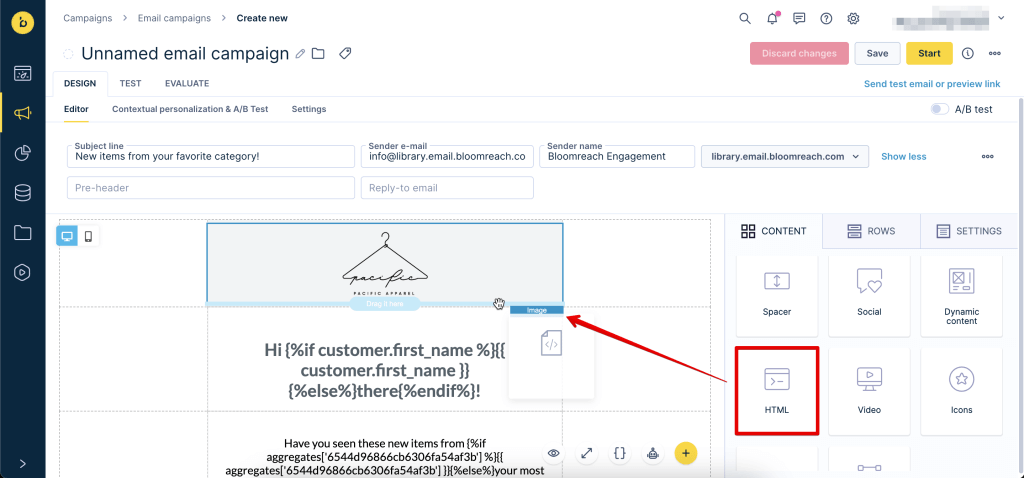
Drag an HTML element from the Content tab to the spot where the banner should appear, usually just under the header, and paste the code under Content Properties.
Step 5: Test both states
Send a test with the alert off, then switch it on and reopen the same test email. You should see nothing the first time and the banner the second.
Save it as a reusable block
If several templates should carry the same alert, save the code as an HTML block in Bloomreach's Asset Manager and add it with the Dynamic content element. One switch in Sendtric then covers all of them.
Personal details inside the alert
Alerts can include Dynamic Text layers. If you use them, replace the placeholders in the code with Bloomreach Jinja such as {{ customer.first_name }}.
Bloomreach Critical Alerts FAQ
What do customers see while the alert is off?
Nothing. An invisible 1 by 1 pixel image takes its place, so the email looks the same as without it.
Do I need to resend the campaign to show the alert?
No. Switch it on in Sendtric and it shows on the next open of any email that already contains it, as long as the email app loads the image again.
Which plan do I need?
Critical alerts are part of Sendtric Enterprise. Contact us through the pricing page to talk about Enterprise.
Can I edit the banner text while it is live?
Yes. Saving the alert updates what everyone sees from their next open.
Are views counted while it is off?
No. Views are only counted while the alert is on.
This guide covers one piece of Sendtric's email personalization platform. For every critical alerts option and example, see the main page.
More Bloomreach guides
- Countdown Timers - How to Add Countdown Timers to Bloomreach
- Live Polls - How to Add Live Polls to Bloomreach
- Personalized Images - How to Add Personalized Images to Bloomreach
- Rule-Based Images - How to Add Rule-Based Images to Bloomreach
- Dynamic Weather - How to Add Dynamic Weather to Bloomreach
- Social Proof Counters - How to Add Social Proof Counters to Bloomreach
Using a different platform? See all Sendtric integrations.
