
How to Add Critical Alerts to GetResponse
A banner you can turn on in GetResponse messages that are already in inboxes: rescheduled webinars, outages, delivery delays. Available on Sendtric Enterprise plans.
 First Publish Date:
Update GetResponse messages that are already sitting in inboxes.
A Sendtric critical alert is a banner you place in a message ahead of time. While it's off, nobody sees anything. If something changes after you send, switch it on and the banner shows on every open from that moment. Critical alerts are available on Sendtric Enterprise plans only.
What you can do with critical alerts in GetResponse
- Webinar changes: a new start time or a new link in the invitations and reminders you've already sent for a GetResponse webinar.
- Course or class updates: a cancelled live session or a changed room, shown in messages from your course sequence.
- Store issues: a stock or shipping delay notice in a promotion that's already out.
- Service status: maintenance windows and outage notices for software and subscription businesses.
How to add a critical alert to GetResponse
Step 1: Create the alert
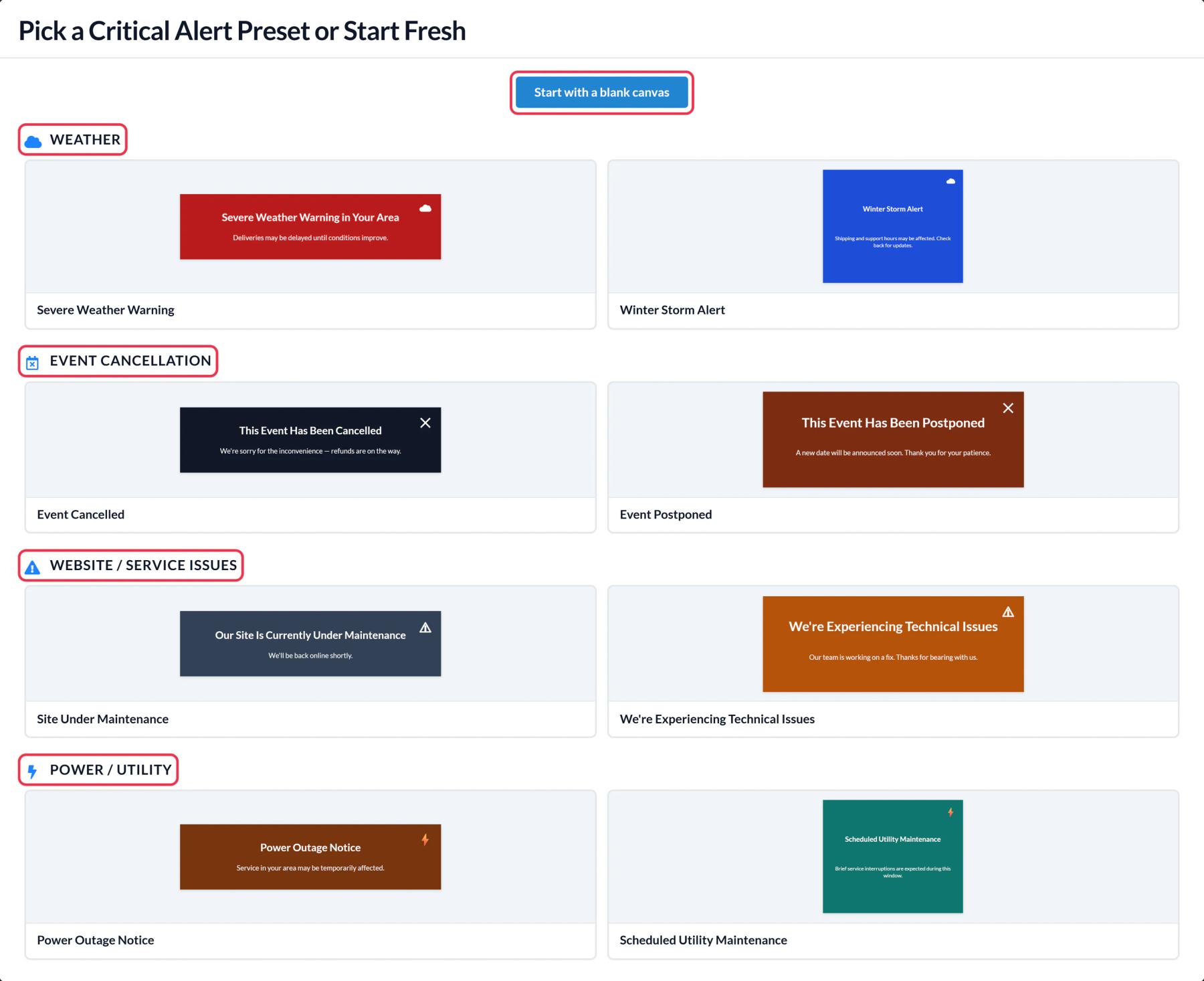
In Sendtric, go to Critical alerts, click Create New and pick a preset (Event Postponed, Severe Weather Warning, We're Experiencing Technical Issues and others) or start from a blank canvas. Edit the wording so it's ready to go if you need it.
Step 2: Plan when it switches on
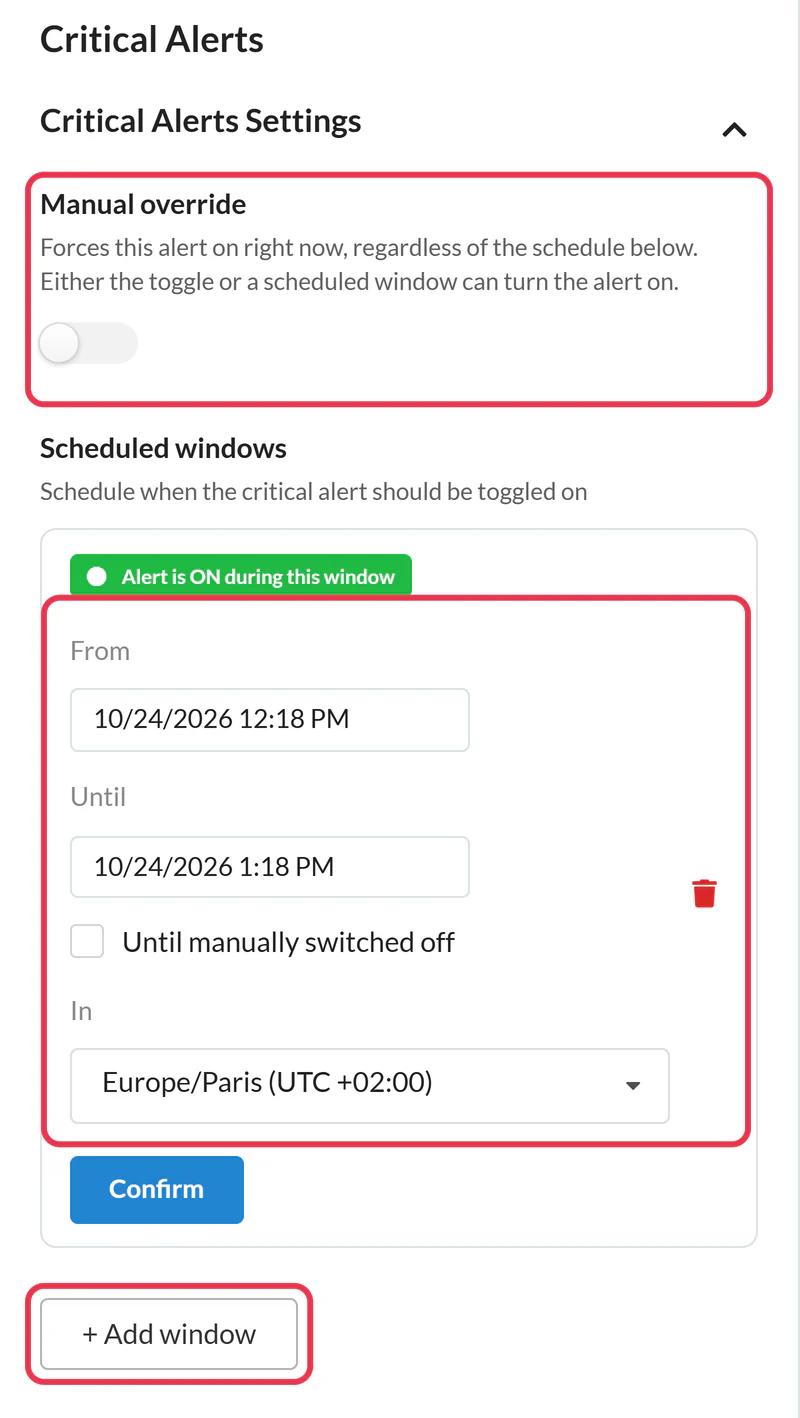
In Critical Alerts Settings, add up to five scheduled windows if you know the timing in advance, or rely on Manual override to turn it on by hand when needed.
Step 3: Save and copy the code
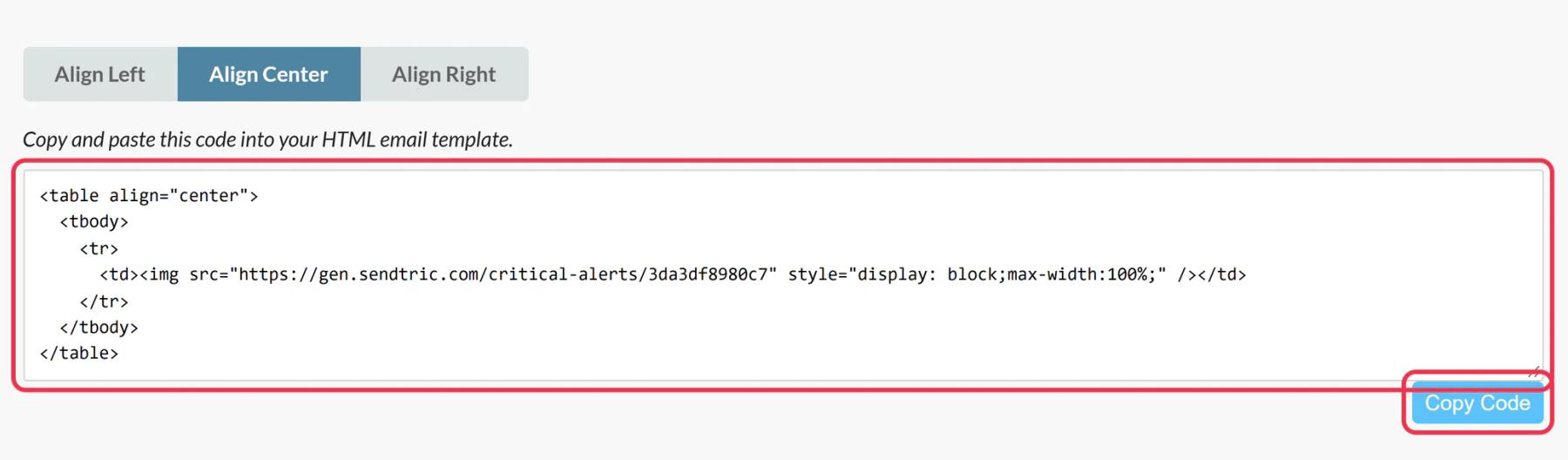
Click Save, then Copy Code. The code stays the same no matter how often you edit or switch the alert.
Step 4: Place it at the top of your message
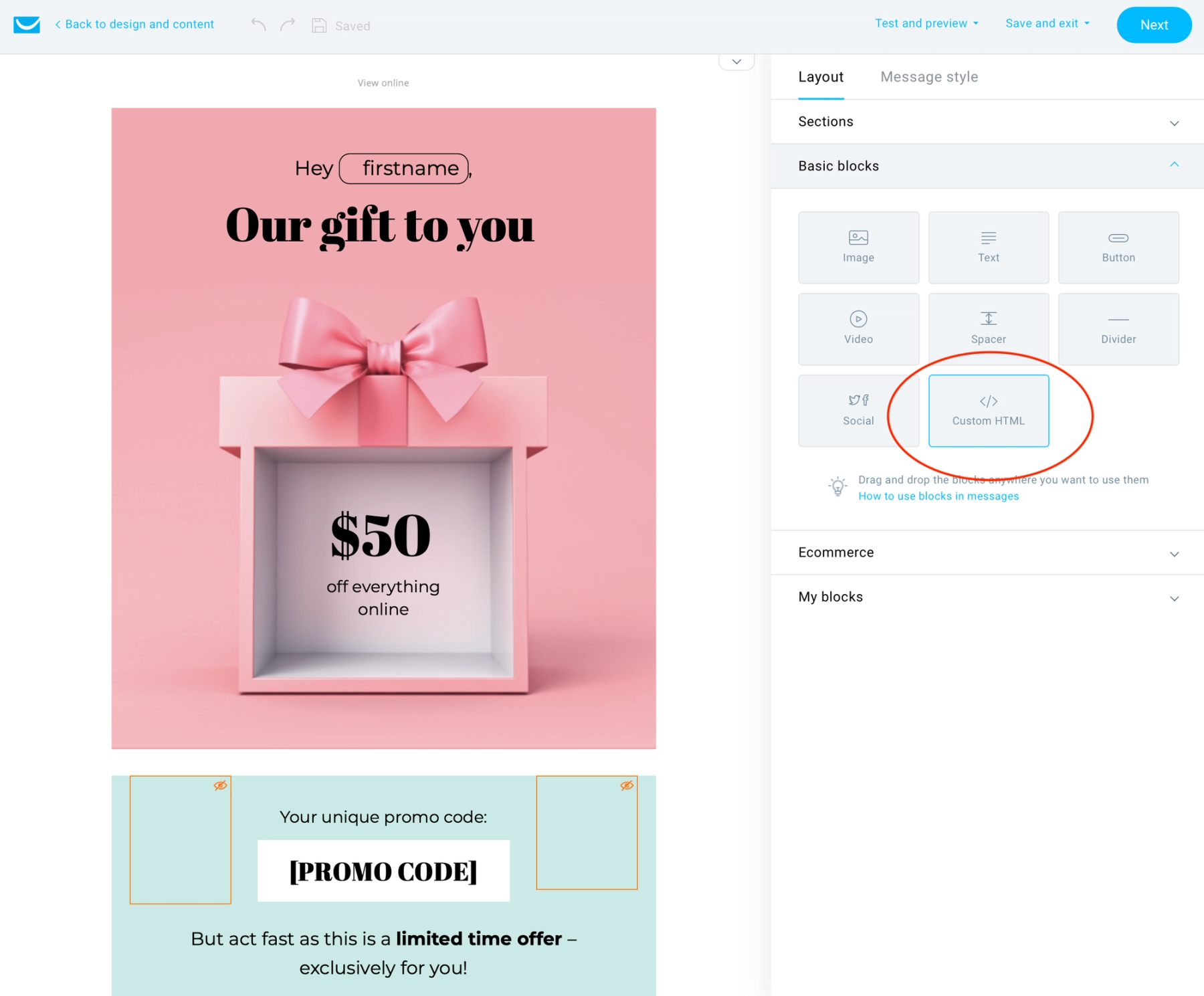
In the GetResponse message editor, go to Layout > Basic blocks and drag Custom HTML above your main content. Paste the code into the right-hand panel. Set the block's padding to 0 so there's no gap while the alert is off.
Step 5: Check it on and off
Send a test message with the alert off. Then switch on Manual override, open the test again and confirm the banner shows. Switch it off again before your real send unless you want it live from the start.
Save it as a reusable block
GetResponse lets you save content to My blocks in the message editor. Save the Custom HTML block with the alert in it, and you can drop the same alert into every webinar or event message without copying the code again.
GetResponse Critical Alert FAQ
Do I need a specific Sendtric plan?
Yes, critical alerts are an Enterprise feature. See the pricing page or talk to us about Enterprise.
Does the alert take up space when it's off?
No visible space. It loads a transparent 1 by 1 pixel image. Keep the Custom HTML block's padding at 0 to avoid an empty gap.
How fast does it switch on?
It's checked on every open, so it shows from the next open after you switch it on. Some email apps keep a copy of images, which can delay the change for a reader who reopens the message.
Can one alert go into several messages?
Yes. Use the same code in every message that should share it, and one switch controls them all.
Are views counted while the alert is off?
No, only while it's on.
Want to see what else you can do? Explore Sendtric's critical alerts in more detail, or browse the full email personalization toolkit.
More GetResponse guides
- Countdown Timers - How to Add Countdown Timers to GetResponse
- Live Polls - How to Add Live Polls to GetResponse
- Personalized Images - How to Add Personalized Images to GetResponse
- Rule-Based Images - How to Add Rule-Based Images to GetResponse
- Dynamic Weather - How to Add Dynamic Weather to GetResponse
- Social Proof Counters - How to Add Social Proof Counters to GetResponse
Using a different platform? See all Sendtric integrations.
