
How to Add Personalized Images to GetResponse
Use GetResponse merge words and custom fields to put a contact's name, course or offer code directly onto an image in your newsletters and automation messages.
 First Publish Date:
Write a GetResponse contact's details onto the image itself.
GetResponse can drop a first name into your text. Sendtric personalized images take the same merge words and custom fields and draw them onto an image when the message is opened: a welcome banner with the contact's name, or a certificate-style image with the course they signed up for.
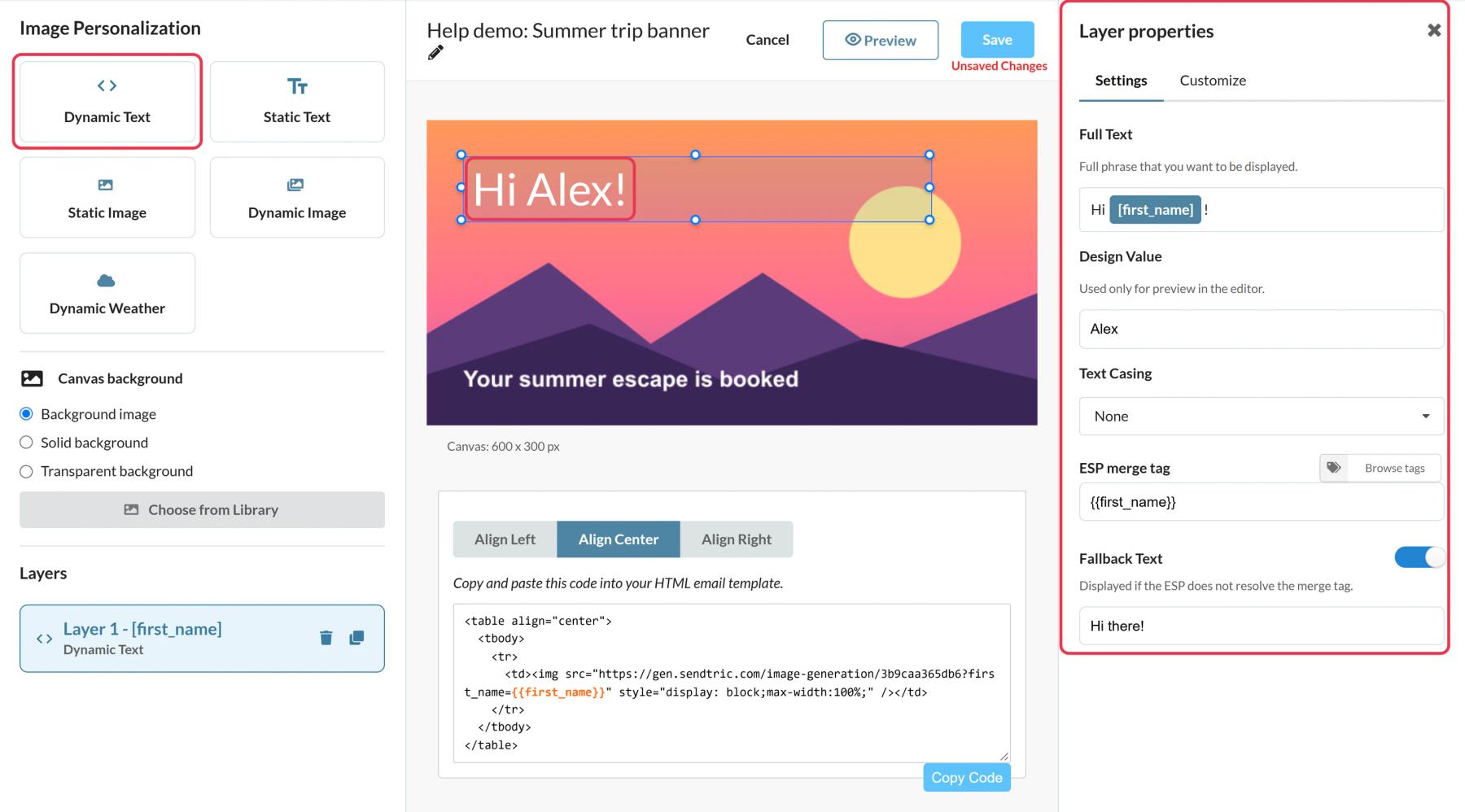
What you can do with personalized images in GetResponse
- Welcome series: the new subscriber's first name on the header image of your first automation message.
- Courses and webinars: the course or webinar name and date from custom fields, on a ticket or certificate design.
- Offer codes: a code stored in a custom field shown on a coupon image, so it stands out from the body text.
- Account milestones: a member level or points balance synced into GetResponse from your shop or app.
On the Free plan you get one personalized text layer per image. Micro allows 2, Standard 4 plus image layers, and Power and Enterprise 20. More on the pricing page.
How to add personalized images to GetResponse
Step 1: Start with a background
In Sendtric, open Image Personalization, click Create New and choose a background image from your library, or a solid or transparent canvas.
Step 2: Add a Dynamic Text layer with a GetResponse merge word
Add a Dynamic Text layer. In the merge tag window, name the variable and enter the GetResponse merge word in ESP Merge Tag, for example [[firstname]], or [[yourcustomfield]] for a custom field.
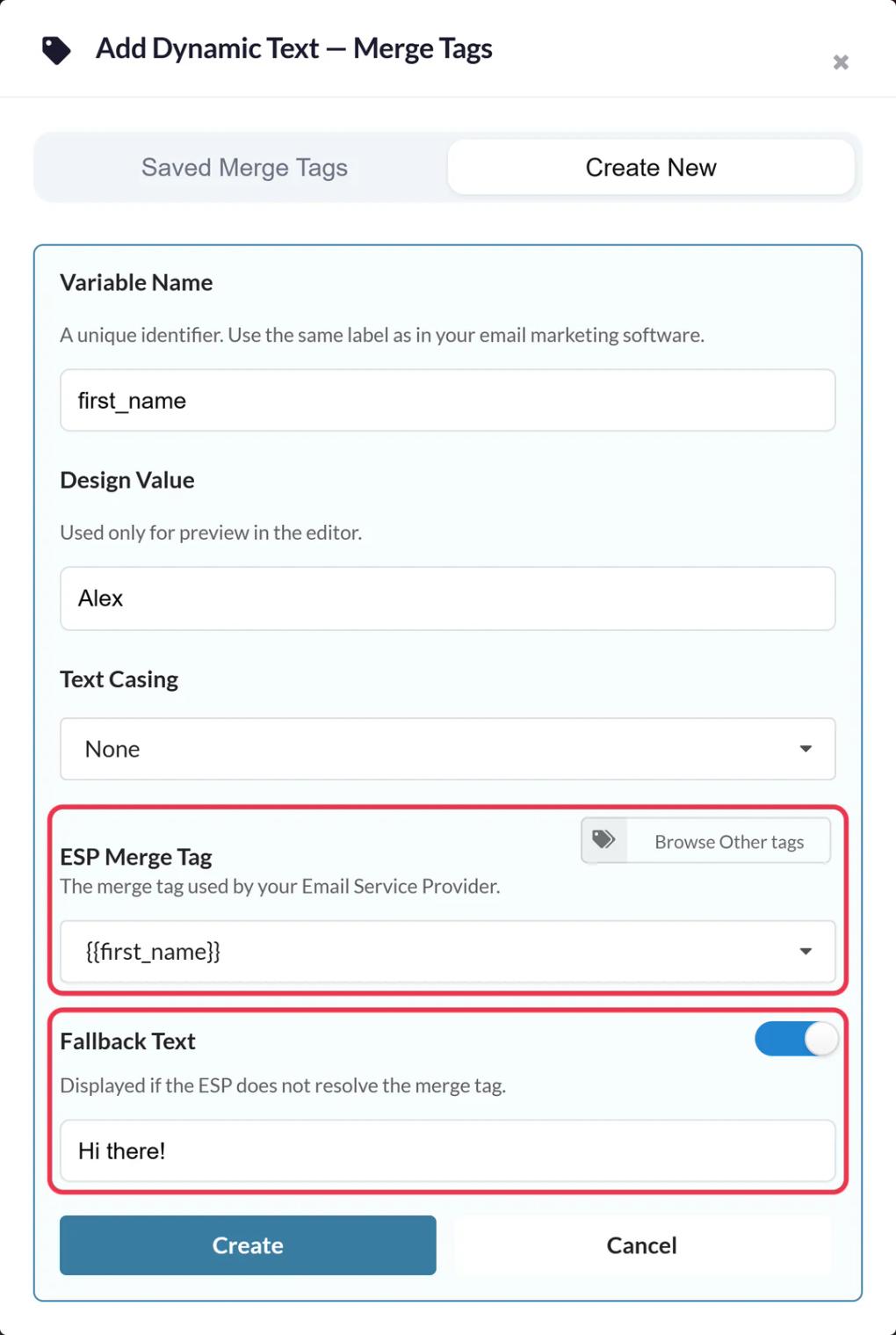
GetResponse's current message editor also documents a newer format for the same fields. If the square-bracket merge word isn't filled in when you preview, switch to this format, with your own field names:
{{CONTACT `subscriber_first_name`}}
{{CUSTOM `yourcustomfield`}}
Step 3: Write a fallback
GetResponse shows an empty value when a contact has no data in a field. Set Fallback Text on the layer so those contacts see a full phrase, like "Welcome aboard!", instead of a half-finished sentence.
Step 4: Save and copy
Save the image, choose an alignment and click Copy Code. The merge words are already in the image address.
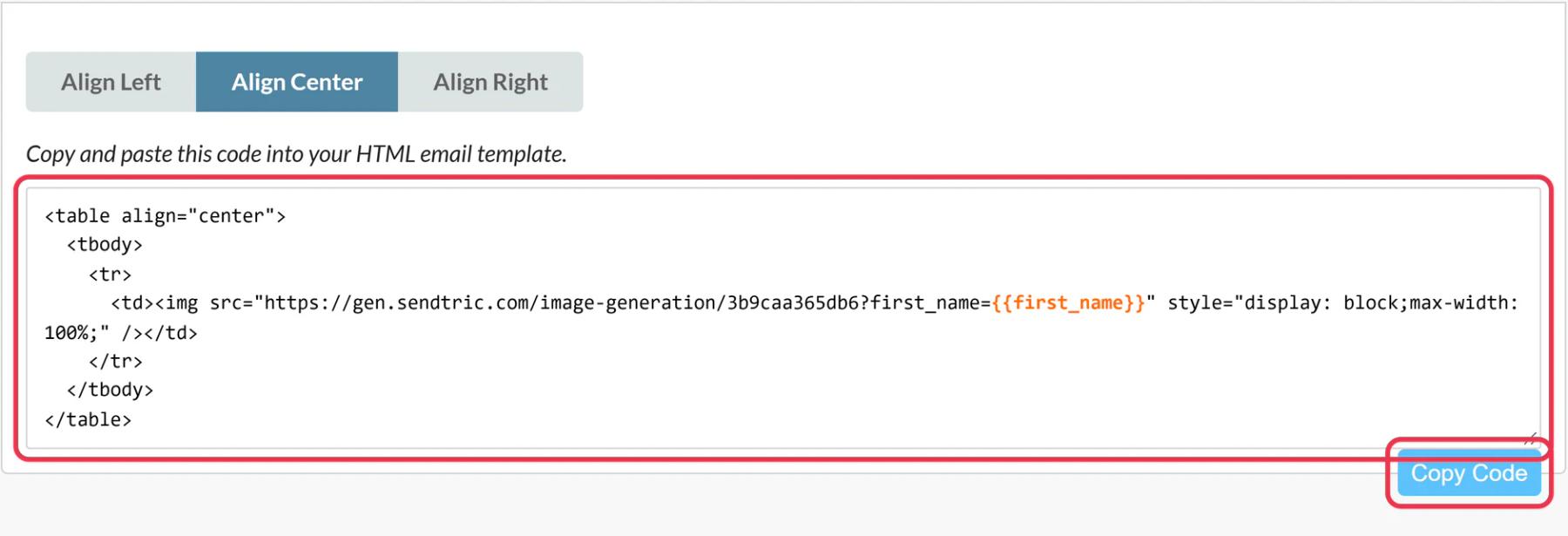
Step 5: Paste into Custom HTML
In the GetResponse message editor, go to Layout, open Basic blocks and drag Custom HTML into the message. Paste the code into the HTML field in the right-hand panel.
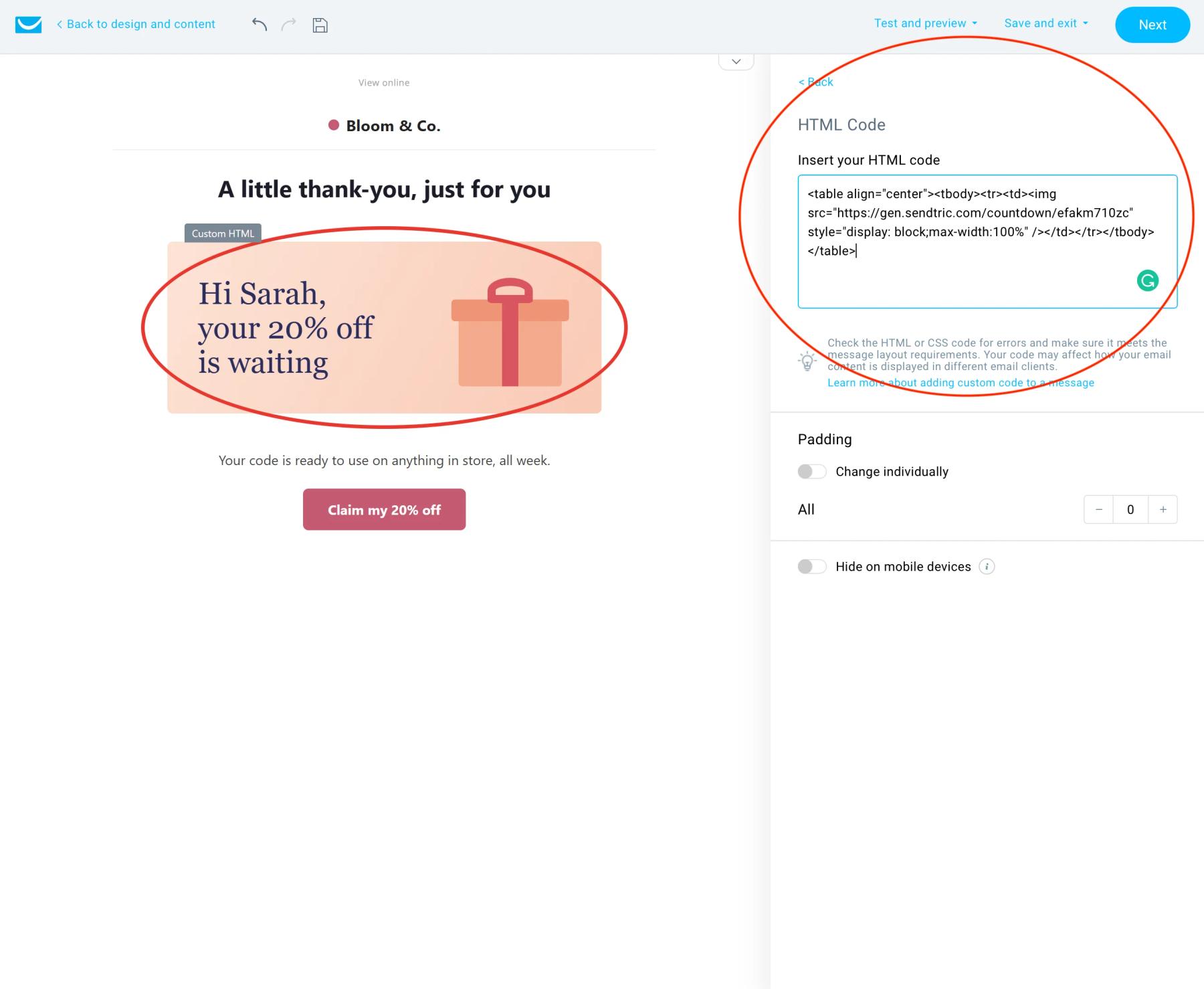
Step 6: Preview, then send to yourself as a newsletter
GetResponse doesn't personalize test messages. Use Preview to check the merge words, then send the message as a newsletter to a small list that includes you.
Capitalization is handled in Sendtric
GetResponse has its own capitalization options for merge words, but for an image it's easier to set Text Casing on the Sendtric layer. Use Title Casing for names so "maria" and "MARIA" both appear as "Maria".
GetResponse Personalized Image FAQ
Which GetResponse fields can go on the image?
Any field you can use as a merge word: first name, last name, email and your custom fields. Use the field's name exactly as it is in GetResponse.
Why do I see the merge word on the image in my test message?
GetResponse doesn't replace merge words in test messages, so the image receives the placeholder itself. Check with Preview or a real send to a small list.
What if a value is too long for the space?
Text wraps within its box but doesn't shrink, so very long values can spill below it. Give the box some extra height and preview with your longest realistic value.
Can I update the image after the newsletter is sent?
Yes. Change and save it in Sendtric and the new version shows on the next open, with no need to re-paste the code.
Does it work with GetResponse's native image block?
Use Custom HTML. The Sendtric code is an HTML image tag with the merge words in its address, and Custom HTML is the block made for that.
Want to see what else you can do? Explore Sendtric's personalized images in more detail, or browse the full email personalization toolkit.
More GetResponse guides
- Countdown Timers - How to Add Countdown Timers to GetResponse
- Live Polls - How to Add Live Polls to GetResponse
- Rule-Based Images - How to Add Rule-Based Images to GetResponse
- Dynamic Weather - How to Add Dynamic Weather to GetResponse
- Critical Alerts - How to Add Critical Alerts to GetResponse
- Social Proof Counters - How to Add Social Proof Counters to GetResponse
Using a different platform? See all Sendtric integrations.
