
How to Add Rule-Based Images to GetResponse
Swap the image in a GetResponse message per contact or per moment, from a custom field, the day of the week or the time it's opened, with one Custom HTML block.
 First Publish Date:
One image in your GetResponse message, picked fresh for every contact who opens it.
With Sendtric rule-based images you upload several versions of an image and decide when each one shows. The choice is made when the message is opened, using a GetResponse custom field, the date and time, or the contact's email app and device.
What you can do with rule-based images in GetResponse
- Plan or membership level: a different banner for free and paying members, based on a custom field.
- Course progress: show the next module's artwork depending on a "current module" field.
- Opening hours: an "open now" image during business hours and a "book online" image after closing.
- Weekday and weekend creative: one newsletter, two hero images, picked by the day it's read.
How to add rule-based images to GetResponse
Step 1: Add your images
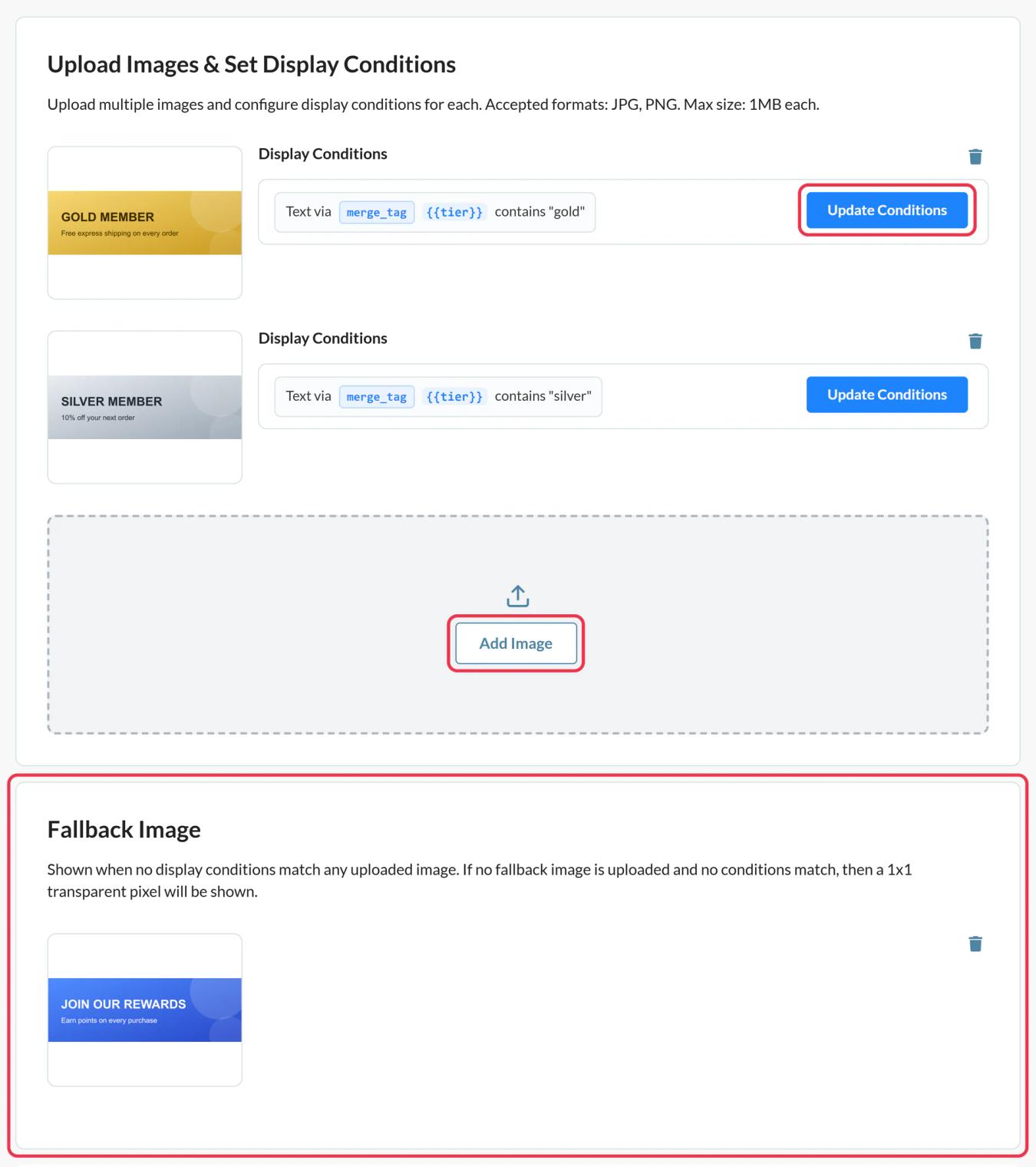
In Sendtric, go to Rule-based Images, click Create New and add an image for each version. Order matters: images are checked from the top, and the first one whose rules match is shown.
Step 2: Write the rules
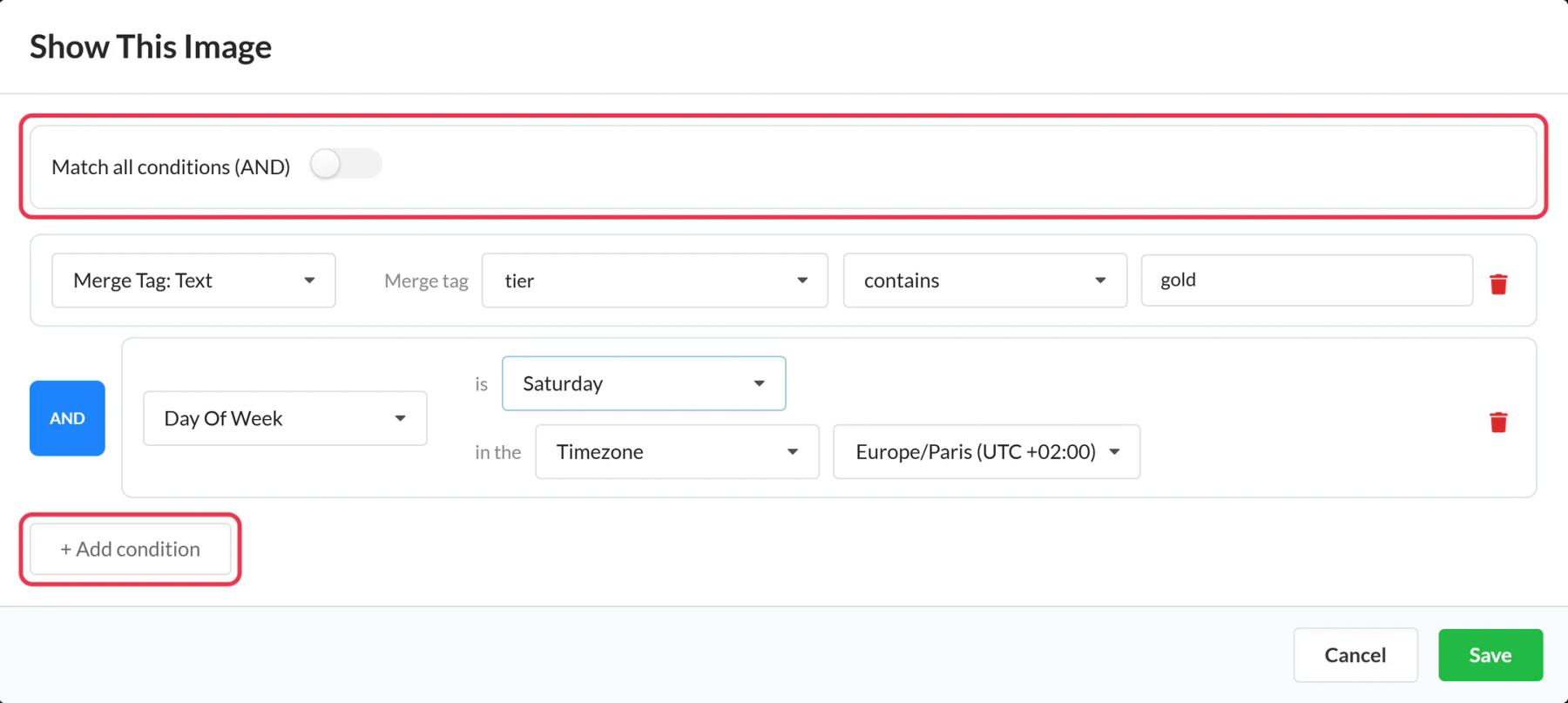
Click Update Conditions on each image. Choose AND or OR, add conditions such as Merge Tag: Text equals "premium" or Day Of Week is Saturday, and save. Every image needs at least one condition.
Then add a Fallback Image for contacts who don't match any rule (Micro and above).
Step 3: Replace the placeholders with GetResponse merge words
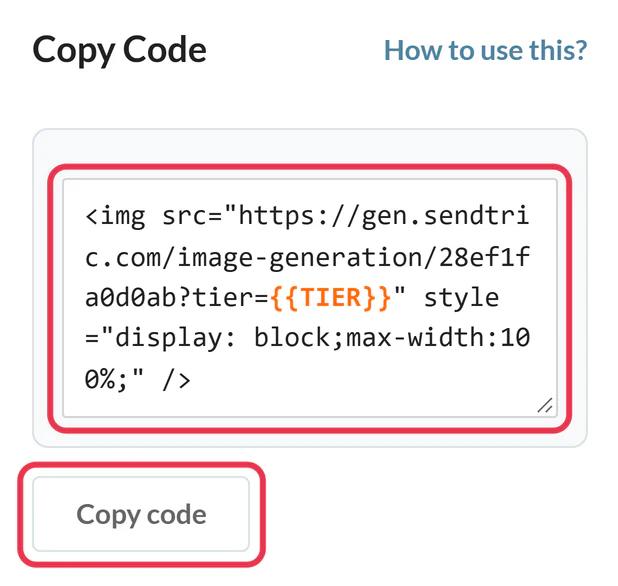
Save and copy the code. A merge tag condition adds something like plan={{PLAN}} to the image address. Swap {{PLAN}} for the GetResponse merge word of that custom field, for example [[plan]].
Step 4: Add it to your message
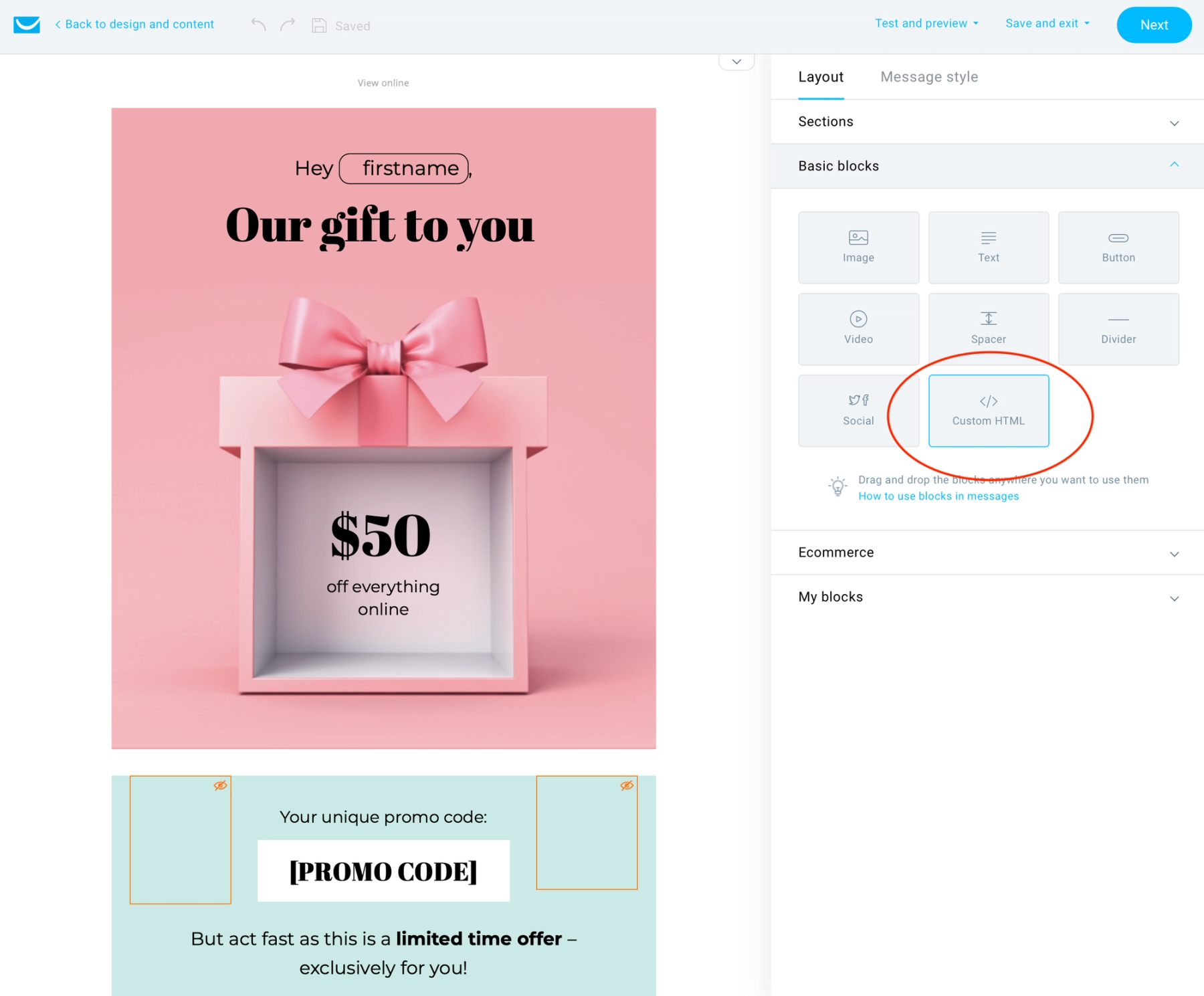
In the message editor's Layout section, expand Basic blocks, drag Custom HTML into place and paste the code into the panel on the right.
Step 5: Simulate and preview
Use Preview in the Sendtric editor to simulate a date, device or field value. Then preview the message in GetResponse, and send it as a newsletter to a small list with contacts that have different field values. Test messages won't fill in merge words.
Rules that don't need GetResponse data
Date, day of week and time rules (Standard and above) and email client or operating system rules (all plans) work without any merge word. They're a quick way to start if your custom fields aren't set up yet.
GetResponse Rule-Based Image FAQ
Can I use GetResponse tags as conditions?
Conditions read values passed in the image address, so they work with fields you can insert as merge words, such as custom fields. Store the value you want to test in a custom field.
Are text conditions case sensitive?
No. "Premium" and "premium" match the same rule. The spelling has to match, though.
How many images can one widget hold?
Two on Free, 4 on Micro, 10 on Standard and unlimited on Power and Enterprise. See pricing.
Can device rules tell phones from computers?
Yes, on Power and above, based on the email app's information. Some email apps, Gmail for example, load images through a proxy, which limits device detection, so use field-based rules where accuracy matters.
Can I edit the rules after sending?
Yes. Save your changes in Sendtric and they apply the next time anyone opens the message.
Want to see what else you can do? Explore Sendtric's rule-based images in more detail, or browse the full email personalization toolkit.
More GetResponse guides
- Countdown Timers - How to Add Countdown Timers to GetResponse
- Live Polls - How to Add Live Polls to GetResponse
- Personalized Images - How to Add Personalized Images to GetResponse
- Dynamic Weather - How to Add Dynamic Weather to GetResponse
- Critical Alerts - How to Add Critical Alerts to GetResponse
- Social Proof Counters - How to Add Social Proof Counters to GetResponse
Using a different platform? See all Sendtric integrations.
