
How to Add Personalized Images to ActiveCampaign
Use ActiveCampaign personalization tags like %FIRSTNAME% to write each contact's details onto a branded image, drawn fresh when the email opens.
 First Publish Date:
Turn ActiveCampaign contact fields into words on a picture.
Sendtric personalized images take a background image and write text on it when the email is opened. The text comes from ActiveCampaign personalization tags, so a welcome banner can say "Ready, Priya?" for one contact and "Ready, Marcus?" for the next.
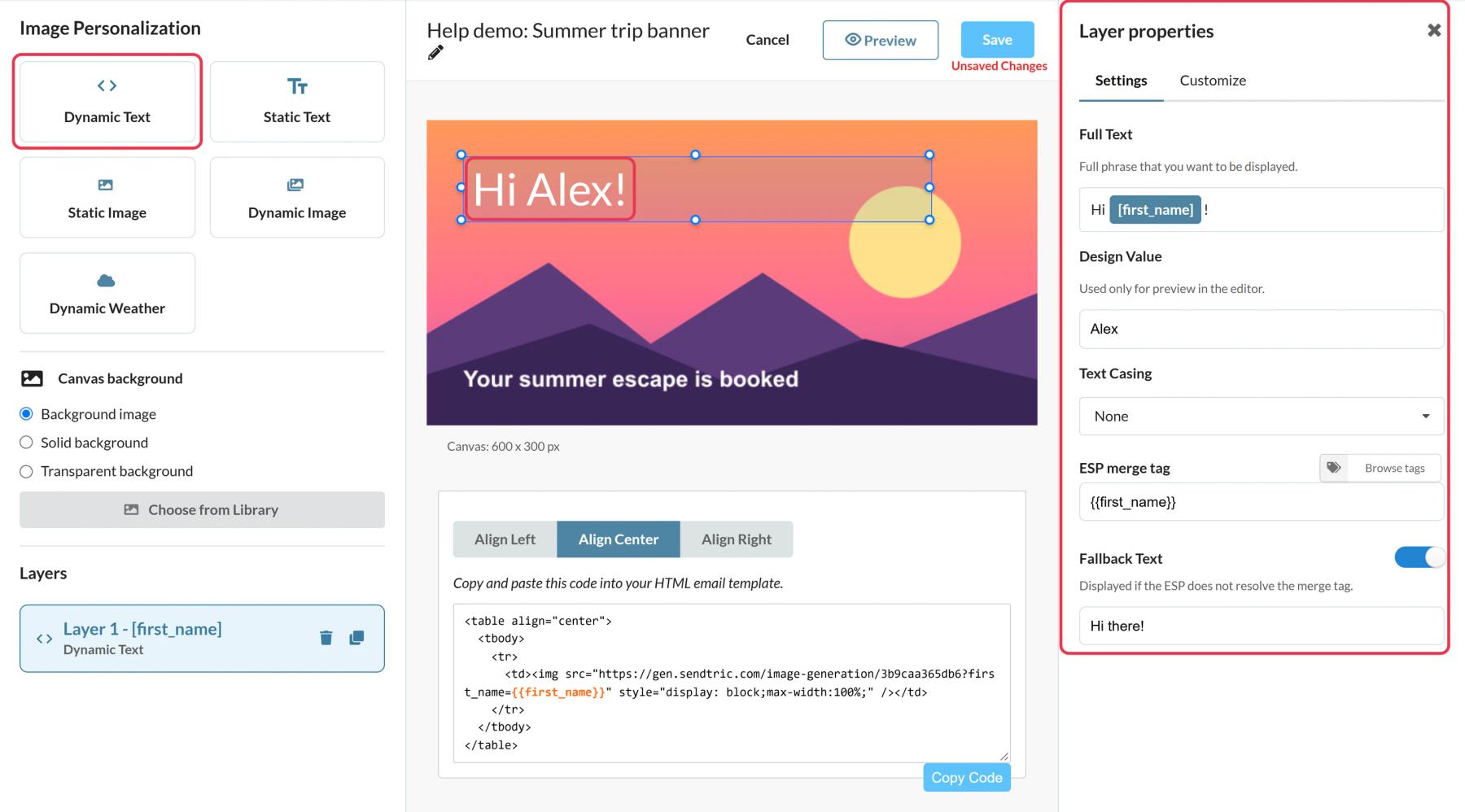
ActiveCampaign already lets you insert %FIRSTNAME% in a text block, with modifiers like %FIRSTNAME|UPPERFIRST% for capitalization. A personalized image puts the same value inside your artwork, in your chosen font, at a size and position text blocks can't match.
What you can do with personalized images in ActiveCampaign
- Welcome automations: greet each new contact by first name on the hero image of the first email.
- Course and membership businesses: show a student's program or membership level on a certificate-style graphic, pulled from a custom field.
- Agencies and B2B: put the contact's company, from
%ORGANIZATION%, on a proposal or report cover image. - Event confirmations: write the session name and date from custom fields onto a ticket graphic.
| Image option | Sendtric plan |
|---|---|
| 1 dynamic text layer, Roboto font | Free |
| 2 text layers, any font, resize the canvas | Micro |
| 4 text layers, logos and other image layers, solid backgrounds | Standard |
| 20 text layers and transparent backgrounds | Power |
How to add a personalized image to ActiveCampaign
Step 1: Pick a background
In Sendtric, open Image Personalization and click Create New. Click Choose from Library to use your own image as the background.
Step 2: Map a Dynamic Text layer to an ActiveCampaign tag
Add a Dynamic Text layer and click Create New in the merge tag window. Name the variable, for example firstname, and enter %FIRSTNAME% as the ESP Merge Tag. For a custom field, use the tag ActiveCampaign generated for it. You can look it up by clicking a text block in the Email Designer and opening Personalization Tags.
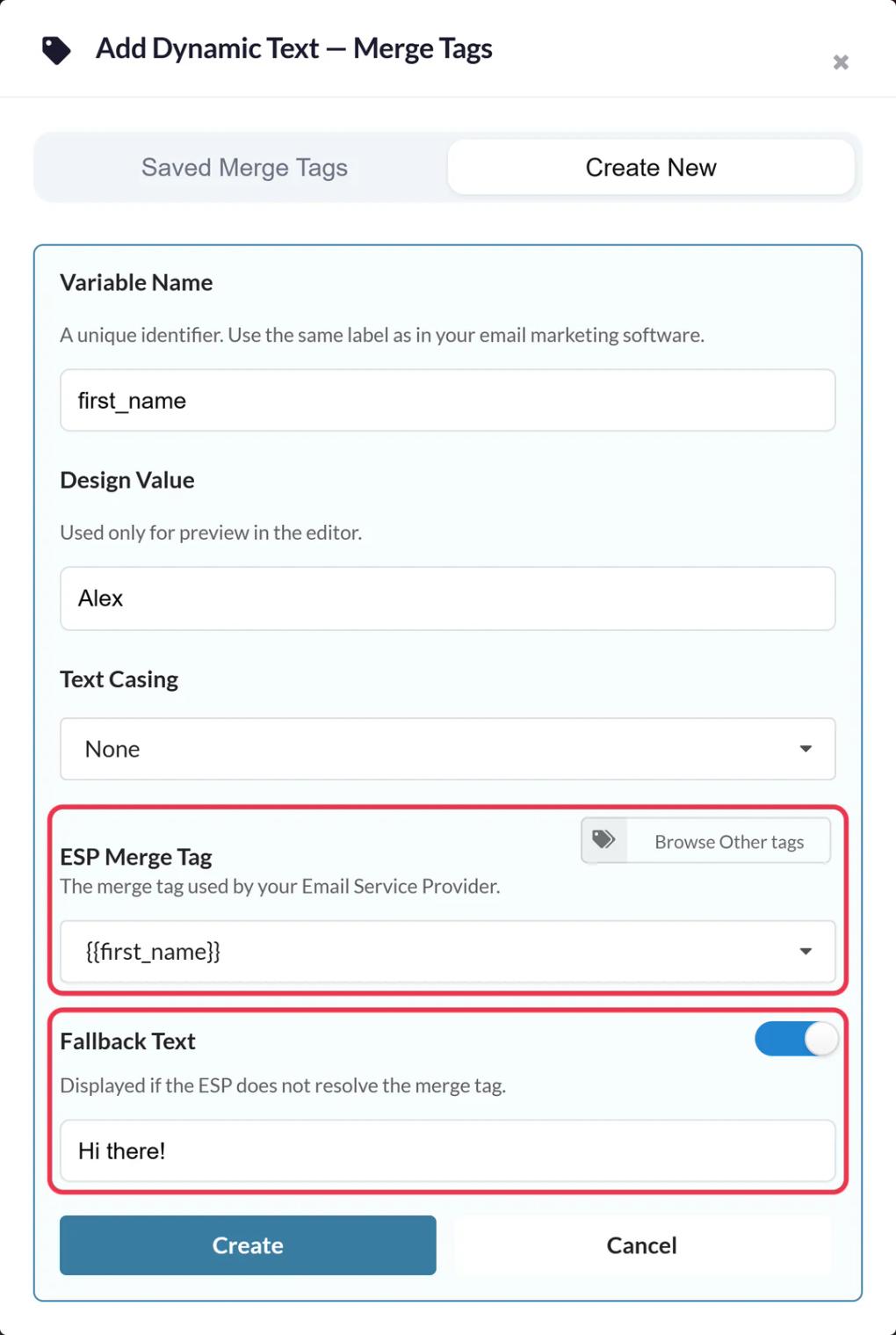
Add Fallback Text written as a whole phrase, such as "Ready to start?", for contacts with an empty field. Sendtric drops the surrounding text when the fallback is used, so "Ready, there?" never happens.
Step 3: Save and copy
Position and style the text, click Save, then Copy Code. You will see each variable in the image URL with your ActiveCampaign tag beside it.
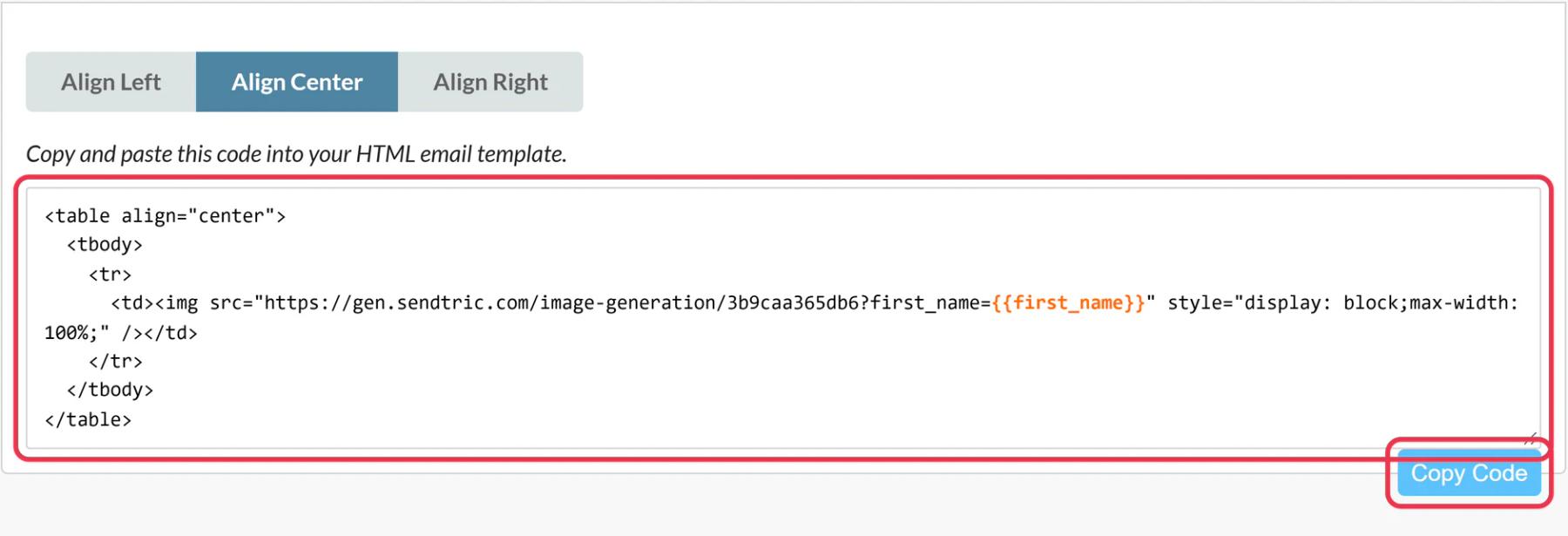
Step 4: Paste into an HTML block
In the Email Designer, drag the HTML block from Blocks into your email, click it and paste the code. Click any other block to close the code editor.
Step 5: Preview as a real contact
Test emails don't fill in personalization tags, so the image would show your fallback or the raw tag. Instead, on the Campaign Summary page click Test and preview, then Desktop Preview, and enter a contact's email address to see their version. For a final check, send the campaign to a small test list.
Leave capitalization to Sendtric
Use the plain %FIRSTNAME% tag in the image and set Text Casing in Sendtric to Title Casing if your data is messy. Keeping one place in charge of casing avoids surprises.
Size the text box for long values
Text wraps inside its box but doesn't shrink, so a long company name can run past the box. Preview with the longest value in your list before sending.
ActiveCampaign Personalized Images FAQ
Which ActiveCampaign tags can I use?
Standard contact tags such as %FIRSTNAME%, %LASTNAME% and %ORGANIZATION%, plus the tags generated for your custom contact fields.
Why does my test email show the fallback text?
ActiveCampaign test emails don't replace personalization tags. Use Desktop Preview with a contact's address, or send to a test list, to see real values.
Do personalized images work in automations?
Yes. The HTML block works the same in automation emails, and the image is drawn for each contact when they open it.
Can I edit the image after sending?
Yes. Save your changes in Sendtric and they appear on the next open.
How do fallbacks work?
If a field is empty, the layer shows your fallback text, or is hidden if you didn't set one. Details in merge tags and fallback text.
This guide covers one piece of Sendtric's email personalization platform. For every personalized images option and example, see the main page.
More ActiveCampaign guides
- Countdown Timers - How to Add Countdown Timers to ActiveCampaign
- Live Polls - How to Add Live Polls to ActiveCampaign
- Rule-Based Images - How to Add Rule-Based Images to ActiveCampaign
- Dynamic Weather - How to Add Dynamic Weather to ActiveCampaign
- Critical Alerts - How to Add Critical Alerts to ActiveCampaign
- Social Proof Counters - How to Add Social Proof Counters to ActiveCampaign
Using a different platform? See all Sendtric integrations.
