
How to Add Rule-Based Images to ActiveCampaign
Swap the image in an ActiveCampaign email based on a contact's custom field or the moment they open it, without building separate versions of the email.
 First Publish Date:
Choose the right picture for each ActiveCampaign contact at the moment they open.
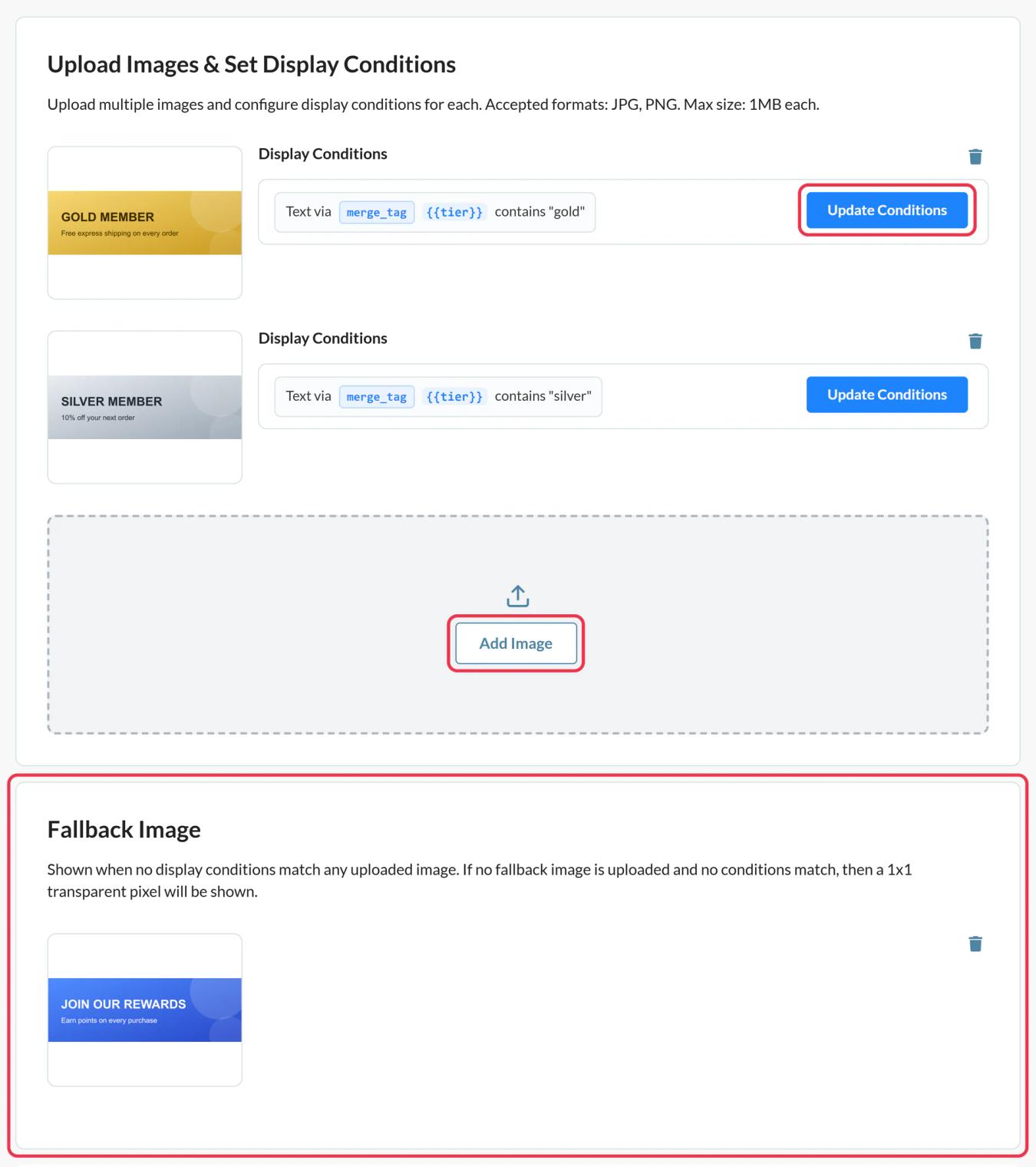
Rule-based images hold several versions of an image plus the rules for when each one appears. Sendtric works through the list from the top every time the email opens and shows the first image whose rules match, with a fallback for everyone else.
ActiveCampaign has conditional content for showing or hiding blocks by contact data. Rule-based images do a similar job for a single image slot, with two differences: they are decided when the email is opened, so day and time rules are possible, and one widget can be reused in any email without rebuilding the conditions.
What you can do with rule-based images in ActiveCampaign
- Lifecycle stage: show a getting-started graphic to trial users and a feature spotlight to customers, from a custom field like Customer Status.
- Industry or persona: pick a hero image that matches the contact's industry field in a B2B nurture automation.
- Day and time: a lunchtime offer before 2pm and a dinner offer after, or a weekend version on Saturdays (Standard plan and above).
- Show a timer only to some contacts: add a Sendtric countdown as one of the images, so only contacts in a certain tier see the deadline.
Text matching on a contact field works on every plan. Date, day and time rules need Standard, and number comparisons and device rules need Power. Free allows two images per widget, Micro four, Standard ten and Power unlimited.
How to add rule-based images to ActiveCampaign
Step 1: Add your images
In Sendtric, open Rule-based Images, click Create New and use Add Image for each version. Put the most specific image at the top: the first match wins and there is no reordering later.
Step 2: Write the rules
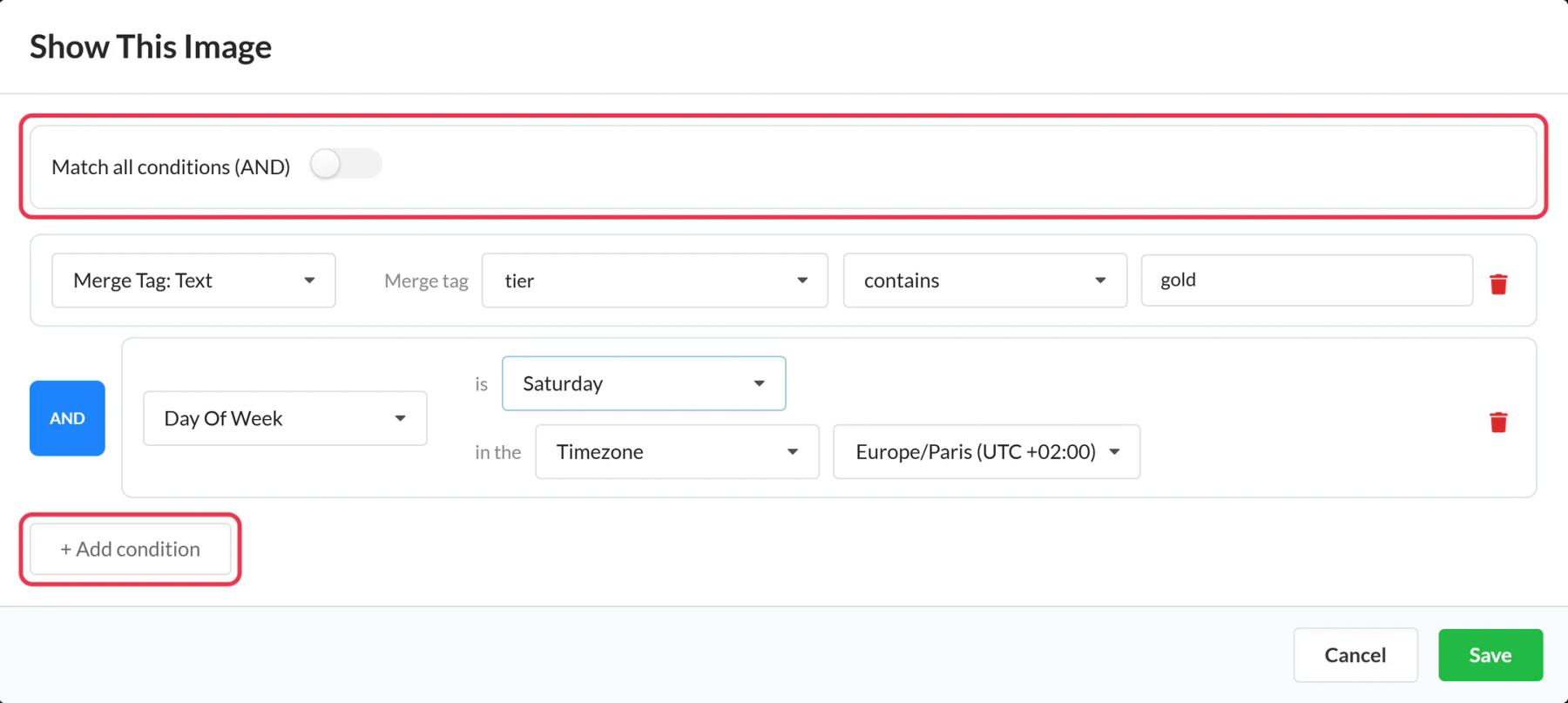
On each card, click Update Conditions. For a field rule, choose Merge Tag: Text, name the merge tag (for example status) and set a match such as equals "trial". Click Save. Then add a Fallback Image for contacts who match nothing.
Step 3: Copy the code and add the ActiveCampaign tag
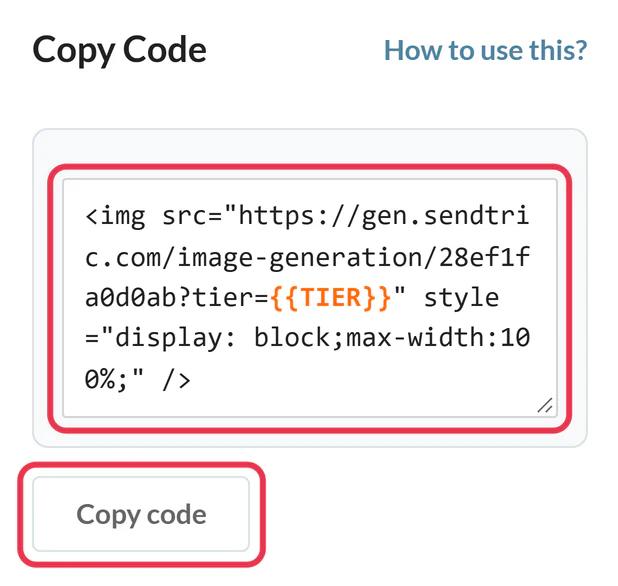
Save the widget and copy the code. Each merge tag rule appears in the URL as a placeholder like status={{STATUS}}. Replace the placeholder with your ActiveCampaign field's tag, so it reads, for example, status=%CUSTOMER_STATUS%. Check the exact tag in the Email Designer under Personalization Tags.
Step 4: Add an HTML block
In the ActiveCampaign Email Designer, open Blocks, drag the HTML block into place, click it and paste the code.
Step 5: Check each rule
In Sendtric, click Preview, enter a field value and click Simulate to see which image wins. In ActiveCampaign, preview the campaign as two contacts with different values from the Campaign Summary page's Desktop Preview, since plain test emails don't fill in tags.
Field values aren't case sensitive, but spelling counts
"Trial" and "trial" both match an equals rule. "Trail" doesn't. If a field is filled from a form, use a dropdown field in ActiveCampaign so the values stay consistent.
No conditions, no image
An image without conditions is skipped, even if it is at the top of the list. Use the Fallback Image for the default version instead.
ActiveCampaign Rule-Based Images FAQ
Do I still need ActiveCampaign conditional content?
Not for swapping one image. Conditional content is still useful for hiding whole sections of text. The two work fine in the same email.
Can rules use several fields at once?
Yes. Add more conditions to an image and choose Match all conditions (AND) or Match any condition (OR). Each field gets its own parameter in the URL.
What if a contact's field is empty?
No text rule will match, so they see the fallback image, or nothing if there isn't one.
Can I update the images after the email is sent?
Yes. Swap images or change rules in Sendtric and save. The next open uses the new setup.
Where can I learn every condition type?
This guide covers one piece of Sendtric's email personalization platform. For every rule-based images option and example, see the main page.
More ActiveCampaign guides
- Countdown Timers - How to Add Countdown Timers to ActiveCampaign
- Live Polls - How to Add Live Polls to ActiveCampaign
- Personalized Images - How to Add Personalized Images to ActiveCampaign
- Dynamic Weather - How to Add Dynamic Weather to ActiveCampaign
- Critical Alerts - How to Add Critical Alerts to ActiveCampaign
- Social Proof Counters - How to Add Social Proof Counters to ActiveCampaign
Using a different platform? See all Sendtric integrations.
