
How to Add Live Polls to Brevo
Brevo has no poll block of its own. Here is how to add a Sendtric live poll to a Brevo email, which contact attribute to use as the voter ID, and how to test it.
 First Publish Date:
Get a quick answer from your Brevo contacts without sending them to a form.
A Sendtric live poll shows up in your Brevo email as a row of answer images. A contact clicks the one they like, Sendtric records the vote against a Brevo contact attribute, and the poll can show the running results the next time anyone opens the email.
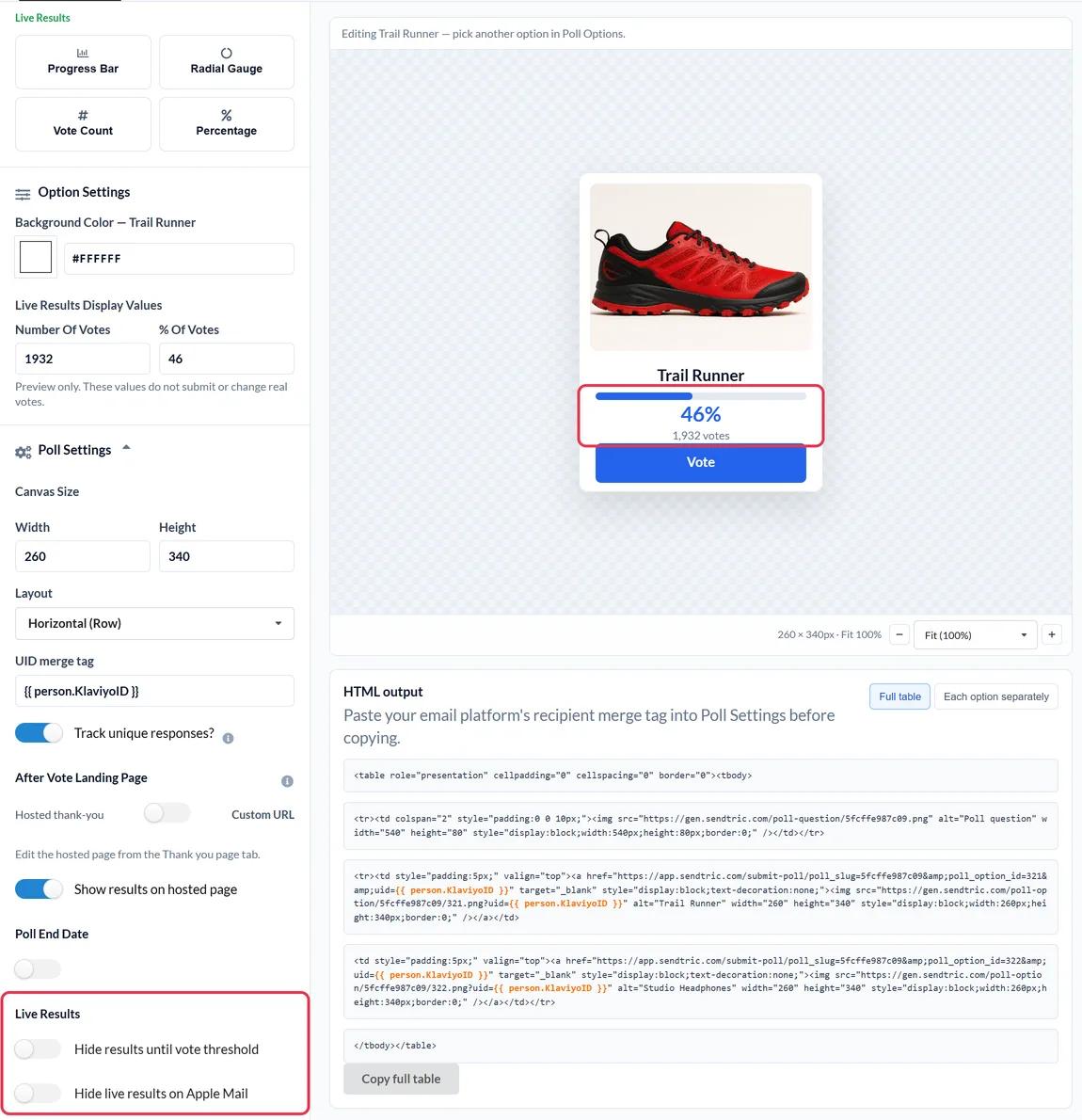
Brevo's drag and drop editor has no poll or survey block, so the poll goes in through Brevo's HTML block, the same block Brevo recommends for embedded widgets and third-party embed code.
What you can do with a live poll in Brevo
- Pick the next offer: show three products as images in your newsletter and let subscribers vote on which one goes on sale next week.
- Rate an order or a visit: add a 1 to 5 star rating to the email your Brevo automation sends after a purchase or booking.
- Ask what people want to hear about: collect topic preferences, download the answers per contact and use them to update attributes or lists in Brevo.
- Event and webinar follow-ups: a simple Yes / No ("Would you come again?") at the bottom of the thank-you email.
Poll options and presets depend on your Sendtric plan. A few of the differences:
| What you need | Sendtric plan |
|---|---|
| Two answers, text presets such as Yes / No | Free |
| Up to three answers | Micro |
| Up to five answers, product votes, star ratings, images in answers | Standard |
| Up to 11 answers (NPS), live results in the email, a page per answer | Power and Enterprise |
Compare everything on the pricing page.
How to add a live poll to Brevo
Build the poll in Sendtric, give it a Brevo placeholder that identifies each contact, then paste it into your Brevo design. The whole thing takes a few minutes.
Step 1: Create the poll in Sendtric
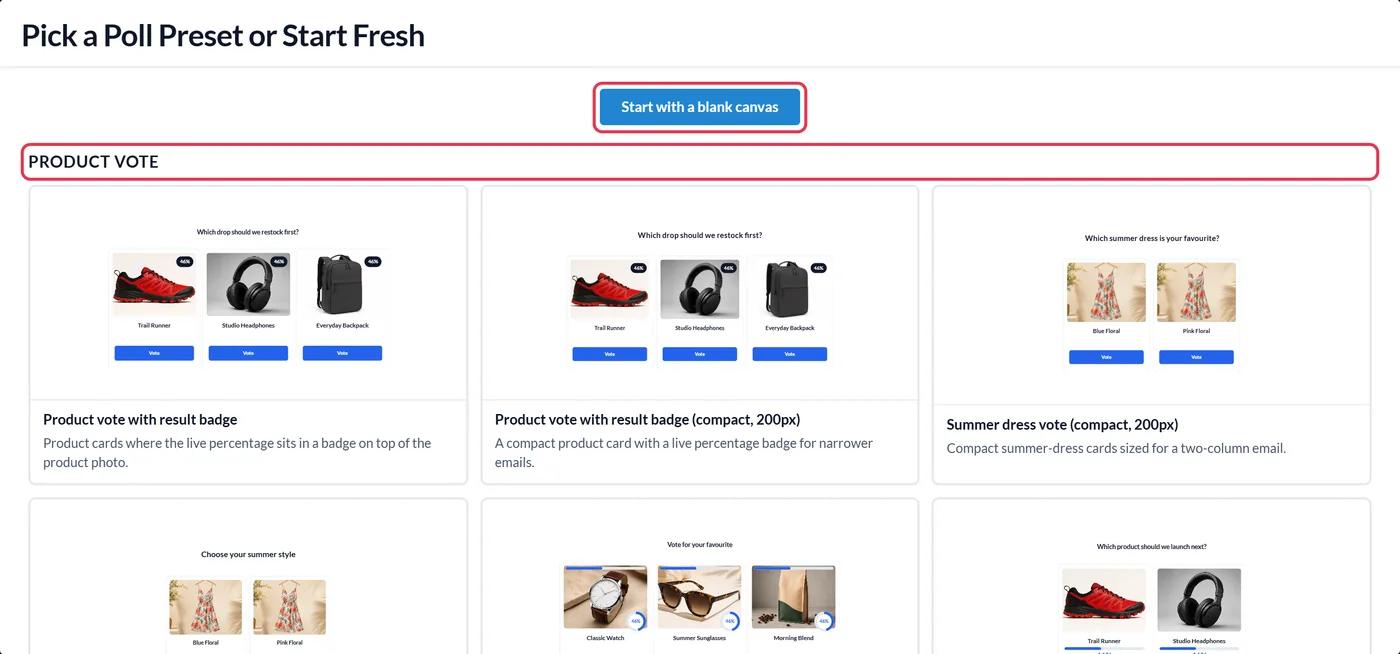
Open Polls in Sendtric and click Create New. Choose a preset or Start with a blank canvas, write your answers and style them so they match your Brevo template.
Step 2: Add a Brevo placeholder as the UID merge tag
In Poll Settings, type {{ contact.EMAIL }} into the UID merge tag field. Brevo doesn't let you use its internal contact ID in an email, so the email address is the identifier Sendtric uses for Brevo. Brevo fills it in for each contact when the email is sent, and Sendtric keeps one vote per address.
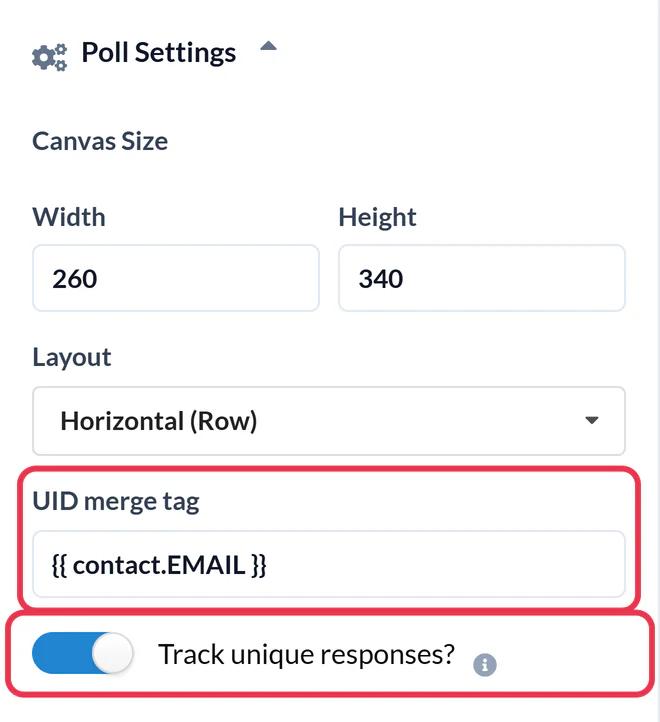
Turn on Track unique responses? if you want a download of each identifier and the answer it gave, then click Save. Keep in mind that with {{ contact.EMAIL }} that download lists email addresses. If you sync your own customer ID into Brevo's EXT_ID attribute, {{ contact.EXT_ID }} works as an identifier too, as long as every contact you send to has one.
Step 3: Copy the poll code
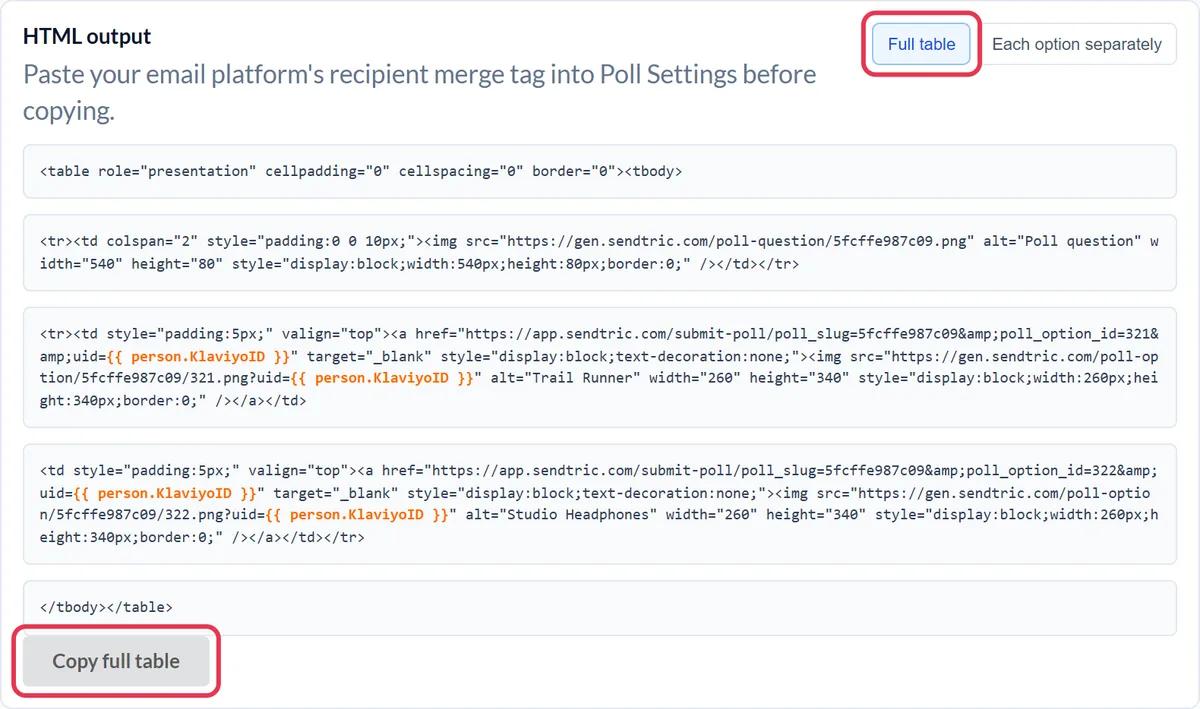
In the HTML output panel under the canvas, click Copy full table. Save the poll before you copy, because code from an unsaved poll won't record votes.
Step 4: Paste it into an HTML block in Brevo
Open your campaign or template in Brevo's drag and drop editor. Under Content > Blocks, drag the HTML block to the spot where the poll should go.
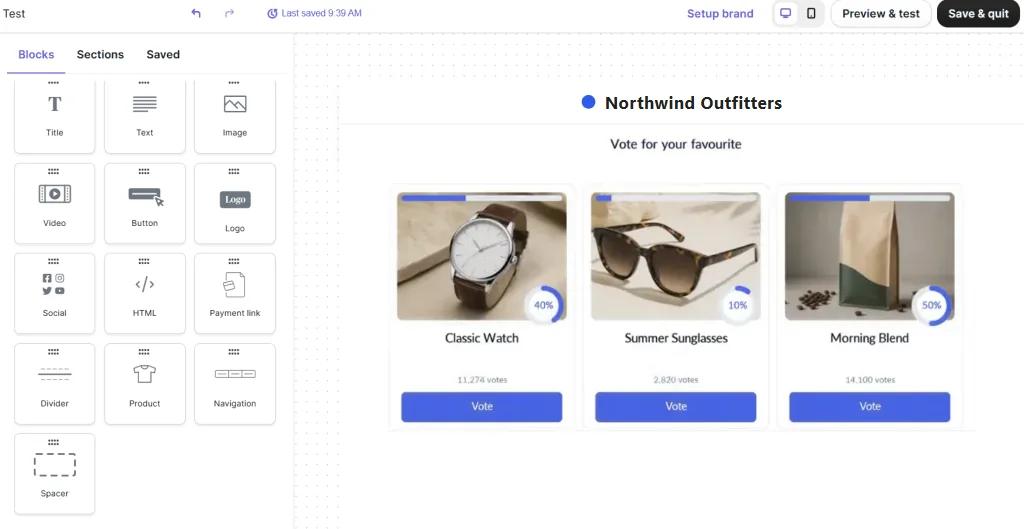
Click the block, replace Brevo's placeholder text with the poll code and save. The answers appear in the canvas straight away.

Step 5: Test with a real contact
Use Preview & test and send yourself a test email, then click an answer. A tab opens with "Please wait" and then your thank-you page. If votes from different test addresses keep replacing each other, the placeholder wasn't filled in, so check it is exactly {{ contact.EMAIL }} and that your test contacts have an email address in Brevo.
Polls in Brevo automations
Save the design as a template under Marketing > Templates and pick it in the Send an email action of your automation. Every contact who goes through the workflow sees the same poll, and the results keep adding up, so the numbers stay current for people who enter weeks later.
Two answers side by side
Sendtric lays the answers out in a row or a column for you. If you want the poll next to some text or a product photo instead, add a column to the section and drop the HTML block into one column. Narrow polls with two or three answers fit best.
Brevo Live Poll FAQ
Does Brevo have its own poll block?
No. Brevo's drag and drop editor doesn't include a poll or survey block. A Sendtric poll is pasted into the HTML block as ordinary HTML with linked images.
Why use the email address instead of a contact ID?
Brevo's contact ID can't be used as a placeholder in an email, so Sendtric uses {{ contact.EMAIL }} for Brevo. If you keep your own unique ID in Brevo's EXT_ID attribute, you can use {{ contact.EXT_ID }} instead.
Do contacts vote without leaving their inbox?
The question and answers sit inside the email. Clicking an answer opens a browser tab for a moment to record the vote, then shows your thank-you page or the page you set for that answer (Power and above).
Can I see who voted for what?
With Track unique responses? turned on, the poll report has a download that lists each identifier and its answer. You can import that file into Brevo to update an attribute or a list.
What happens if someone votes twice?
Sendtric keeps one vote per identifier. If the same contact clicks a different answer later, their earlier vote is replaced.
Can I edit the poll after the campaign has gone out?
You can change colors, fonts and text, and the sent email updates on the next open. Don't delete answers or switch presets after sending, though, because links in sent emails would stop recording votes.
Ready for more? The live polls overview covers every setting, and the email personalization page shows how to combine it with other Sendtric widgets.
More Brevo guides
- Countdown Timers - How to Add Countdown Timers to Brevo
- Personalized Images - How to Add Personalized Images to Brevo
- Rule-Based Images - How to Add Rule-Based Images to Brevo
- Dynamic Weather - How to Add Dynamic Weather to Brevo
- Critical Alerts - How to Add Critical Alerts to Brevo
- Social Proof Counters - How to Add Social Proof Counters to Brevo
Using a different platform? See all Sendtric integrations.
