
How to Add Social Proof Counters to Brevo
Add a live counter to a Brevo email that shows how many times it has been viewed or clicked, with a starting number and a minimum so it never looks empty.
 First Publish Date:
Let your Brevo email show how many people already looked.
A Sendtric social proof counter is an image with a live number in it, for example "3,480 people viewed this item". The number is the total so far at the moment the email is opened. Social proof counters need a Sendtric Power or Enterprise plan.
The counter counts one of two things. Views counts every time the image loads, including repeat opens by the same person, so it's a total, not a number of unique people. Opens counts clicks on a Sendtric Dynamic Link that you put on a button.
What you can do with social proof counters in Brevo
- Product launches: "1,920 shoppers have looked at the new collection" under the hero image of your launch campaign.
- Destinations and listings: a views counter on a featured hotel, tour or property in a travel newsletter.
- Clicked offers: "640 people have clicked through to this deal", using Opens and a Dynamic Link on your Brevo button.
- Content roundups: show how many readers have clicked through to your top article this week.
How to add a social proof counter to Brevo
Step 1: Create the counter
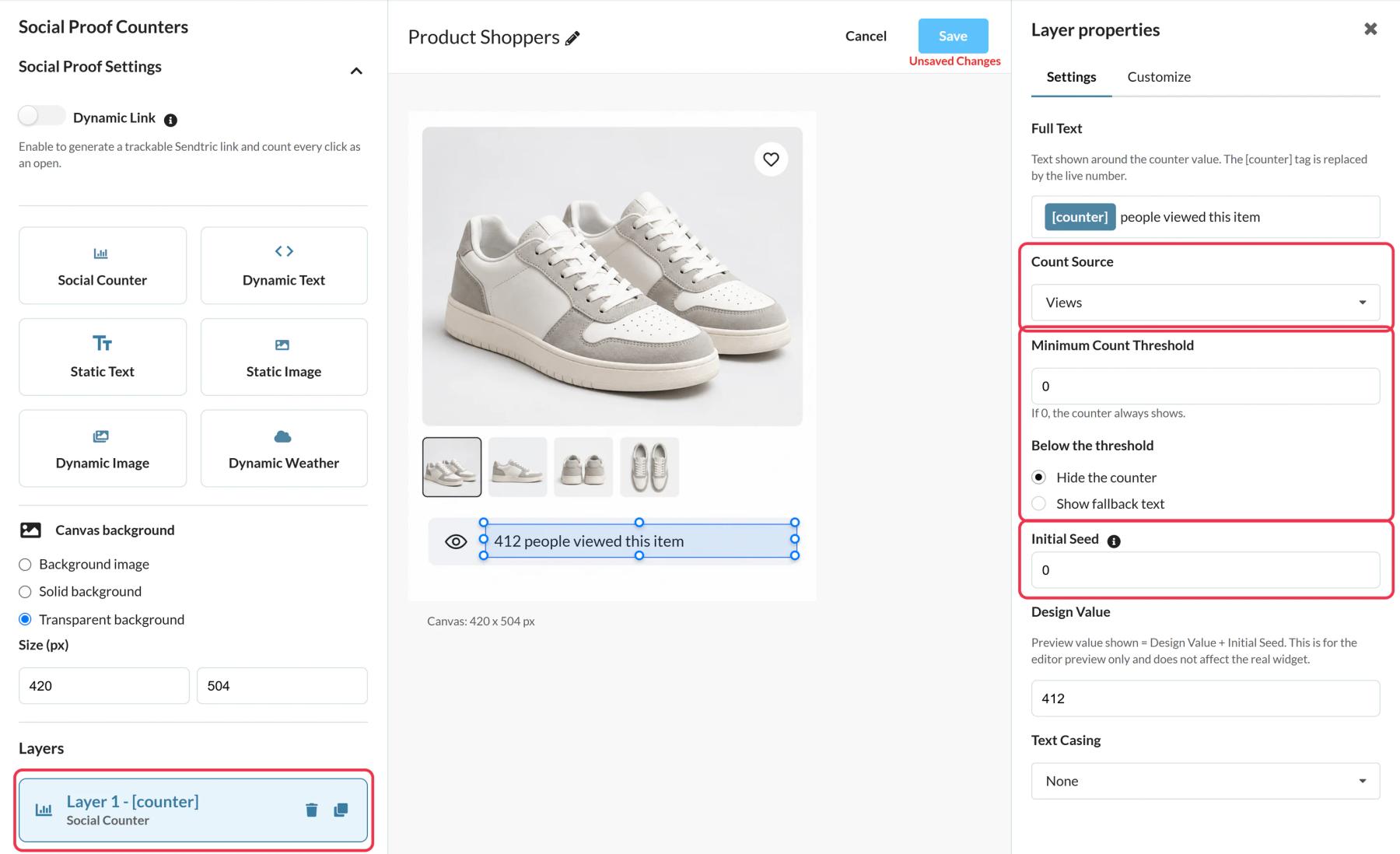
In Sendtric, open Social proof counters and click Create New. Start from a preset such as Product Shoppers or a blank canvas. The Social Counter layer holds the live number; type your text around the [counter] tag.
Step 2: Choose what to count
Set Count Source to Views or Opens. For Opens, add a Dynamic Link in Social Proof Settings with your destination page (it must start with https://).
Step 3: Avoid a low starting number
Use Initial Seed to add a starting number to the real count, and Minimum Count Threshold to hide the counter, or show a short fallback text, until it reaches a number you're happy to show.
Step 4: Copy the code (and the link)
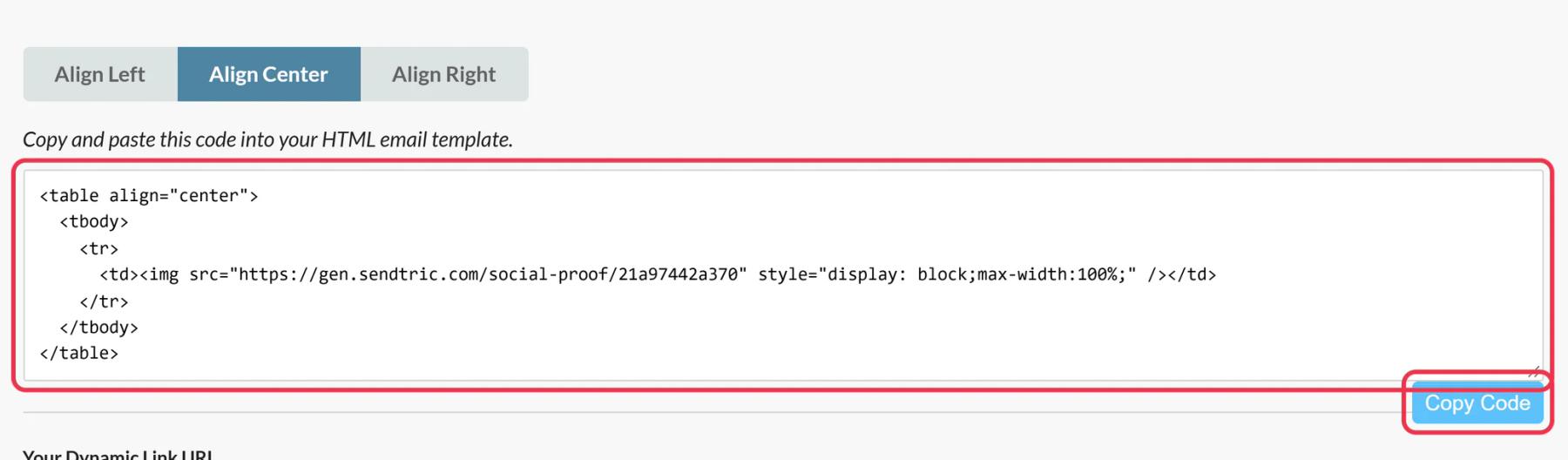
Save and click Copy Code. If you use Opens, also copy the URL from Your Dynamic Link URL.
Step 5: Add it to Brevo
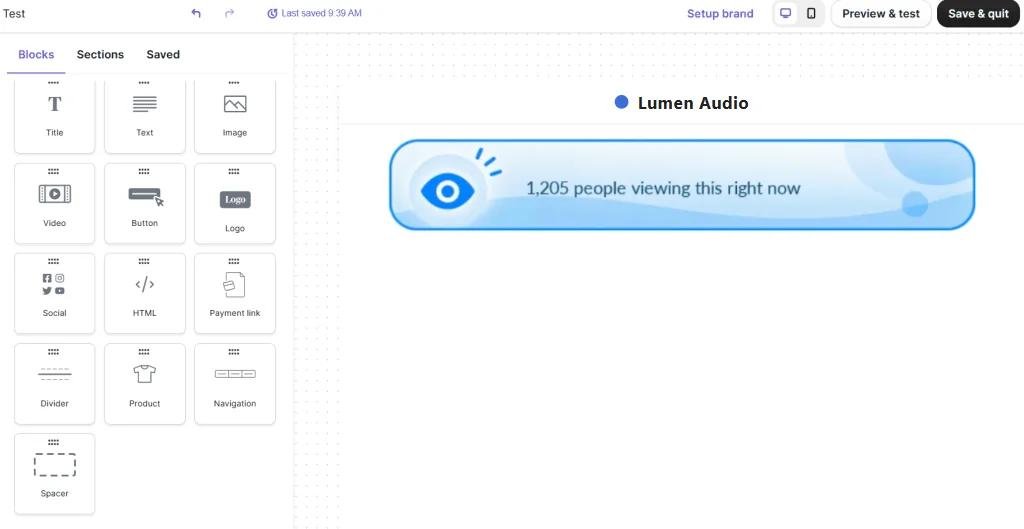
In the drag and drop editor, drag an HTML block from Content > Blocks into your email, click it, replace the placeholder text with the counter code and save. For Opens, select your Brevo Button block and paste the Dynamic Link URL as its link. Send a test to check the counter and the link.
Your test sends count too
Every load of the image counts as a view, including your own tests and previews in Brevo. If the number matters, set the seed after testing, or account for those first few views.
The image isn't a link
The counter image itself isn't clickable. With Opens, only clicks on the Dynamic Link count, so put that link on your main Brevo button rather than a small text link.
Brevo Social Proof Counter FAQ
Is it a count of people viewing right now?
No. It's a running total of views or clicks since the counter was created, plus any starting number you set. Write your text so it says that, for example "people have viewed this".
Which plan do I need?
Power or Enterprise. Compare plans on the pricing page.
How quickly does the number change?
New activity shows within one to two minutes. The number is fixed once the email is opened and doesn't tick up while someone reads it.
Can I change where the Dynamic Link goes after sending?
Yes. Change the destination in Sendtric and clicks from emails already sent go to the new page.
Can I use the same counter in several Brevo campaigns?
Yes. Paste the same code into each email and the total adds up across all of them. Create separate counters if you want separate totals.
Read more about social proof counters and how it all fits into a wider email personalization strategy.
More Brevo guides
- Countdown Timers - How to Add Countdown Timers to Brevo
- Live Polls - How to Add Live Polls to Brevo
- Personalized Images - How to Add Personalized Images to Brevo
- Rule-Based Images - How to Add Rule-Based Images to Brevo
- Dynamic Weather - How to Add Dynamic Weather to Brevo
- Critical Alerts - How to Add Critical Alerts to Brevo
Using a different platform? See all Sendtric integrations.
