
How to Add Social Proof Counters to Iterable
Show a running total of views or clicks inside your Iterable emails, so each new reader sees how many people have already shown interest.
 First Publish Date:
Let the numbers from your Iterable sends do some of the persuading.
A Sendtric social proof counter puts a number into an image in your email, such as "4,800 people opened this offer". It counts either every time the counter is loaded or every click on a Sendtric link, and the number is up to date each time someone opens the email.
You need a Sendtric Power or Enterprise plan for social proof counters. Compare plans on pricing.
What you can do with social proof counters in Iterable
- Feature announcements: count clicks on "Try it now" and show the total in the announcement and its follow-up, so later readers see others trying it.
- Content and course emails: show how many people have viewed this week's featured lesson or article.
- Limited offers in journeys: a counter in the last email of a promotion journey shows how many people have already clicked through to the offer. Read more about counters in launch and sale emails.
- Destination or product popularity: a views counter on a travel deal or product card in a recommendation email.
How to add a social proof counter to Iterable
Step 1: Create the counter
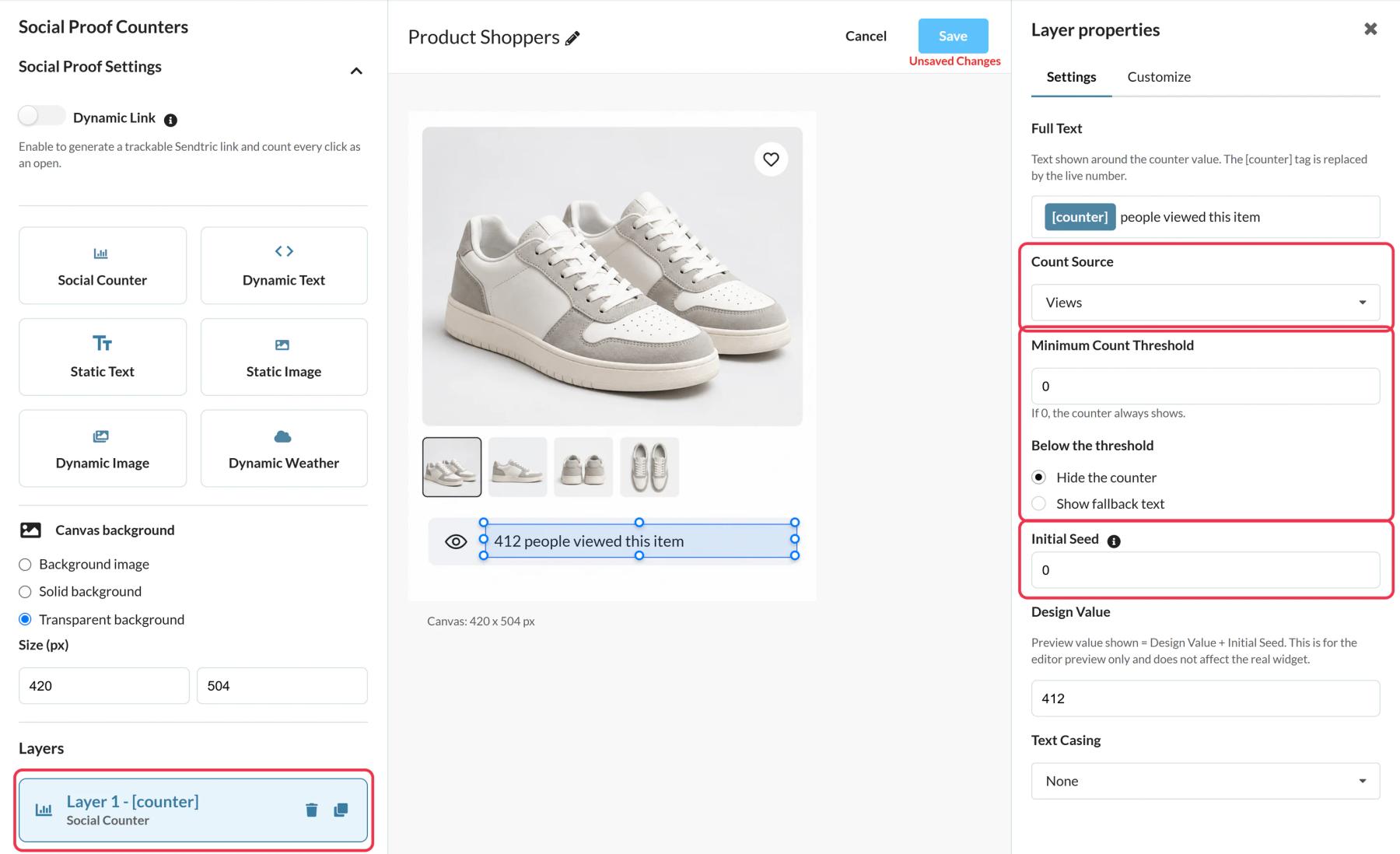
In Sendtric, open Social proof counters, click Create New and choose a preset such as Viewing Now, Trending Destination, Product Shoppers or Fan Favorite, or a blank canvas. Style it to match your template.
Step 2: Set the counting rules
Click the Social Counter layer. Under Count Source, choose Views (each load of the counter image) or Opens (clicks on a Dynamic Link). Add an Initial Seed if you don't want to start from zero, and a Minimum Count Threshold so the counter stays hidden, or shows short fallback text, until the number is worth showing.
Step 3: Create the Dynamic Link for click counts
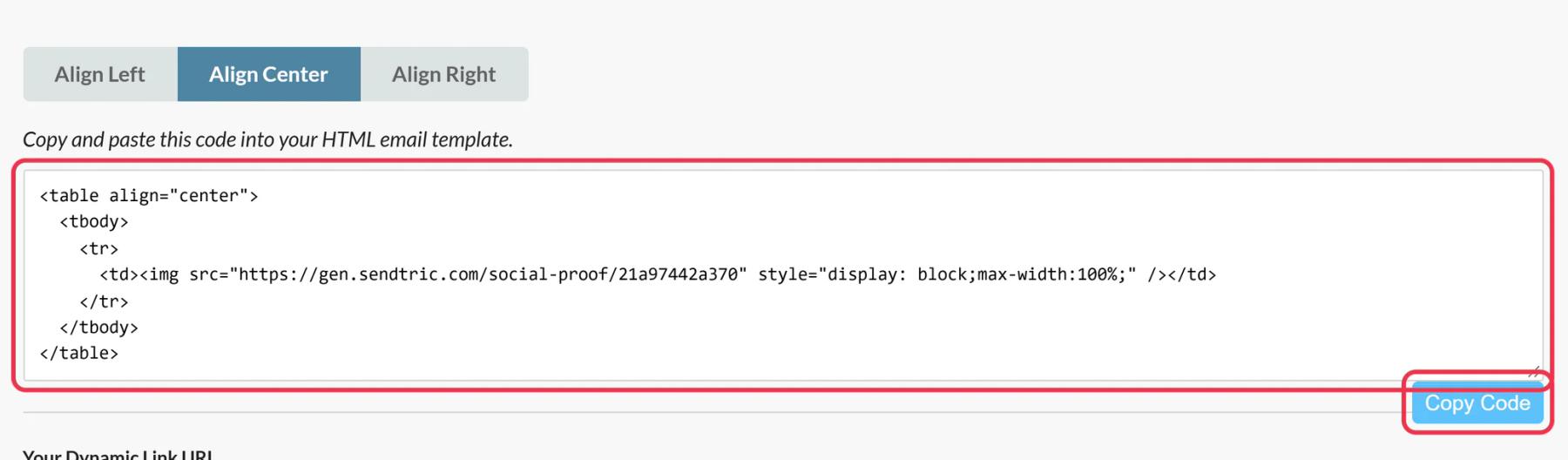
If you chose Opens, add a Dynamic Link in Social Proof Settings and enter the page people should land on as the Destination URL, starting with https://. Save, then copy the counter code and Your Dynamic Link URL.
Step 4: Add the counter and link in Iterable
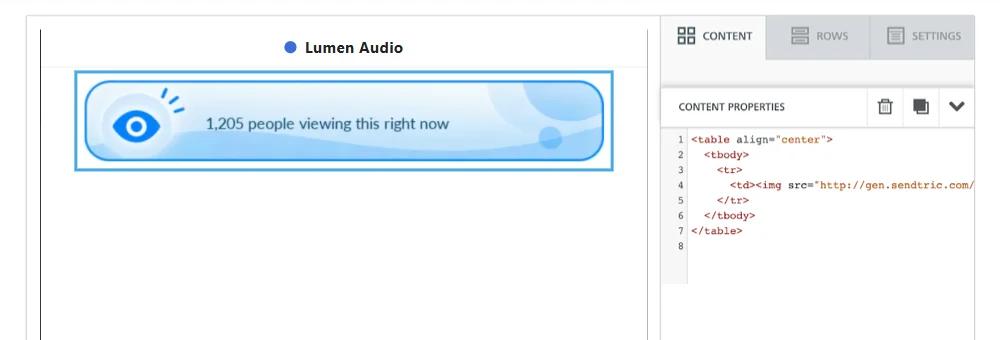
Click Edit design on your template. Drag an HTML block from the Content tab to where the counter should appear and paste the counter code into its HTML editor. For click counting, select your Button block and paste the Dynamic Link URL as its link.
Step 5: Proof and check the total
Send a proof to yourself and open it. New views and clicks appear in the number within a minute or two. Your own proofs count as views, so keep testing light once the counter is live.
Pick wording that matches the number
The total is cumulative and includes repeat opens by the same user, so it isn't a count of unique people or of people online right now. Phrases like "4,800 views" or "1,950 people clicked" describe it accurately. Avoid the "viewing right now" wording some presets start with.
One counter across templates
Paste the same counter code into several templates, for example each email in a journey, and they all add to one shared total. Create separate counters when each email should show its own number.
Iterable Social Proof Counter FAQ
Does the counter use any Iterable data?
Not for the count itself. Sendtric counts loads of the counter image or clicks on its Dynamic Link, so it works without any Handlebars.
Does the number tick up while the user reads the email?
No. It's fixed at the moment of opening. A reopen shows the newer total.
Can I change the landing page after sending?
Yes. Change the Destination URL of the Dynamic Link in Sendtric and every sent email's button follows it.
Does it work with Iterable's link tracking?
The Dynamic Link is a normal URL on your button, so Iterable treats it like any other link in the template. Sendtric counts the click as the user passes through to your page.
How are numbers formatted?
With comma thousands separators, like 1,740, in every language.
Want to see what else you can do? Explore Sendtric's social proof counters in more detail, or browse the full email personalization toolkit.
More Iterable guides
- Countdown Timers - How to Add Countdown Timers to Iterable
- Countdown Timers - Add Dynamic Timers in Iterable
- Live Polls - How to Add Live Polls to Iterable
- Personalized Images - How to Add Personalized Images to Iterable
- Rule-Based Images - How to Add Rule-Based Images to Iterable
- Dynamic Weather - How to Add Dynamic Weather to Iterable
- Critical Alerts - How to Add Critical Alerts to Iterable
Using a different platform? See all Sendtric integrations.
