
How to Add Live Polls to Iterable
Ask a question inside your Iterable emails, record one answer per user with {{userId}}, and show live results to everyone who opens the email later.
 First Publish Date:
Collect answers from your Iterable users with one click in the email.
A Sendtric live poll gives your Iterable template a row of clickable answer images. Each click is recorded against the user's Iterable {{userId}}, so every person gets one vote, and the answer images can show live percentages or vote counts the next time anyone opens the email.
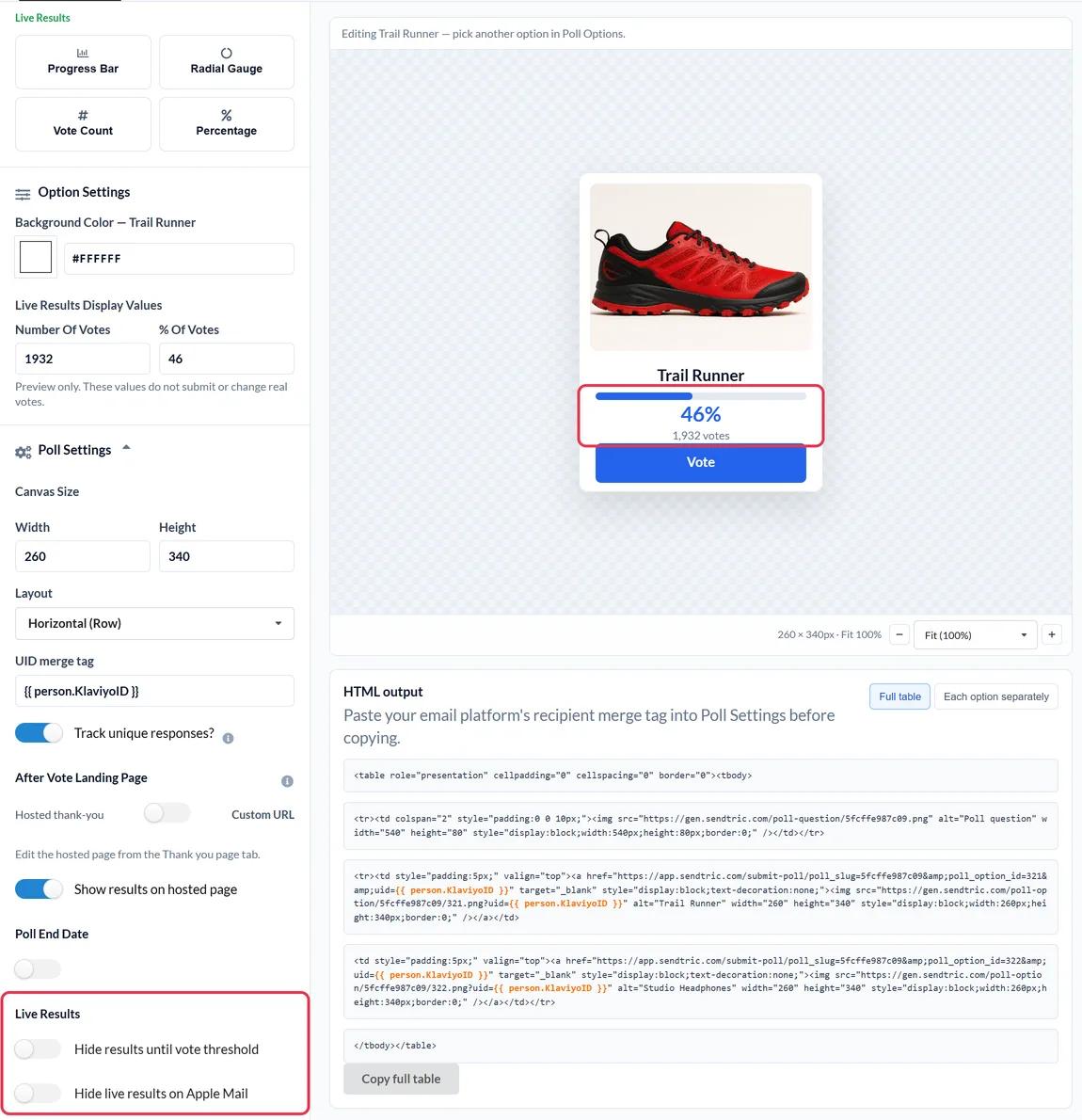
The content blocks in Iterable's Drag and Drop editor (text, buttons, images, HTML and so on) don't include a poll. A Sendtric poll is plain HTML, so it goes into an HTML block, or straight into the source of a WYSIWYG or Side by Side template.
What you can do with a live poll in Iterable
- Onboarding questions: ask new users what they want to achieve in a welcome journey, then download the answers by
userIdand store them on their profiles. - Feature or content votes: let app users pick the next feature, show or course, with live results that make people curious to come back.
- Post-purchase or post-trip ratings: a 1 to 5 star rating or an NPS score at the end of a transactional email.
- Answer-specific next steps: on Power and above, each answer can open its own page, so a low score goes to a feedback form and a high one to a review page.
| Poll feature | Sendtric plan |
|---|---|
| Up to 2 answers, text presets | Free |
| Up to 3 answers | Micro |
| Up to 5 answers, product vote and rating presets, results on the thank-you page | Standard |
| Up to 11 answers, NPS, live results in the email, a page per answer, end date | Power and Enterprise |
How to add a live poll to Iterable
Step 1: Pick a preset
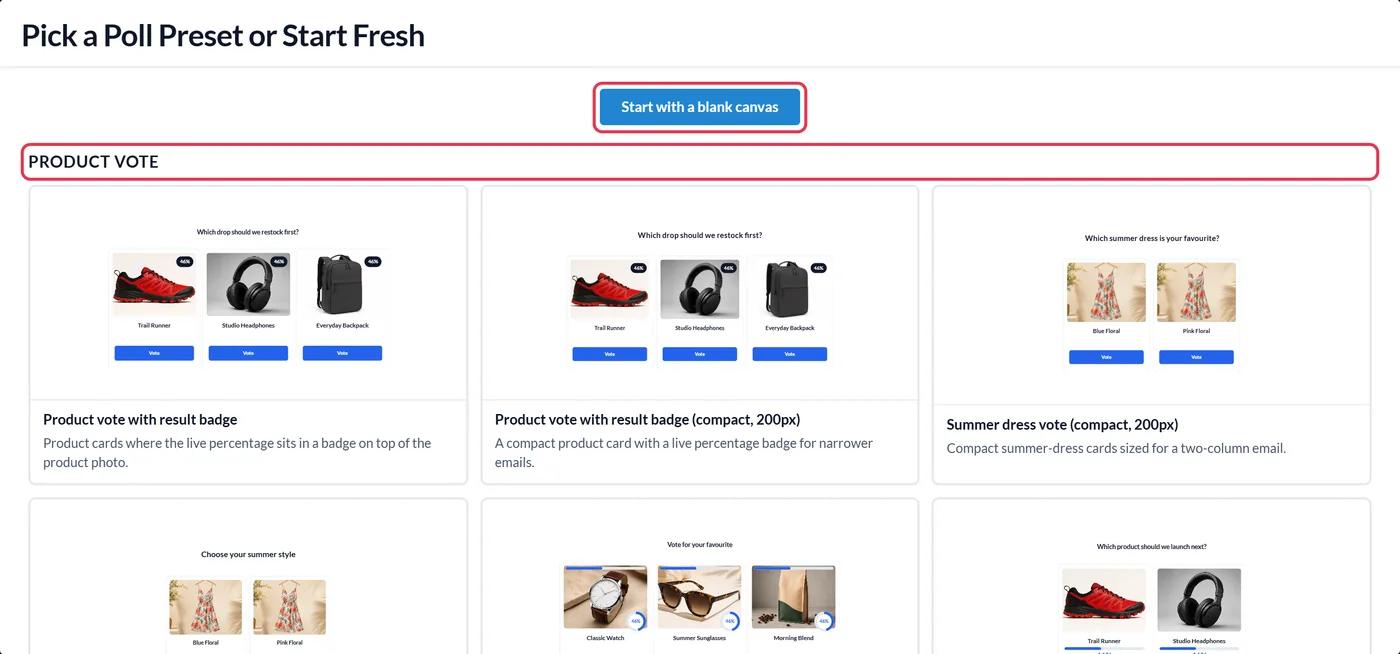
In Sendtric, open Polls, click Create New and choose from the product vote, text and feedback presets, or start with a blank canvas. Edit the answers and design on the Option canvas tab.
Step 2: Enter {{userId}} as the UID merge tag
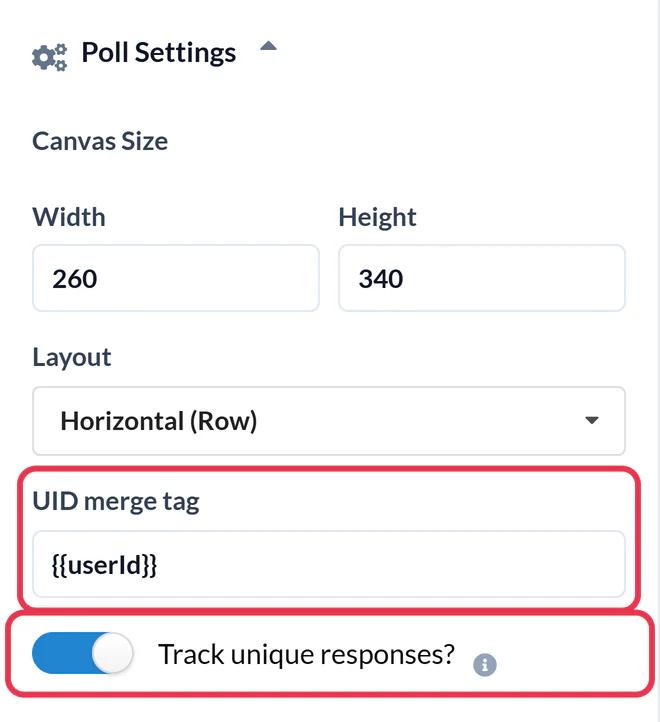
In Poll Settings, type {{userId}} into the UID merge tag field. Iterable replaces it with each user's ID when the email is sent. Turn on Track unique responses? if you want a file of answers by user ID later, then Save.
Step 3: Copy the HTML
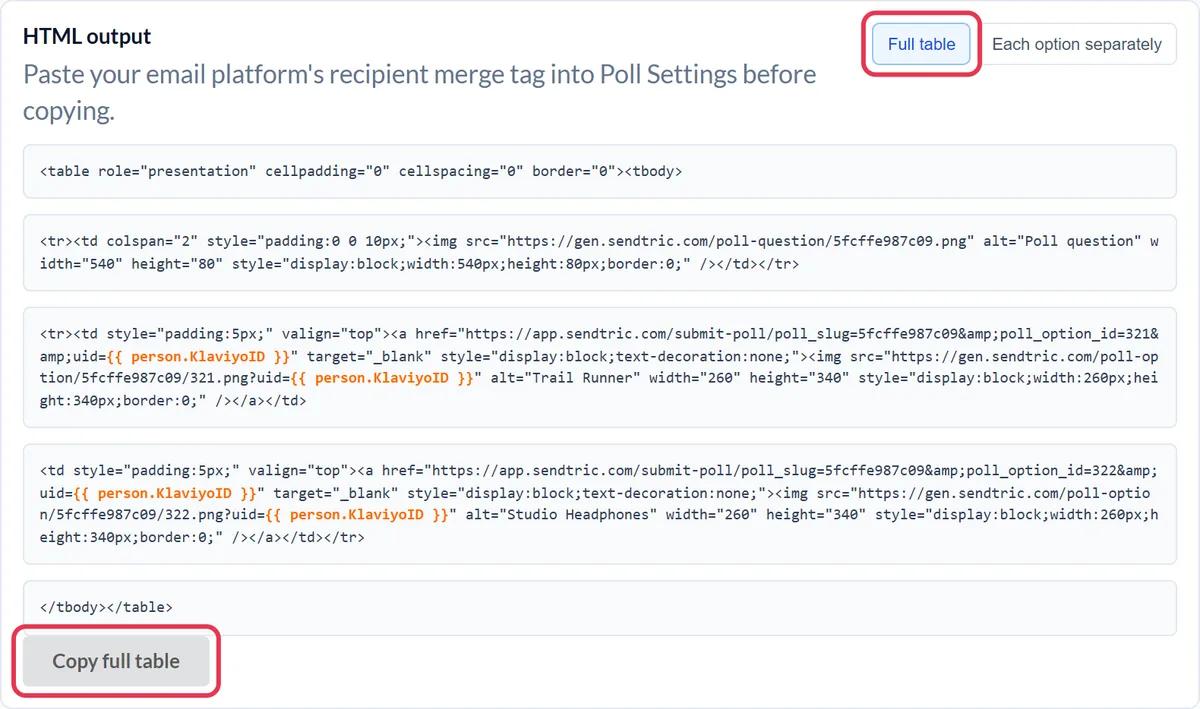
Below the canvas, in HTML output, click Copy full table. To lay the answers out yourself, switch to Each option separately and copy each one.
Step 4: Add an HTML block to your Iterable template
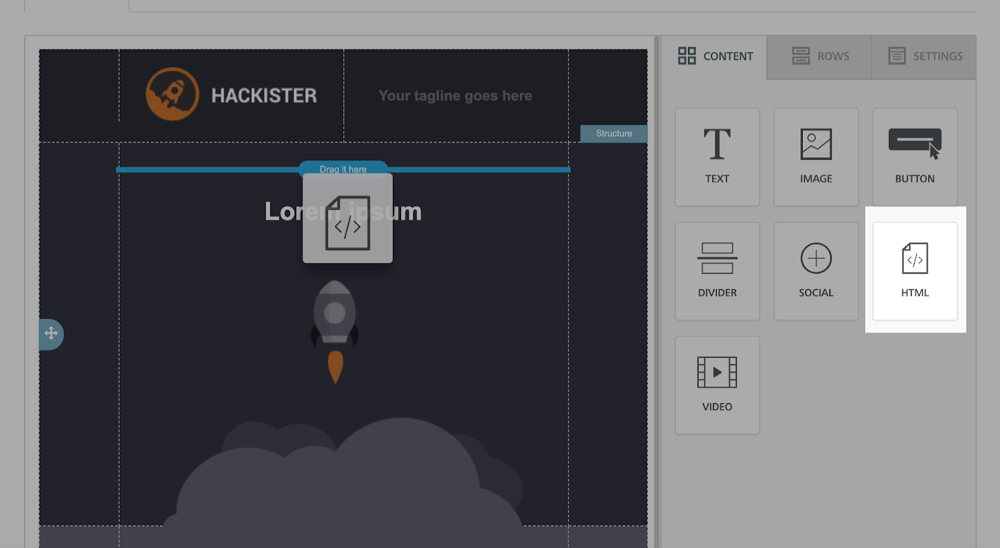
Open the template and click Edit design. In the Drag and Drop editor, drag an HTML block from the Content tab into place, select it and paste the poll into the HTML editor that appears in the Content tab. In the WYSIWYG or Side by Side editor, paste it into the source code where the poll should go.
Step 5: Send yourself a proof
Use Send proof and pick To yourself. Iterable fills Handlebars in proofs with data from your own Iterable profile, so you can click an answer and check the vote lands. You should see a short "Please wait" page, then the thank-you page or your own page.
Check your project uses userId
Iterable projects identify users by userId, by email, or by either one (hybrid). You can see which under Settings > Project Settings. In a hybrid project, users who were created with only an email address have an empty {{userId}}, and their votes would all overwrite each other. If that's you, use a field every user has as the UID, and remember that whatever you choose is what appears in the response download.
Polls in journeys
Because results are live, a poll in a journey email shows the up-to-date totals to someone who reaches that step months after launch. If the question has a natural end, set a Poll End Date (Power and above) so late voters aren't counted.
Iterable Live Poll FAQ
Which Iterable merge tag should I use for the poll?
{{userId}}, which is what Sendtric's Iterable setup uses. It gives each user their own vote, and a second click from the same user replaces their first answer.
Does the vote happen without leaving the email?
The poll and its results are inside the email. A click opens a browser tab for a moment to record the vote, then shows the thank-you page or the page you set for that answer.
Can I get the answers back into Iterable?
With Track unique responses? on, the poll report lets you download a file listing each user ID and their answer. Match it back to your users in Iterable by userId to update their profiles or build lists.
Does the poll work in the WYSIWYG and Side by Side editors?
Yes. It's standard HTML, so paste it into the source code. In the Drag and Drop editor it needs an HTML block, because that's the only block that accepts custom HTML.
Can I edit the answers after the campaign is sent?
You can change the design, but don't delete answers or switch presets once the email is out. Votes on removed answers are rejected, so those links in sent emails stop working.
How do views work for polls?
With a UID set, each user counts as one view per poll every 2 hours, however often they reopen. See how widget views are counted.
This guide covers one piece of Sendtric's email personalization platform. For every live polls option and example, see the main page.
More Iterable guides
- Countdown Timers - How to Add Countdown Timers to Iterable
- Countdown Timers - Add Dynamic Timers in Iterable
- Personalized Images - How to Add Personalized Images to Iterable
- Rule-Based Images - How to Add Rule-Based Images to Iterable
- Dynamic Weather - How to Add Dynamic Weather to Iterable
- Critical Alerts - How to Add Critical Alerts to Iterable
- Social Proof Counters - How to Add Social Proof Counters to Iterable
Using a different platform? See all Sendtric integrations.
