
How to Add Critical Alerts to Iterable
Reserve a spot in your Iterable templates for an alert banner that stays hidden until you need it, then switch it on for every email already delivered.
 First Publish Date:
Be ready to warn your Iterable users, even in emails you sent last week.
Journeys and campaigns in Iterable keep sending around the clock, and every email already in an inbox is out of your hands. A Sendtric critical alert is a banner you add to your templates in advance. It shows nothing until you switch it on or its schedule starts, and then it appears in every email that contains it, the next time that email is opened.
Critical alerts are available on Sendtric Enterprise plans only. Ask us about Enterprise to get access.
What you can do with critical alerts in Iterable
- App and service outages: a "We're experiencing technical issues" banner in onboarding and engagement emails while your app is down, switched off when it's fixed.
- Planned maintenance windows: schedule the notice in advance so it shows only during the hours your service is unavailable.
- Travel disruption: add a slot to booking and pre-trip templates for strikes, storms or schedule changes.
- Order and delivery delays: switch on a delay notice in order confirmation emails while a carrier is behind.
How to add a critical alert to Iterable
Step 1: Create the alert
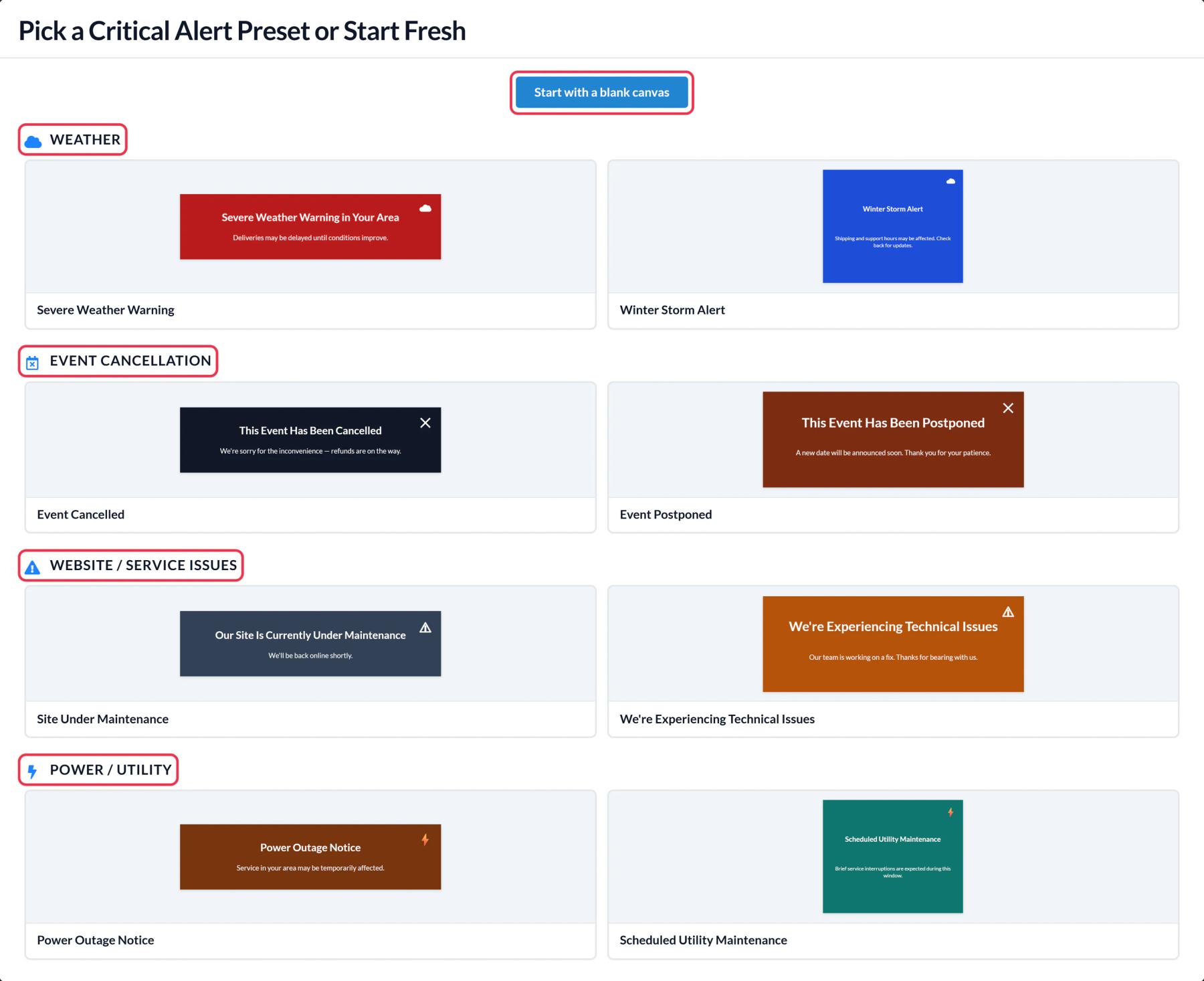
In Sendtric, go to Critical alerts, click Create New, and choose a preset like We're Experiencing Technical Issues or Site Under Maintenance, or start from a blank canvas. Adjust the wording, colors and images to fit your brand.
Step 2: Set the schedule or leave it off
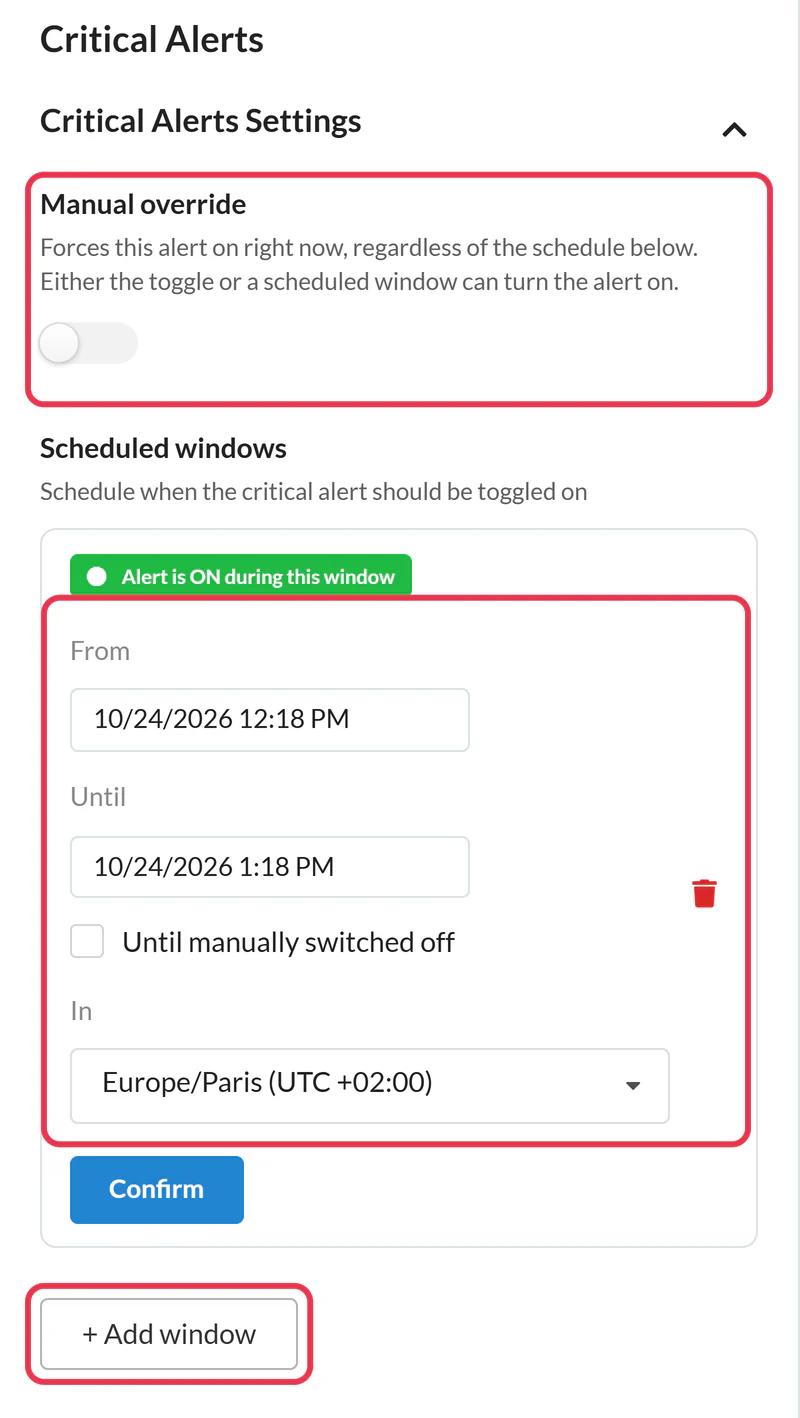
In Critical Alerts Settings, keep Manual override off to save it in a hidden state. If you already know when it should run, click + Add window and set From, Until and the time zone. You can add up to 5 windows. Then click Save.
Step 3: Copy the code once
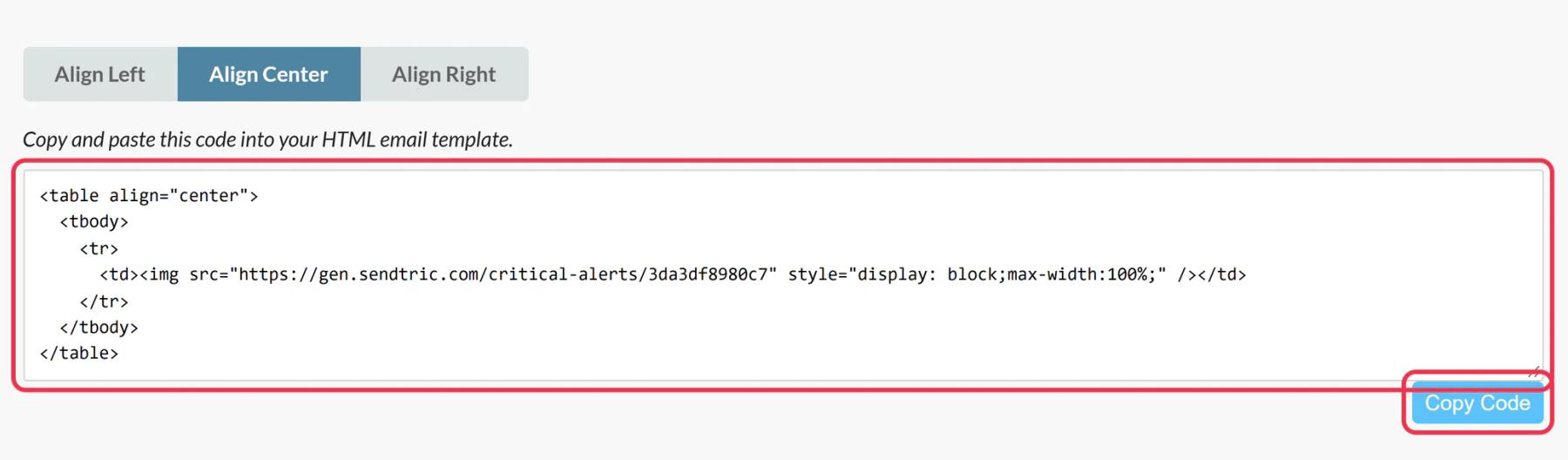
Click Copy Code. You'll never need to replace this code: turning the alert on or off, rescheduling it or editing the design all happen in Sendtric.
Step 4: Add it near the top of your templates
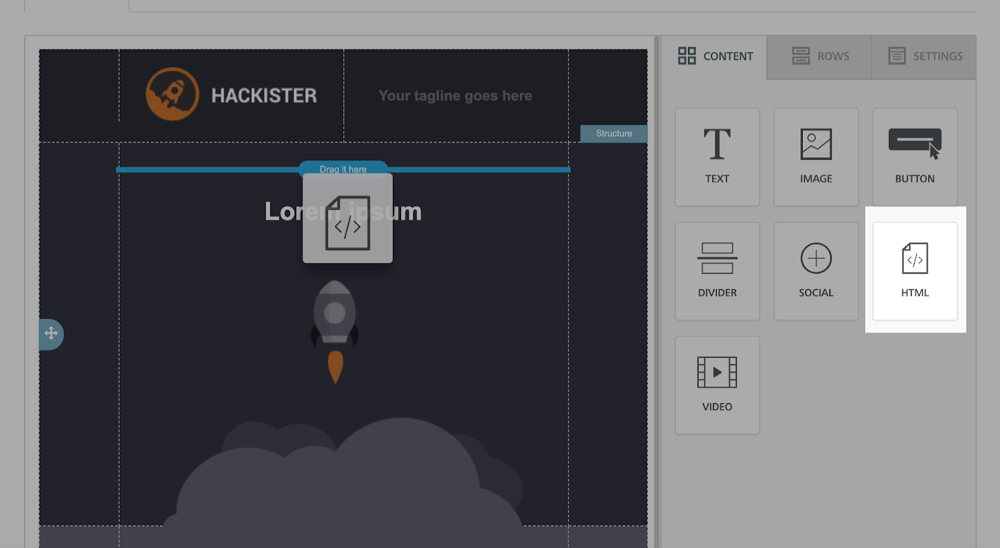
Open the template, click Edit design and, in the Drag and Drop editor, drag an HTML block from the Content tab to just below your header. Paste the code into its HTML editor and save the template. Repeat for each template that should carry the alert.
Step 5: Proof it on and off
Send a proof to yourself while the alert is off and check that nothing shows. Turn on Manual override, reopen the proof and confirm the banner appears, then switch it back off.
Store the code as an Iterable snippet
If many templates should carry the same alert, save the code as an Iterable snippet and add the snippet to an HTML block in each template. Iterable wraps snippets pasted into an HTML block in a table, which suits an image banner.
Plan for cached images
The on or off state is checked whenever the email's images load. Some email apps keep their own copy of images, so a reopen can briefly show the earlier state. For anything safety-related, use the alert alongside a direct message, not instead of one.
Iterable Critical Alerts FAQ
Do I need to edit or resend the Iterable campaign to show the alert?
No. The code stays the same. Switching the alert on in Sendtric, or reaching a scheduled window, makes it appear the next time a recipient opens the email.
What does the HTML block show while the alert is off?
An invisible 1 by 1 pixel image, so users don't see an empty box or a broken image.
Can the alert include personalized text?
Yes. Alerts use the same canvas as personalized images, so you can add a Dynamic Text layer with an Iterable field such as {{firstName}}. The field is added to the alert's code as a parameter.
Are views counted when the alert is hidden?
No. Views only count while the alert is on.
Which plan do I need?
A Sendtric Enterprise plan. When creating a new alert, Enterprise account owners can use Select account to make it for one of their subaccounts.
This guide covers one piece of Sendtric's email personalization platform. For every critical alerts option and example, see the main page.
More Iterable guides
- Countdown Timers - How to Add Countdown Timers to Iterable
- Countdown Timers - Add Dynamic Timers in Iterable
- Live Polls - How to Add Live Polls to Iterable
- Personalized Images - How to Add Personalized Images to Iterable
- Rule-Based Images - How to Add Rule-Based Images to Iterable
- Dynamic Weather - How to Add Dynamic Weather to Iterable
- Social Proof Counters - How to Add Social Proof Counters to Iterable
Using a different platform? See all Sendtric integrations.
