
How to Add Personalized Images to Iterable
Use the Handlebars fields you already send to Iterable to draw a name, booking detail or balance onto an image for every user.
 First Publish Date:
Put the data you keep in Iterable onto the images your users see.
Iterable templates already pull in profile and event data with Handlebars. Sendtric personalized images take that one step further and draw those values onto an image, in your fonts and layout: a boarding-pass style graphic with the user's route, or a rewards card with their latest balance. The image is created when the email is opened.
Iterable's Drag and Drop editor has a Dynamic image option on its Image block that loads an image from a URL containing Handlebars, and its own docs point to outside image services to create those images. Sendtric is one of those services: you design the image, and its URL carries your Iterable fields.
What you can do with personalized images in Iterable
- Trip and booking summaries: departure city, arrival city and date from a booking event, laid out on one travel graphic. See personalized text on images for examples.
- App milestones: "You've completed 30 workouts" or "12 lessons done" from a custom profile field, in a celebration email.
- Loyalty statements: points, tier and member name on a card image in a monthly journey email.
- Year-end recaps: several stats from the user profile on one background, a common use for year-in-review emails.
| Image feature | Free | Micro | Standard | Power and Enterprise |
|---|---|---|---|---|
| Personalized text layers per image | 1 | 2 | 4 | 20 |
| Your own image layers (logo, product) | No | No | Yes | Yes |
| Solid color background | No | No | Yes | Yes |
| Transparent background | No | No | No | Yes |
How to add a personalized image to Iterable
Step 1: Design the image
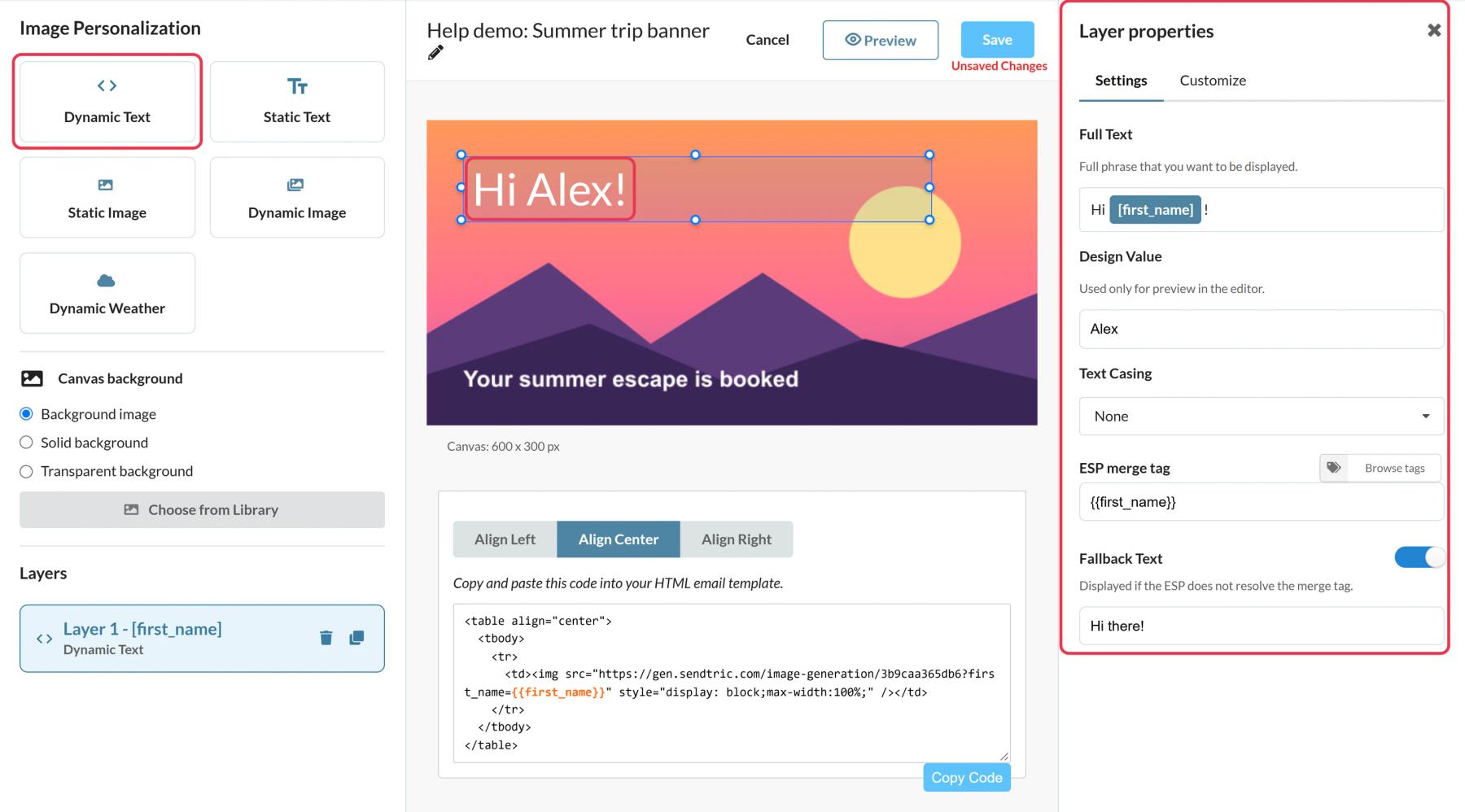
In Sendtric, go to Image Personalization and click Create New. Pick a background from the media library, or a solid or transparent canvas, then add Dynamic Text layers for each value. Size each text box for the longest value you expect, since text wraps but doesn't shrink.
Step 2: Enter the Iterable field for each layer
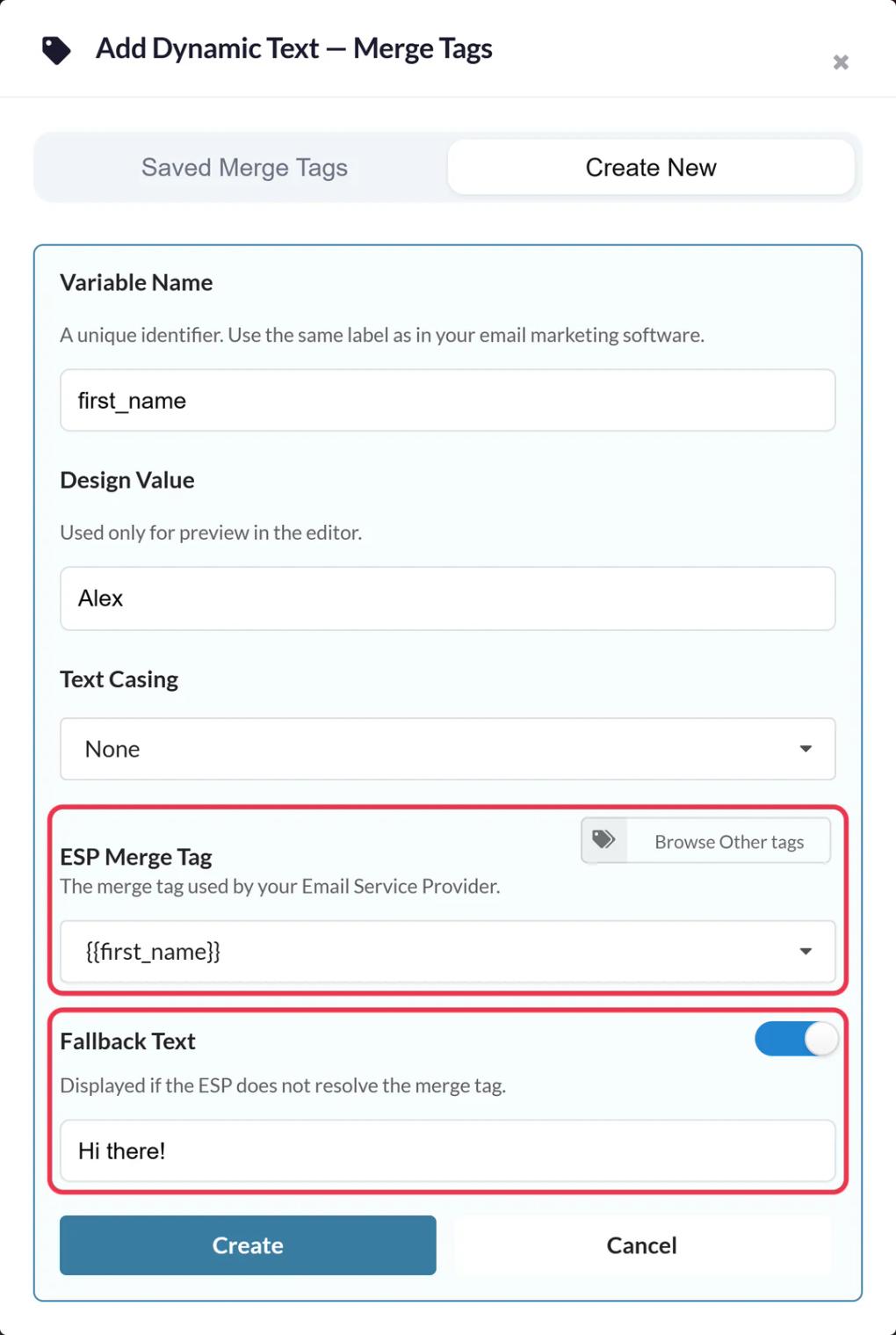
For every Dynamic Text layer, give the variable a lowercase Variable Name and put the Iterable Handlebars expression in ESP Merge Tag, such as {{firstName}}. Fields are specific to your project, so use the exact names you see on a user profile, including dot notation for nested fields, for example {{address.city}} if your city sits inside an address object. Add Fallback Text for users without a value.
Step 3: Save and copy the code
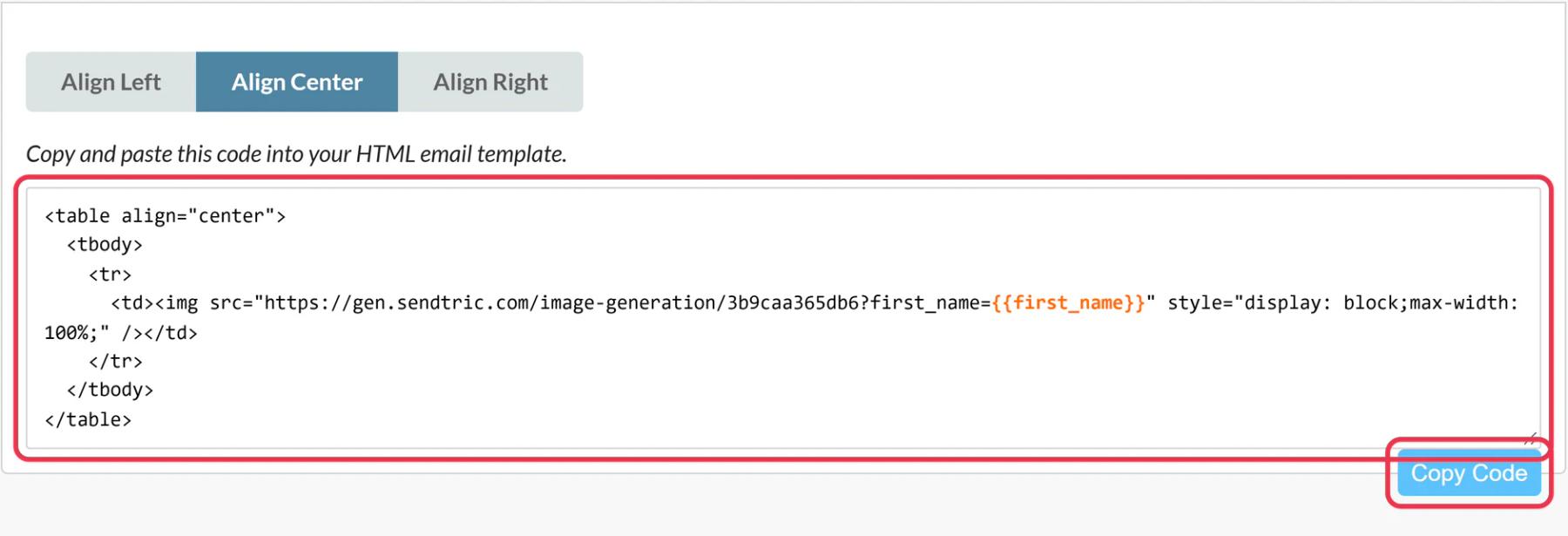
Save the image. The code box appears after the first save, with each variable added to the image URL and filled with your Iterable expression. Choose the alignment and click Copy Code.
Step 4: Paste it into an HTML block
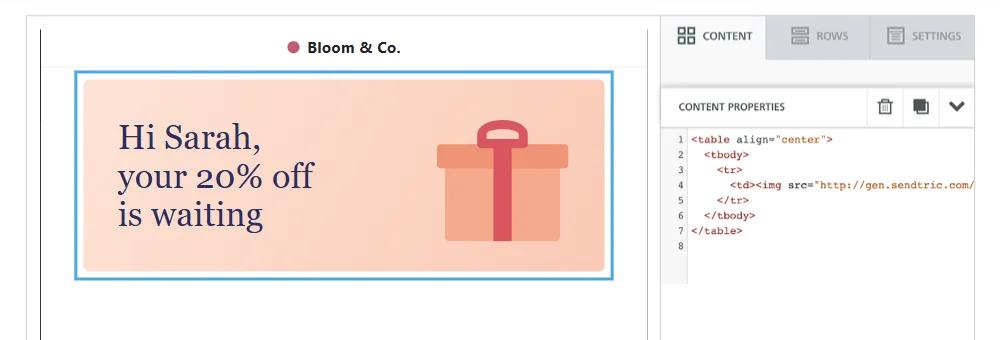
Open your Iterable template and click Edit design. In the Drag and Drop editor, drag an HTML block from the Content tab to the right spot, select it and paste the code into the HTML editor. In the WYSIWYG or Side by Side editor, paste the code into the source.
Step 5: Preview with real users
Click Preview, enter a user's email (or userId) and click Load user data to see the image with their values. Try a user with a long name and one with an empty field. Then send a proof To yourself, which fills the fields from your own profile.
Using the Image block instead of HTML
If you'd rather keep an Image block, copy only the address inside the src of Sendtric's code, drag in an Image block, turn on Dynamic image and paste the address into Dynamic URL. If the block looks empty while you're designing, check it in Preview with a user's data loaded.
Fallbacks in Iterable or in Sendtric
You can let Sendtric's Fallback Text handle empty values, or use Iterable's helper inside the tag, like {{defaultIfEmpty firstName 'there'}}. Use single quotes for the default, because the expression sits inside the image's double-quoted address. If Iterable supplies a default, Sendtric's fallback never shows.
Iterable Personalized Images FAQ
Can I use event data, not just profile fields?
Yes. Any Handlebars value Iterable can resolve when it renders the email can go into a layer, including fields from the event that triggered a journey or campaign. Iterable's docs note that an event field with the same name as a profile field takes priority, and {{profile.fieldName}} reads the profile value explicitly.
What if a value has spaces or special characters?
If a field can contain spaces or characters like & or #, wrap it in Iterable's urlEncode block helper, for example {{#urlEncode}}{{city}}{{/urlEncode}}, so the image address stays intact. Then check the result in Preview.
What do users with an empty field see?
With Fallback Text set, they see only the fallback, so write it as a full phrase. Without it, the whole layer is hidden, including any words around the variable.
Can I update the image after sending?
Yes. Saving in Sendtric changes the image in every sent email from the next open. Rendered versions are cached for about an hour per combination of values, and saving clears that.
Do previews count towards my views?
Previews in the Sendtric editor don't. Every real load of the image does, including Iterable proofs you open and repeat opens.
This guide covers one piece of Sendtric's email personalization platform. For every personalized images option and example, see the main page.
More Iterable guides
- Countdown Timers - How to Add Countdown Timers to Iterable
- Countdown Timers - Add Dynamic Timers in Iterable
- Live Polls - How to Add Live Polls to Iterable
- Rule-Based Images - How to Add Rule-Based Images to Iterable
- Dynamic Weather - How to Add Dynamic Weather to Iterable
- Critical Alerts - How to Add Critical Alerts to Iterable
- Social Proof Counters - How to Add Social Proof Counters to Iterable
Using a different platform? See all Sendtric integrations.
