
How to Add Rule-Based Images to Iterable
Handlebars decides content when Iterable sends. A rule-based image decides again every time the email is opened, using the time, device or your user fields.
 First Publish Date:
Add open-time decisions to your Iterable templates.
With a Sendtric rule-based image, one image slot in your Iterable template holds several pictures, each with its own conditions. Every time the email is opened, Sendtric checks the conditions from the top and shows the first image that fits. Conditions can use the date, day, time of day, device, operating system, email client or the value of an Iterable field.
Iterable already handles a lot of conditional content with Handlebars helpers such as #ifEq, and those are evaluated when the message is rendered for sending. Use Handlebars for choices that are settled at send time, and a rule-based image for anything that depends on when or on what device the user actually reads the email.
What you can do with rule-based images in Iterable
- App download prompts: show the App Store badge on iPhone and the Google Play badge on Android, from one image slot.
- Offers that follow the clock: a food delivery or retail journey shows a lunch deal before 2pm and a dinner deal after 5pm, in the user's own time zone.
- Plan or tier visuals: pick the banner from a profile field like
planortier, without nesting Handlebars blocks around several images. - Weekend creative: one recurring campaign that shows a different banner on Saturdays and Sundays.
Text and operating system rules work on every plan, date and time rules start on Standard, and device rules and number comparisons need Power. Each image can hold 2 pictures on Free, 4 on Micro, 10 on Standard and unlimited on Power and Enterprise. A fallback image needs Micro or above. See pricing.
How to add a rule-based image to Iterable
Step 1: Add your images, most specific first
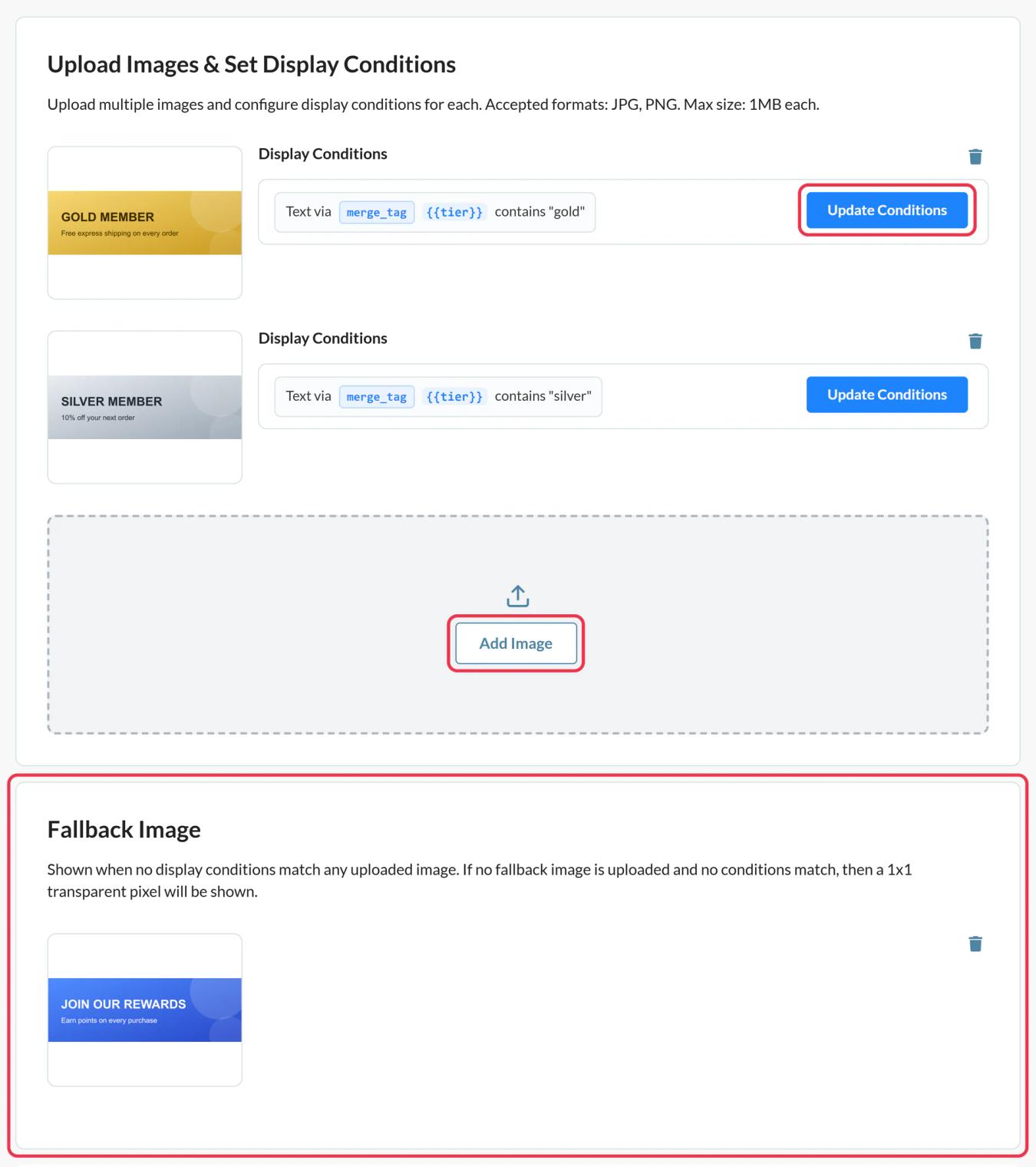
In Sendtric, go to Rule-based Images, click Create New and use Add Image for each option. The first match wins and images can't be reordered afterwards, so add the most specific one first and the general ones last.
Step 2: Write the conditions
Click Update Conditions on each image to open Show This Image. Choose all conditions (AND) or any condition (OR) and add as many as you need. For merge tag conditions, pick text, number or date. Add a Fallback Image for opens that match nothing.
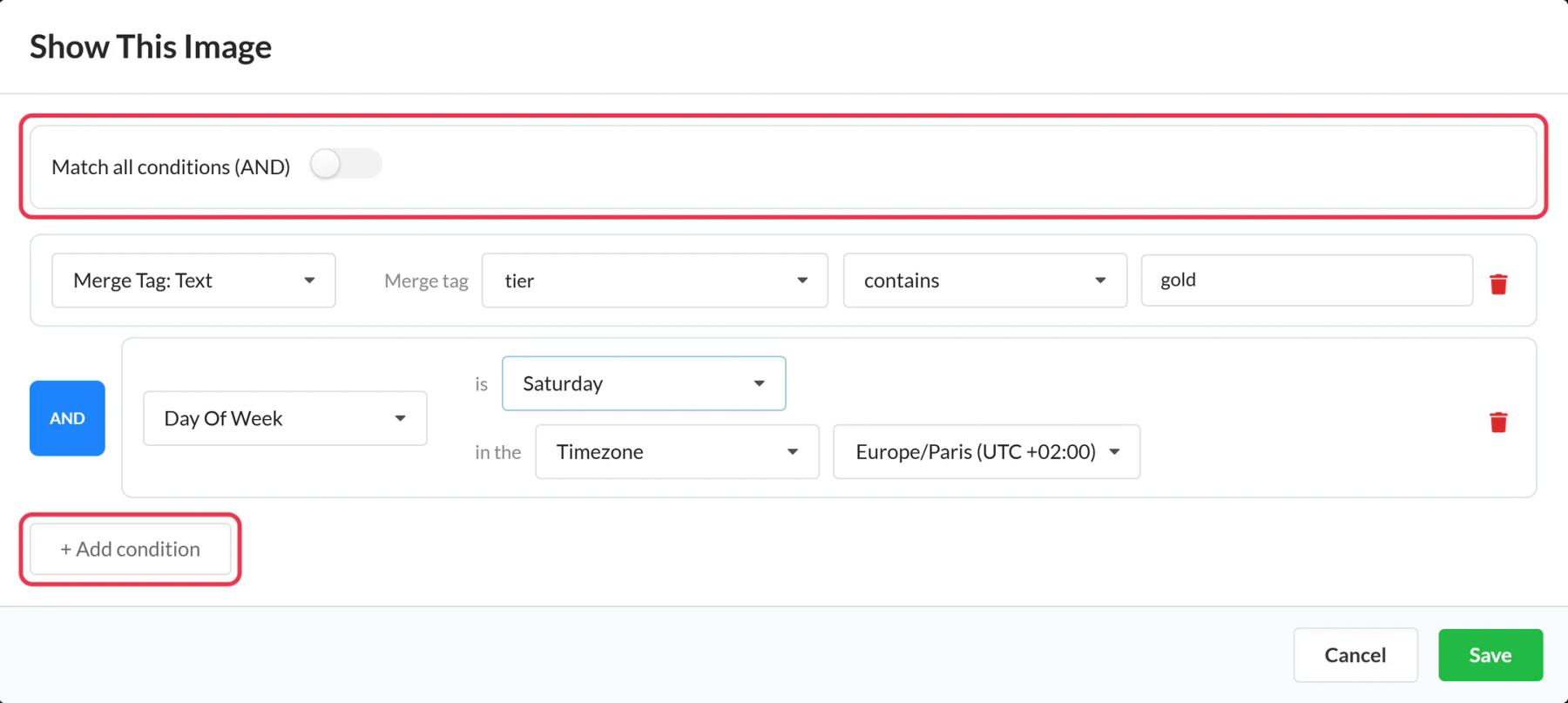
For time rules in each user's own zone, choose Dynamic Timezone and use an Iterable field that holds zone names such as Europe/Berlin. A blank or invalid value falls back to UTC.
Step 3: Save, copy and check the placeholders
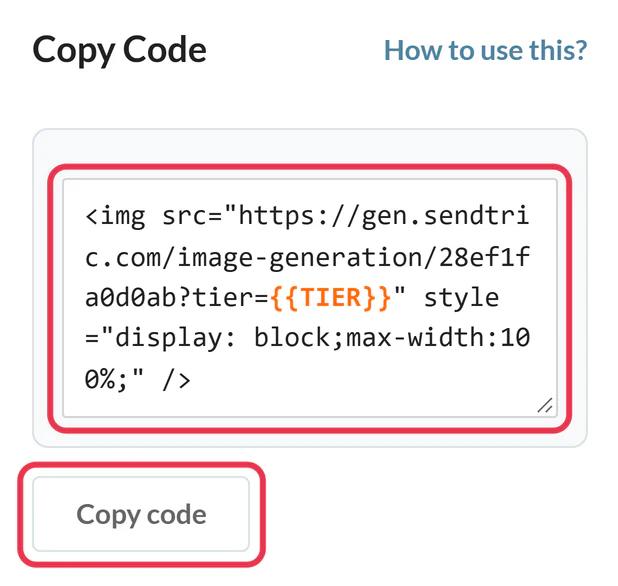
Save, then click Copy code. Each merge tag condition adds a parameter to the image address with a placeholder in double curly braces. Iterable uses the same braces, so replace each placeholder with the exact name of your Iterable field, for example {{tier}}. A placeholder that doesn't match a real field won't look broken in the editor, it will just render empty.
Step 4: Paste it into the template
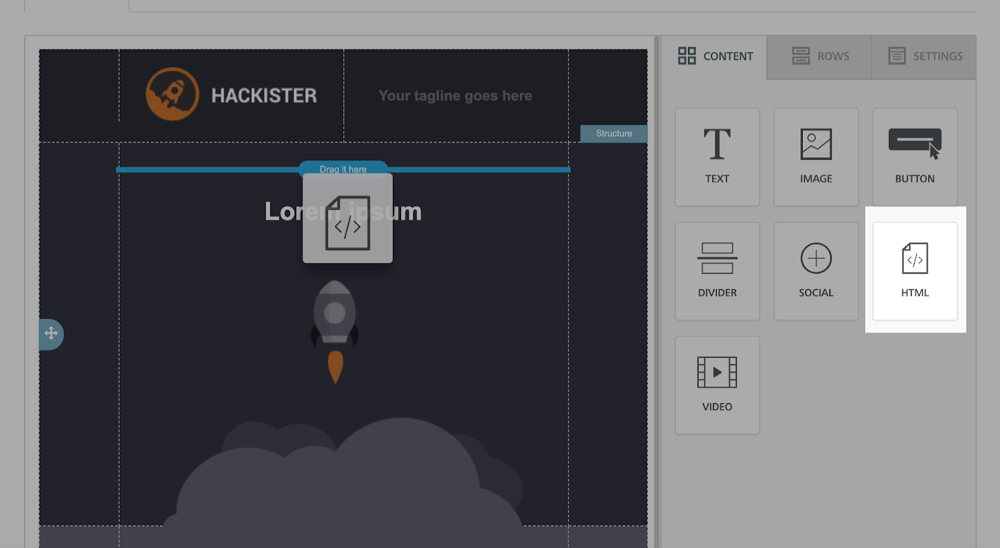
Click Edit design on your Iterable template. In the Drag and Drop editor, drag an HTML block from the Content tab into position and paste the code into its HTML editor. To sit the image beside text, add a two-column row from the Rows tab first and put the HTML block in one column.
Step 5: Simulate, then preview
In Sendtric, Preview lets you simulate a date, time, device, email client and field values without using views. In Iterable, open Preview and Load user data for a couple of users to confirm the field values reach the image address.
Every image needs a condition
An image with no conditions is skipped, even if it's at the bottom of the list. For a "show this to everyone else" image, use the Fallback Image slot instead.
Gmail and device detection
Gmail fetches images through its own servers, which hides the reader's device, so those opens are likely to count as desktop. When the choice really matters, use an Iterable field you trust instead of a device rule.
Iterable Rule-Based Images FAQ
Why not just use Handlebars conditionals?
Handlebars is the better choice when the answer is known at send time. It can't react to the moment the email is opened, the device it's read on or a date passing after the send. A rule-based image is decided again on every open.
Can I use a date from an Iterable event?
Yes, with a merge tag date condition (Standard and above). Dates written as YYYY-MM-DD, MM/DD/YYYY, RFC 3339 or Unix seconds are accepted.
Can one option be another Sendtric widget?
Yes. The image picker has tabs for your timers, personalized images and weather widgets, so a rule can switch between a countdown and a static banner, for example. See how to put one widget inside another.
What do users see if nothing matches?
The fallback image, if you added one. Otherwise an invisible 1 by 1 pixel image, so no broken image icon appears.
Do conditions on text care about capital letters?
No. Text conditions aren't case sensitive, so a tier value of "Gold" or "gold" matches the same rule.
This guide covers one piece of Sendtric's email personalization platform. For every rule-based images option and example, see the main page.
More Iterable guides
- Countdown Timers - How to Add Countdown Timers to Iterable
- Countdown Timers - Add Dynamic Timers in Iterable
- Live Polls - How to Add Live Polls to Iterable
- Personalized Images - How to Add Personalized Images to Iterable
- Dynamic Weather - How to Add Dynamic Weather to Iterable
- Critical Alerts - How to Add Critical Alerts to Iterable
- Social Proof Counters - How to Add Social Proof Counters to Iterable
Using a different platform? See all Sendtric integrations.
