
How to Add Dynamic Weather to Iterable
Feed a city, country code and travel date from Iterable into a live forecast image, so every user sees the weather that matters to them.
 First Publish Date:
Show every Iterable user the forecast for where they are, or where they're going.
The Sendtric weather widget turns a location and a date range into a forecast image when the email is opened. In Iterable, the location and the start date can come straight from a user profile or from the event that triggered the message, so a booking confirmation shows the weather at that booking's destination for that booking's dates.
What you can do with dynamic weather in Iterable
- Pre-trip journeys: a forecast for the destination starting on the check-in date, a few days before arrival. Our article on weather in travel and booking emails has more ideas.
- Delivery and field-service updates: the weather on delivery day for the user's city, so they know whether to leave a parcel inside.
- Local retail and fitness apps: each user's own weekend forecast above a weather-matched recommendation.
- Live event tickets: the forecast for the venue in the reminder sent the week of the event.
| Where the forecast comes from | Sendtric plan |
|---|---|
| One fixed place you choose, full-week forecast | All plans |
| Each user's city from an Iterable field, 1, 3 or 5-day forecasts | Micro and above |
| Each user's postcode, a start date from an Iterable field | Standard and above |
| Always start from the day the email is opened | Power and above |
How to add a weather forecast to Iterable
Step 1: Check your location fields
For a forecast per user, the widget needs a city and a two-letter country code (city,countryCode, or city,stateCode,countryCode when you include a state), or a postcode and a country code. Look at a user profile under Audience > Contact Lookup, or at the event your journey uses, and note the field names. A full country name won't work, so you may need a separate field with ISO codes like US or DE.
Step 2: Create the widget
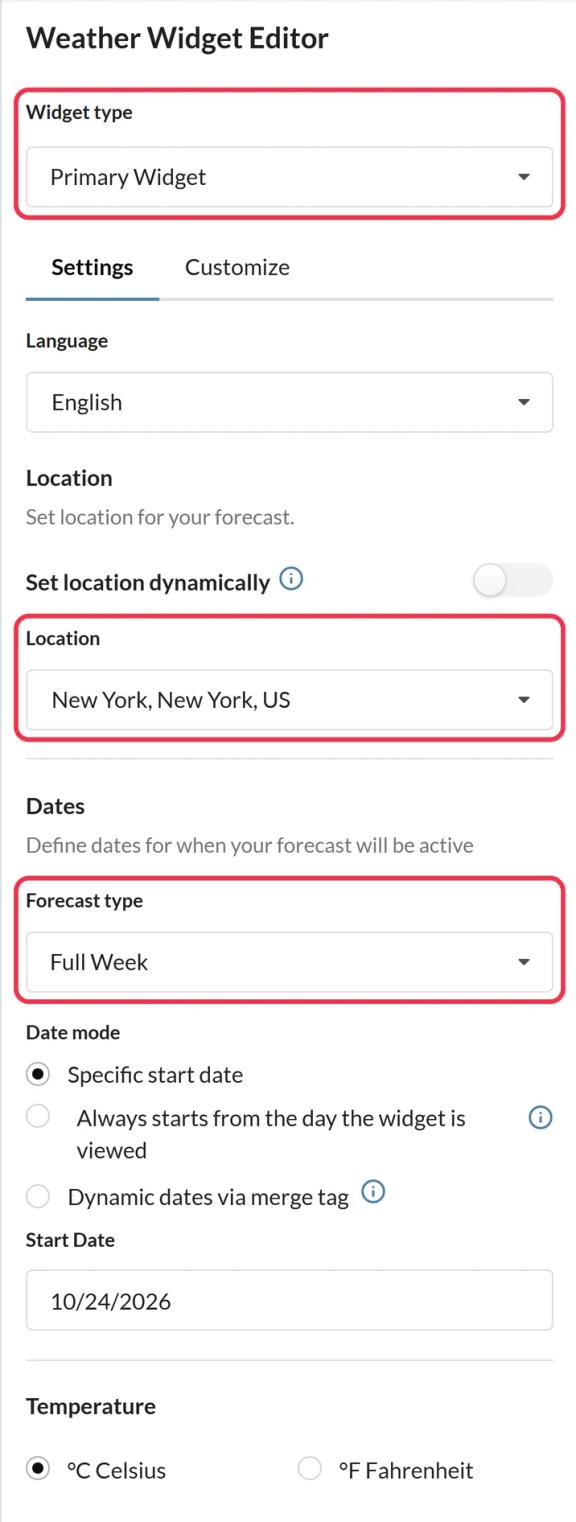
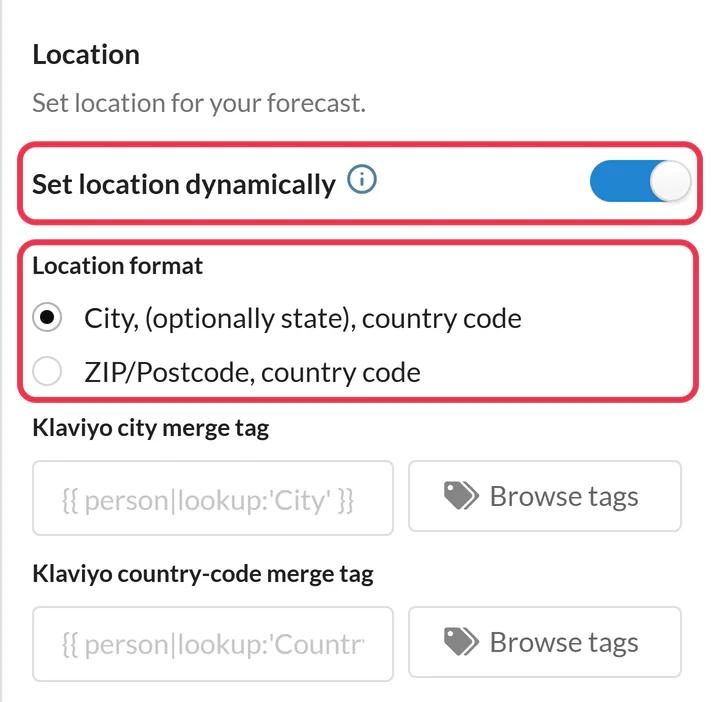
In Sendtric, open Weather widget and click Create New. Choose Primary Widget or Inline Widget, then under Location turn on Set location dynamically and pick the city or postcode format. If the start date should come from Iterable, choose Dynamic dates via merge tag. Set the temperature unit and design, and Save.
Step 3: Swap the placeholders for Handlebars
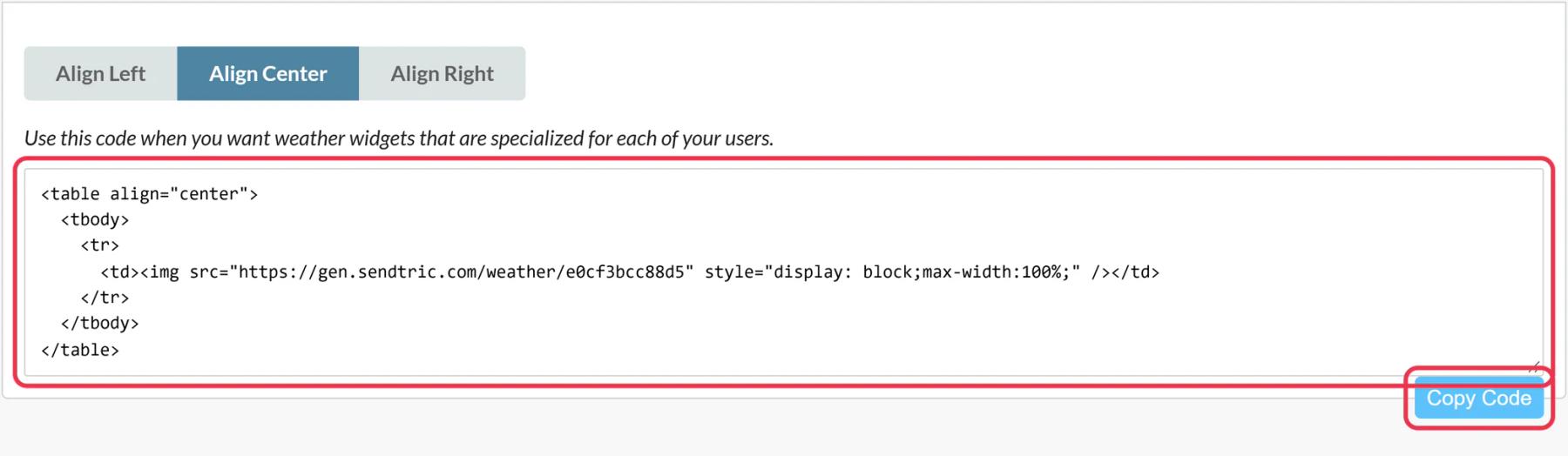
Click Copy Code. Replace the city,countryCode placeholder with your fields, for example location={{city}},{{countryCode}}, and replace YYYY-MM-DD with your date field. If the date is stored in another format, Iterable's dateFormat helper can rewrite it as yyyy-MM-dd.
Step 4: Paste it into an HTML block
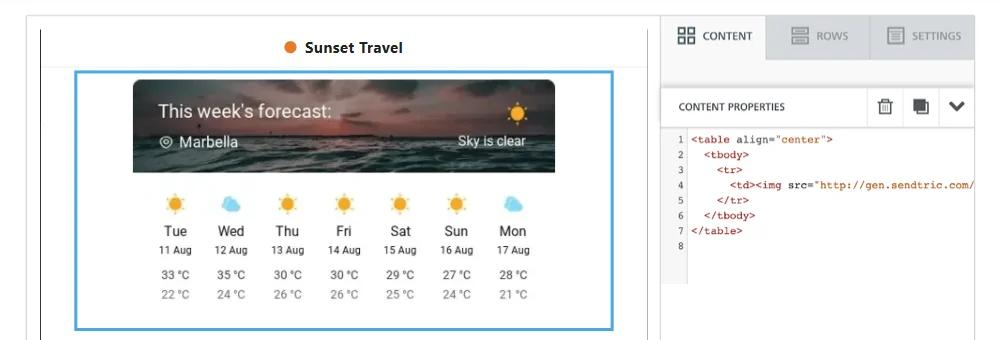
Click Edit design on the template. In the Drag and Drop editor, drag an HTML block from the Content tab, select it and paste the edited code into its HTML editor. In the WYSIWYG or Side by Side editor, paste it into the source.
Step 5: Load a few users in Preview
In Iterable's Preview, use Load user data for users in different places, and edit the loaded data to try a missing city. Then send a proof to yourself.
Decide what happens when the location is unknown
With dynamic location or dates, Fallback image controls what users see when the city can't be found, the date is in the wrong format or too far ahead: the widget is hidden by default, or you can upload an image (Micro and above). If you'd rather fix gaps on the Iterable side, {{defaultIfEmpty city 'London'}} sends a default city, using single quotes inside the image address.
Dates and the 10-day horizon
Forecasts reach about 10 days ahead. Time your journey's delay so the email goes out within that window before the trip or event, or use "start from the day the email is opened" (Power and above) for campaigns that people open long after the send.
Iterable Weather Widget FAQ
Can the location come from the event that triggered the journey?
Yes. Any field Iterable can resolve with Handlebars when it renders the email works, including event data. If the same field name exists on the profile and the event, Iterable uses the event value unless you write {{profile.fieldName}}.
Does Sendtric detect the user's location from their IP address?
No. The location is the fixed place you chose or the value in your Iterable fields. It's never taken from the IP address.
My city names have spaces. Is that a problem?
To keep the image address valid, wrap the field in Iterable's urlEncode block helper, which turns spaces into plus signs and encodes special characters: {{#urlEncode}}{{city}}{{/urlEncode}}. Matching isn't case sensitive, and the widget's Dynamic Location info links a downloadable list of supported cities.
How current is the forecast?
It's generated when the email is opened and cached for up to an hour. A user who reopens the email days later sees the forecast for that day.
Where can I learn more about location formats?
Our help article on showing each subscriber their local weather covers city, state and postcode formats, and setting the forecast dates covers date options.
Want to see what else you can do? Explore Sendtric's dynamic weather in more detail, or browse the full email personalization toolkit.
More Iterable guides
- Countdown Timers - How to Add Countdown Timers to Iterable
- Countdown Timers - Add Dynamic Timers in Iterable
- Live Polls - How to Add Live Polls to Iterable
- Personalized Images - How to Add Personalized Images to Iterable
- Rule-Based Images - How to Add Rule-Based Images to Iterable
- Critical Alerts - How to Add Critical Alerts to Iterable
- Social Proof Counters - How to Add Social Proof Counters to Iterable
Using a different platform? See all Sendtric integrations.
