
How to Add Dynamic Weather to Mailchimp
Add a forecast that updates when the email is opened, either for a fixed place like your event venue or for each Mailchimp subscriber's own city.
 First Publish Date:
Give your Mailchimp emails a forecast that's current every time they're opened.
The Sendtric weather widget is an image of the forecast that's generated when someone opens your email, not when Mailchimp sends it. You can show the weather for one place, like a festival site, or let each subscriber see their own town using city or postcode fields from your Mailchimp audience.
What you can do with dynamic weather in Mailchimp
- Event reminders: a 3-day forecast for the venue in the email that goes out the week before, so people know whether to bring a jacket.
- Local shop promotions: a garden center or outdoor store shows each subscriber their own weekend forecast next to the matching products.
- Trip and booking emails: a forecast that starts on the arrival date stored in your audience, for hotels, tours and rentals.
- Newsletters with a local touch: a small inline strip of the week's weather at the top of a community or club newsletter.
A fixed location and a full-week forecast work on every plan. Using each subscriber's city needs Micro or above, postcodes and dates from a merge tag need Standard or above, and "start from the day the email is opened" needs Power or above. Full details are on pricing.
How to add a weather forecast to Mailchimp
Step 1: Get the location fields ready in Mailchimp
Skip this step if everyone should see the same place. For a forecast per subscriber, Sendtric needs a city and a two-letter country code (like US or GB), or a postcode and a country code. Mailchimp's built-in address field stores the whole address as one value, so add separate text fields for city and country code under Audience fields and merge tags and note the merge tag each one gets, for example *|CITY|* and *|COUNTRY|*.
Step 2: Build the widget in Sendtric
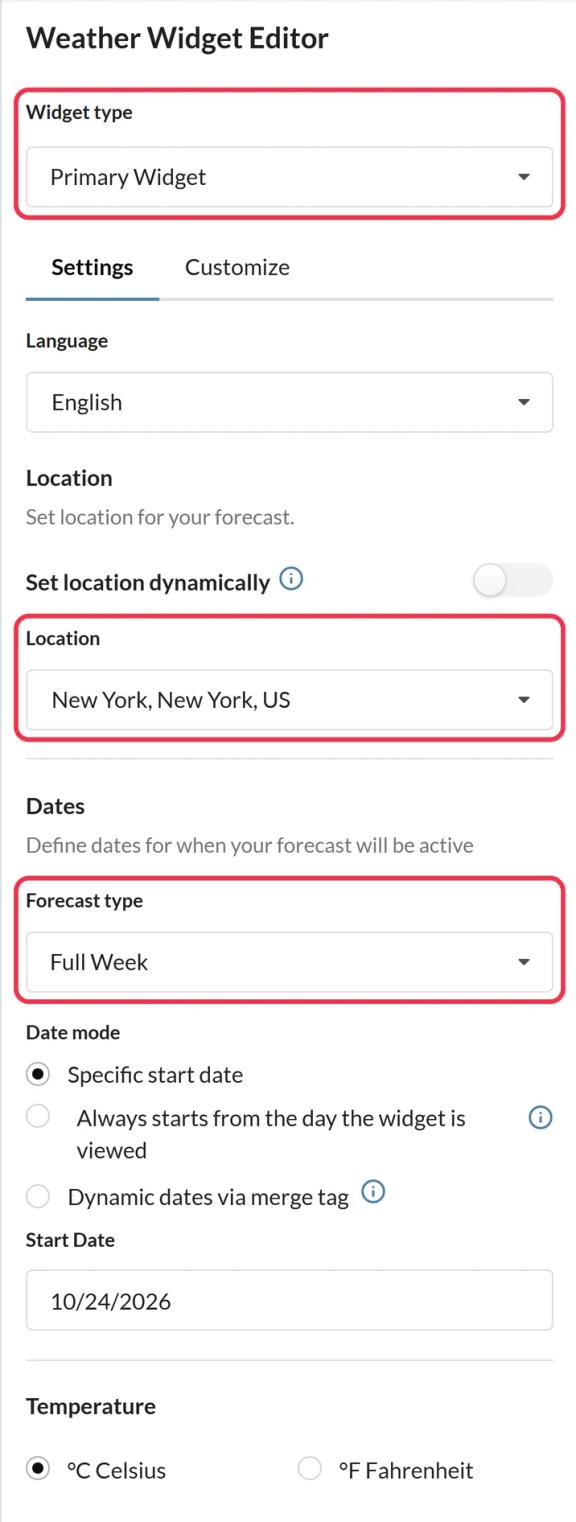
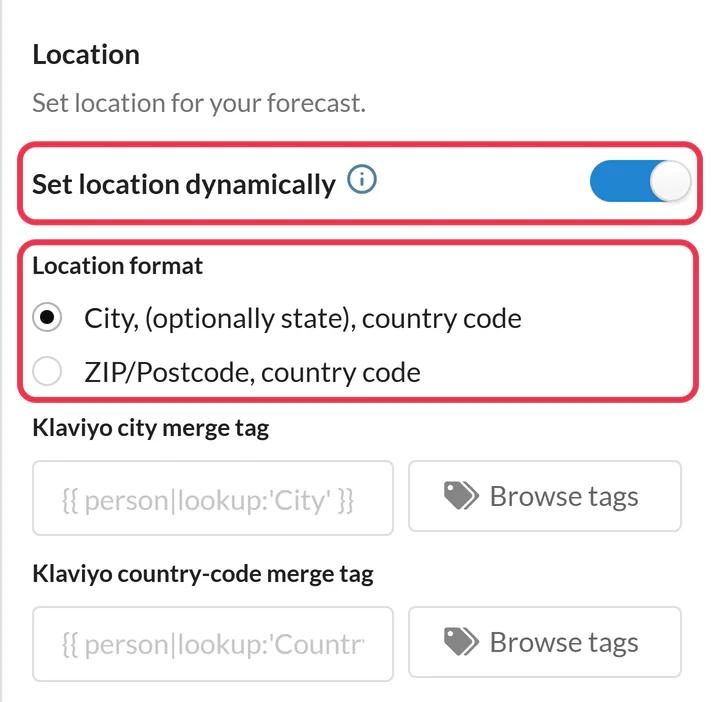
Open Weather widget, click Create New and pick Primary Widget (a card) or Inline Widget (a compact strip). For one place, search for it under Location. For each subscriber's own town, turn on Set location dynamically and choose the city or postcode format. Set the forecast length, temperature unit and colors, then Save.
Step 3: Copy the code and add your Mailchimp tags
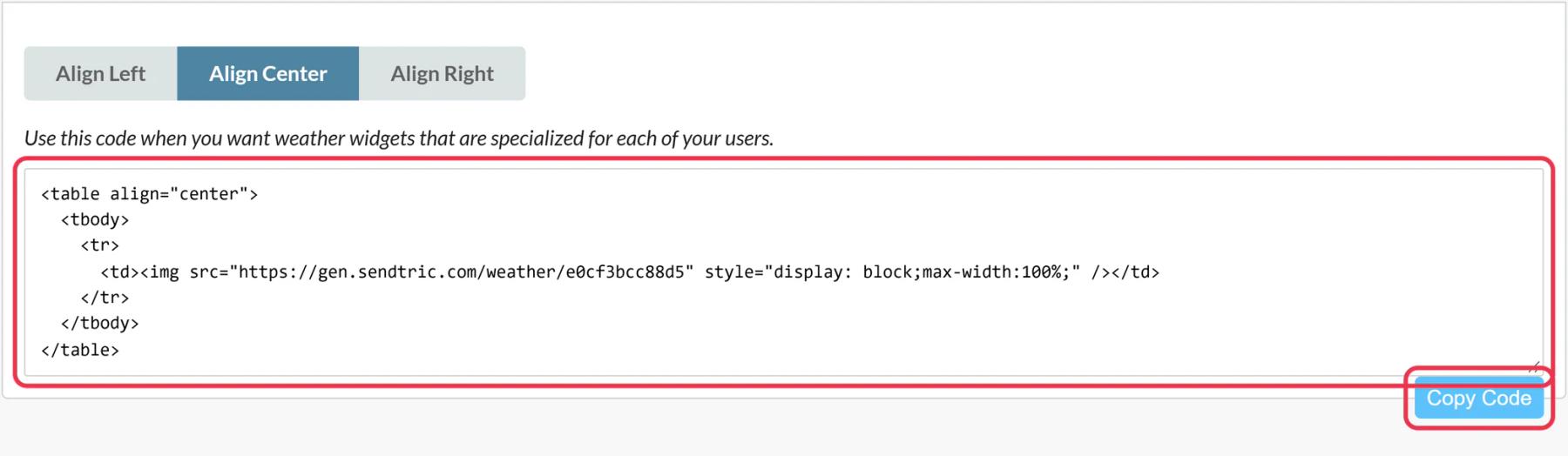
Click Copy Code. For a dynamic location the code ends with a placeholder such as location=city,countryCode. Replace it with your merge tags so it reads location=*|CITY|*,*|COUNTRY|* (or your postcode field instead of the city). If you use merge tag dates, replace YYYY-MM-DD with the merge tag of a field whose values are written exactly that way, such as a text field you fill from your booking system.
Step 4: Paste it into a Code block
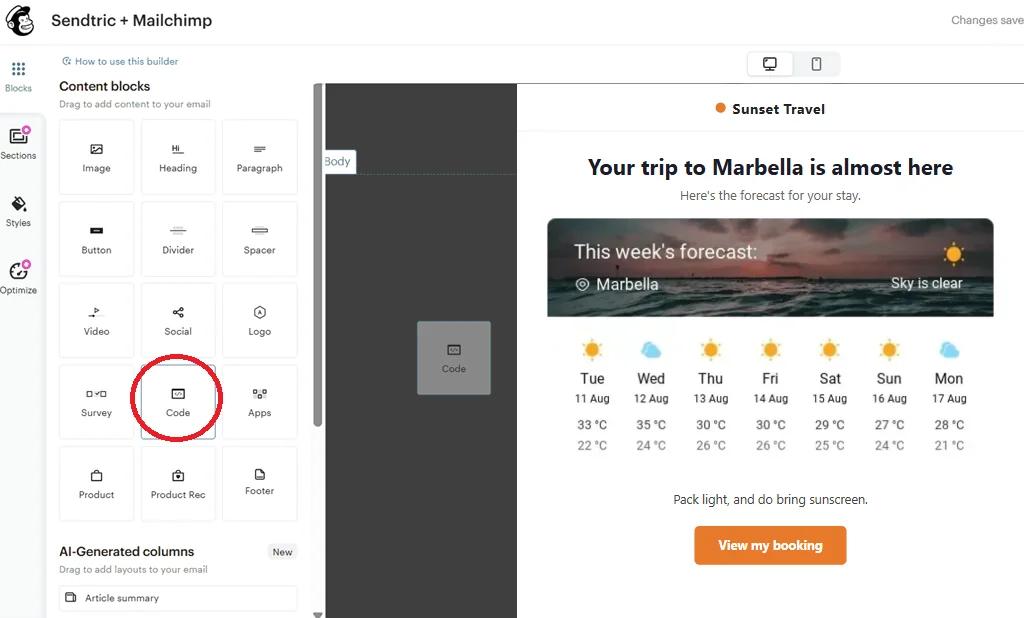
In the Mailchimp builder, drag a Code block from Content blocks to where the forecast belongs, paste the edited code and save.
Step 5: Preview a few real subscribers
Audience merge tags stay empty in Mailchimp test emails, so a test send of a dynamic widget shows your fallback. Use Preview with Enable live merge tag info turned on to check that the code fills in with real cities, or send to a small segment of your own addresses.
Plan for missing or messy locations
Some subscribers will have no city, a typo, or a full country name instead of a two-letter code. With a dynamic location, choose what they get under Fallback image: hide the widget (the default) or show an image you upload (Micro and above). Don't set a Mailchimp default merge value for these fields, because a default like "Your city" isn't a real place and still triggers the fallback.
Keep forecasts within reach
Forecasts cover roughly the next 10 days. For a campaign that people may open weeks later, use the option to start from the day the email is opened (Power and above) rather than a fixed start date.
Mailchimp Weather Widget FAQ
Does the weather widget use the subscriber's IP address to find their location?
No. The location is either the fixed place you chose or the city or postcode from your Mailchimp merge tags. Sendtric never guesses it from the reader's IP address.
Can I use Mailchimp's built-in address field?
The address field holds street, city, state and postcode together in one merge tag, which isn't the format the widget needs. Add separate city (or postcode) and country code fields to your audience instead.
How fresh is the forecast?
Each forecast is generated when the email is opened and cached for up to an hour, so a reopen the next day shows that day's forecast.
Can the forecast show in another language or in Fahrenheit?
Yes. Pick Celsius or Fahrenheit in the widget, and choose from 47 languages for the day names and header.
Can I use the weather widget in a Mailchimp automation flow?
Yes. It's standard HTML in a Code block, so it works in automation flows and regular campaigns alike. Our help article on showing each subscriber their local weather covers the location formats in more detail.
Want to see what else you can do? Explore Sendtric's dynamic weather in more detail, or browse the full email personalization toolkit.
More Mailchimp guides
- Countdown Timers - Add Countdown Timers in Mailchimp
- Countdown Timers - Add Dynamic Timers in Mailchimp
- Live Polls - How to Add Live Polls to Mailchimp
- Personalized Images - How to Add Personalized Images to Mailchimp
- Rule-Based Images - How to Add Rule-Based Images to Mailchimp
- Critical Alerts - How to Add Critical Alerts to Mailchimp
- Social Proof Counters - How to Add Social Proof Counters to Mailchimp
Using a different platform? See all Sendtric integrations.
