
How to Add Critical Alerts to Mailchimp
Place a hidden alert banner in your Mailchimp emails and switch it on later, so subscribers who open an old email still see your latest news.
 First Publish Date:
Fix what a Mailchimp email says after it has already gone out.
Once a Mailchimp campaign lands in the inbox, the text in it can't be edited. A Sendtric critical alert gets around that: it's a banner you place in the email ahead of time that stays invisible until you switch it on. If a delivery slips, an event moves or your site goes down, you turn the alert on in Sendtric and everyone who opens the email from then on sees it.
Critical alerts are part of the Sendtric Enterprise plan. On other plans the Create New button is turned off. Talk to us about Enterprise if you need it.
What you can do with critical alerts in Mailchimp
- Event changes: add an alert slot to every ticket and reminder email, then switch on "Event postponed" or a new start time if plans change.
- Shipping delays: keep a banner in order-related emails sent from your Mailchimp automation flows and turn it on during a carrier problem.
- Planned maintenance: schedule a "Site under maintenance" banner for the exact hours your store or booking site will be down.
- Weather closures: gyms, venues and schools can switch on a closure notice in the newsletter people already have.
How to add a critical alert to Mailchimp
Step 1: Design the banner
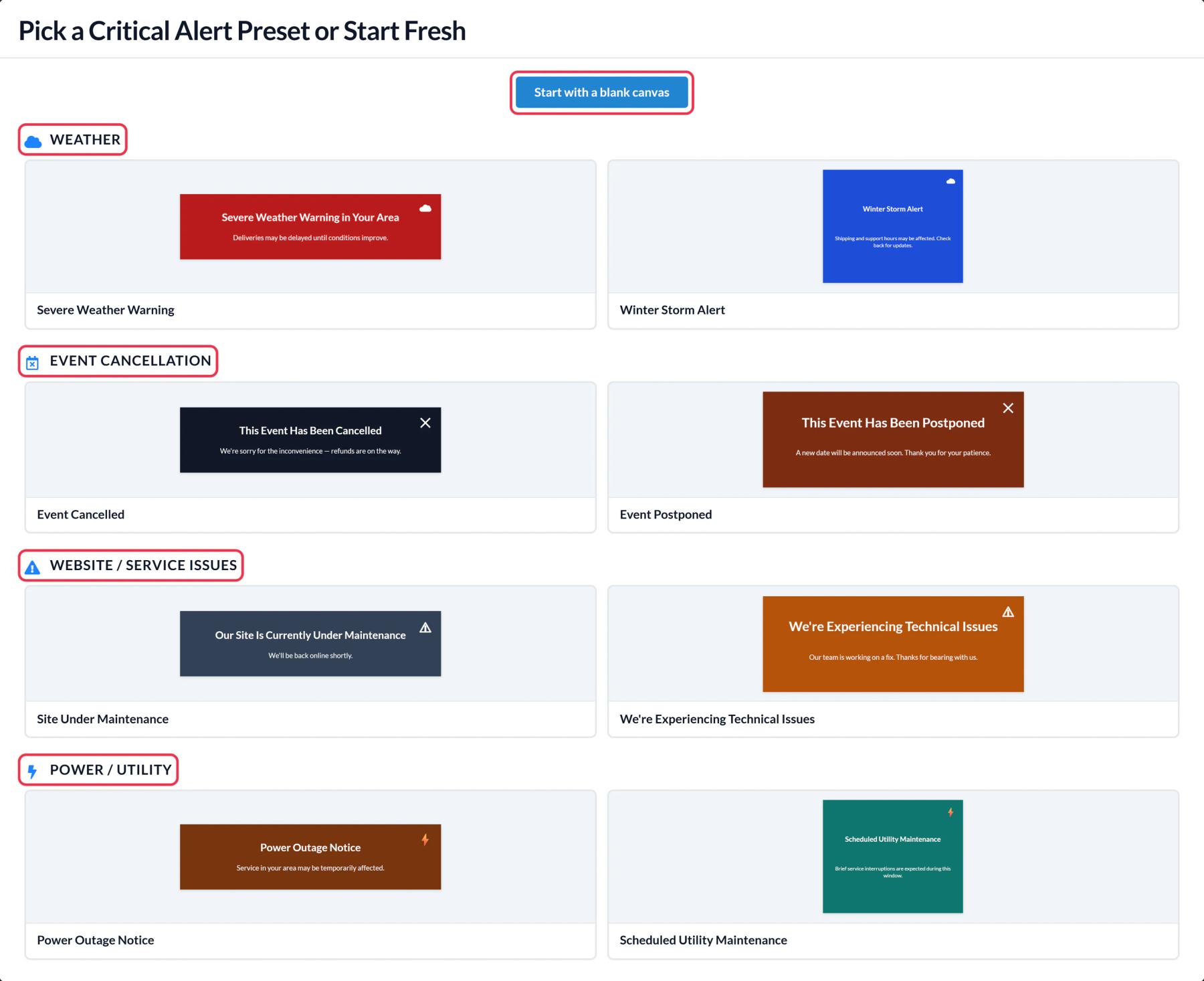
In Sendtric, open Critical alerts, click Create New and pick a preset such as Event Postponed or Site Under Maintenance, or start with a blank canvas. Edit the text, colors and images in the canvas editor.
Step 2: Decide when it shows
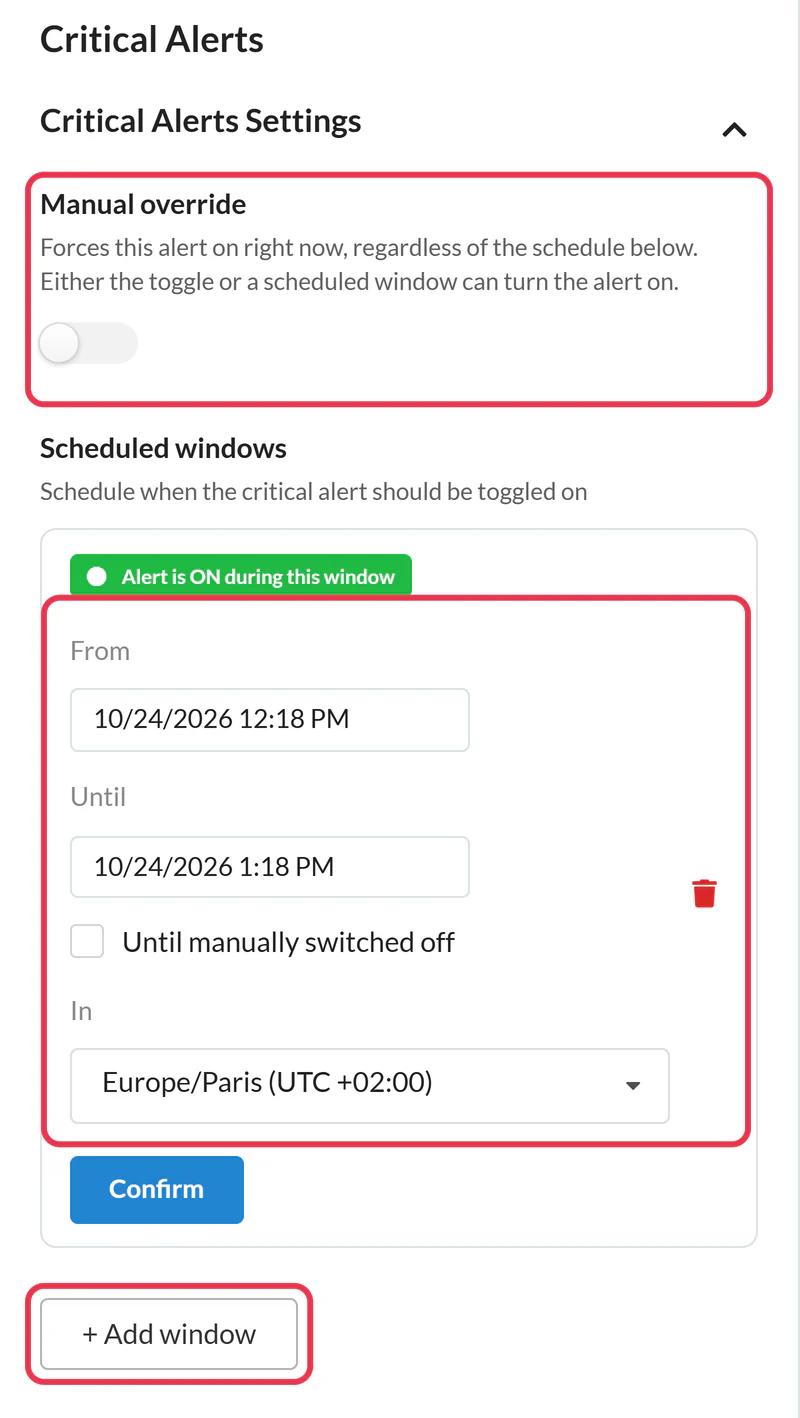
In Critical Alerts Settings, leave Manual override off until you need it, or click + Add window to schedule it for a set time (up to 5 windows, each with its own time zone). The alert is visible whenever the manual override is on or the current time falls inside a window. Save the alert.
Step 3: Copy the code
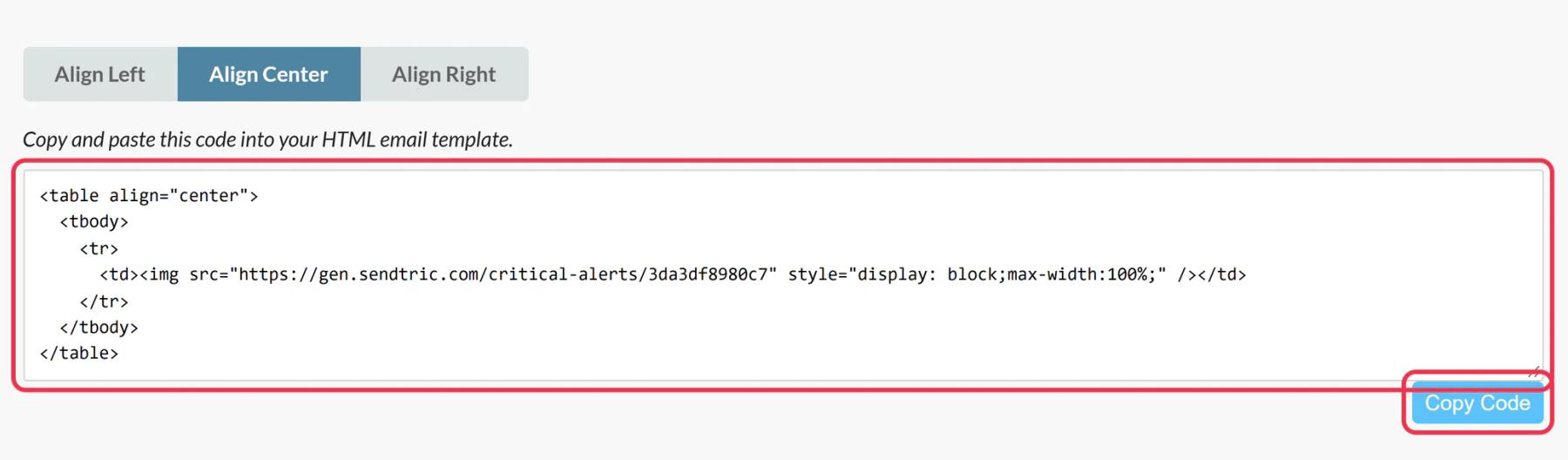
Click Copy Code. This code never changes, whatever you do to the alert later, so you only paste it once.
Step 4: Put it at the top of your Mailchimp email
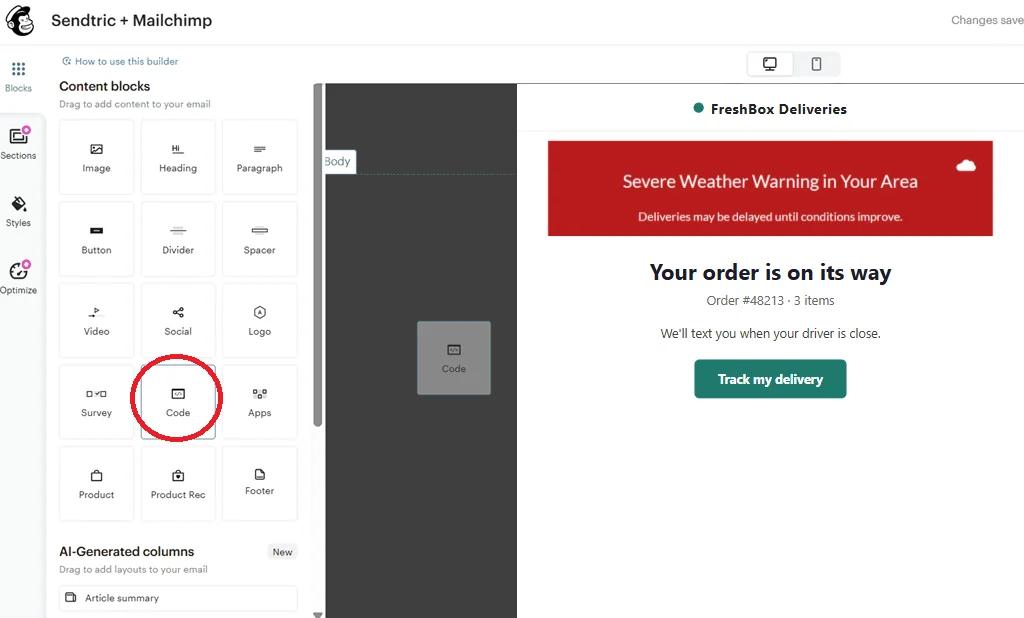
In the Mailchimp builder, drag a Code block from Content blocks to the top of the email, just under your header, paste the code and save. While the alert is off, the block shows nothing, so subscribers don't see an empty gap.
Step 5: Test both states
Send yourself a test with the alert off and check that nothing shows. Then switch Manual override on, reopen the same test email and confirm the banner appears. Switch it off again before your real send unless you want it live.
Make the alert part of your Mailchimp template
Alerts only help in emails that already contain the code. Add the Code block to the templates you reuse for orders, events and newsletters, so every send has a slot ready. On Mailchimp Standard or higher, connecting Mailchimp in Sendtric gives you a Push to Mailchimp button that saves the alert to your Mailchimp account as a template.
Some inboxes keep the old state
The alert's state is checked each time the email's images load. Email apps that keep their own copy of images can show the previous state on a reopen, so don't rely on an alert as the only way to reach people about something urgent.
Mailchimp Critical Alerts FAQ
Can I really change a Mailchimp email after it has been sent?
Not the email itself, but the alert image inside it. Its content and its on or off state are decided each time the email is opened, so turning the alert on or editing its text changes what people see from their next open.
What do subscribers see when the alert is off?
Nothing. Sendtric returns an invisible 1 by 1 pixel image, so the Code block takes up no visible space.
Do views count while the alert is off?
No. Views are only counted while the alert is switched on.
Which Sendtric plan do I need?
Critical alerts are only on Enterprise plans. Your Mailchimp plan doesn't matter for copy and paste; pushing from Sendtric needs Mailchimp Standard or higher.
Can I show different text in different emails?
Each alert has one design. If your event emails and your order emails need different messages, create one alert for each and paste the matching code into each template.
This guide covers one piece of Sendtric's email personalization platform. For every critical alerts option and example, see the main page.
More Mailchimp guides
- Countdown Timers - Add Countdown Timers in Mailchimp
- Countdown Timers - Add Dynamic Timers in Mailchimp
- Live Polls - How to Add Live Polls to Mailchimp
- Personalized Images - How to Add Personalized Images to Mailchimp
- Rule-Based Images - How to Add Rule-Based Images to Mailchimp
- Dynamic Weather - How to Add Dynamic Weather to Mailchimp
- Social Proof Counters - How to Add Social Proof Counters to Mailchimp
Using a different platform? See all Sendtric integrations.
