
How to Add Personalized Images to Mailchimp
Write a subscriber's first name, city or reward balance straight onto an image in Mailchimp, using the audience fields you already collect.
 First Publish Date:
Turn your Mailchimp audience fields into text inside your email images.
Mailchimp merge tags usually live in your text: "Hi *|FNAME|*". With Sendtric personalized images, the same audience fields are written onto a picture instead, so a banner can say "Maya, your spring picks are here" in your own font and colors. Sendtric draws the image when the email is opened, one version per subscriber.
Mailchimp's builder can show or hide whole content blocks per audience group or tag with dynamic content, which needs Mailchimp Standard or higher. It doesn't draw a subscriber's details onto an image. That part is what Sendtric adds.
What you can do with personalized images in Mailchimp
- Welcome emails that greet by name: a hero image with
*|FNAME|*written into the headline, with a friendly fallback for people who signed up without a name. - Store or event details: if your audience has a city or nearest store field, show it on a map-style banner, like "Your Austin store is open late this Friday".
- Loyalty and reward balances: keep points or a tier in an audience field and print it on a card graphic each month.
- Year-in-review emails: several numbers from your audience fields on one background. Our guide to Wrapped-style emails walks through the design side.
How many personalized text layers you can use in one image depends on your plan: 1 on Free, 2 on Micro, 4 on Standard and up to 20 on Power and Enterprise. Adding your own logo or product image as a layer starts on Standard. See pricing for the rest.
How to add a personalized image to Mailchimp
Step 1: Pick a background and add your text
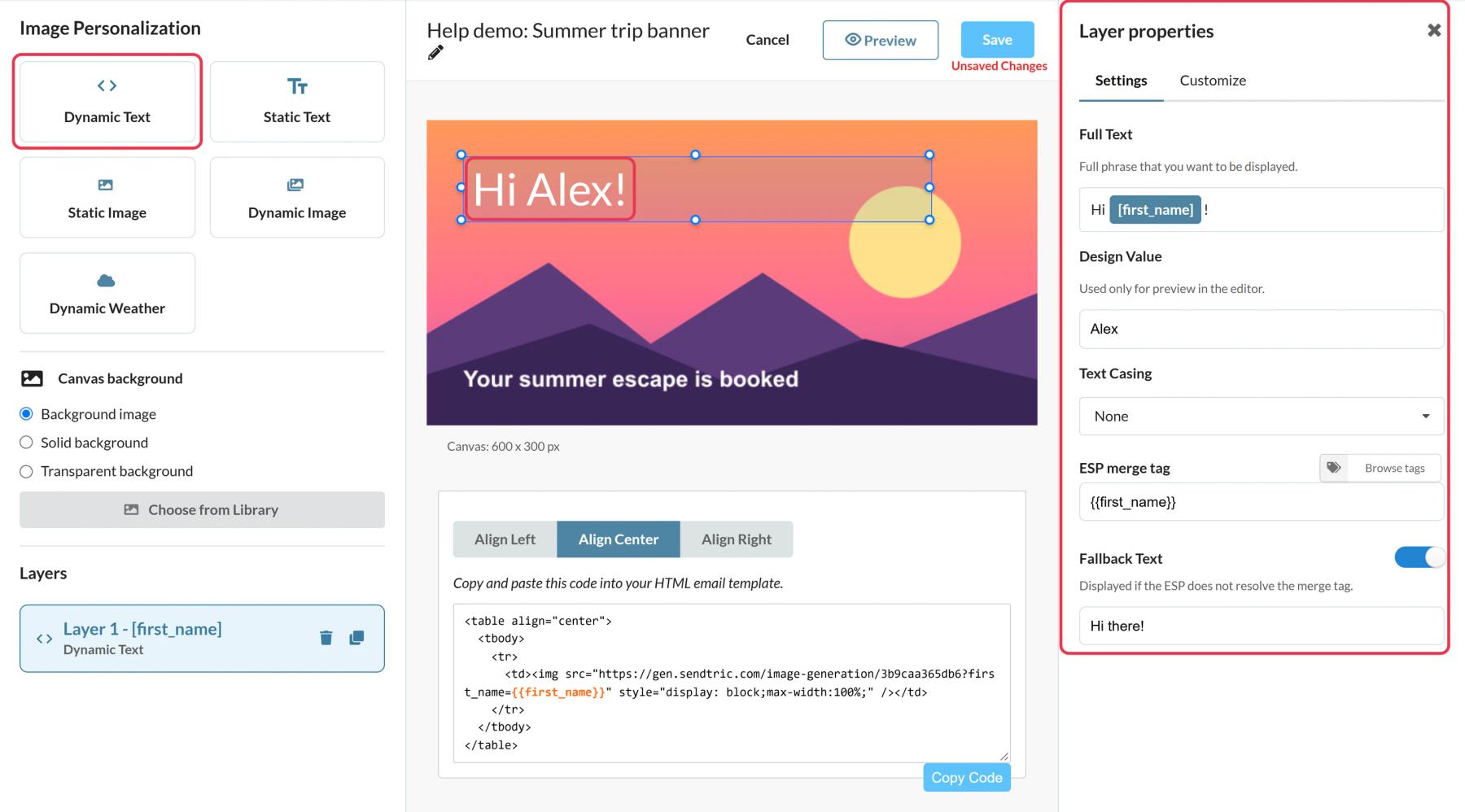
In Sendtric, open Image Personalization and click Create New. Choose an image from your media library as the background, then add a Dynamic Text layer where the personalized words should go. Make the text box tall and wide enough for long names, because text wraps inside the box but never shrinks.
Step 2: Connect the layer to a Mailchimp merge tag
When you add the Dynamic Text layer, the Add Dynamic Text window asks for a Variable Name (for example first_name) and an ESP Merge Tag. Type the Mailchimp tag for that field, such as *|FNAME|* for first name. For a custom audience field, use the tag Mailchimp shows for it under Audience fields and merge tags. Then add Fallback Text for anyone whose field is empty, written as a full phrase like "Hi there!".
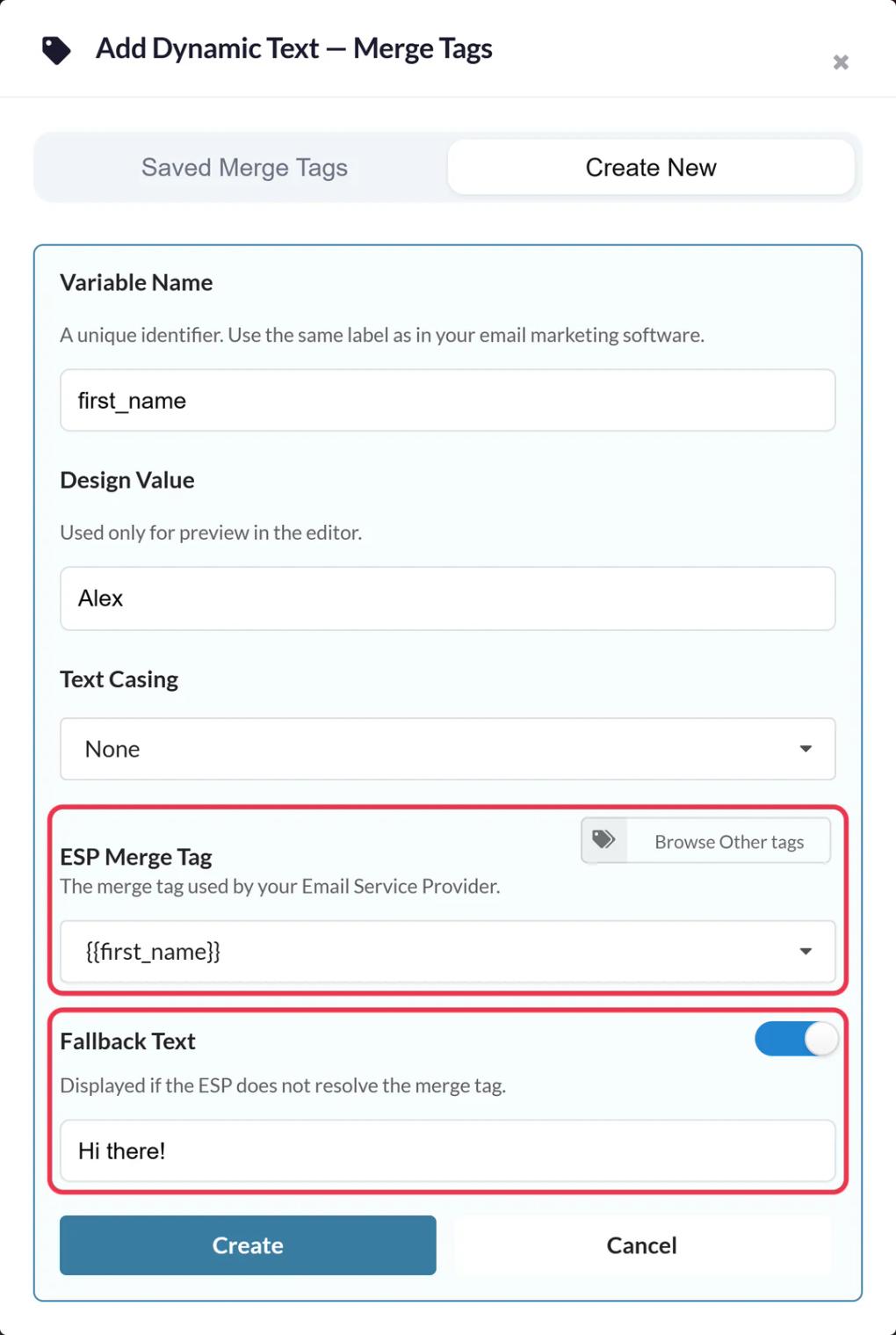
If you've connected Mailchimp under Settings > Integrations, a Browse Mailchimp tags button lists your real audience fields so you don't have to type them.
Step 3: Save and copy the code
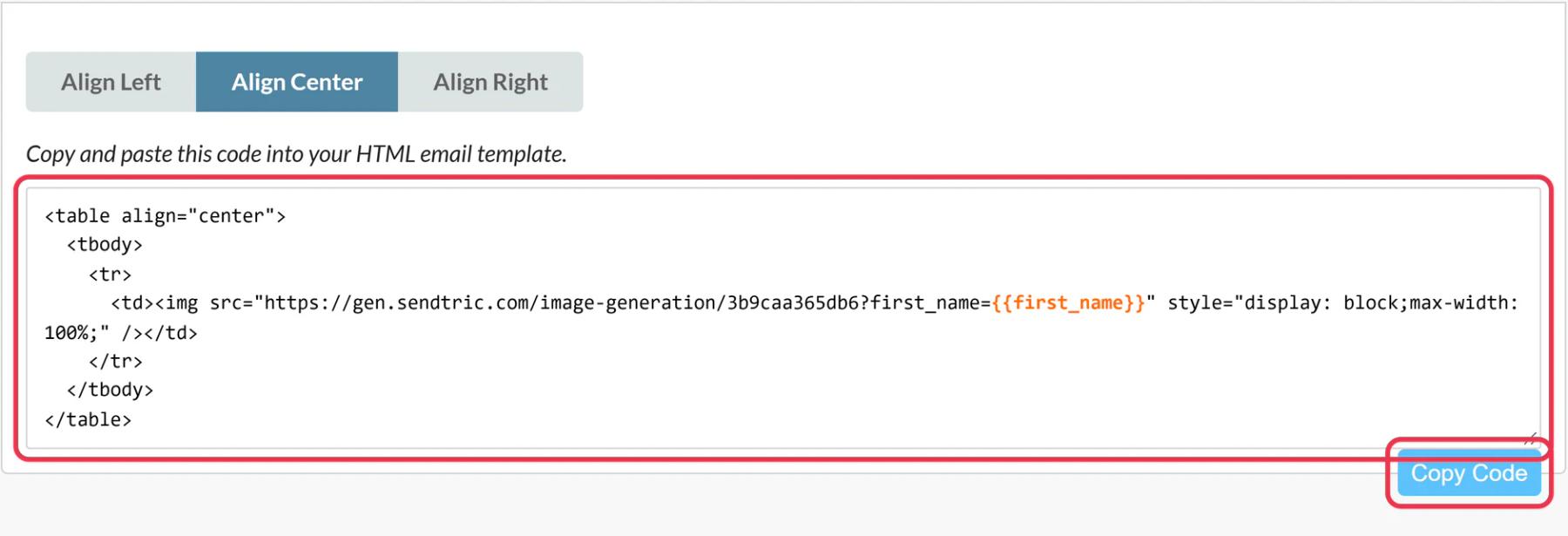
Click Preview to check the layout with your longest realistic value, then Save. The code box appears after the first save. Pick an alignment and click Copy Code.
Step 4: Add a Code block in Mailchimp
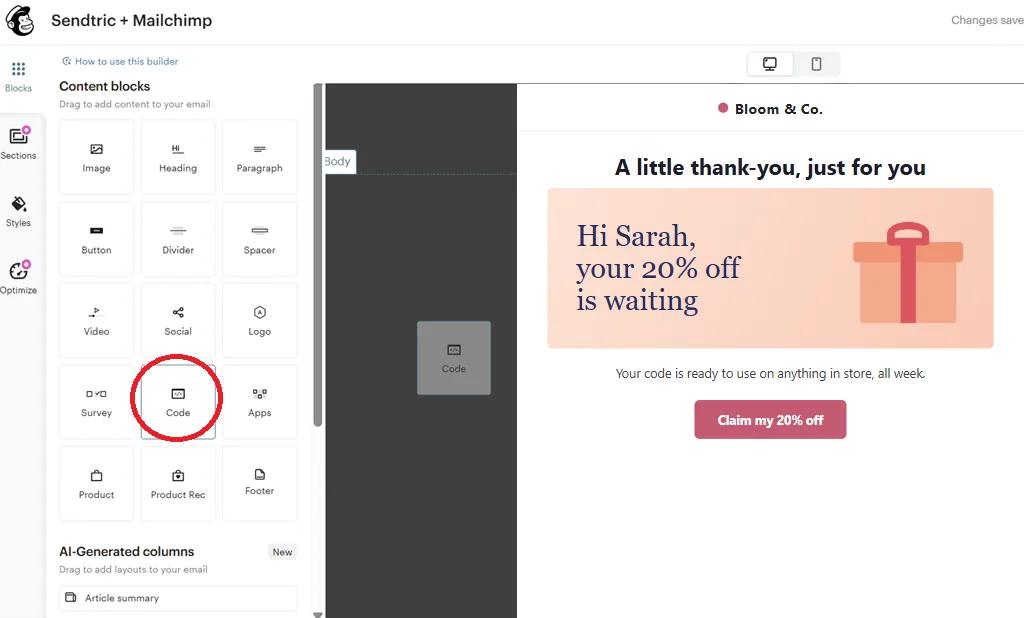
In the Mailchimp email builder, drag a Code block from Content blocks into the spot where the image should appear, paste the code and save. If your Mailchimp account is on Standard or higher, you can skip copying and use Push to Mailchimp in the Sendtric editor, which saves the image to Mailchimp as a template with your merge tags already in place.
Step 5: Check it with real subscriber data
Mailchimp doesn't fill audience merge tags in test emails, so a plain test send shows your fallback text, or the raw tag. Open Preview, turn on Enable live merge tag info and pick a few subscribers to see their versions. For a final check in a real inbox, send the campaign to a small segment that includes yourself.
Watch out for Mailchimp default merge values
Mailchimp lets you set a default value for an audience field, such as "Friend" for first name. When a field is empty, Mailchimp sends that default to Sendtric, so your image shows "Friend" and Sendtric's own fallback text never appears. Use one or the other, not both, and pick the wording that reads best on the image.
Keep merge tag text intact
Paste the code into the Code block as plain text. If a merge tag picks up formatting or loses a pipe or asterisk, Mailchimp can't replace it and the image shows the tag itself.
Mailchimp Personalized Images FAQ
Which Mailchimp merge tags can I use in a personalized image?
Any audience field that holds text or numbers: *|FNAME|*, *|LNAME|* or your own fields, such as a city or points balance you've added under Audience fields and merge tags. Each Dynamic Text layer uses one variable.
How do I show a city when Mailchimp only has an address field?
Mailchimp's address field holds the whole address in one merge tag. To print just the city, add a separate text field for city to your audience, fill it, and use its merge tag in the layer.
What do subscribers with an empty field see?
If the layer has Fallback Text, they see only that text. Without it, the whole layer is hidden, including any words around the merge tag. A Mailchimp default merge value takes priority over both, because Mailchimp fills it in before Sendtric sees the email.
Do personalized images work in Mailchimp automation flows?
Yes. The image is ordinary HTML in a Code block, so it works in automation flows as well as regular campaigns, and it's drawn fresh each time the email is opened.
Can I change the design after the campaign has gone out?
Yes. Edit the image in Sendtric and save. Emails you already sent show the new version the next time they're opened, because the code points to the image rather than containing it.
Does every open count as a view?
Yes, each time the image loads counts as a view, including repeat opens. Previews in the Sendtric editor don't count. Read more in how widget views are counted.
This guide covers one piece of Sendtric's email personalization platform. For every personalized images option and example, see the main page.
More Mailchimp guides
- Countdown Timers - Add Countdown Timers in Mailchimp
- Countdown Timers - Add Dynamic Timers in Mailchimp
- Live Polls - How to Add Live Polls to Mailchimp
- Rule-Based Images - How to Add Rule-Based Images to Mailchimp
- Dynamic Weather - How to Add Dynamic Weather to Mailchimp
- Critical Alerts - How to Add Critical Alerts to Mailchimp
- Social Proof Counters - How to Add Social Proof Counters to Mailchimp
Using a different platform? See all Sendtric integrations.
