
How to Add Rule-Based Images to Mailchimp
One image slot in your Mailchimp email, several possible pictures: Sendtric picks the right one each time the email is opened, based on rules you set.
 First Publish Date:
Let one Mailchimp email show the right picture at the right moment.
A Sendtric rule-based image is a list of images with conditions attached. When a subscriber opens your Mailchimp email, Sendtric checks the rules from top to bottom and shows the first image that matches: a breakfast offer before 11am, a dinner offer after 5pm, or a different banner for each membership level stored in your audience.
Mailchimp has its own dynamic content on Standard plans and above: any block can be shown or hidden based on an audience field, group or tag, and it's decided when the email is sent. Rule-based images work differently. The choice is made every time the email is opened, so rules can use the date, day of the week, time of day, device or email client as well as your merge tags.
What you can do with rule-based images in Mailchimp
- Time-of-day offers: a restaurant or cafe sends one campaign in the morning and still shows the lunch or dinner image to people who open it later.
- Weekday and weekend creative: swap the banner on Saturday and Sunday without sending a second campaign.
- Membership or loyalty level: keep a tier in a Mailchimp audience field, then show a gold, silver or bronze image from one Code block.
- The right app badge: show the App Store badge to iPhone readers and the Google Play badge to Android readers. Operating system rules work on every plan.
| What the rule can check | Plans |
|---|---|
| Text in a merge tag (contains, equals), operating system, email client | All plans, including Free |
| A fallback image when no rule matches | Micro and above |
| Date, day of the week, time of day, a date stored in a merge tag | Standard and above |
| Numbers in a merge tag (more than, less than), device type | Power and above |
Each rule-based image can hold 2 images on Free, 4 on Micro, 10 on Standard and as many as you like on Power and Enterprise. Compare plans on the pricing page.
How to add a rule-based image to Mailchimp
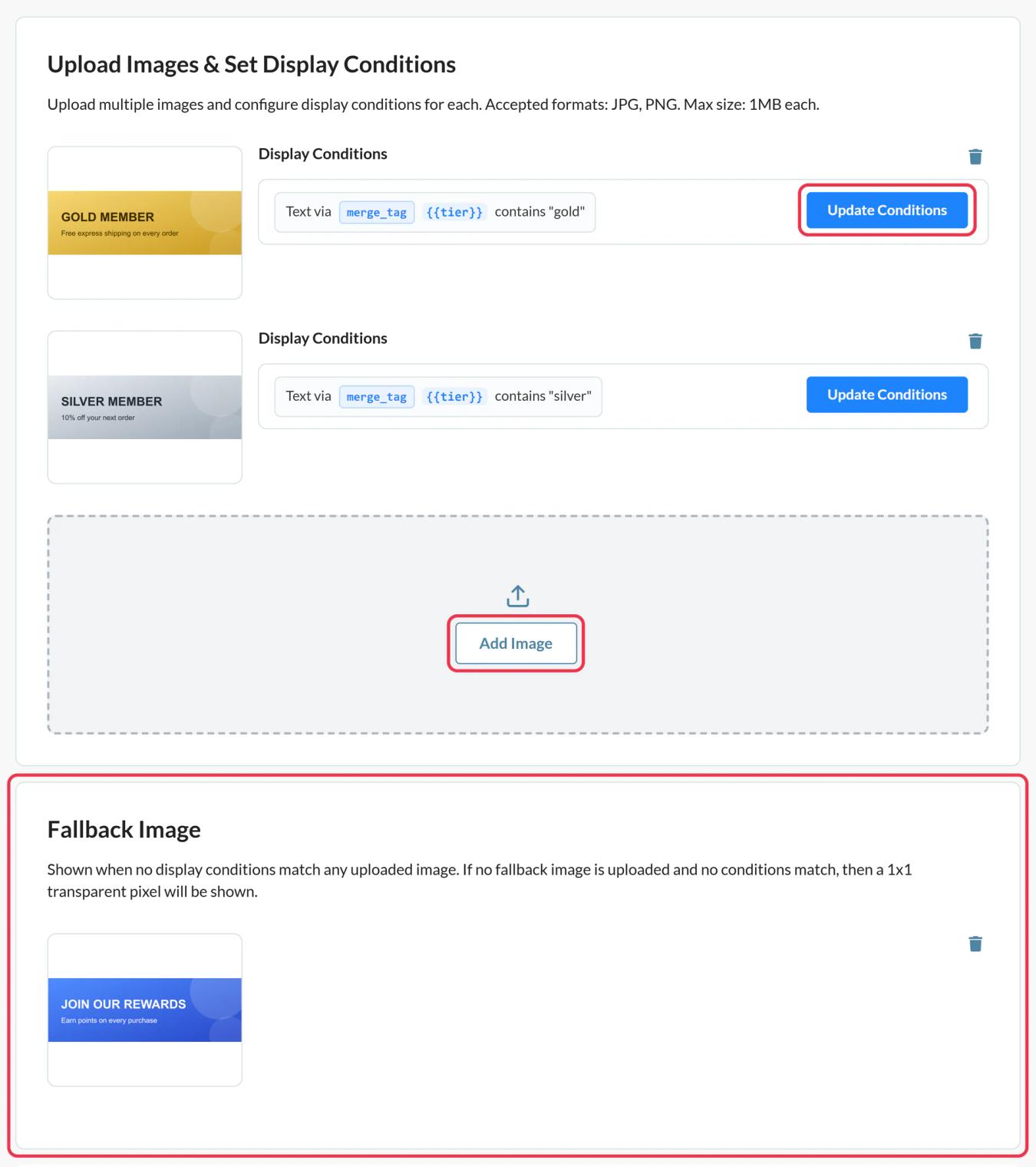
Step 1: Upload the images in priority order
In Sendtric, open Rule-based Images, click Create New, then use Add Image for each picture. Add them in the order you want them checked, because the first match wins and there's no way to reorder later. Uploads can be up to 1 MB each.
Step 2: Set the conditions
Click Update Conditions on each image card. In the Show This Image window, choose whether all conditions must match or any one of them, then click + Add condition. Every image needs at least one condition, because an image without one is never shown. Add a Fallback Image for opens that match nothing.
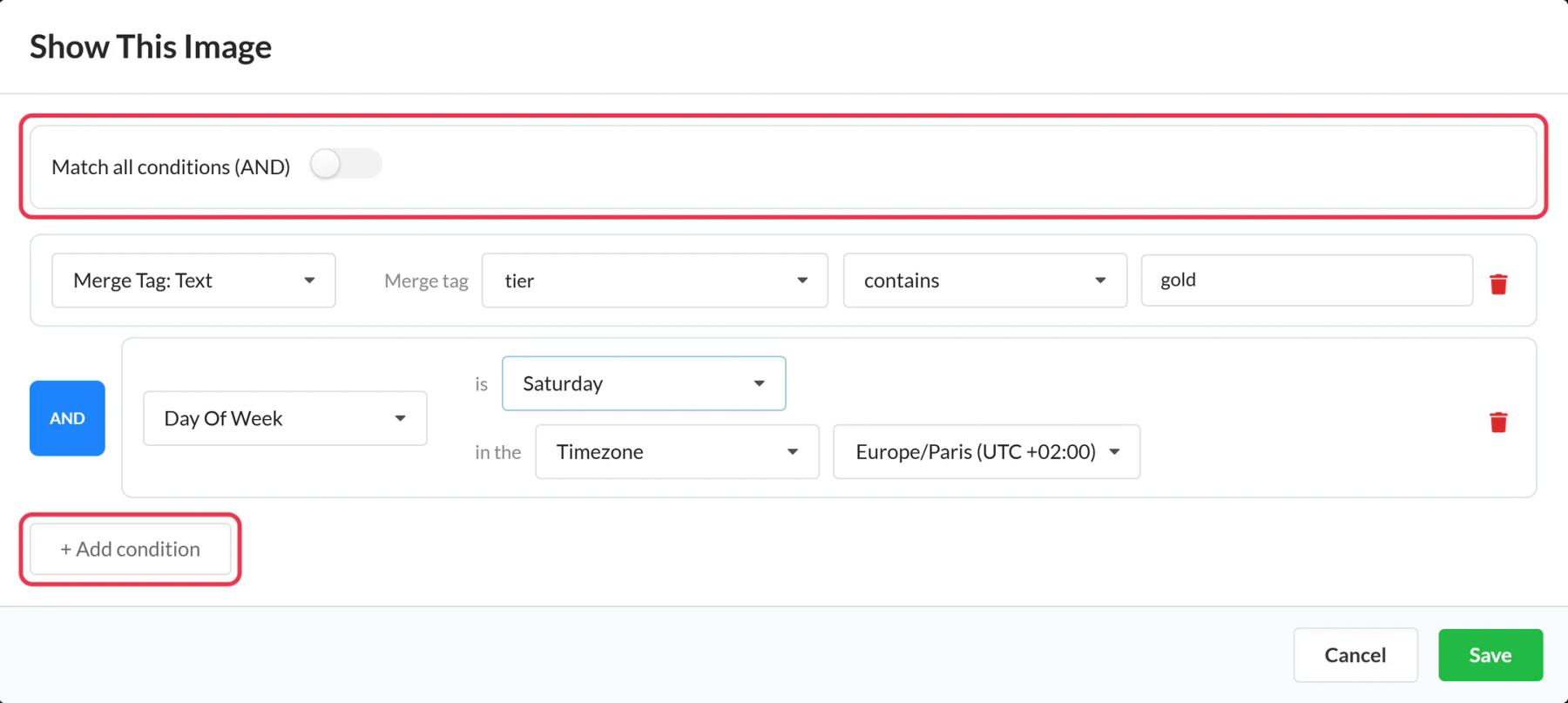
Time rules use a time zone you pick. To use each subscriber's own time zone, choose Dynamic Timezone and enter a Mailchimp audience field that holds zone names like America/New_York.
Step 3: Copy the code and swap in the Mailchimp tags
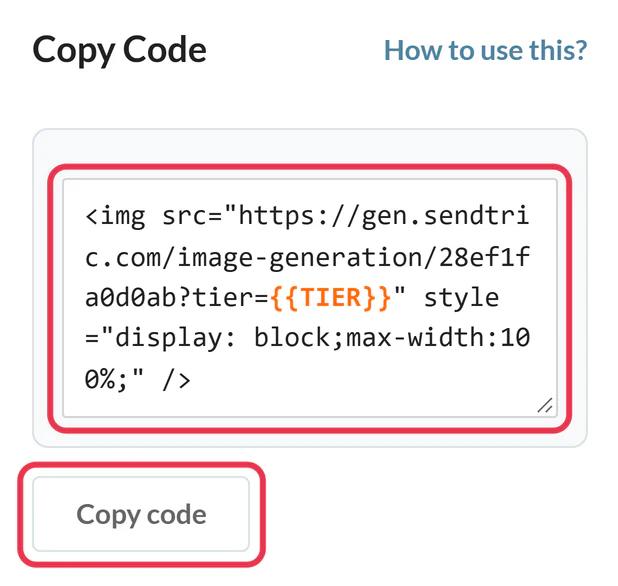
Save, then click Copy code. If any condition reads a merge tag, the code contains a placeholder in double curly braces for it. Replace each placeholder with the matching Mailchimp tag, for example *|TIER|* if your membership field uses the tag TIER.
Step 4: Paste it into a Code block
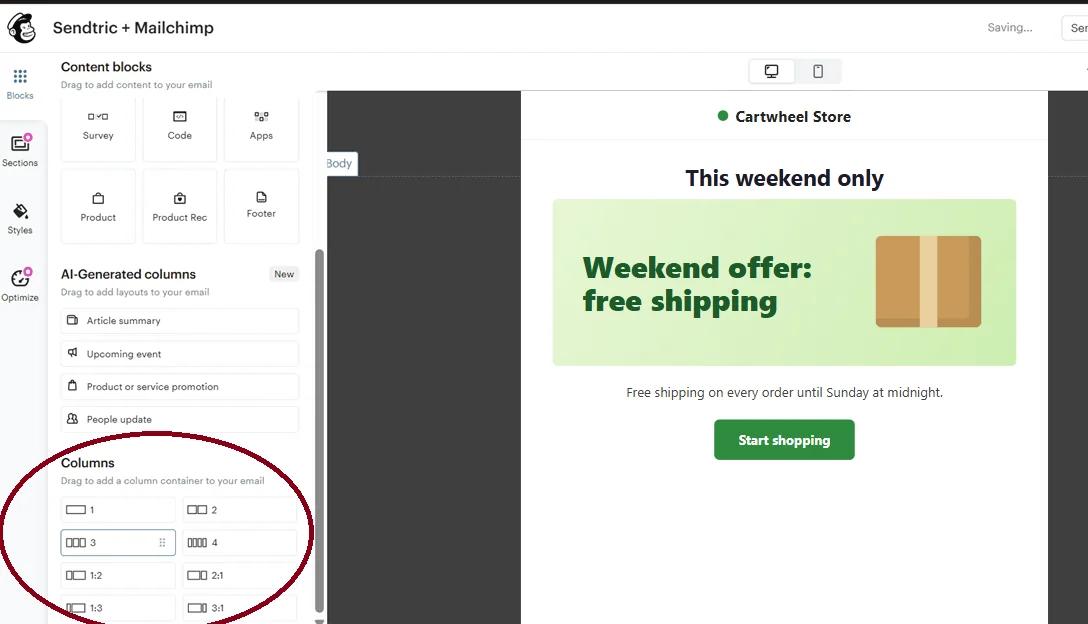
In the Mailchimp email builder, drag a Code block from Content blocks to where the image belongs, paste the code and save. To put the image next to text or a button, drop a Columns layout in first and place the Code block inside one column.
Step 5: Test each rule
In Sendtric, click Preview and use the simulation to try a date, time, device, email client and merge tag value without counting views. In Mailchimp, check merge tag rules with Enable live merge tag info in Preview, since audience merge tags aren't filled in test emails.
Rules versus Mailchimp dynamic content
If a choice only depends on who the subscriber is and you're on Mailchimp Standard or higher, Mailchimp's dynamic content can do it too. Reach for a rule-based image when the answer depends on when or where the email is opened, or when you want one block instead of several hidden ones.
Device rules and Gmail
Gmail loads images through its own servers, so device and email client rules can't always tell what the reader is using. For anything important, base the rule on a merge tag from your audience instead.
Mailchimp Rule-Based Images FAQ
Is the image picked when Mailchimp sends the campaign?
No. Mailchimp fills in the merge tags at send time, but Sendtric picks the image when the email is opened, and again on every later open. A subscriber who opens on Monday and again on Saturday can see two different images.
Are merge tag text conditions case sensitive?
No. "Gold", "gold" and "GOLD" in your audience field all match a condition that equals gold.
What happens if no rule matches?
Subscribers see your fallback image. Without one, nothing visible is shown, so the email doesn't display a broken image.
Can one of the images be a countdown timer or personalized image?
Yes. When you add an image, the media library has tabs for your timers, personalized images and weather widgets, so a rule can switch between widgets. See how to put one widget inside another.
Can I change the rules after sending?
Yes. Saving the rule-based image changes what every email using it shows on the next open, so you can fix a rule or swap a picture after the campaign is out.
This guide covers one piece of Sendtric's email personalization platform. For every rule-based images option and example, see the main page.
More Mailchimp guides
- Countdown Timers - Add Countdown Timers in Mailchimp
- Countdown Timers - Add Dynamic Timers in Mailchimp
- Live Polls - How to Add Live Polls to Mailchimp
- Personalized Images - How to Add Personalized Images to Mailchimp
- Dynamic Weather - How to Add Dynamic Weather to Mailchimp
- Critical Alerts - How to Add Critical Alerts to Mailchimp
- Social Proof Counters - How to Add Social Proof Counters to Mailchimp
Using a different platform? See all Sendtric integrations.
